
My hands already have enough to do. They type, edit, scroll, answer messages, move windows, and occasionally carry a coffee mug through dangerous airspace above a keyboard. Asking them to perform awkward three-key shortcuts all day feels a little unfair, especially when two perfectly serviceable feet are sitting under the desk with nothing on their calendar.
That is the wonderfully practical idea behind a macro foot stool: take an ordinary footrest, add oversized programmable buttons, connect them to a USB-capable microcontroller, and turn the space beneath a desk into a hands-free command center.
The result is part ergonomic accessory, part macro keyboard, and part homemade spaceship control panel. It can insert frequently used text, trigger application shortcuts, control media, mute a microphone, launch tools, or perform several keystrokes with one tap of a toe. More importantly, it can keep a user’s hands on the keyboard and attention on the work instead of sending both on a scavenger hunt through menus.
What Is a Macro Foot Stool?
A macro foot stool is a programmable computer input device built into, attached to, or positioned like a footrest. Instead of using a small desktop macro pad, the user activates large switches with a foot. Each switch can behave like a keyboard key, a keyboard shortcut, a media-control button, or a trigger for a longer sequence of commands.
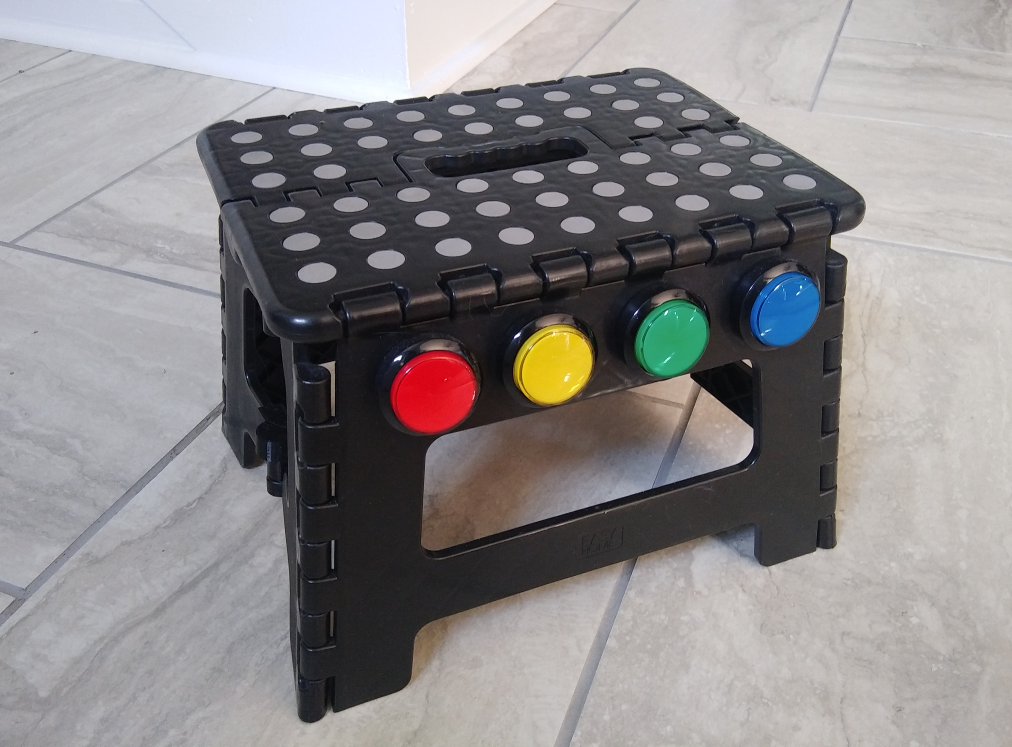
The best-known DIY example used a folding plastic step stool, four illuminated arcade buttons, an Adafruit ItsyBitsy M0 Express microcontroller, and CircuitPython. Although the physical stool had only four buttons, a bank system expanded the available controls to 20 potential macros. A long press selected a colored bank, while a normal press ran the command assigned to that button in the active bank.
That is a lot of computing power hiding beneath a pair of socks. It also demonstrates an important principle of custom input design: the number of physical buttons does not have to limit the number of available actions.
Why Put Macro Buttons Under the Desk?
It Saves Valuable Desktop Space
Traditional macro pads usually live beside the keyboard. That works beautifully until the desk is already occupied by notebooks, cables, coffee, reference material, headphones, and a cat who believes the entire surface was purchased as premium napping real estate.
A foot-operated macro keyboard uses space that often goes to waste. If a footrest is already necessary because the desk is tall or the chair must be raised, combining support and computer control can be a clever use of the same footprint.
It Helps Preserve Creative Momentum
Small interruptions can be surprisingly expensive during writing, coding, editing, or design work. Opening a menu, locating a command, moving a hand to the mouse, and returning to the keyboard may take only seconds, but it also breaks rhythm.
A foot macro can insert an HTML structure, apply a formatting shortcut, start a build, toggle a tool, or paste a prepared snippet without requiring the user to leave the primary typing position. No individual shortcut is likely to rescue an entire afternoon, but dozens of tiny improvements can make a workflow feel calmer and more continuous.
It Distributes Input Across More of the Body
Using a foot switch does not magically make a workstation ergonomic. It can, however, move selected repetitive actions away from the hands. That may be useful for people who dislike complicated modifier combinations or who want alternative ways to control software.
Foot controls also have a long history in music, transcription, industrial equipment, accessibility systems, and gaming. The concept is not unusual; the unusual part is giving an innocent-looking foot stool enough intelligence to type an anchor tag.
How the Macro Foot Stool Works
A Stable Stool Becomes the Enclosure
A folding plastic step stool makes an attractive starting point because it is inexpensive, sturdy, portable, and hollow enough to contain wiring. Some models can be disassembled and laid flat, making it easier to drill clean openings for buttons.
The enclosure must remain structurally sound. Button placement should avoid hinges, locking mechanisms, reinforcement ribs, and areas that carry the user’s weight. Electronics and wires should also be protected from folding joints and moving parts. A shortcut button is useful; a shortcut to crushed wiring is less impressive.
Large Arcade Buttons Improve Targeting
Feet are excellent at walking, balancing, and finding the sharpest object on a dark floor. They are less talented at accurately pressing tiny keyboard switches. Large arcade buttons provide a broad target that can be located by touch without repeatedly looking under the desk.
Illuminated buttons add visual feedback. A brief flash can confirm that a command was registered, while a continuously lit button can indicate the active macro bank. Different colors also make banks easier to remember: red for writing snippets, blue for media controls, green for application commands, and yellow for miscellaneous powers that have not yet received responsible adult supervision.
A Microcontroller Pretends to Be a Keyboard
The controller is the bridge between the physical switches and the computer. Boards that support USB Human Interface Device functionality can identify themselves as keyboards, mice, or media controllers. In many cases, the computer does not need a special driver because it simply sees another standard input device.
CircuitPython is especially approachable for this kind of project. A compatible board typically appears as a small storage drive when connected. The user can edit a Python file, save it, and test the new behavior without building a large software project from scratch.
Other options include QMK firmware, Arduino-compatible boards with native USB support, Raspberry Pi Pico hardware running suitable firmware, commercial foot pedals, or software utilities that remap unusual key codes to complex actions.
Macro Banks Multiply the Available Commands
A four-button layout is easy to operate with the feet, but four commands may feel restrictive. Macro banks solve that problem by allowing the same button to perform different actions in different modes.
For example, a normal press might execute a command, while holding a button changes the active bank. Four buttons combined with a default mode and four selectable modes provide 20 command positions. The system remains physically simple while gaining enough capacity for several applications.
Useful Macro Ideas for Real Work
For Writers and Web Editors
- Insert commonly used HTML tags or content blocks.
- Create an anchor element and place the cursor between quotation marks.
- Apply heading, bold, link, or quotation formatting.
- Open a notes application for capturing a passing idea.
- Trigger preview, save, publish-draft, or revision-history commands.
A carefully designed text macro should do more than dump characters onto the screen. It can also move the cursor to the correct editing position, allowing the user to continue typing immediately.
For Programmers
- Run a build, test suite, formatter, or deployment script.
- Insert a frequently used code structure.
- Toggle a terminal, debugger, or file explorer.
- Move between editor panels.
- Trigger source-control commands that have already been reviewed.
Destructive operations should not be assigned to easy single taps. A foot button labeled “delete production database” is less a productivity tool and more a future incident report.
For Video, Audio, and Meetings
- Mute or unmute the microphone.
- Start or stop recording.
- Play, pause, rewind, or advance media.
- Switch scenes in streaming software.
- Activate push-to-talk without removing a hand from the keyboard or controller.
For Accessibility and Customized Control
Large external switches can provide alternatives to conventional keyboards and mice. A macro foot stool is not a universal accessibility solution, but its customizable layout demonstrates how input can be adapted around an individual rather than forcing every individual to adapt to the same keyboard.
Button size, resistance, placement, feedback, and required movement should all be selected for the actual user. Some people may prefer foot control, while others may benefit more from hand switches, voice input, head controls, adaptive buttons, or a combination of methods.
Planning a DIY Macro Foot Stool
1. Identify Repetitive Actions First
Do not begin by assigning commands at random. Observe a normal workday and record actions that occur frequently, interrupt concentration, or require uncomfortable key combinations. The best macros solve genuine friction rather than creating a complicated machine that proudly automates something performed twice a year.
2. Choose a Safe, Stable Base
Select a stool or enclosure that does not slide easily. Confirm that it can still support its intended load after modification. If the device will sit against a wall, check that cables and connectors are not crushed. Non-slip feet or a rubber mat may help keep the unit in position.
3. Test Button Placement Before Drilling
Use paper circles or removable tape to simulate the button locations. Sit normally and practice reaching each position with both feet. The user should not need to twist a knee, lift a leg for long periods, or stare under the desk before every press.
4. Match the Switch to the User
Barefoot users may prefer broad, lightly sprung arcade buttons. People wearing shoes may want stronger switches or traditional metal stompbox controls. The ideal resistance is firm enough to prevent accidental activation but light enough to avoid repeated straining.
5. Protect the Electronics
Mount the controller securely inside the enclosure. Insulate exposed connections, add strain relief to the USB cable, route wires away from hinges, and prevent solder joints from carrying mechanical stress. Plug-in terminals can simplify repairs and future changes.
6. Build a Simple First Version
Start with one bank and a few harmless commands. Test for accidental double presses, stuck keys, unreliable switches, and confusing button assignments. Add LEDs, long-press detection, multiple banks, or application-specific modes only after the basic system works consistently.
7. Label and Document Everything
Even memorable color systems become mysterious after a few weeks. Keep a small command chart, label the USB cable, and comment the code. Future you is technically the same person, but future you has forgotten where the blue wire goes and is becoming increasingly suspicious of past you.
Ergonomics Still Matter
A conventional footrest should support the feet when they cannot rest comfortably on the floor. A programmable version should preserve that basic purpose rather than forcing the user into a strange posture.
The stool should be positioned so the thighs remain supported, the feet have room, and the user can sit close enough to the keyboard without reaching. Activating a button should involve a small, comfortable movement. The foot should not remain suspended above a switch, and the user should not repeatedly rotate the hip or lean sideways.
It is also important to change position and move throughout the day. No chair, keyboard, pedal, or expensive device can make hours of motionless sitting ideal. Stand up periodically, walk, stretch, and reconsider any control that causes discomfort. Persistent pain, weakness, numbness, or tingling deserves professional evaluation rather than another layer of macros.
Potential Drawbacks
A macro foot stool takes time to learn. Early presses may activate the wrong bank, launch the wrong shortcut, or produce a sentence containing several surprise HTML tags. Muscle memory improves with practice, particularly when related functions are grouped logically.
Portability can also be limited. A full-size stool is more difficult to carry than a compact desktop macro pad. Cables can become tangled, and a lightweight enclosure may slide unless it is braced or fitted with non-slip material.
Software behavior varies between operating systems and applications. A shortcut that works in one program may do something completely different in another. Macros should therefore be tested in the intended environment, especially before assigning commands that close files, submit forms, delete content, or send messages.
Why This Odd Little Project Is So Appealing
The macro foot stool is not compelling because everyone urgently needs a keyboard under the desk. It is compelling because it turns a personal annoyance into a custom tool.
Instead of buying another generic accessory, the builder examines a real workflow, identifies wasted movement, and creates an input device around it. The result can evolve as the work changes. A writing bank can become a video-editing bank. A media button can become a meeting control. The same hardware can keep learning new tricks without demanding another square inch of desktop territory.
That combination of simplicity, adaptability, and mild absurdity is difficult to resist. It is practical enough to use every day and strange enough to make visitors ask why the furniture is glowing.
Experience Notes: A Week With a Macro Foot Stool
The first day with a macro foot stool would probably involve more thinking than time-saving. Every command requires a conscious pause: Which color bank is active? Was the anchor-tag shortcut assigned to the second button or the third? Did that flash mean the command ran, or did the stool just wink?
That learning period is normal. A new physical control must become part of muscle memory before it disappears into the workflow. The best approach is to begin with four actions that are frequent, easy to verify, and harmless when triggered accidentally. Save, mute, play or pause, and a commonly used text snippet make better training commands than close-window, submit-form, and permanently-delete-everything.
By the second or third day, the controls begin to feel less like a gadget and more like part of the desk. The most useful button is not necessarily the most sophisticated one. A simple microphone toggle can be surprisingly satisfying during a day packed with online meetings. One toe press replaces a frantic search for a tiny on-screen icon while someone asks, “Are you still there?”
For writing work, text snippets create the clearest sense of momentum. Imagine typing an article, tapping a button, and instantly receiving a properly structured heading element. Another tap inserts a link template and positions the cursor where the address belongs. The savings may be only a few seconds, but the mind never leaves the sentence long enough to start wondering whether the refrigerator contains anything interesting.
Button placement becomes more important over longer sessions. Controls that looked perfectly aligned during construction may require too much ankle movement in actual use. Moving the stool slightly closer, bracing it against a stable surface, or rearranging the most common commands can make the difference between effortless tapping and an awkward game of under-desk Twister.
The bank system also benefits from restraint. Twenty possible macros sound irresistible, but filling every position immediately creates a memorization problem. A more successful strategy is to let the layout grow naturally. When the same interruption occurs several times, it earns a button. Until then, the empty slots can remain empty. Unused macro capacity is not failure; it is storage space waiting for a genuinely useful idea.
After a week, the strongest benefit is likely to be continuity rather than raw speed. The user remains centered at the keyboard, reaches for the mouse less often, and handles routine commands without breaking concentration. The stool does not complete the work, invent brilliant ideas, or prevent deadlines from arriving with suspicious enthusiasm. It simply removes a handful of tiny obstacles.
That is enough to make the project worthwhile. Good productivity tools rarely feel dramatic after the novelty fades. They become quiet, dependable parts of the environment. Eventually, tapping a glowing button with a toe feels completely normaland returning to a desk with an ordinary, unemployed footrest feels oddly primitive.