
If your desktop currently looks like a Word-document support group, you are not alone. One file has the introduction, another has the edits from your boss, a third has “FINAL,” and a fourth has “FINAL-final-please-use-this-one.” At some point, you stop writing and start archaeology. The good news is that Microsoft Word gives you several smart ways to merge documents, and the best option depends on what kind of chaos you are dealing with.
Sometimes you simply want to combine separate files into one polished document. Other times, you need to merge revisions from multiple reviewers without losing track of who changed what. And occasionally, you just need to grab a few pages from another file without destroying your formatting, page numbers, headers, footers, or sanity. This guide breaks down exactly how to merge documents in Microsoft Word, when to use each method, and how to avoid the formatting disasters that make people consider switching careers.
What “merge documents” means in Microsoft Word
Before clicking anything, it helps to know that Word supports more than one kind of merge. That is where many people get tripped up.
- Combining files into one document: This is the classic “put Document A, B, and C into one file” situation.
- Merging revisions: This is for combining edits from different reviewed versions of the same document.
- Copying sections manually: This works well for short chunks when you want more control.
- Linking or advanced document structures: Useful in niche cases, especially for long reports or multi-part documents.
Also, one quick but important clarification: document merging is not the same thing as Mail Merge. Mail Merge is for generating personalized letters, labels, or emails from a data source. Document merging is about combining content from one Word file into another. Similar name, very different beast. Word loves making that confusing, apparently for cardio.
Method 1: Use “Text from File” to combine separate Word documents
If you have multiple Word files and want them all in one master document, this is usually the best method. In modern versions of Word, the path is typically Insert > Object > Text from File. This lets you insert one or more documents directly into the file you are building.
When this method works best
- You are combining chapters, reports, meeting notes, or sections of one project.
- You want everything in a single editable Word document.
- You do not need tracked changes from reviewers preserved as separate revision histories.
How to do it
- Open the Word document that will become your main file.
- Place your cursor exactly where you want the next file to appear.
- Go to Insert.
- Choose Object, then select Text from File.
- Select the document you want to insert.
- Repeat for each additional file, in the order you want them to appear.
This method is fast, clean, and much better than opening five files and doing an endless copy-paste relay race. It is especially handy for long documents because you can insert content precisely where you want it instead of dumping everything into one giant text blob.
The catch: formatting may not stay identical
Here is where Word gets a little dramatic. When you insert documents into another file, the formatting may not remain exactly the same. Styles, margins, page orientation, headers, footers, and section settings can shift depending on the destination document. If your files use different styles or page setups, Word may try to “help,” which is often how formatting goes from elegant to cursed.
That does not mean you should avoid this method. It just means you should prepare for it properly, which we will cover in a minute.
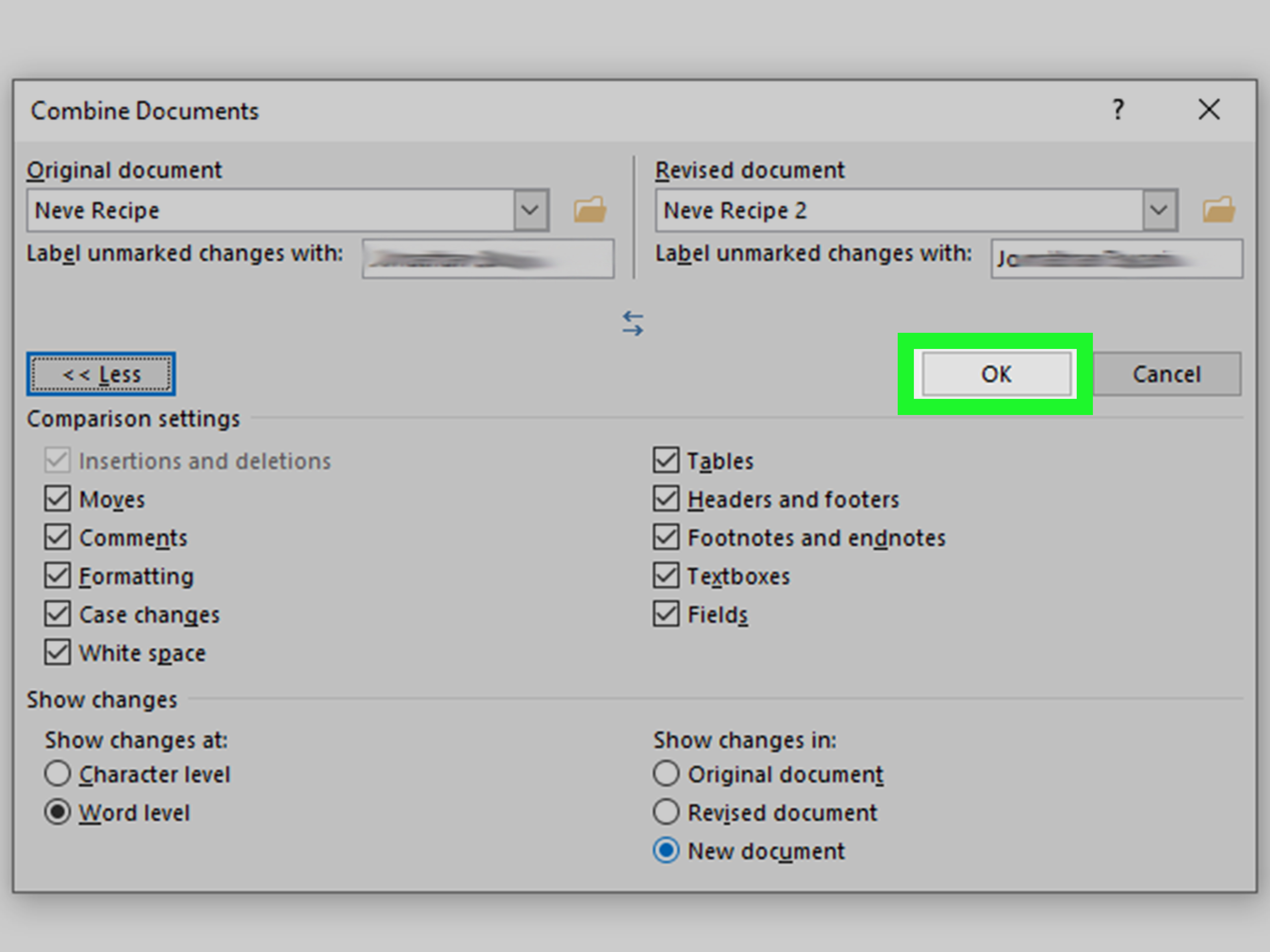
Method 2: Use “Compare > Combine” to merge revisions from multiple reviewers
If several people edited the same document and sent back separate versions, do not manually hunt through each file like a digital detective. Word has a built-in Compare and Combine feature specifically for this.
When this method works best
- You sent out one original document for review.
- Multiple people returned edited copies.
- You want to merge changes while keeping revision marks visible.
How to do it
- Open Microsoft Word.
- Go to the Review tab.
- Click Compare.
- Select Combine or Combine Documents.
- Choose the Original document.
- Choose the Revised document.
- Add a label for unmarked changes if you want to identify the reviewer.
- Choose whether changes appear in a new document, the original document, or the revised document.
- Click OK.
Need to merge more than one reviewed copy? Keep going one file at a time. Save the combined result, then run Combine again using that newly combined file as the new original. It is not flashy, but it works surprisingly well for team edits, legal drafts, policy documents, and any file where tracking changes matters more than just smashing everything together.
Why this method is underrated
The Compare/Combine workflow is far better than trying to manually accept edits from several versions. Word can label changes, show insertions and deletions, and build a master version with tracked revisions intact. If you are dealing with collaborative editing, this is the grown-up option.
Method 3: Copy and paste for short sections only
Yes, you can still copy and paste. No, it is not always a terrible idea. For small chunks of content, it may actually be the simplest path. The trick is to use the right paste option instead of blindly hitting Ctrl+V and hoping for the best.
Best use cases
- You only need a paragraph, table, or short section.
- You want precise placement.
- You want control over whether formatting stays or changes.
The paste options that matter
- Keep Source Formatting: Keeps the original look of the copied content.
- Merge Formatting: Blends pasted text into the style of the destination document while preserving some emphasis such as bold or italics.
- Keep Text Only: Strips formatting completely and pastes plain text.
If your document is turning into a patchwork quilt of fonts, spacing, and mysterious indents, Merge Formatting or Keep Text Only is often the fix. If you need to preserve special formatting from the original file, use Keep Source Formatting.
How to preserve formatting when combining Word files
This is the part most people really care about. Combining files is easy. Combining files without creating a formatting crime scene is the real skill.
1. Use section breaks before inserting files
If different parts of your final document need different page setups, headers, footers, margins, or orientations, insert a section break before bringing in new content. Go to Layout > Breaks and choose the right type, usually Next Page for major transitions.
Section breaks are essential when one inserted file has landscape pages, another uses different page numbering, or a chapter needs a different header. Without section breaks, Word may apply one section’s settings to another, which is how page numbers suddenly start acting like they have personal grievances.
2. Check headers and footers immediately
After merging, double-click the header or footer area and inspect each section. If Word is linking sections together in ways you do not want, turn off Link to Previous. This is especially important when preserving chapter titles, distinct section headers, or different footer layouts.
3. Turn on Show/Hide formatting marks
If page breaks, section breaks, and extra paragraph marks are causing weird spacing, use Show/Hide on the Home tab. Seeing the invisible formatting marks often reveals exactly why your document is misbehaving. Word is much less mysterious when you can see the skeleton.
4. Standardize styles before or after the merge
If your source documents were created by different people, they may all define heading styles differently. One person’s “Heading 1” may be bold blue 18-point text, while another’s looks like a law firm wrote it in 1998. Before finalizing the document, normalize your styles so headings, body text, spacing, and lists match throughout.
5. Use page breaks and section breaks intentionally
Do not mash the Enter key fifteen times to push content to the next page. That is not formatting; that is a cry for help. Use proper page and section breaks so your document stays stable when content shifts.
How to review two documents before merging
If you are not sure whether you should combine, compare, or just steal a paragraph and move on, review the documents side by side first. Word includes a side-by-side viewing option, and it is helpful for checking structure, spotting major differences, and deciding which merge method makes sense.
This is especially useful when comparing drafts, contracts, resumes, reports, and policies. You can visually inspect what changed before deciding whether a clean insert or a revision-based combine is the right move.
What about a master document?
For very large projects like books, manuals, or multi-part technical documentation, Word has a master document concept that can manage separate files as subdocuments. In theory, this is great for multi-chapter work, tables of contents, and cross-references across parts of a large project.
In practice, this is an advanced option and not always the best fit for everyday users. It can be useful, but it is also something to approach carefully, especially in collaborative environments. For most people, using Text from File, section breaks, and a final cleanup pass is simpler and more reliable.
Common problems when merging Word documents
Fonts suddenly change
This usually happens because the destination document’s styles take over. Try pasting with Keep Source Formatting, or standardize your styles after the merge.
Page numbers restart
This is usually a section issue. Check your section breaks and page numbering settings. In many cases, you want numbering to continue from the previous section.
Headers and footers duplicate or disappear
Inspect section settings and turn Link to Previous on or off as needed. Headers and footers are section-based, not document-based.
Spacing looks weird
Turn on formatting marks. You may have extra paragraph marks, hidden page breaks, or odd section breaks.
Tracked changes become messy
If you are combining edits from reviewers, use Review > Compare > Combine rather than inserting documents as plain content.
Best practices for a clean final document
- Save backup copies before merging anything.
- Name your files clearly so you know which version is original and which is revised.
- Use section breaks for chapters, appendix pages, or different layouts.
- Review headers, footers, page numbers, and table of contents after combining.
- Use styles consistently across all source documents.
- Decide early whether you need a content merge or a revision merge.
A practical example
Let’s say you are building a quarterly report from four team documents: introduction, sales results, operations summary, and recommendations. If each person wrote a separate file, you would create a blank master file, add section breaks where each section should begin, and use Insert > Object > Text from File to pull each one in.
Now imagine your manager and legal team both edited the recommendations section and sent back separate versions. That is where you stop using Text from File and switch to Review > Compare > Combine for that section’s revisions. In other words, the smartest workflow may involve more than one merge method in the same project.
Experience: What merging Word documents is actually like in real life
If you work with Word often, you eventually learn that merging documents is less about pressing one magic button and more about understanding what kind of mess you are cleaning up. The first time most people combine files, it feels wonderfully easy for about twelve seconds. Then the fonts change, the page numbers revolt, and the footer from page 37 somehow ends up on page 2 like it hitched a ride in the trunk.
In real-world projects, the hardest part is rarely the merge itself. The hard part is that the documents were created by different humans with different habits. One person uses proper heading styles. Another makes headings by manually bolding text and enlarging the font. One writer uses page breaks. Another just taps Enter until the next section lands roughly where fate intended. By the time those files land in one master document, Word is not being evil; it is simply reacting to the chaos it has been fed.
That is why experienced users develop a rhythm. First, they save backup copies because bravery is nice, but backups are nicer. Next, they decide what type of merge they actually need. If the files are separate chapters, Text from File is fast and efficient. If the files are competing edited versions of the same chapter, Compare > Combine is the only sensible choice. That one decision alone saves a shocking amount of cleanup time.
Another lesson that comes with experience is that section breaks are not optional for serious documents. They are the quiet heroes of Word. Once you understand sections, you stop treating headers, footers, page orientation, and page numbering like random weather events. You realize they are all connected. Suddenly, the document feels less haunted.
There is also a psychological shift that happens after you have merged enough files. You stop trusting what the page looks like at first glance and start checking the structure underneath. You turn on formatting marks. You inspect styles. You click into headers and footers section by section. You stop asking, “Why is Word doing this to me?” and start asking, “What setting did this document inherit?” That is the moment you graduate from casual user to someone who can survive a 120-page report with dignity intact.
And honestly, that is the best advice of all: merging documents in Microsoft Word gets dramatically easier once you stop expecting one button to solve every scenario. Word gives you the tools. The trick is choosing the right one for the right job, then doing a short cleanup pass before calling the document finished. That is not glamorous, but it is how polished documents are made.
Final thoughts
If you need to merge documents in Microsoft Word, the best method depends on your goal. Use Text from File when you want to combine separate documents into one file. Use Compare > Combine when you need to merge edits from reviewed versions. Use copy and paste only for short sections where you want maximum control.
Most of the frustration people feel around combining Word files is not because Word lacks the feature. It is because the wrong feature gets used for the job. Once you match the method to the situation and manage section breaks, styles, and paste formatting properly, merging documents becomes a whole lot less painful and a lot more professional.
SEO Tags