
Has your iPhone suddenly decided that every photo should look like it came from a sci-fi scanner? White became black, blue became orange, and your wallpaper now looks like it has joined a mysterious underground art movement. Don’t panic. In most cases, your screen is not broken, haunted, or judging your app choices. Color inversion is usually just an iPhone accessibility setting called Smart Invert or Classic Invert.
The good news: turning it off is quick. The even better news: once you know where the setting lives, you can fix it faster than your phone can autocorrect “okay” into “okra.” This guide explains how to turn off color inversion on an iPhone in four simple steps, why it may have turned on, and what to check if your iPhone keeps switching colors again.
What Is Color Inversion on an iPhone?
Color inversion is an accessibility feature that changes how colors appear on your iPhone screen. It is designed to help some users read text more comfortably, reduce glare, or make screen content easier to distinguish. When color inversion is on, your iPhone may display dark backgrounds, unusual app colors, inverted icons, or photos that look strange depending on which version of inversion is enabled.
Smart Invert vs. Classic Invert
There are two main types of color inversion on iPhone:
- Smart Invert: Reverses many screen colors while trying to leave images, videos, and some dark-style apps looking normal.
- Classic Invert: Reverses nearly everything on the screen, including many images and interface colors.
If your photos look like negatives or your app icons look wildly different, Classic Invert may be turned on. If most menus look inverted but photos seem mostly normal, Smart Invert may be the culprit.
How to Turn off Color Inversion on an iPhone: 4 Simple Steps
Follow these steps to disable color inversion on most modern iPhones running recent versions of iOS.
Step 1: Open the Settings App
Start from your Home Screen or App Library and tap the Settings app. It has the gray gear icon. If your screen colors are inverted, the icon may look a little odd, but it should still be easy to recognize.
Step 2: Tap Accessibility
Scroll down and tap Accessibility. This section contains iPhone features for vision, hearing, physical interaction, speech, and general usability. Color inversion is part of the visual display settings.
Step 3: Go to Display & Text Size
Inside Accessibility, tap Display & Text Size. This menu includes display options such as Larger Text, Bold Text, Button Shapes, Reduce Transparency, Increase Contrast, Color Filters, Reduce White Point, Smart Invert, and Classic Invert.
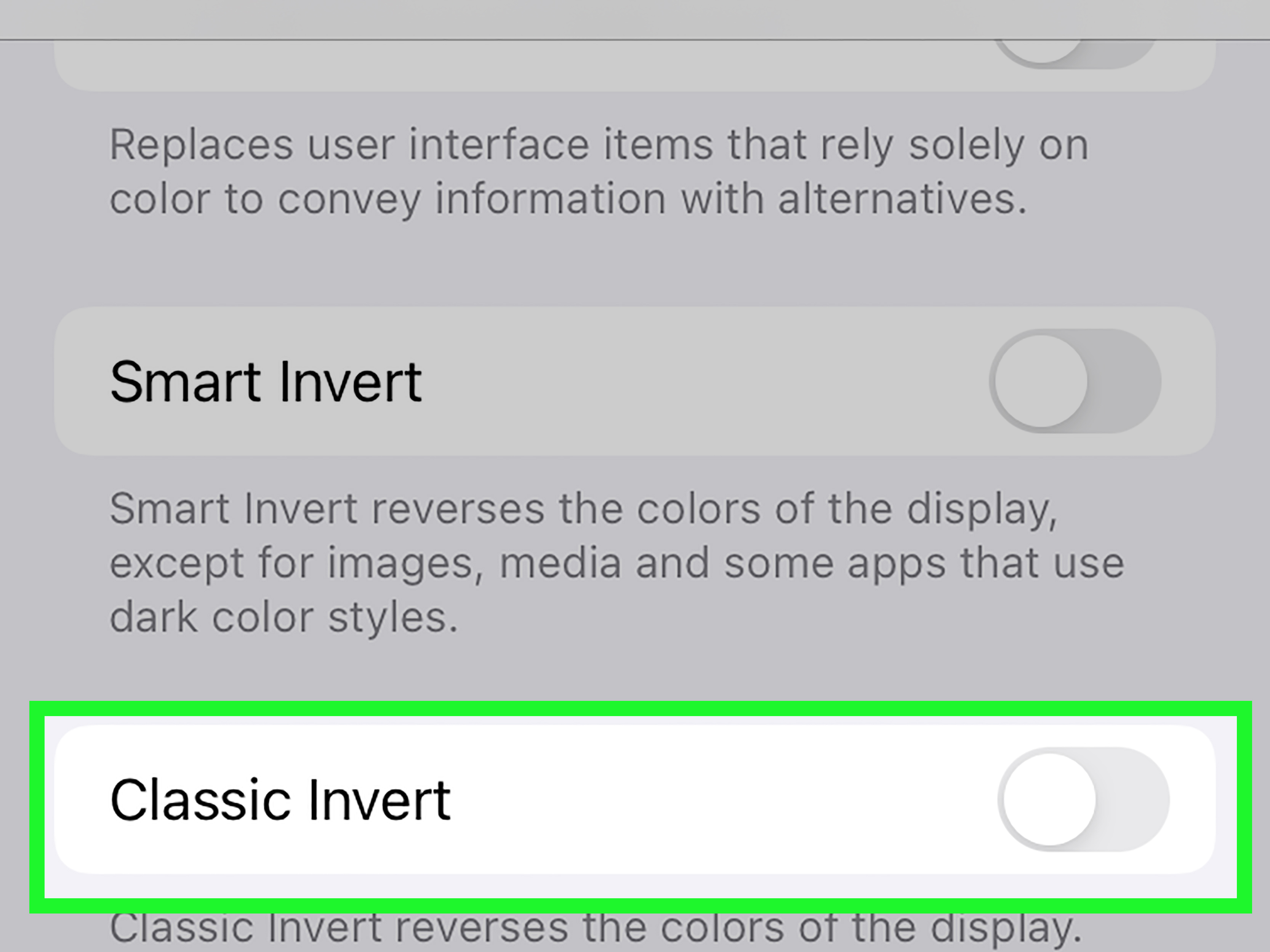
Step 4: Turn off Smart Invert and Classic Invert
Scroll until you see Smart Invert and Classic Invert. If either switch is green, tap it to turn it off. When both switches are off, your iPhone screen should return to normal colors immediately.
In short, the path is:
Settings > Accessibility > Display & Text Size > Smart Invert / Classic Invert > Off
Why Did My iPhone Colors Suddenly Invert?
If color inversion appeared out of nowhere, it probably was not random. iPhones do not usually wake up and think, “Today feels like negative-photo day.” The setting may have been triggered by a shortcut, an accessibility configuration, or someone exploring the Settings app.
1. The Accessibility Shortcut Was Triggered
Many iPhones can turn accessibility features on or off when you triple-click the Side button or Home button. If Smart Invert or Classic Invert is assigned to this shortcut, three quick button presses can toggle color inversion.
To check this, go to Settings > Accessibility > Accessibility Shortcut. If Smart Invert or Classic Invert is selected, tap it to remove the checkmark. This can prevent color inversion from turning on accidentally again.
2. Someone Changed Display Settings
If your child, friend, sibling, or curious future tech reviewer borrowed your phone, they may have enabled the setting while exploring Accessibility options. This is especially common because color inversion creates an instant visual change, which makes it tempting to tap.
3. Color Filters or Zoom Filters May Be Confused With Inversion
Sometimes the problem is not color inversion at all. If your iPhone screen looks black and white, tinted, washed out, or unusually dim, check Color Filters, Reduce White Point, and Zoom Filter. These settings can also dramatically change how your display looks.
What to Do If Turning off Invert Colors Does Not Fix the Screen
If Smart Invert and Classic Invert are already off but your screen still looks strange, try the following troubleshooting checks.
Check Color Filters
Go to Settings > Accessibility > Display & Text Size > Color Filters. If Color Filters is on, turn it off. This setting can make the display grayscale or apply a color tint, which many users mistake for inverted colors.
Check Reduce White Point
In the same Display & Text Size menu, look for Reduce White Point. If it is turned on, your screen may appear dimmer or less vibrant. Turn it off to restore normal brightness intensity.
Check Zoom Filter
Go to Settings > Accessibility > Zoom > Zoom Filter. If the filter is set to Grayscale, Inverted, or Low Light, change it to None. Zoom filters can affect the screen even when you are not intentionally using Zoom.
Restart Your iPhone
If the settings look correct but the display still seems wrong, restart your iPhone. A simple reboot can clear minor software glitches. On many newer iPhones, press and hold the Side button and either volume button, then slide to power off. After a short pause, turn the iPhone back on.
Update iOS
If your iPhone is running an older iOS version, updating can help fix display bugs and improve accessibility behavior. Go to Settings > General > Software Update and install any available update after backing up important data.
How to Stop Color Inversion From Turning On Again
Turning off color inversion is helpful. Keeping it from returning like an unwanted pop-up villain is even better.
Remove It From Accessibility Shortcut
The most common reason color inversion returns is the triple-click shortcut. Go to Settings > Accessibility > Accessibility Shortcut. If Smart Invert or Classic Invert is checked, uncheck it. If multiple options are selected, triple-clicking may open a menu instead of immediately toggling one feature.
Review Back Tap Settings
Some users assign accessibility actions to Back Tap. To check, go to Settings > Accessibility > Touch > Back Tap. Review both Double Tap and Triple Tap. If either is set to Smart Invert, Classic Invert, or an accessibility shortcut that includes inversion, change it to None or another action.
Check Action Button Settings on Supported iPhones
On iPhone models with an Action Button, review whether the button is linked to Accessibility or a shortcut that toggles display settings. Go to Settings > Action Button and check the selected action. If needed, switch it to Silent Mode, Camera, Flashlight, or another preferred feature.
Smart Invert, Dark Mode, and Night Shift: What Is the Difference?
iPhone display settings can sound similar, but they do different things. Understanding the difference helps you choose the right feature instead of accidentally sending your screen into “modern art exhibit” mode.
Smart Invert
Smart Invert reverses many display colors while trying to preserve images, videos, and some apps that already use dark designs. It can be useful when an app or website does not offer a dark appearance.
Classic Invert
Classic Invert is more aggressive. It reverses nearly all colors on the screen. This may help some users with visibility, but it can make photos, graphics, and videos look unnatural.
Dark Mode
Dark Mode changes supported apps and system menus to darker color themes without fully reversing screen colors. To use it, go to Settings > Display & Brightness and choose Dark. For most people who simply want a less bright screen at night, Dark Mode is the better option.
Night Shift
Night Shift adjusts your display to warmer colors, especially in the evening. It does not invert colors. It simply reduces cooler blue tones, which can make the screen feel softer in low light.
Common Questions About Turning off Inverted Colors on iPhone
Why do my iPhone photos look like negatives?
Your photos may look like negatives because Classic Invert is turned on. Go to Settings > Accessibility > Display & Text Size and turn off Classic Invert. Also check Smart Invert if the display still looks unusual.
Why is my iPhone screen black and white?
A black-and-white screen is usually caused by Color Filters or a Zoom Filter, not color inversion. Check Settings > Accessibility > Display & Text Size > Color Filters and Settings > Accessibility > Zoom > Zoom Filter.
Can Siri turn off color inversion?
Siri may be able to open relevant settings or adjust some accessibility features depending on your iOS version and configuration. However, the most reliable method is to manually go through Settings and turn off Smart Invert or Classic Invert.
Is color inversion bad for my iPhone?
No. Color inversion is a software display feature. It does not damage your screen, camera, photos, apps, or battery. It only changes how colors are displayed while the feature is enabled.
Will turning off color inversion delete anything?
No. Turning off Smart Invert or Classic Invert will not delete photos, messages, apps, contacts, or settings. It simply restores normal color display.
Practical Experience: What It Feels Like to Fix Color Inversion on an iPhone
The first time color inversion turns on by accident, it can feel more dramatic than it really is. One moment your iPhone looks normal; the next, your screen resembles a digital X-ray of your daily life. Messages look strange, photos look suspicious, and every app icon seems to have made a questionable fashion decision. The natural reaction is to assume something serious happened to the display.
In real-world use, the fix is usually much simpler. Most people discover the issue after accidentally triple-clicking the Side button, letting someone else use their phone, or experimenting with Accessibility settings. The key is not to start changing random display options in panic mode. Random tapping can make the problem more confusing because Color Filters, Reduce White Point, Zoom, Dark Mode, True Tone, and Night Shift can all change the look of the screen in different ways.
A calm, step-by-step approach works best. First, check Smart Invert and Classic Invert. These are the most direct causes of inverted colors. If one of them is on, the screen usually returns to normal the moment you switch it off. That instant correction is a big clue that the hardware was fine all along. Your iPhone was not broken; it was simply following an instruction.
Another useful lesson is to check shortcuts after fixing the display. Many users turn off inversion but forget to remove it from Accessibility Shortcut. Then, a few days later, the colors flip again after another accidental triple-click. That creates the impression that the phone is “doing it by itself.” In reality, the shortcut is still active. Removing Smart Invert and Classic Invert from the shortcut menu prevents repeat surprises.
If you often use your iPhone at night, you may be tempted to use Smart Invert as a quick dark mode. It can work in some apps, but it is not always elegant. Some websites look great; others look like they were designed during a power outage. For everyday comfort, Dark Mode, Night Shift, and brightness control usually feel more natural. Smart Invert is best kept as a specialized tool rather than a permanent display style.
The biggest takeaway from hands-on troubleshooting is this: iPhone display problems are not always screen problems. Before assuming the hardware is damaged, check Accessibility settings. A few toggles can completely transform the display, and a few more taps can bring it back. Once you know the path, fixing inverted colors becomes a 30-second task instead of a miniature technology mystery.
Conclusion
Turning off color inversion on an iPhone is simple once you know where to look. Open Settings, go to Accessibility, choose Display & Text Size, and switch off Smart Invert and Classic Invert. If the screen still looks unusual, check Color Filters, Zoom Filter, Reduce White Point, Accessibility Shortcut, Back Tap, and Action Button settings.
Color inversion is useful for some people, but when it turns on accidentally, it can make your iPhone look like it has entered detective-board mode. Fortunately, the fix is quick, safe, and does not erase anything. Your photos, apps, and messages are still fine. They were just wearing a temporary color costume.
Note: Menu names may vary slightly depending on your iPhone model and iOS version, but the main path remains centered around Accessibility and Display & Text Size.