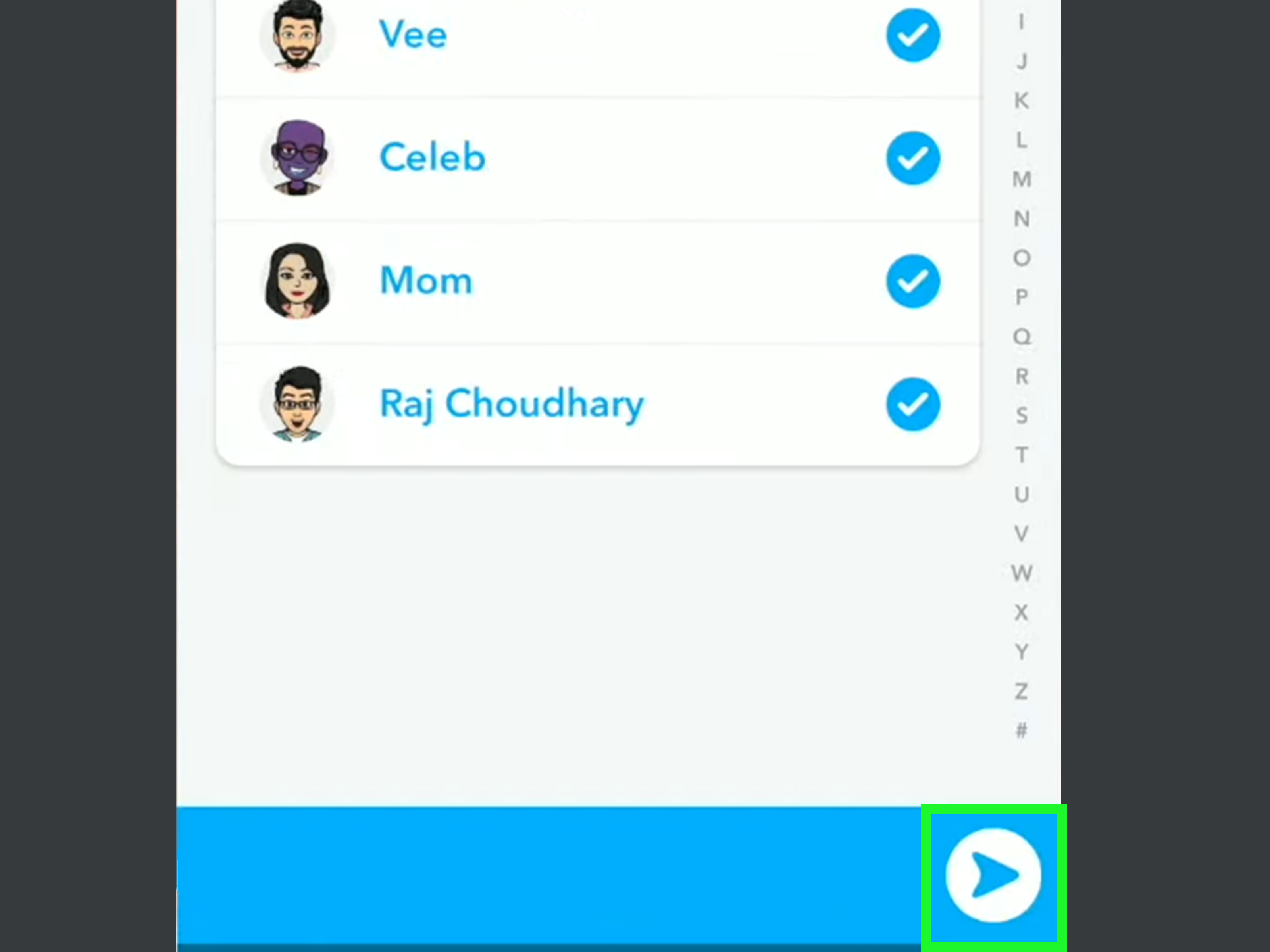

If you send the same Snap to the same people every day, first of all: impressive dedication. Second: you do not need to keep tapping those names one by one like you are clocking in for a tiny part-time job. Snapchat Shortcuts are built for exactly this. They let you create a quick-send list of specific friends so you can fire off Snaps faster on both iPhone and Android.
This is one of those Snapchat features that sounds small until you start using it. Then suddenly, your daily streak routine gets easier, your friend groups stay organized, and your thumbs stop filing workplace complaints. Whether you want a shortcut for your best friends, your roommate squad, your cousins, or the people who always reply within six seconds, this guide will show you how to make a shortcut on Snapchat, how to use it, how to edit it, and what to do if the app looks a little different on your phone.
What Is a Shortcut on Snapchat?
A Snapchat Shortcut is a custom list of friends you can quickly select when sending a Snap. Instead of manually choosing the same people every time, you create one shortcut, assign it an emoji, and use that emoji as your fast lane. Think of it as a favorite-recipient button, not a secret folder, and definitely not a complicated iPhone automation.
This matters because people often confuse four different things:
- Snapchat Shortcuts: custom recipient lists inside Snapchat.
- Pinned conversations: chats pinned to the top of your Chat screen on iPhone.
- Snapchat widgets: home screen or lock screen tools for faster access.
- Apple Shortcuts app: iPhone automations outside Snapchat.
In other words, when you want to make a shortcut on Snapchat, you are usually talking about the in-app feature that helps you send Snaps to chosen friends faster. That is the main focus of this article.
Why Use Snapchat Shortcuts?
There are a few very practical reasons people use them. The biggest one is speed. If you send the same selfie, dog photo, sunset shot, or “I am awake but not emotionally available” morning Snap to the same group every day, a shortcut saves time.
They are also helpful for maintaining streak habits without turning your sending process into repetitive finger cardio. You can organize different circles too. For example, you might create one shortcut for close friends, another for family, and another for your daily streak crew. That keeps your sends more intentional and helps reduce the classic Snapchat mistake: sending your weird face-filter masterpiece to the wrong person.
How to Make a Shortcut on Snapchat on iPhone and Android
The good news is that the main steps are basically the same on iPhone and Android. Snapchat’s interface can shift slightly from one version to another, so you may see either a Create Shortcut option under the search bar or a small plus icon when you are on the Send To screen. Same idea, same destination.
Step-by-Step Instructions
- Open Snapchat on your iPhone or Android phone.
- Take a photo Snap or record a video Snap.
- Tap Send To.
- On the Send To screen, tap the search bar and choose Create Shortcut, or tap the plus icon if that is what your version shows.
- Select the friends you want to include in the shortcut.
- Choose an emoji to represent the shortcut. Pick something you will recognize instantly. A fire emoji for streaks works. A clown emoji for your chaotic group also works, though possibly with consequences.
- Tap Create Shortcut.
Once it is created, your shortcut will be available on the Send To screen. In current versions of Snapchat, shortcuts also appear at the top of the Chat screen, which makes them easier to reuse later.
Quick Example
Let’s say you send daily Snaps to four college friends. Instead of selecting all four names every day, you create a shortcut, assign it the coffee emoji, and the next time you send a Snap, you tap that coffee icon instead of digging through your contact list. It is the digital equivalent of leaving your favorite mug on the front shelf.
iPhone vs. Android: Is the Shortcut Process Different?
For the core Snapchat Shortcut feature, not really. iPhone and Android users generally follow the same path: create a Snap, tap Send To, create a shortcut, choose friends, choose an emoji, done.
On iPhone
The shortcut creation flow is the same, but iPhone users also get a few extra convenience features around Snapchat. For example, Snapchat supports an iPhone lock screen shortcut that can open directly to the Snapchat camera, and Snapchat also offers iPhone lock screen widgets. Those are handy, but they are separate from in-app shortcuts.
Another iPhone-only point worth knowing: pinning conversations in Snapchat is available on iOS, so if you want faster access to a specific chat, pinning may help. That said, pinned chats are not the same as Snapchat Shortcuts. One helps you reach a chat quickly; the other helps you select a group of recipients quickly.
On Android
The in-app shortcut feature works the same way, but Android users also get platform-specific conveniences. Snapchat offers an Android home screen widget, and Android supports sharing certain links directly to Snapchat from the browser. Again, useful, but not the same as creating a Shortcut inside Snapchat for repeated Snap sending.
How to Use a Snapchat Shortcut After You Create It
Creating the shortcut is the setup. Using it is where the time savings kick in.
- Open Snapchat and take your Snap.
- Tap Send To.
- Look for your shortcut emoji on the screen.
- Tap the shortcut.
- Confirm the selected recipients if needed.
- Tap Send.
That is it. No scrolling. No hunting. No accidentally tapping someone you have not spoken to since sophomore year and sending them a blurry picture of your ceiling fan.
How to Edit a Shortcut on Snapchat
Sometimes you create a shortcut and later realize it needs work. Maybe one friend stopped using Snapchat. Maybe you want to swap the emoji because the eggplant choice was, in hindsight, too bold. Maybe you just want to add more people.
In many current app versions, you can edit a shortcut from the Chat area:
- Open the Chat tab in Snapchat.
- Find the shortcut area near the top.
- Tap the New+ area or select the shortcut you want to change.
- Open that shortcut.
- Change the emoji, add people, or remove people.
- Tap Save.
Because Snapchat updates its interface from time to time, the wording may look slightly different on your screen. But the general idea stays the same: open the shortcut, adjust the members or icon, then save the changes.
How to Delete a Shortcut on Snapchat
If you no longer need a shortcut, deleting it is usually quick.
- Go to the Chat tab.
- Open the shortcut controls or tap New+.
- Select the shortcut you want to remove.
- Tap the three-dot menu.
- Choose Delete.
Deleting a shortcut removes the quick-access list, but it does not remove those people as your friends. You are deleting the convenience tool, not launching anyone out of your social orbit.
Shortcut vs. Group vs. Story vs. Widget
If you are not sure whether you should use a shortcut or something else, here is the simple breakdown.
Use a Shortcut When…
You send direct Snaps to the same specific people over and over and want a faster way to select them.
Use a Group When…
You want a shared chat space where members can all reply in one place. A Group is more conversational. A Shortcut is more like a fast recipient list.
Use a Story When…
You want multiple friends to be able to view the same Snap without receiving it as a direct message. Stories are better for broad sharing. Shortcuts are better for targeted sending.
Use a Widget When…
You want to open Snapchat or jump into a chat faster from your phone’s home screen or lock screen. Widgets are outside the app. Shortcuts are inside it.
Common Problems and Easy Fixes
I Do Not See “Create Shortcut”
First, make sure you are creating an actual Snap and going to the Send To screen. That is where the shortcut option usually appears. If you are on the Chat screen only, you may not see the same creation prompt. Also, Snapchat’s interface can vary by version, so look for either Create Shortcut under the search bar or a plus icon.
My Shortcut Is Not Showing Up
Try returning to the Send To screen after taking a new Snap. You can also check the Chat tab near the top. If it still does not appear, close and reopen the app, and make sure Snapchat is updated.
I Picked the Wrong People
Edit the shortcut and remove the extra names. This is why it helps to review the list before you hit Send. Snapchat is fun, but “Oops, wrong audience” is less fun.
I Want Faster Access on My Phone Itself
That is a widget or lock screen shortcut issue, not an in-app shortcut issue. On iPhone, Snapchat supports lock screen widgets and a lock screen shortcut to open the camera. On Android, Snapchat supports home screen widgets and direct browser sharing to Snapchat in some cases.
Bonus: Faster Snapchat Access on iPhone and Android
Since many people searching for “how to make a shortcut on Snapchat” are also trying to open the app faster, here are a few bonus options.
iPhone Bonus Options
- Add a Snapchat lock screen shortcut to open straight to the camera.
- Add a Snapchat lock screen widget.
- Use the Snapchat widget on your home or Today view for quicker chat access.
- Pin up to three conversations in Chat on iPhone.
Android Bonus Options
- Add the Snapchat widget to your home screen.
- Use browser sharing to Snapchat on Android for quick link sending.
- Keep shortcuts inside Snapchat for repeated Snap sending to the same people.
These tools are helpful, but remember: they complement Snapchat Shortcuts. They do not replace them.
Best Practices for Keeping Your Shortcuts Useful
A shortcut is only helpful if it stays tidy. If you keep stuffing random people into one mega-list, it stops being a shortcut and starts being a social gamble.
- Create shortcuts by purpose, not chaos. Think streaks, close friends, family, or event buddies.
- Use clear emojis that make sense to you at a glance.
- Review shortcuts every so often and remove people you no longer message regularly.
- Double-check recipients before sending anything even slightly embarrassing, emotionally charged, or filmed from a questionable camera angle.
- Keep broad announcements on Stories and direct, personal content in Shortcuts.
Real-World Experiences Using Snapchat Shortcuts
One of the most common experiences people have with Snapchat Shortcuts is that they do not seem life-changing at first. You set one up, use it once, and think, “Okay, neat.” Then three days later, you realize you have saved yourself dozens of taps and a surprising amount of mental effort. It is not dramatic like getting a new phone. It is more like finally putting your keys in the same place every day. Small change, big relief.
For students, shortcuts can be ridiculously useful. Imagine a college friend group that trades daily updates, memes, and low-effort “I survived class” Snaps. Without a shortcut, sending the same quick update to four or five people can feel repetitive. With a shortcut, the process becomes almost automatic. You snap, tap the emoji, send, and move on with your day. It makes Snapchat feel more like a smooth social tool and less like a mini administrative task.
People who keep streaks going often notice the biggest difference. Let’s be honest: streak maintenance can be fun, but it can also become a tiny daily obligation. If you have a dedicated streak group, a shortcut turns that obligation into a quick routine. Instead of scrolling through names every morning while half awake, you can send one goofy coffee cup selfie and be done in seconds. Your streaks stay alive, your routine stays intact, and your morning brain does not have to do advanced contact management before breakfast.
There is also a privacy and focus benefit. A well-organized shortcut helps you avoid over-sharing. When you separate close friends, family, and casual acquaintances into different sending patterns, you become more intentional about who sees what. That can save you from those awkward moments when a joke meant for your best friends lands in front of somebody’s aunt, class partner, or former coworker. Technology cannot stop every social mistake, but this feature at least gives your common sense some backup.
Another real experience people mention is that shortcuts work best when they stay small and meaningful. A shortcut with five carefully chosen people feels smart. A shortcut with half your contact list feels like you are rebuilding your entire social graph with an emoji on top. The sweet spot is usually a group you message frequently and consistently. That is where the convenience pays off most.
On iPhone, some users pair Snapchat Shortcuts with lock screen access or pinned conversations, which creates a faster overall workflow. On Android, people often combine shortcuts with the home screen widget for quick jumps into the app. These combinations do not replace the in-app shortcut, but they make the whole Snapchat experience feel faster from the moment you unlock your phone to the moment you hit Send.
The funniest part is how quickly a shortcut becomes invisible in the best way. Once you get used to it, you stop thinking about the feature itself. You just notice that sending Snaps feels easier. That is usually the sign of a good tool. It does not demand applause. It just quietly removes friction. And in a world full of apps trying very hard to be loud, a feature that simply helps and stays out of the way is kind of refreshing.
Conclusion
If you want to make a shortcut on Snapchat on iPhone or Android, the process is simple: take a Snap, tap Send To, create a shortcut, choose your friends, assign an emoji, and save it. From there, you can send Snaps faster, stay organized, and make your daily Snapchat routine a lot less repetitive.
The key thing to remember is that a Snapchat Shortcut is an in-app recipient list. It is not the same as a widget, a pinned conversation, or an Apple Shortcuts automation. Once you know the difference, the feature becomes much easier to use well. Keep your shortcuts tidy, label them clearly, and use them for the groups you message most. Your thumbs will thank you. Possibly with jazz hands.
SEO Tags