
Changing the default format settings in Eclipse is one of those small developer chores that sounds boring until your code stops looking like it was folded by a nervous raccoon. A good formatter turns messy files into readable, consistent code. A bad formatteror no formatter at allturns team projects into philosophical arguments about tabs, braces, blank lines, and why one method call now occupies half the screen.
The good news: Eclipse gives you detailed control over code formatting, especially for Java development through the Eclipse JDT formatter. You can change indentation, line wrapping, brace placement, whitespace rules, comment formatting, blank lines, import organization, and even what happens automatically every time you save a file. Whether you are a student writing your first Java class, a developer joining a team with a strict style guide, or someone who simply cannot tolerate random tabs hiding in the bushes, this guide walks you through the process clearly.
This article explains how to change Eclipse default formatter settings, create a custom formatter profile, enable format-on-save, import or export formatting rules, use project-specific formatting, and avoid common mistakes that cause Eclipse formatting to behave like it had too much coffee.
What Are Format Settings in Eclipse?
Format settings in Eclipse control how source code is arranged visually. They do not usually change what your code does. Instead, they change how your code looks: indentation, spacing, line breaks, braces, alignment, wrapping, and comments. For example, Eclipse can turn this compact but cranky-looking code:
Into something easier to read:
That may not look dramatic in a tiny example, but across hundreds of files, consistent formatting is the difference between a clean codebase and a digital junk drawer.
How to Open the Formatter Settings in Eclipse
For Java projects, the main formatter settings live in the Eclipse Preferences window. On Windows or Linux, go to:
On macOS, the path is usually:
The exact wording can vary slightly depending on your Eclipse version and installed package, but the destination is the same: the Java formatter profile page. This is where Eclipse manages formatter profiles. A formatter profile is a saved collection of formatting rules. Think of it as a dress code for your code. Some profiles prefer braces on the same line; others behave as if every brace deserves its own private apartment.
Step-by-Step: Change the Default Java Formatter Profile
1. Open Eclipse Preferences
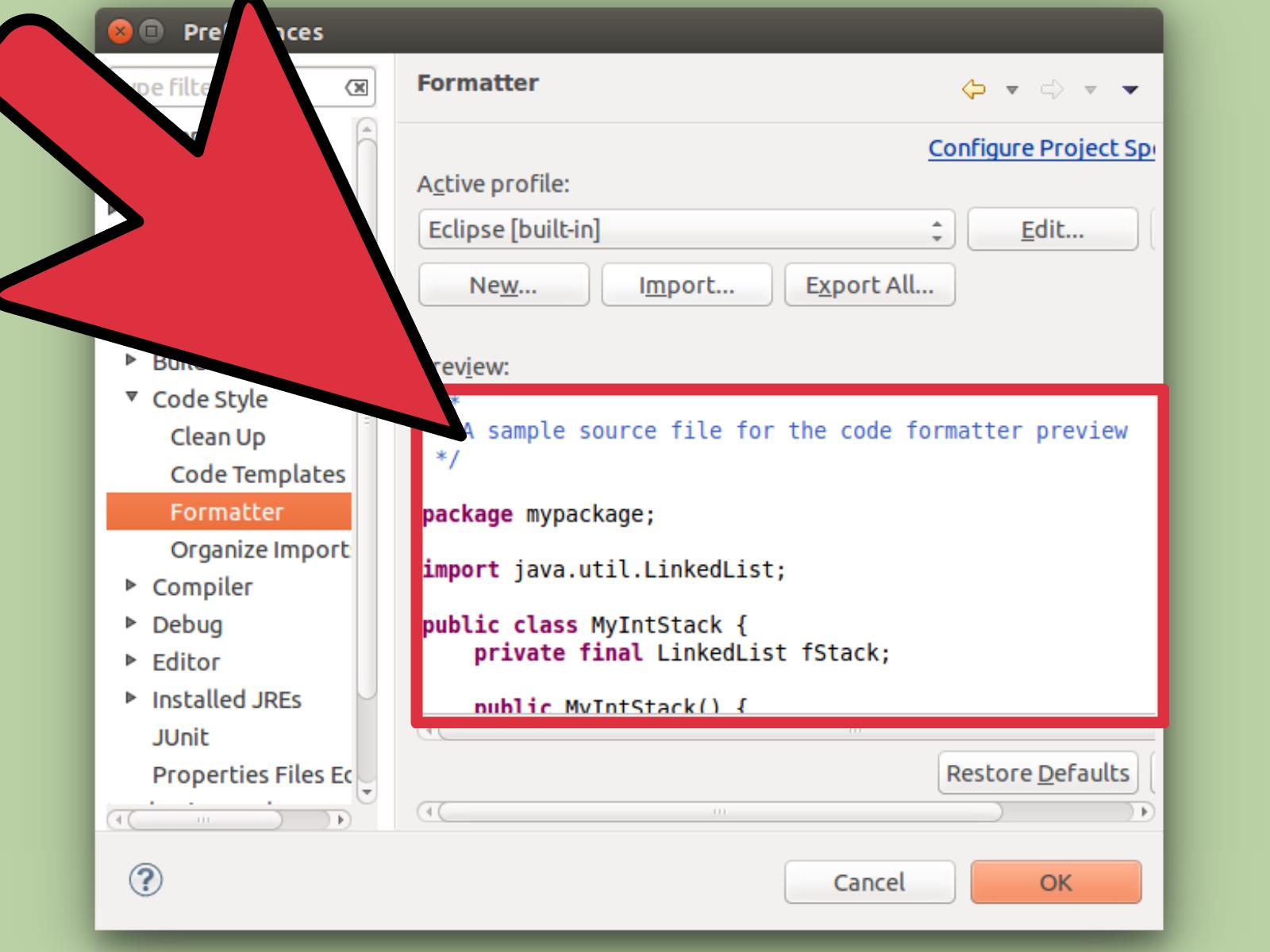
Start by opening the Preferences window. This is the central control room for Eclipse settings. If you are using Eclipse for Java development, expand the Java section, then expand Code Style, and select Formatter.
2. Choose or Create a Formatter Profile
Eclipse includes built-in formatter profiles, but built-in profiles usually cannot be edited directly. That is actually a good thing. Editing the default profile directly would be like writing your name on a library book with a permanent marker: technically possible in life, but not encouraged by civilization.
To customize formatting, click New. Give your profile a clear name, such as My Java Style, Company Java Formatter, or Team 120 Column Format. Base it on an existing built-in profile so you do not have to start from zero.
3. Edit the New Profile
After creating the profile, select it and click Edit. This opens the detailed formatter settings dialog. Here you can adjust rules for indentation, braces, whitespace, blank lines, line wrapping, comments, and more.
4. Preview the Changes
Eclipse shows a preview pane with sample Java code. As you change settings, the preview updates. This is extremely useful because formatter settings can be surprisingly sneaky. One innocent checkbox can turn a tidy constructor into a vertical noodle sculpture.
5. Apply the Profile
When you are happy with your settings, click Apply, then OK or Apply and Close. Your custom profile becomes the active formatter for the workspace unless you override it at the project level.
Important Eclipse Formatter Options to Customize
Indentation
Indentation settings control whether Eclipse uses tabs, spaces, or a combination of both. Many teams prefer spaces because they display consistently across editors, code review tools, and web interfaces. A common Java style is four spaces per indentation level, but some teams use two spaces, especially when they work across multiple languages.
In the formatter editor, look for settings related to Tab policy, Indentation size, and Tab size. If your team says “spaces only,” choose that option and sleep peacefully knowing your pull request will not be haunted by invisible tab goblins.
Braces
Brace settings control where opening braces appear. Many Java projects use the same-line style:
Some developers prefer the next-line style:
Neither style makes you morally superior, although programmers have been known to argue as if it does. The important thing is consistency. Configure brace positions for classes, methods, blocks, switch statements, lambdas, and anonymous classes according to your project standard.
Line Wrapping
Line wrapping controls when Eclipse breaks long lines. This matters for method calls, parameter lists, chained calls, array initializers, annotations, and comments. Common maximum line widths are 80, 100, or 120 characters. Older style guides often use 80 columns; many modern Java teams prefer 100 or 120 because monitors are no longer the size of lunch trays.
Be careful with aggressive wrapping. If every method call is split into seven lines, the code may be technically formatted but emotionally exhausting. A balanced setting such as “wrap where necessary” often works better than forcing every argument onto its own line.
Whitespace
Whitespace settings decide where spaces appear around operators, parentheses, commas, keywords, casts, brackets, and assignments. For example, most Java code styles prefer:
Instead of:
The second version works, but it looks like the code is trying to save money on air. Use whitespace settings to improve readability without turning every expression into a padded sofa.
Blank Lines
Blank line settings control vertical spacing between packages, imports, fields, constructors, methods, classes, and logical sections of code. A few blank lines improve scanning. Too many blank lines make a class feel like it is trying to meet a word count in high school English class.
Comments
Eclipse can also format block comments, Javadoc comments, and line comments. This is helpful when comments include long explanations, parameter descriptions, or generated documentation. However, if your project has carefully hand-formatted tables or diagrams inside comments, you may want to use formatter control tags for specific areas.
How to Format Code Manually in Eclipse
After changing your formatter profile, you can apply it manually to a file or selected code block. Open a Java file and use:
The common shortcut is:
On macOS, the shortcut may use the Command key depending on your key bindings. You can also right-click inside the editor, choose Source, and then select Format.
If you select only part of the file, Eclipse formats the selection. If nothing is selected, Eclipse formats the whole file. Before formatting a large legacy file, consider using version control first. Formatting an old file can create a massive diff, and your teammates may wonder why a two-line bug fix changed 2,000 lines. Nobody enjoys that surprise snack.
How to Enable Format on Save in Eclipse
If you want Eclipse to format your Java code automatically every time you save, use Save Actions. This is one of the most practical Eclipse code formatting features because it removes the need to remember the formatting shortcut.
Go to:
Then enable:
Next, check:
You can usually choose whether Eclipse formats all lines or only edited lines. For active development, formatting edited lines only can reduce unnecessary changes in large files. For new projects or team-wide cleanup, formatting all lines may be appropriate.
You can also enable Organize imports. This removes unused imports and sorts import statements according to your settings. It is a small feature with big “thank you for cleaning up after yourself” energy.
Formatter vs. Clean Up: What Is the Difference?
The formatter changes layout. Clean Up can make broader code improvements. In Eclipse, Java cleanup profiles may remove unused code, add missing annotations, simplify expressions, update syntax, remove trailing whitespace, or apply selected code improvements.
You can find cleanup settings under:
Use cleanup carefully. Formatting is mostly visual. Cleanup can change actual source code structure. Before applying cleanup across a large project, preview the changes and make sure your code is committed to version control. This is not paranoia. This is professional self-preservation wearing sensible shoes.
How to Import Eclipse Formatter Settings
Many teams share an Eclipse formatter XML file. This helps every developer use the same code style. To import a formatter profile, go to:
Click Import, choose the XML formatter file, and apply it. After importing, make sure the imported profile is selected as the active profile.
This is especially useful when joining a company project, contributing to open-source code, or matching a style used by build tools. If your project uses automated formatting in Maven, Gradle, Spotless, Checkstyle, or CI pipelines, your Eclipse formatter should match the project rules as closely as possible. Otherwise, your IDE and build server may begin a tiny formatting war, and you will be the battlefield.
How to Export Eclipse Formatter Settings
To share your formatter profile with others, return to the Formatter preferences page and use Export All or an export option available inside the profile editor, depending on your Eclipse version. Save the formatter XML file in a project folder such as:
Then commit it to version control. Add a short note in your project README explaining how to import it. Future developers will thank you silently, which is the normal volume level for developer gratitude.
How to Use Project-Specific Formatter Settings
Sometimes one workspace contains multiple projects with different style rules. In that case, a global workspace formatter is not enough. Eclipse allows project-specific settings for many Java preferences.
Right-click the project and open:
Enable project-specific settings if available, then choose the formatter profile for that project. You may also find project-level settings for Save Actions, Clean Up, Organize Imports, and Code Templates depending on the installed Eclipse tools.
Project-specific formatting is ideal when one workspace contains a school assignment, a company library, and a personal side project named something like DefinitelyNotBrokenFinalVersion2. Each project can keep its own formatting personality without confusing the others.
Changing General Text Editor Format Settings
Not every formatting preference is Java-specific. Eclipse also has general text editor settings that affect tabs, line numbers, print margins, whitespace display, and editor behavior.
Go to:
Here you can change settings such as displayed tab width, insert spaces for tabs, show print margin, print margin column, show line numbers, and show whitespace characters. These settings are helpful for Java, XML, HTML, CSS, JavaScript, PHP, and other file types, although language-specific editors may override some behavior.
If you want a clean setup, enable line numbers, set a reasonable print margin such as 100 or 120 columns, and show whitespace temporarily when debugging indentation problems. Showing whitespace all day is useful for some developers and visually noisy for others. Try it. If your editor starts looking like it has keyboard dandruff, turn it off.
Changing Format Settings for XML, HTML, CSS, PHP, and Other Languages
Eclipse is modular, so formatting settings depend on installed plugins. Java formatting is controlled by JDT. XML formatting may appear under XML editor preferences. PHP formatting appears under PHP tools if you use Eclipse PDT. C and C++ formatting is handled by CDT. Web development packages may include additional HTML, CSS, JavaScript, and JSON formatting options.
If you do not see the formatter page you expect, check whether the correct Eclipse package or plugin is installed. For example, Eclipse IDE for Java Developers and Eclipse IDE for Enterprise Java and Web Developers do not always expose identical editor options. The Preferences search box is your friend here. Type formatter, save actions, indent, or the language name to locate available settings faster.
Best Formatter Settings for Most Java Projects
There is no single perfect Eclipse formatter configuration, but the following setup works well for many Java teams:
- Use spaces instead of tabs.
- Set indentation size to 4 spaces.
- Set maximum line width to 100 or 120 characters.
- Keep opening braces on the same line for Java classes, methods, and blocks.
- Enable spaces around operators and after commas.
- Enable format on save for edited lines.
- Enable organize imports on save.
- Use project-specific settings for shared team projects.
- Export the formatter profile and keep it in version control.
The best formatting style is not always the prettiest style. It is the style your team consistently uses. Consistency beats personal preference in shared code, even when your personal preference is obviously brilliant and everyone else simply has not realized it yet.
Common Problems When Changing Eclipse Format Settings
The Edit Button Is Disabled
If Eclipse will not let you edit a formatter profile, you are probably using a built-in or managed profile. Create a new profile based on the existing one, then edit your copy.
Format on Save Does Not Work
Check that Save Actions are enabled and that Format source code is selected. Also verify that you are editing a supported Java source file and that project-specific settings are not overriding workspace settings.
Only Some Lines Are Formatted
Your Save Actions may be set to format edited lines only. Change the setting to format all lines if you want the whole file reformatted on save.
Imported Settings Do Not Match Perfectly
Formatter XML files may behave differently across Eclipse versions, especially if the file was created long ago or with a different toolchain. Reopen the profile editor, inspect the preview, and adjust settings manually if needed.
Formatting Creates Huge Git Diffs
This happens when formatting is applied to old files that used a different style. For existing projects, format only edited lines or run a dedicated formatting commit. Do not mix a major reformat with a feature change unless you enjoy making code reviewers squint aggressively.
Practical Experience: What It Feels Like to Fix Eclipse Formatting in Real Projects
Changing Eclipse formatter settings sounds like a five-minute task. Sometimes it is. Other times, it becomes a small archaeological expedition through years of team habits, old plugins, copied workspaces, and one mysterious formatter XML file named final-final-use-this-one.xml. In real projects, the technical steps are easy; the human part is where things get interesting.
The first experience many developers have is simple frustration. They press Ctrl + Shift + F, expecting beautiful code, and Eclipse reformats everything in a way that feels personally offensive. Braces move. Parameters wrap. Blank lines vanish. Comments shift slightly to the left like they are trying to escape. The immediate reaction is usually, “How do I turn this thing off?” But the better question is, “Which rule caused this, and what should the project standard be?”
A helpful approach is to create a small sample file before changing a full project. Add a class with fields, constructors, methods, comments, long parameter lists, chained method calls, lambdas, and annotations. Then edit the formatter profile while watching the preview. This gives you a safe testing ground. It is much better than discovering your formatter preference after it rearranges an important production file like a furniture mover with no map.
In team environments, the most valuable lesson is to avoid personal formatting battles. One developer likes 80 columns. Another prefers 120. Someone wants blank lines between every method. Someone else wants the code packed tighter than a suitcase before a budget flight. The solution is not endless debate. The solution is a shared formatter file, committed to the repository, documented in the README, and imported by everyone. Once the formatter is part of the project setup, code reviews can focus on logic instead of whitespace.
Another real-world lesson is to be careful with Save Actions. Format on save is wonderful when everyone uses the same settings. It is chaotic when each developer has different settings. One person saves a file, Eclipse reformats it one way. Another person saves the same file, Eclipse reformats it back. The Git history starts looking like a formatting tennis match. Before enabling Save Actions across a team, agree on the formatter profile and import settings first.
For legacy code, it is usually best to avoid reformatting everything at once unless the team intentionally plans a cleanup commit. Large formatting-only changes are not wrong, but they should be isolated. A clean strategy is to make one commit that only updates formatting, with no functional changes. After that, future diffs become much easier to read. Mixing formatting changes with bug fixes is where trouble begins, because reviewers must separate visual changes from actual logic changes.
Finally, remember that Eclipse formatting is a tool, not a personality test. The goal is readable, maintainable, predictable code. Once your Eclipse default format settings match your project, the formatter becomes almost invisible. You save the file, imports clean themselves up, indentation behaves, and your code looks like it was written by one calm, organized person instead of six developers and a raccoon with commit access.
Conclusion
Learning how to change the default format settings in Eclipse is a small skill that pays off every day. By creating a custom formatter profile, adjusting indentation and line wrapping, enabling Save Actions, importing shared team settings, and using project-specific preferences, you can make Eclipse format code exactly the way your project needs.
The key is not to chase the “perfect” style. The key is to build a consistent style. When formatting becomes automatic and predictable, your code becomes easier to read, your pull requests become cleaner, and your team spends less time arguing about spaces. That is a quiet productivity winand in software development, quiet wins are sometimes the best kind.
Note: This article is based on current Eclipse IDE behavior, Java Development Tools formatter settings, Save Actions, Clean Up preferences, general text editor settings, and common professional Eclipse workflows. Menu names can vary slightly by Eclipse version, operating system, and installed plugins.