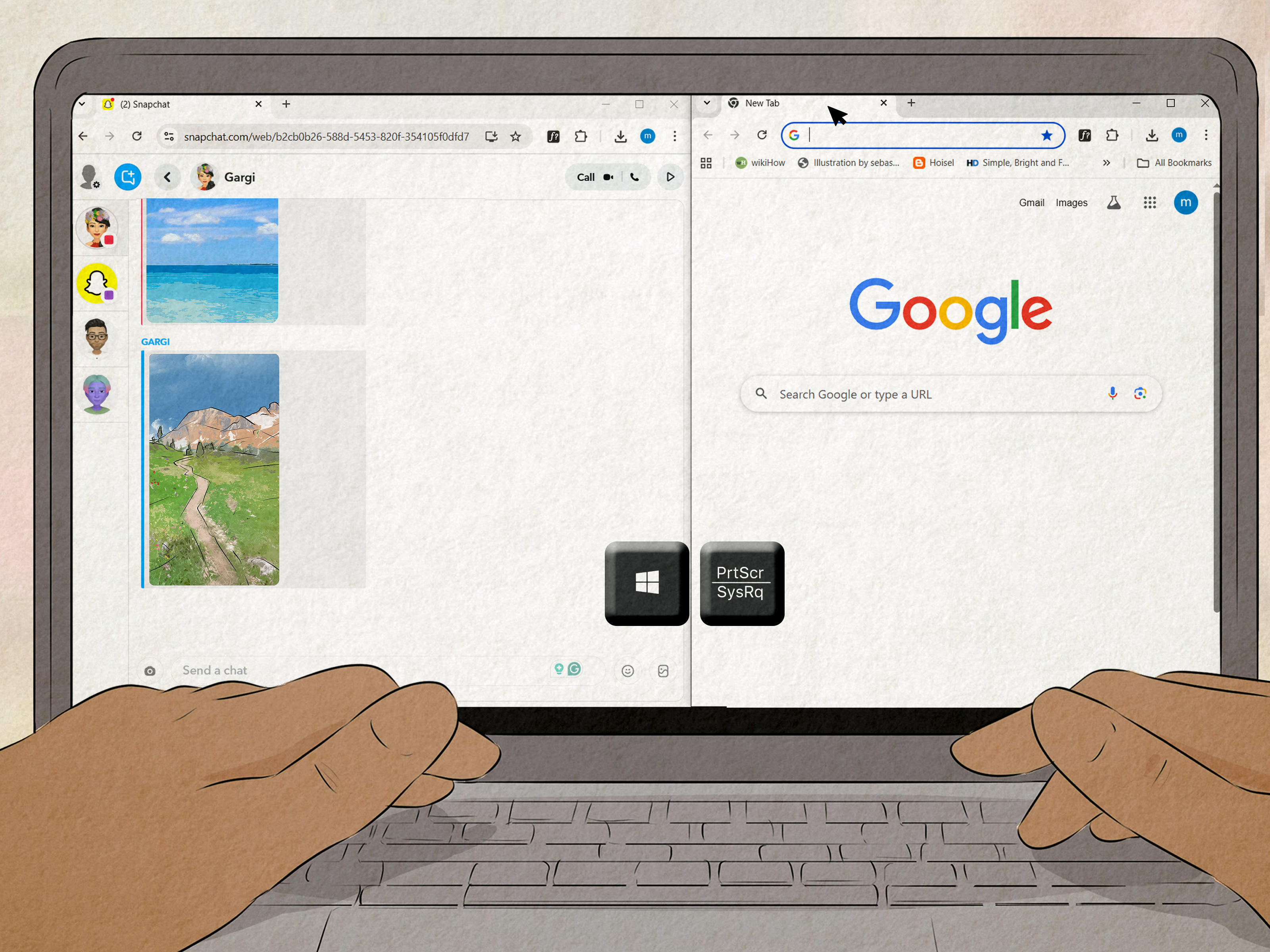

Snapchat is basically the Las Vegas of messaging: what happens in Chat is supposed to stay in Chat.
But real life is messy. Sometimes your friend sends the only decent photo from last night. Sometimes your cousin drops
a picture of Grandma’s handwritten cookie recipe like it’s a casual Tuesday. And sometimes you just want to keep a
memory without doing the digital equivalent of yelling, “I’M TAKING A SCREENSHOT!” into the room.
Good news: there are several built-in, totally normal ways to save pictures from Snapchat Chat
without screenshots. This guide walks you through themstep by stepwhile keeping things respectful
and above-board. (Because “How to keep memories” is cute. “How to be sneaky” is… not.)
First, a quick reality check (a.k.a. “No, we’re not doing spy movie stuff”)
This article is about saving pictures using Snapchat’s legitimate featureslike Save in Chat,
Memories, and data export. If a photo is meant to disappear, the ethical (and often
the only) way to keep it is to get permission or have the sender share it in a savable format.
Snapchat also makes it clear that people can capture content in different ways, so the safest rule is:
don’t send anything you wouldn’t want saved. That’s not a buzzkilljust modern life with better filters.
Know what kind of “picture” you’re trying to save
Snapchat Chat can contain a few different types of images, and the saving method depends on which one you’re dealing with:
-
Chat Media (camera roll photos/videos): A photo someone sent from their phone’s gallery inside Chat.
These often behave more like a “message attachment.” - Snaps sent in Chat: A Snap (photo/video) sent through Chat that may disappear after viewingor may be set to stay longer.
- Saved items: Messages or media that someone manually saved in Chat (usually they show a distinct “saved” look).
- Your own content: Snaps you created and saved to Memories (or your Camera Roll) before/after sending.
Translation: if you can’t find the save option you want, it’s usually because the content type (or its timer settings)
doesn’t allow it. That’s not you failingit’s Snapchat doing Snapchat things.
Method 1: Use “Save in Chat” (the easiest, most Snapchat-approved option)
If someone sends you a Snap in Chat and it’s eligible to be saved, Snapchat gives you a built-in button for that:
Save in Chat. Once saved, it appears as chat media in the conversation, and either person can typically remove it later.
How to save a Snap in Chat (no screenshot required)
- Open the Chat and view the Snap.
- Press and hold on the Snap while viewing it (or swipe up on it, depending on your interface).
- Tap Save in Chat.
Important: Snapchat notes that only certain Snaps can be savedtypically ones set to a “no limit” style timer for photos
(often shown with an infinity-style indicator) or looping video settings. If you don’t see “Save in Chat,” it’s usually
because that Snap wasn’t sent in a savable format.
What happens after you save it?
- The saved Snap stays visible in the chat thread as saved media.
- It’s stored on Snapchat’s servers (not automatically downloaded to your phone).
- In many cases, you can later export it to your Camera Roll (more on that next).
Method 2: Save messages (and sometimes photo messages) directly in Chat
Snapchat also lets you save individual chat messages by tapping them. Saved items are visible to everyone in the chat
it’s not secret, and that’s the whole point. Think of it like pinning something important, not like stealing a souvenir.
How to save a chat message
- Open the conversation.
- Tap the message you want to save.
- Look for the visual change (saved messages are clearly marked so both people can tell what’s been saved).
If you tap again, you can usually unsave it. This is great for addresses, party details, “park by the weird cactus,”
and other life-critical information.
Method 3: Export saved chat pictures to your Camera Roll (when export is available)
Saving something in Chat is step one. Saving it to your phone is step two.
Snapchat’s own guidance indicates that once a Snap is saved in Chat, you can often export it to your Camera Roll.
(Export options can vary slightly by device and app version, but the pattern is usually the same: press-and-hold for more actions.)
How to export a saved Chat picture (typical flow)
- Go to the chat where the picture is saved.
- Find the saved image in the conversation thread (or in the chat’s media area if your app shows one).
- Press and hold on the saved image.
- Tap Export or a similar option, then choose Save Image / Camera Roll.
If you don’t see an export option, don’t panic. It can mean:
the image isn’t actually saved in Chat, your phone permissions are blocking saving,
or the content type doesn’t support export in your current setup.
Method 4: Set Snapchat to save your own Snaps automatically (future-you will be grateful)
A lot of “I wish I saved that” heartbreak can be prevented by adjusting how Snapchat saves your own Snaps.
You can choose whether the Save button stores your Snaps in Memories, your Camera Roll, or both.
How to change your Save settings
- Open Snapchat and go to your Profile.
- Tap the Settings gear.
- Find Memories.
- Tap Save Button.
- Choose: Memories, Memories & Camera Roll, or Camera Roll.
If you frequently send photos in Chat and want copies for yourself, choosing
Memories & Camera Roll can be the most convenient. It’s the “I want receipts” setting.
Method 5: Download images from Memories (the cleanest “keep it forever” option)
If the picture you want is already in your Memories, you can export it directly to your phoneno screenshots needed,
no weird workarounds, no “why is my thumb in the frame?” moments.
How to export a Snap from Memories
- From the Camera screen, swipe up to open Memories.
- Press and hold on the Snap you want.
- Tap Export.
- Choose where you want it saved (like your Camera Roll).
Bonus: Snapchat allows selecting multiple items in Memories and exporting them together, which is a lifesaver when you’re trying
to rescue an entire weekend from the void.
Method 6: Use Snapchat “My Data” to download what you own (best for backups)
If you’re thinking biggerlike “I want a backup of my Memories” or “I need to move my content to a new device”Snapchat provides an official
data download tool through your account settings. You can request exports and, importantly, choose to export your Memories.
How to request a data download (high level)
- Go to Snapchat account settings for My Data (you can access it from Settings in the app).
- Select My Data and choose what data to include.
- Turn on the option to Export your Memories.
- Choose a date range if prompted.
- Submit your request and download the export when it’s ready.
This is the most “grown-up” option on the list. It’s less instant gratification, more “organized adult with folders.”
Even if you only do it once a year, it can save you from losing important memories if you switch phones, reinstall the app,
or just want a personal archive.
What if you can’t save the picture? Here’s what it usually means
If you don’t see “Save in Chat” or export options, the most common reasons are:
- The Snap isn’t eligible: Snapchat only allows saving certain Snaps in Chat based on how they were sent (e.g., “no limit” photo settings).
- The sender didn’t send it in a savable way: Ask them to resend as a camera roll photo in Chat or share it another way.
- Your phone permissions are blocking saves: If Snapchat can’t access Photos/Storage, exports to Camera Roll may fail.
- App version differences: Snapchat updates features often, and menus may move around.
The fastest, most human fix: ask for it
If it’s a friend and not a mysterious stranger from the internet, the simplest solution is:
“Hey, can you send that again as a regular photo?”
People do this all the time. It’s normal. It’s polite. And it prevents you from doing something that feels like a privacy violation.
A word on third-party apps and “secret saving” tricks
If you’ve ever searched this topic, you’ve seen the internet’s chaotic side: third-party apps, browser extensions, and “one weird trick” videos.
Here’s the problem: those tools can be unsafe, can violate platform rules, and can put your account at risk.
The safest and most reliable approach is to use Snapchat’s official features:
Save in Chat, Memories, Export, and My Data.
If those don’t work, the correct answer usually isn’t “be sneakier”it’s “get permission.”
Privacy and etiquette: the 30-second guide
- If it’s not yours, ask. A saved photo can affect someone’s privacy, reputation, or safety.
- Use “Save in Chat” when available. It’s transparent and mutual.
- Don’t store sensitive images casually. If you need to keep something private, protect it like it matters.
- When in doubt, don’t. Future-you will appreciate not having drama in your camera roll.
Conclusion
Saving pictures from Snapchat Chat without screenshots is totally doablewhen you use the tools Snapchat already provides.
Start with Save in Chat for eligible Snaps, save important messages directly in the conversation, export saved items when the option is available,
and rely on Memories and My Data downloads for true, long-term backups.
The best part? You can keep what matters without turning your chat into a notification paradeand without crossing privacy lines.
Below, you’ll find real-world experiences people commonly run into (and what they learn), followed by the SEO tags in JSON format.
Real-World Experiences: Saving Snapchat Chat Pictures Without Screenshots (About )
1) The “Group Trip Photo Dump” moment: A friend sends a flattering group picture in Chat, and suddenly everyone wants it.
The first instinct is often “screenshot!”but that can trigger notifications and create awkward vibes. What works better is having the sender
share it as a camera roll photo in Chat (or use a savable Snap setting), then saving it in Chat and exporting it. The lesson: if the photo is
meant to live on, it should be sent in a format that’s meant to be saved.
2) The “Receipts and Reservations” scenario: People use Snapchat for surprisingly practical stuff: screenshots of a reservation,
a picture of a parking spot, a photo of a concert ticket QR code (not recommended, but it happens), or a restaurant address. In these cases,
saving the message in Chat is the fastest movebecause it keeps the info visible for both people without cluttering your phone. The lesson:
sometimes you don’t need the picture on your camera roll; you just need it not to disappear.
3) The “New Phone, Who Dis?” panic: Someone upgrades phones and realizes their best Snaps were living only inside Snapchat.
That’s when Memories and “My Data” exports become the hero. Exporting Memories (even once) can feel like cleaning a closet: mildly annoying,
deeply satisfying. The lesson: if content matters, back it up proactivelydon’t wait until you’re staring at a blank login screen.
4) The “Sentimental Family Photo” situation: A sibling shares an old childhood photo in Chat, and you want to keep it forever.
This is where asking for a direct share (text/email/shared album) often beats any in-app workflow. If the family photo is important, it deserves a
stable home outside a disappearing-message app. The lesson: Snapchat is great for sharing; it’s not always the best long-term archive.
5) The “Why can’t I save this?” frustration: People often assume every Snap can be saved if they just tap the right place.
But Snapchat’s rules matter: some Snaps simply aren’t eligible for Save in Chat. When the save button doesn’t appear, the real solution is usually
to ask the sender to resend it in a savable way (like camera roll media in Chat) or to share it elsewhere. The lesson: the missing button isn’t a puzzle
it’s a boundary.
SEO Tags (JSON)