
Deleting a message on an iPhone can feel suspiciously easy. One swipe, one tap, and the embarrassing group-chat meme appears to be history. Unfortunately, “appears” is doing some heavy lifting. Deleted texts and attachments normally move to a Recently Deleted folder, where they may remain recoverable for weeks.
If Messages in iCloud is enabled, the situation becomes even more important: your conversations are synchronized across devices signed in to the same Apple Account. Delete a conversation on your iPhone, and that deletion can also reach your iPad and Mac. That is convenient when you are cleaning house, but less charming when you accidentally erase six years of family photos while trying to remove one pizza coupon.
This guide explains how to permanently delete messages from iCloud using an iPhone or iPad, remove individual attachments, clear Recently Deleted, reduce iCloud storage usage, and prevent old conversations from piling up again.
What Does “Permanently Delete Messages from iCloud” Mean?
Messages in iCloud is primarily a synchronization service. When it is turned on, your messages, attachments, edits, and deletions stay updated across compatible Apple devices using the same Apple Account. A conversation deleted on one synced device is therefore deleted from the others as well.
However, the first deletion is not necessarily permanent. On current versions of iOS and iPadOS, deleted conversations and attachments normally move into Recently Deleted. You can recover them for up to approximately 30 days unless you manually erase them from that folder sooner. Apple notes that messages left to expire are removed from devices after 30 days and permanently deleted from iCloud after as many as 40 days.
For practical purposes, permanently deleting an iCloud message means completing both of these actions:
- Delete the message, attachment, or conversation from the Messages app.
- Remove it from the Recently Deleted folder.
Once you confirm the permanent deletion, it cannot be undone through the normal Messages recovery feature. It also does not erase the recipient’s copy. Your cleanup powers are impressive, but they do not extend to someone else’s phone.
Before You Delete Anything
Check Whether Messages in iCloud Is Enabled
Knowing whether synchronization is active helps you understand where the deletion will spread.
- Open Settings on your iPhone or iPad.
- Tap your name or Apple Account banner.
- Tap iCloud.
- Tap See All or Show All beside the apps saved to iCloud.
- Tap Messages in iCloud or Messages.
- Look for Use on this iPhone, Use on this iPad, or Sync this Device.
If the switch is on, deleting a message or conversation generally updates every device where Messages in iCloud is enabled. If it is off, you may be deleting only a local copy on that particular device.
Save Anything You Might Need Later
Before performing a major cleanup, review conversations containing legal documents, addresses, travel details, receipts, family photos, or other information that would be difficult to replace. Save important attachments to Photos, Files, or another secure location.
Do not assume that an old device backup will provide an easy emergency exit. Synced iCloud data behaves differently from an ordinary archive, and restoring an entire device just to retrieve one joke from 2019 is the digital equivalent of rebuilding a kitchen to recover a missing spoon.
How to Delete Individual Messages or Attachments
Use this method when you want to remove specific text bubbles, images, videos, audio clips, documents, or links while keeping the rest of the conversation.
- Open the Messages app.
- Open the conversation containing the item.
- Touch and hold the message bubble or attachment.
- Tap More.
- Select any additional messages or attachments you want to remove.
- Tap the trash-can icon.
- Confirm the deletion.
This removes the selected content from your copy of the conversation. When Messages in iCloud is active, the deletion also synchronizes to your other connected Apple devices. It does not remove the content from the recipient’s device.
Delete Several Photos or Videos from One Conversation
Message attachments are often the real storage monsters. Thousands of plain-text messages may use relatively little space, while a handful of videos can consume gigabytes with the enthusiasm of teenagers discovering an unlimited buffet.
- Open the relevant conversation.
- Tap the contact or group name at the top.
- On newer versions such as iOS or iPadOS 26, tap Photos. On iOS 18 or earlier, locate the Photos section and tap See All.
- Tap Edit and then Select, if both options appear.
- Select the attachments you no longer need.
- Tap Delete.
- Confirm by tapping Delete Attachment.
Apple specifically recommends deleting unneeded photos, videos, and files from Messages when you need to reduce iCloud storage usage.
How to Delete an Entire Conversation
When a conversation contains nothing worth keepingor when the group chat has been discussing lawn fertilizer since the previous presidential administrationdeleting the entire thread is faster.
- Open Messages.
- Find the conversation in the main conversation list.
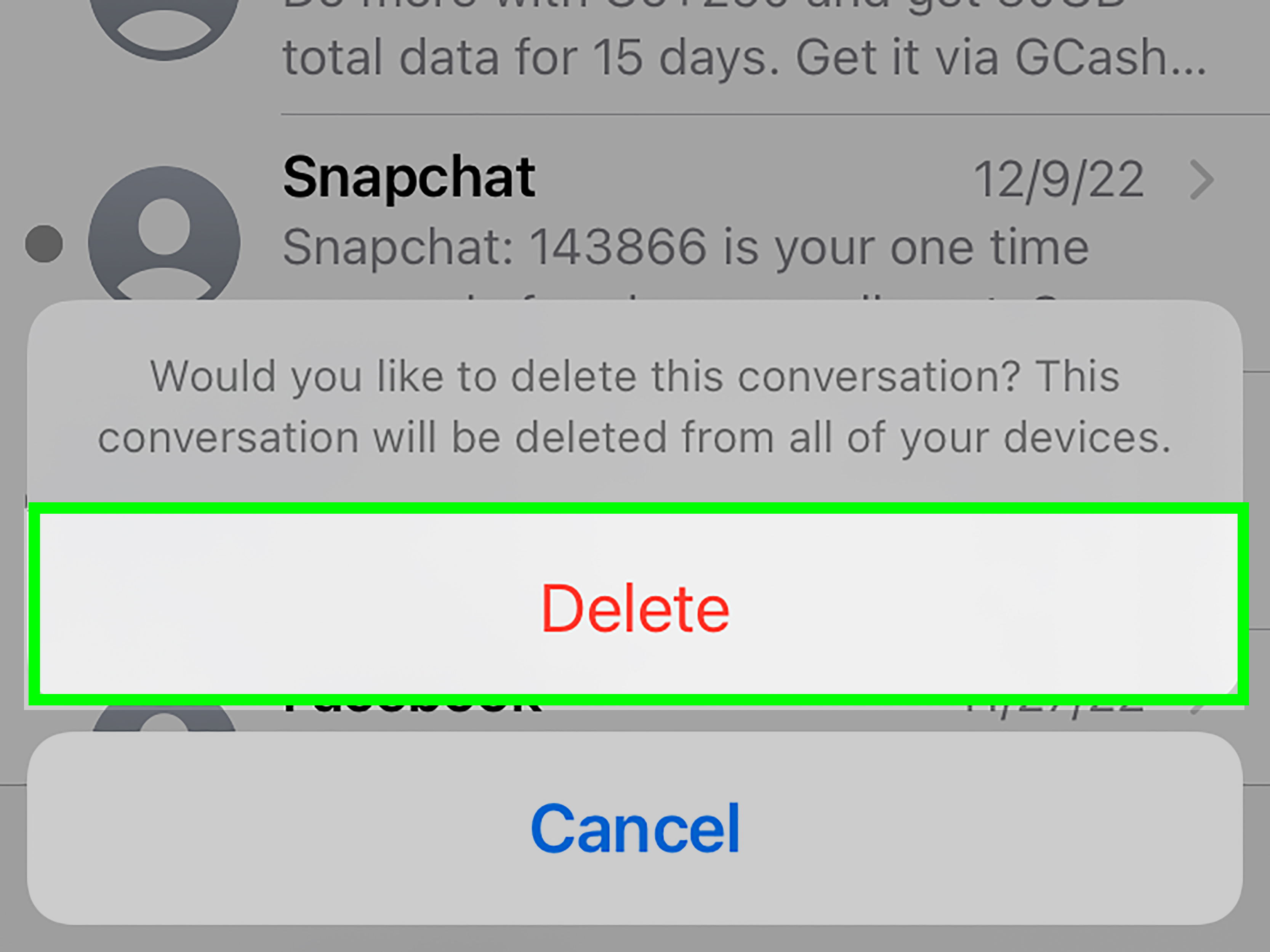
- Swipe left across it.
- Tap the trash-can icon or Delete.
- Tap Delete again to confirm.
Delete Multiple Conversations
- From the Messages conversation list, tap Edit.
- Tap Select Messages.
- Select each conversation you want to remove.
- Tap Delete.
- Confirm the action.
The wording may differ slightly by iOS or iPadOS version, but the process remains similar. Some versions do not provide a universal Select All option, so clearing a large message archive may require selecting conversations manually.
The Critical Step: Empty Recently Deleted
If you stop after deleting conversations from the inbox, they may still be recoverable. To permanently delete messages from iCloud before the normal retention period ends, you must clear Recently Deleted.
- Open the Messages app.
- Return to the main conversation list.
- Tap Edit or Filters. The label varies by software version and whether message filtering is enabled.
- Tap Show Recently Deleted or Recently Deleted.
- Select the conversations you want to erase permanently.
- Tap Delete or Permanently Delete.
- Confirm the deletion.
This action cannot be undone. Apple’s recovery feature supports deleted conversations only while they remain in Recently Deleted, generally for 30 to 40 days depending on the deletion process and system timing.
How to Free iCloud Storage by Removing Large Message Attachments
Deleting a hundred “OK” messages will not accomplish much if a conversation still contains a 900-megabyte vacation video. For storage cleanup, start with the largest attachments.
Review Messages Storage on Your Device
- Open Settings.
- Tap General.
- Tap iPhone Storage or iPad Storage.
- Tap Messages.
- Review categories such as Videos, Photos, GIFs and Stickers, or Other.
- If available, open Review Large Attachments.
- Tap Edit, select unnecessary files, and delete them.
Storage menus may group attachments differently depending on your device and software version. The general strategy is simple: remove large videos first, then old photos and files. Third-party guides from Apple-focused publications also recommend using the storage screen to identify oversized attachments rather than opening conversations one by one.
Check How Much iCloud Space Messages Uses
- Go to Settings.
- Tap your name.
- Tap iCloud.
- Tap Storage or Manage Account Storage.
- Look for Messages.
The storage chart lists the apps and services using the most iCloud space. Changes may not appear immediately after a large deletion because the device and cloud service may need time to synchronize and recalculate usage.
Set Messages to Delete Automatically
Anyone who regularly receives videos, GIFs, screenshots, school updates, work files, and fifteen versions of the same cat picture should consider automatic cleanup.
- Open Settings.
- Tap Apps.
- Tap Messages.
- Scroll to Message History.
- Tap Keep Messages.
- Choose 30 Days, 1 Year, or Forever.
Choosing 30 Days or 1 Year automatically removes conversations and their attachments after the selected period. The change can delete older content immediately, so review and save important information before confirming it.
A one-year retention period offers a reasonable compromise for many people. It preserves recent conversations while preventing ancient attachments from quietly renting luxury apartments inside your iCloud storage.
Should You Turn Off Messages in iCloud?
Turning off Messages in iCloud stops message synchronization for that device, but it is not the same as selectively deleting conversations. Local copies may remain on the iPhone or iPad.
To disable the feature:
- Open Settings.
- Tap your name.
- Tap iCloud.
- Tap See All or Show All.
- Tap Messages in iCloud.
- Turn off Use on this iPhone, Use on this iPad, or Sync this Device.
If your goal is to stop keeping Messages in iCloud entirely, repeat the process on every device connected to the Apple Account. Apple specifically advises disabling Messages in iCloud on each device when you want to remove the service’s cloud synchronization across your account.
For a straightforward cleanup, it is generally safer to leave synchronization enabled, delete the unwanted messages, and empty Recently Deleted. This allows the deletion to propagate consistently instead of leaving different message libraries scattered across several devices.
Why Deleted Messages May Still Seem to Use Storage
Several common issues can make a successful cleanup look unsuccessful:
- Recently Deleted has not been emptied. The conversations are still within the recovery window.
- Synchronization is incomplete. A large Messages library may need additional time, a stable internet connection, and power to finish updating.
- Large attachments remain elsewhere. Deleting a few conversations may leave videos and files in other threads.
- You are viewing device storage rather than iCloud storage. These are related but separate measurements.
- Another category is using the space. Photos, backups, iCloud Drive, Mail, and other services may be responsible for the storage warning.
Restarting the device after synchronization can refresh the displayed totals, but repeatedly switching Messages in iCloud off and on is not the ideal first troubleshooting step. Start by checking Recently Deleted and reviewing the largest attachments.
Can You Delete iCloud Messages from iCloud.com?
Do not spend an afternoon searching iCloud.com for a secret Messages trash can. Apple directs users to the Messages app on an iPhone, iPad, or Mac to view and manage messages stored through iCloud. The web interface provides access to services such as Mail, Photos, Drive, Notes, and Contacts, but it is not the normal management interface for your iMessage history.
When you delete a conversation from a properly synchronized iPhone or iPad and then empty Recently Deleted, the change is applied to the corresponding Messages in iCloud data.
Frequently Asked Questions
Does deleting an iMessage remove it from the other person’s phone?
No. Ordinary deletion removes the message only from your devices and synced Apple Account. Undo Send is a separate, time-limited iMessage feature intended for recently sent messages.
How long do deleted messages stay in iCloud?
Deleted messages generally remain recoverable in Recently Deleted for up to 30 days. Apple states that messages aging out normally may take up to 40 days to be permanently deleted from iCloud.
Does deleting a conversation free iCloud storage immediately?
Not always. The item may remain in Recently Deleted, and iCloud may need time to synchronize and recalculate storage. Permanently delete the conversation from Recently Deleted and check the storage total again later.
Can permanently deleted messages be recovered?
Once you manually remove a conversation from Recently Deleted, it cannot be recovered through the standard Messages interface. Be cautious with third-party recovery tools that promise guaranteed results, especially when they request Apple Account credentials or payment before showing what they can recover.
Will deleting Messages erase saved photos from the Photos app?
Deleting an attachment from Messages does not normally delete a separate copy that you previously saved to your Photos library. Confirm that the image or video exists in Photos before removing the message attachment.
A Realistic Cleanup Experience: What to Expect in Practice
A practical message cleanup rarely begins with a carefully organized plan. It usually starts with an iCloud warning appearing at the least convenient momentperhaps while taking a photo, backing up a new iPhone, or trying to receive an email. The first reaction is often to delete random conversations and expect several gigabytes to return instantly. Instead, the storage bar barely moves, creating the impression that iCloud has developed emotional attachments to old group chats.
The most effective approach is to begin with storage analysis rather than mass deletion. Open the Messages section under iPhone or iPad Storage and look for videos and other large attachments. In many real-world message libraries, a few long videos use far more space than years of text. Removing a forgotten event recording, an exported presentation, or twenty copies of the same holiday clip can produce a more meaningful result than deleting hundreds of ordinary conversations.
The next surprise is Recently Deleted. People often assume that tapping Delete finishes the job, but the deleted conversations remain available for recovery. Opening Edit or Filters, selecting Show Recently Deleted, and permanently clearing the unwanted threads is the step that turns an ordinary deletion into an actual cleanup. It also creates the final moment of hesitation: once Permanently Delete is confirmed, there is no friendly undo button waiting with a cup of coffee.
Another common experience involves multiple Apple devices. Someone deletes a conversation from an iPhone, then discovers that it has disappeared from an iPad or Mac as well. That is expected when Messages in iCloud is enabled. The service is synchronizing one message library, not maintaining independent archives for every device. Before deleting a large number of conversations, it therefore helps to check whether the iPad on the kitchen counter or the Mac in the office contains anything that should be preserved.
Storage totals can also test one’s patience. Even after Recently Deleted is cleared, iCloud usage may not update immediately. Keeping the device connected to Wi-Fi and power gives synchronization time to finish. Checking again later is more productive than repeatedly disabling iCloud settings, restarting five times, and glaring at the storage graph as though intimidation might improve cloud computing.
The most sustainable lesson is that cleanup should not be a once-a-decade archaeological expedition. Setting Keep Messages to one year, reviewing large attachments every few months, and saving important photos outside the conversation can keep the library manageable. A small maintenance routine prevents the emergency scenario in which every conversation suddenly looks expendable because iCloud is full.
Finally, permanent deletion deserves a deliberate pause. Search the conversation for addresses, account details, family media, work files, and receipts before erasing it. Save the valuable pieces, remove the clutter, empty Recently Deleted, and verify that your other devices have synchronized. The result is a smaller, cleaner iCloud message library without the unpleasant realization that the “useless old chat” contained the only copy of Grandma’s pie recipe.
Conclusion
To permanently delete messages from iCloud on an iPhone or iPad, delete the unwanted messages, attachments, or conversations in the Messages app and then clear them from Recently Deleted. When Messages in iCloud is enabled, those deletions synchronize across your other connected Apple devices.
For the biggest storage savings, target large videos, photos, and files before deleting ordinary text conversations. You can also select a 30-day or one-year message retention period to prevent old attachments from accumulating again. Most importantly, save anything valuable before confirming permanent deletionthe cloud may be sophisticated, but it still cannot recognize which blurry family photo is priceless.