
Changing users in Linux sounds like one of those tasks that should take three seconds and zero brain cells. In reality, it can be either beautifully simple or surprisingly chaotic, depending on whether you use the right command, the right password, and the right amount of confidence. Use too little confidence, and you stare at “Permission denied” like it owes you money. Use too much, and suddenly you are root, one typo away from turning your server into a decorative brick.
The good news is that switching users in Linux is not hard once you understand the tools. The better news is that you do not have to log out every time you need to become another user. Whether you want to become root, jump into a service account like postgres, or just let someone else use the desktop without closing your own work, Linux gives you several solid options.
In this guide, you will learn three easy methods to change users in Linux: using su, using sudo, and switching users from the desktop interface. Along the way, you will also learn when each method makes sense, what mistakes to avoid, and why Linux admins tend to get a little dramatic about the difference between su and sudo.
Why Change Users in Linux?
There are plenty of reasons to switch users in Linux. Maybe you are troubleshooting a permission problem and need to see what a command does as another account. Maybe you are a system administrator who needs temporary root access. Maybe you are testing an app under a specific service user. Or maybe you share a desktop PC and just want to switch to another account without slamming the door on everything you had open.
At a high level, Linux user switching falls into two categories. The first is interactive switching, where you actually open a shell or session as another user. The second is command-level switching, where you run just one command as another user and then go right back to your original account. Both are useful. One is like borrowing someone’s office for a few minutes. The other is like borrowing their stapler and leaving before anyone notices.
Method 1: Use su to Switch to Another User
The classic tool for changing users in Linux is su, which stands for “substitute user” or “switch user,” depending on which sysadmin you ask before coffee. This command starts a shell as another user. If you do not specify a username, it usually tries to switch to root.
Basic su syntax
The first form, su username, switches users but may keep parts of the current environment. The second form, su - username, starts a login-style shell. That little hyphen may look harmless, but it matters. It tells Linux to behave more like a fresh login by changing to the target user’s home directory and loading the target user’s login environment.
In plain English, su username is like borrowing someone’s jacket while keeping your own shoes on. su - username is more like borrowing the whole outfit and pretending you planned it.
Example
In this example, you switch to the postgres account, confirm the new identity with whoami, check your working directory with pwd, and then use exit to return to your original shell.
When to use su
su is useful when you know the target user’s password and you need a full shell as that user. It is common on servers, labs, and older Linux workflows where administrators intentionally use the root password. It is also handy when you need to troubleshoot something from the exact point of view of another account.
Pros of su
- Simple and widely available
- Great for opening a full shell as another user
- Useful for testing user-specific environments
Cons of su
- Usually requires the target user’s password
- Can create environment confusion if you skip the hyphen
- Can be riskier than
sudofor everyday admin work
One important note: on some Linux distributions, especially Ubuntu-based systems, the root account may be locked by default. In that case, trying plain su - to become root can fail unless a root password has been set. That is where sudo becomes the star of the show.
Method 2: Use sudo to Run Commands or Open a Shell as Another User
If su is the old-school master key, sudo is the smart badge reader with logs, rules, and a clipboard full of policy. Instead of asking for the target user’s password, sudo usually asks for your password, assuming your account has permission to use it.
This is one of the biggest reasons admins prefer sudo for routine work. It is easier to audit, easier to delegate, and less likely to turn “I only needed to restart one service” into “Why is the server gone?”
Run a single command as another user
Example:
This method is excellent when you do not need a full interactive session. You just need one command to run under a different account. Clean, fast, and less dramatic.
Open a login shell as another user
This opens an interactive login shell as the target user. It is often the cleanest way to become another user when you already have sudo access. For root specifically, you can also use:
You may also see people use:
That works on many systems, but it is a little like driving to the mailbox in a bulldozer. It gets the job done, yet sudo -iu username is usually clearer and more direct.
When to use sudo
Use sudo when you want controlled access, better security, or better logging. It is ideal for system administrators, developers working on shared machines, and anyone who needs temporary elevated access without fully living as root all day long.
Pros of sudo
- Uses your own password instead of the target account’s password
- Supports command-by-command privilege control
- Safer for day-to-day administrative tasks
- Better for logging and accountability
Cons of sudo
- Requires configuration in
sudoersor the correct admin group - Can be confusing if you do not know the right flags
- Behavior varies slightly across distributions
On Debian and Ubuntu, admin users are commonly added to the sudo group. On Red Hat, Fedora, and Oracle Linux, the wheel group is commonly used for admin access. So if sudo says “user is not in the sudoers file,” Linux is not being moody. It is telling you your account lacks permission.
Method 3: Switch Users from the Linux Desktop
Not every Linux user lives in the terminal like a friendly cave troll. If you are on a desktop environment such as GNOME, you can switch users graphically without closing your apps. This is the easiest method for shared workstations, family computers, school systems, and office desktops.
How desktop user switching works
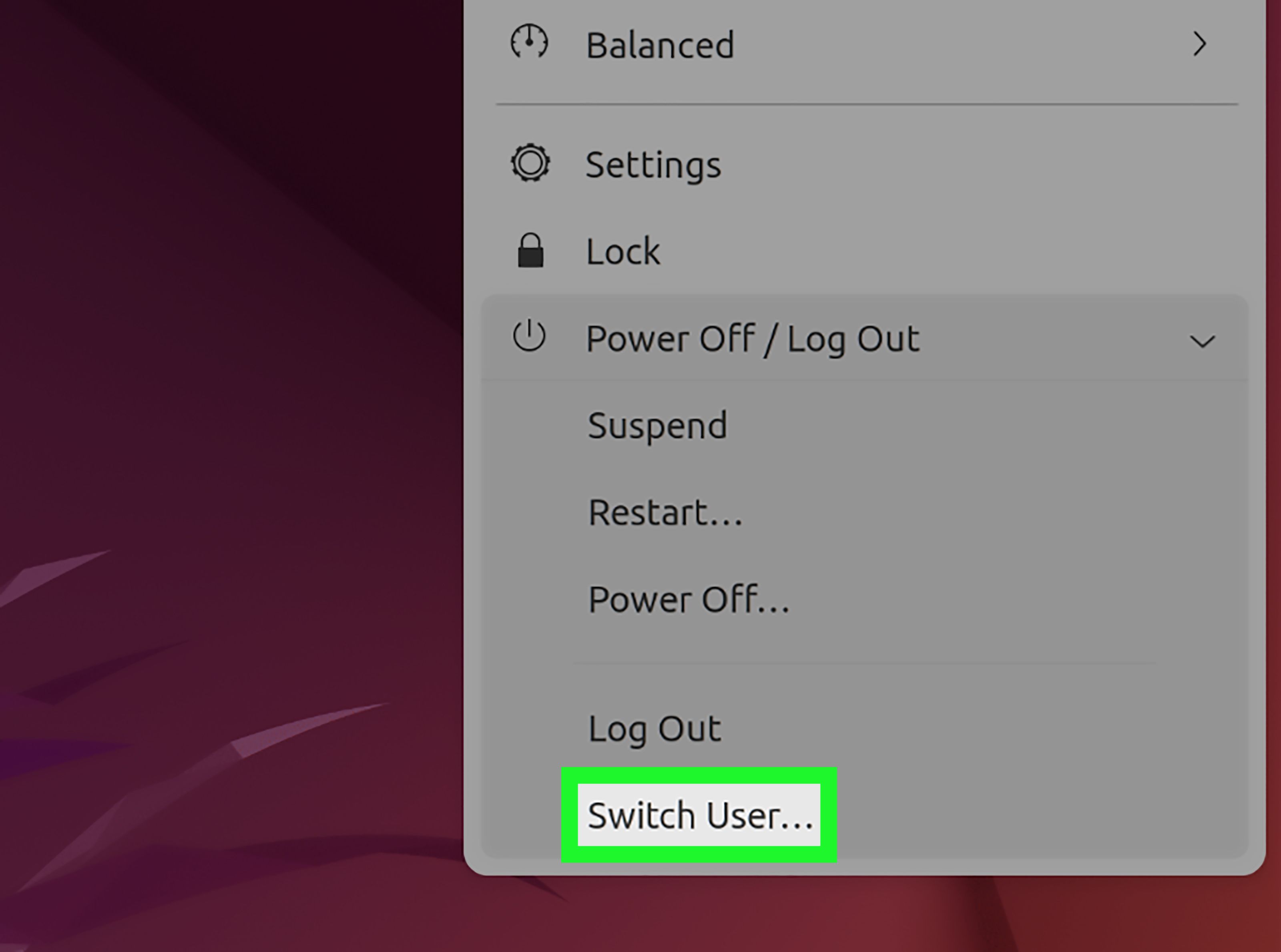
In many Linux desktop environments, you can open the system menu, choose Switch User, and log in to another account. Your current session stays open in the background, and your applications keep running. When you come back, your workspace is still there waiting for you, like a loyal dog that also pays taxes.
Typical steps in GNOME
- Click the system menu in the top bar.
- Select the power or session options.
- Choose Switch User.
- Log in with the other account.
If the option does not appear, your system may have only one account configured, or user switching may be disabled by policy. On many systems, you can also lock the screen and choose another user from the login screen.
When to use desktop switching
This method is best when the goal is to change the active desktop user rather than run a command under another account. It is especially useful on laptops and shared PCs where logging out completely would interrupt open apps or documents.
su vs sudo: Which One Should You Use?
Here is the quick rule of thumb. If you need a full shell as another user and you know that account’s password, su - username works well. If you are an administrator and want safer, auditable, limited privilege escalation, sudo is usually the better choice.
For most modern Linux administration, sudo wins because it is easier to control and log. But su still has a place, especially for testing exact user environments or working in systems where direct account switching is part of the workflow.
Common Mistakes When Changing Users in Linux
1. Forgetting the hyphen with su
If you use su username instead of su - username, you may keep parts of your original environment. That can lead to confusing paths, wrong config files, or commands behaving strangely.
2. Staying root longer than necessary
Root is powerful, which is another way of saying root is dangerous when you are tired, rushed, or overconfident. If you only need one command, use sudo for one command.
3. Forgetting to exit
After switching users, use exit when you are done. Otherwise, you may forget which account you are using and run commands in the wrong context. This is how tiny mistakes become expensive hobbies.
4. Assuming all distros handle root the same way
They do not. Some systems allow direct root switching more freely. Others lock root by default and expect you to use sudo.
5. Using the wrong account for app and service tasks
Databases, web servers, and deployment tools often run under dedicated service accounts such as postgres, mysql, nginx, or www-data. If a task is supposed to run as one of those users, switching to the correct account can solve mysterious permission problems fast.
Quick Real-World Examples
Example 1: Become root for a full admin shell
Example 2: Switch to a database account
Example 3: Run one command as a web server user
Example 4: Use the target user’s password directly
Example 5: Return to your original account
Final Thoughts
If you want the simplest answer to “How do I change users in Linux?” here it is: use su - username when you need a full login shell and know the target password, use sudo -u username command or sudo -iu username when you have admin rights and want a safer approach, and use the desktop’s Switch User option when you are working in a graphical session.
Linux gives you flexibility, which is wonderful right up until it gives you five ways to do one thing and lets you pick the messiest one. Now you know the clean options. Use them wisely, verify with whoami when in doubt, and always remember that root is not a lifestyle. It is a temporary responsibility.
Practical Experience: What Switching Users in Linux Really Feels Like
In real life, learning how to change users in Linux is one of those skills that seems tiny at first and then quietly becomes part of almost everything you do. The first time most people switch users, it is usually for a simple reason. Maybe they need root to install a package. Maybe a tutorial says, “Now become the postgres user,” as if that were as casual as changing socks. You type the command, hit Enter, and immediately realize Linux cares very much about who you are.
One of the biggest lessons people learn from experience is that the command itself is only half the story. The environment matters too. A lot. When someone uses su username and things behave strangely, it is often because they brought part of their old shell environment along for the ride. The prompt changes, sure, but the behavior does not always match a clean login. Then they try su - username or sudo -iu username, and suddenly everything makes sense. The home directory is right, the path is right, the shell profile loads correctly, and Linux stops acting like a grumpy vending machine.
Another practical lesson is that sudo saves people from themselves more often than they realize. New admins sometimes think using root full-time looks efficient. For about fifteen minutes, maybe. After that, it becomes a game of “How many things can I accidentally edit, delete, or restart before lunch?” Running one command at a time with sudo is slower only in the same way wearing a seat belt is slower. Technically true. Wildly worth it.
There is also a confidence shift that happens over time. At first, changing users feels risky. You keep running whoami every two minutes, just to make sure you are still yourself. Honestly, that is a good habit. Experienced Linux users do it too, especially when they hop between service accounts, containers, remote servers, and root shells during troubleshooting. Verifying your current user is not paranoia. It is professionalism wearing sensible shoes.
Desktop switching teaches a different lesson. On shared systems, it is convenient because your apps stay open and another person can log in without wrecking your session. But it also reminds you that Linux treats users as separate worlds. Different files, different permissions, different settings, different access. That separation is not annoying; it is one of the reasons Linux is so strong in multi-user environments.
Over time, the real skill is not just memorizing su and sudo. It is learning which method fits the moment. If you need one command, use one command. If you need a clean shell, open a clean shell. If you are on a desktop, do not overcomplicate it with terminal theatrics. The best Linux habits are usually the boring, reliable ones. And in administration, boring is beautiful.
SEO Tags