
Uninstalling Escape from Tarkov should be easier than surviving Customs with a backpack full of quest items. Unfortunately, removing the game can become confusing because the main game, Battlestate Games Launcher, BattlEye anti-cheat files, local settings, and cached data may be stored in different locations.
This guide explains how to uninstall Escape from Tarkov completely on a Windows PC, whether you installed it directly through the Battlestate Games Launcher or through Steam. It also covers stubborn uninstall errors, missing uninstall files, leftover folders, and the classic problem where Windows insists that the game is still occupying storage after you thought it was gone.
Quick Answer: The Safest Uninstall Order
For most players, the cleanest removal order is:
- Close Escape from Tarkov and every Battlestate Games process.
- Back up local settings if you may reinstall later.
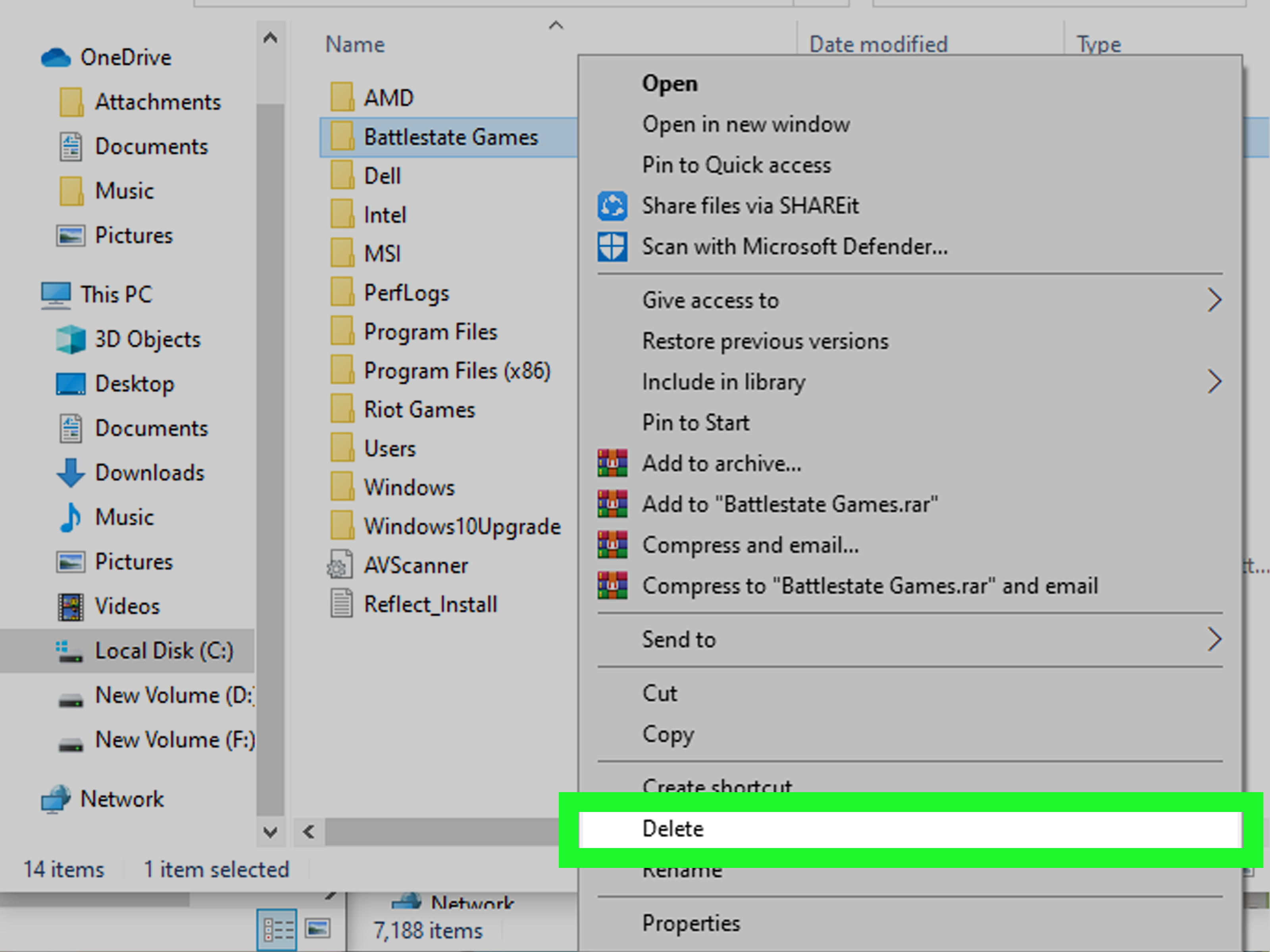
- Uninstall Escape from Tarkov through its launcher, Steam, or Windows Settings.
- Uninstall Battlestate Games Launcher separately.
- Remove remaining BattlEye files only when necessary.
- Check the original installation directory and AppData folders for leftovers.
- Restart Windows, empty the Recycle Bin, and confirm that the storage was recovered.
The important detail is to remove the game before removing the launcher. Uninstalling only Battlestate Games Launcher may leave the much larger Escape from Tarkov installation sitting quietly on your SSD like a heavily armed squatter.
What to Know Before Uninstalling Escape from Tarkov
Your Account and Game License Are Not Deleted
Removing Escape from Tarkov from your computer does not delete your Battlestate Games account or cancel your game license. You can download the launcher again, sign in with the same account, and reinstall the game later.
Character progression and account-related information are not erased simply because the local installation is removed. However, local files such as keybindings, graphics preferences, launcher logs, and cached information may be deleted during a complete cleanup.
Save Your Keybindings and Settings
Players who have spent hours perfecting mouse sensitivity, scope controls, lean keys, and audio levels should back up their configuration before deleting AppData folders.
A commonly used settings location is:
%APPDATA%\Battlestate Games\Escape from Tarkov\Settings
Press Windows + R, paste the path, and press Enter. Copy the Settings folder to your desktop, an external drive, or cloud storage. Screenshots of your in-game settings are also useful because configuration formats can change between major updates.
Record the Current Installation Location
Escape from Tarkov does not always install in the same folder. One player may use the system drive, while another may have installed it on a secondary SSD such as D:\Games\EFT.
Before uninstalling, open the launcher settings and locate the displayed game directory. Write it down or open the folder in File Explorer. This simple step prevents the most common removal problem: deleting the launcher and then losing track of the actual game files.
Step 1: Close the Game, Launcher, and Background Processes
An uninstall may fail when Windows believes that a game file is still being used. Closing the launcher window is not always enough because a launcher, updater, crash handler, or anti-cheat process may continue running in the background.
- Exit Escape from Tarkov normally.
- Right-click the Battlestate Games icon in the notification area and select Exit, when available.
- Press Ctrl + Shift + Esc to open Task Manager.
- Look for processes associated with Escape from Tarkov, BSG Launcher, Battlestate Games, or BattlEye.
- Select each relevant process and click End task.
Do not end unrelated Windows processes merely because their names look technical. Windows contains enough mysterious processes already; there is no need to create a side quest.
Step 2: Uninstall Through Battlestate Games Launcher
Using the publisher’s own removal option is generally the best method because it allows the launcher to remove registered game components properly.
- Open Battlestate Games Launcher.
- Select Escape from Tarkov.
- Open the game’s options menu, settings menu, or three-dot menu.
- Select Uninstall if that option appears.
- Confirm the removal and allow the process to finish.
The launcher interface can change after updates. If you do not see an Uninstall command, open the launcher settings and use the option that displays or opens the game installation folder.
Inside the game directory, look for the official uninstall executable. Depending on the installation version, it may have a name such as uninstall.exe or unins000.exe. Right-click the file, select Run as administrator, and follow the prompts.
Do not immediately delete the entire installation directory before looking for its uninstaller. Manual deletion removes large files, but it may leave Windows entries and launcher records behind.
Step 3: Uninstall Escape from Tarkov Through Windows Settings
If the launcher method is unavailable, Windows Settings provides a reliable alternative.
Windows 11 Instructions
- Press Windows + I to open Settings.
- Select Apps.
- Open Installed apps.
- Search for Escape from Tarkov.
- Click the three-dot button beside the entry.
- Select Uninstall and follow the instructions.
Windows 10 Instructions
- Open Start and select Settings.
- Choose Apps.
- Open Apps & features.
- Select Escape from Tarkov and click Uninstall.
Use Control Panel as an Alternative
Some desktop programs appear more reliably in the traditional Programs and Features list.
- Press Windows + R.
- Enter
appwiz.cpl. - Press Enter.
- Find Escape from Tarkov.
- Right-click it and select Uninstall or Uninstall/Change.
Step 4: Uninstall the Steam Version
If your copy of Escape from Tarkov was installed through Steam, begin with the Steam client rather than manually deleting its game directory.
- Open Steam.
- Select Library.
- Right-click Escape from Tarkov.
- Select Manage.
- Click Uninstall.
- Confirm that you want to remove the local game content.
After Steam finishes, check Windows Installed Apps for Battlestate Games Launcher. The Steam release uses a Battlestate Games account and may leave launcher-related components or local configuration data outside the Steam library.
Do not uninstall the entire Steam client merely to remove one game. That would be less like cleaning a room and more like removing the house.
Step 5: Remove Battlestate Games Launcher Separately
The launcher and the game are separate components. Once Escape from Tarkov has been removed, uninstall the launcher if you no longer need it for Tarkov, Tarkov Arena, or another Battlestate Games product.
- Open Settings > Apps > Installed apps.
- Search for Battlestate Games Launcher or BSG Launcher.
- Click its menu button.
- Select Uninstall.
- Complete the removal wizard.
You can also check Programs and Features through appwiz.cpl. Restart the computer afterward if the installer requests it.
Players who still use Tarkov Arena should generally keep the launcher and avoid deleting shared Battlestate Games folders.
Step 6: Remove BattlEye Anti-Cheat Leftovers
Escape from Tarkov uses BattlEye anti-cheat technology. The standard game uninstaller should normally handle its associated components, so manual action is not always required.
If the game has been removed but a Tarkov-related BattlEye service or folder remains, inspect the former game directory for a BattlEye folder. It may contain an official file named similarly to Uninstall_BattlEye. Run the provided uninstall file as an administrator before deleting the folder.
Be cautious with shared BattlEye locations. Other games also use BattlEye, so deleting common anti-cheat files indiscriminately may temporarily prevent those titles from launching. When another installed game depends on BattlEye, leave shared files alone unless the game’s official removal process identifies them as safe to delete.
Step 7: Delete Leftover Escape from Tarkov Files
After the official uninstallers finish, check for remaining files. Delete only folders that clearly belong to Escape from Tarkov or the Battlestate launcher components you no longer use.
Check the Original Game Directory
Navigate to the installation path you recorded earlier. Common historical or custom layouts may contain names such as:
Escape from TarkovEFTBattlestate GamesBsgLauncher
If the folder contains only leftover Tarkov files and the game has already been uninstalled, delete it. Check every drive where you commonly install games, including secondary SSDs.
Check AppData Folders
AppData is hidden by default. You can access its locations directly with the Run dialog.
Press Windows + R and inspect these paths one at a time:
%LOCALAPPDATA%\Battlestate Games%APPDATA%\Battlestate Games%USERPROFILE%\AppData\LocalLow\Battlestate Games
Possible leftover subfolders include launcher caches, logs, authentication data, and Escape from Tarkov settings.
Do not automatically delete the entire Battlestate Games parent folder if you still use Tarkov Arena. Instead, remove only clearly identified Escape from Tarkov or unwanted BSG Launcher subfolders.
Check Documents and Desktop Shortcuts
Search your Documents folder for Escape from Tarkov screenshots, logs, crash reports, or manually exported settings. These files are usually small, but deleting them completes the cleanup.
Remove obsolete desktop and Start menu shortcuts as well. A shortcut does not consume meaningful storage, but clicking a dead launcher icon later is an excellent way to question your own memory.
What to Do When Escape from Tarkov Will Not Uninstall
Error: A File or Folder Is Open in Another Program
Close the launcher and use Task Manager to end related processes. If Windows still reports that a folder is in use, restart the computer and attempt the uninstall before reopening the launcher.
Error: Uninstall.exe Cannot Be Found
This often occurs when game files were manually deleted before Windows removed the registered installation entry.
Try reinstalling Battlestate Games Launcher, directing it to the same location when possible, and allowing it to repair or rediscover the installation. Once the uninstaller has been restored, run the normal removal process again.
The Game Is Still Listed After Its Folder Was Deleted
Open Windows Settings or Programs and Features and try uninstalling the remaining entry. Windows may recognize that the underlying files are missing and remove the listing.
If it cannot, use Microsoft’s installation and removal troubleshooting options. These tools can address corrupted uninstall information and invalid program records.
Access Denied or Administrator Permission Error
Sign in with an administrator account. Right-click the official uninstaller and choose Run as administrator. Avoid changing ownership or permissions for broad Windows directories unless you understand exactly what is being modified.
The Uninstall Freezes
Wait several minutes because deleting large game archives can take time, particularly on a busy or aging hard drive. If the process remains completely unresponsive, close it through Task Manager, restart Windows, and try again.
Use a Third-Party Uninstaller Only as a Last Resort
A reputable uninstaller can scan for abandoned files and broken program entries after attempting the application’s built-in removal process. Download such tools only from the developer’s official website or a trusted app store.
Review every detected file before approving deletion. A program that promises to remove everything with one dramatic red button may occasionally be a little too enthusiastic.
Avoid Random Registry Deletion
Manual registry cleaning is usually unnecessary for reclaiming storage. Incorrect registry changes can damage application settings or destabilize Windows.
If advanced registry work becomes unavoidable, create a restore point and export the relevant registry section first. For most users, reinstalling the launcher and performing a proper uninstall is safer than hunting through Registry Editor for anything containing the word “Tarkov.”
How to Confirm Escape from Tarkov Is Completely Removed
- Restart your computer.
- Open Settings > System > Storage.
- Review the storage used by installed apps.
- Search Installed Apps for “Tarkov,” “Battlestate,” and “BSG.”
- Search each game drive for
EscapeFromTarkov.exe,BsgLauncher.exe, or the original installation folder. - Empty the Recycle Bin.
Remember that files moved to the Recycle Bin continue occupying disk space until the bin is emptied. Windows Storage cleanup recommendations can also remove unrelated temporary files, but they should not be treated as a substitute for uninstalling the game properly.
Frequently Asked Questions
Does Uninstalling Escape from Tarkov Delete My Account?
No. Local uninstallation does not delete your Battlestate Games account or revoke your license. Account deletion is a separate process.
Will I Lose My Character Progress?
Removing the local game installation does not function as an account reset. However, local graphics settings, keybindings, launcher preferences, logs, and caches may be removed unless you back them up.
Why Is Escape from Tarkov Still Taking Up Space?
The most likely cause is that only the launcher was removed while the game remained in a custom directory. Another possibility is that the deleted folder is still in the Recycle Bin.
Can I Delete the Game Folder Manually?
Yes, but only after trying the official uninstaller. Manual deletion is useful for abandoned leftovers, not as the ideal first step.
Should I Delete Every Battlestate Games Folder?
Only when you no longer use any Battlestate Games products and do not need your local settings. Tarkov Arena may share launcher and publisher folders, so inspect each folder before deleting it.
Do I Need to Remove Visual C++ or DirectX Components?
No. Shared Microsoft Visual C++ redistributables, DirectX components, graphics drivers, and .NET components may be needed by other games and applications. Do not remove them merely because they were installed or updated around the same time as Tarkov.
Practical Removal Experiences: Lessons From Common Tarkov Uninstalls
A clean Escape from Tarkov removal is usually uneventful when the game directory is known and the correct order is followed. The trouble starts when a player begins deleting components based on size, name, or pure frustration.
One of the most common experiences begins with a player opening Windows Installed Apps and removing Battlestate Games Launcher. The process finishes quickly, so it appears successful. Yet the available disk space barely changes. The explanation is simple: the launcher occupied relatively little space, while the actual game was installed on a different drive.
Without the launcher, the player can no longer click a convenient button to open the game directory. They then search the system drive, find nothing, and wonder whether Windows has invented an invisible 40-gigabyte game. Searching every game drive for EscapeFromTarkov.exe or reviewing Storage settings normally reveals the forgotten folder.
The lesson is to record the installation path before removing the launcher. It takes ten seconds and can prevent an hour of digital archaeology.
Another common experience happens during a clean reinstall. A player removes the game because of crashes, failed updates, or launcher errors, but leaves the old configuration and launcher cache untouched. After reinstalling several gigabytes of data, the same issue returns immediately.
In that situation, the large game archives may never have been the cause. The problem may have lived in a damaged launcher cache or local configuration file. A troubleshooting reinstall therefore requires a different approach from a storage-saving uninstall. The player should back up keybindings, remove the game and launcher normally, clear relevant Battlestate cache and settings folders, restart Windows, and then reinstall.
That process resets more local information, but it gives the new installation a genuinely clean starting point. Otherwise, reinstalling can resemble replacing every tire on a car while leaving the nail exactly where it was.
A third pattern involves players with multiple Battlestate products. They delete the entire Battlestate Games folder from AppData to remove Tarkov leftovers, then discover that Tarkov Arena has lost launcher preferences or local settings. Parent folders should therefore be treated carefully. Remove the specific Escape from Tarkov and unwanted launcher subfolders rather than deleting everything bearing the publisher’s name.
Storage verification is another step people frequently skip. A successful-looking uninstall window does not prove that the expected space was recovered. Restarting the computer, checking the original directory, reviewing Windows Storage, and emptying the Recycle Bin provides a much more reliable answer.
Finally, registry cleaners tend to create more anxiety than value. Escape from Tarkov’s large disk footprint comes primarily from ordinary files, not a few tiny registry entries. Removing a broken listing may occasionally require troubleshooting, but aggressive registry cleaning will not magically recover dozens of gigabytes.
The most reliable real-world routine is pleasantly boring: close all processes, back up settings, identify the installation path, uninstall the game, uninstall the launcher, inspect leftovers, restart, and verify storage. In Tarkov terms, it is a carefully planned extraction rather than sprinting toward the exit while firing into the ceiling.
Conclusion
The easiest way to uninstall Escape from Tarkov is to remove the game through Battlestate Games Launcher or Steam, uninstall Battlestate Games Launcher separately, and then inspect the original game directory and AppData locations for leftovers.
Most uninstall problems happen because the launcher is removed before the game, background processes keep files locked, or a custom installation folder is forgotten. Record the game location, back up your keybindings, avoid unnecessary registry editing, and verify your available storage after restarting Windows.
Follow that order and Escape from Tarkov should leave your PC cleanlywithout requiring a map, an extraction timer, or three different keys that somehow open the wrong door.