
Changing your name on Facebook sounds as though it should take approximately three clicks and half a sip of coffee. Sometimes it does. Other times, Facebook responds like a suspicious nightclub bouncer who wants to inspect your spelling, capitalization, identification, and entire naming history.
Whether you recently got married, adopted a new professional name, corrected a typo, changed your gender identity, or simply want friends to recognize the name you use in everyday life, Facebook provides several ways to update your profile. The important part is choosing the correct setting and following Meta’s name standards.
This complete guide explains how to change your name on Facebook using the mobile app or a desktop browser. It also covers nicknames, maiden names, usernames, verification requests, rejected changes, privacy considerations, and common problems that can turn a simple edit into a digital scavenger hunt.
Before You Change Your Facebook Name
Do not rush directly to the name box and start typing. Facebook limits how frequently you can make this change, so a quick review can save you from displaying an embarrassing typo for the next two months.
Facebook generally limits name changes to once every 60 days
Facebook currently states that you can change your profile name every 60 days. Once the change is saved, you may be unable to correct it again until that waiting period ends. Review every letter, space, and name-order option before confirming.
Your profile name should represent the name you use
Facebook asks people to use the name by which they are known in everyday life. That name does not always have to match a legal name exactly, but Facebook may ask for documents or other evidence if its systems question the change.
A familiar variation may be accepted when it genuinely represents you. A random celebrity name, commercial slogan, or dramatic reinvention such as “Captain Thunder Billionaire” is less likely to enjoy a peaceful journey through the approval process.
Prepare for possible identity confirmation
Most routine edits do not require identification. However, Facebook may request identity confirmation when a proposed name is substantially different, the account has had unusual activity, someone has reported the profile, or automated systems cannot verify that the name is authentic.
If documents are requested, submit a clear image containing the required information. Blurry photos, cropped details, glare, missing names, or unreadable dates can cause a submission to be rejected.
How to Change Your Name on Facebook on a Computer
Facebook now manages major identity settings through Meta’s Accounts Center. Menu wording occasionally varies by browser, account type, or interface update, but the following route reflects the current desktop process.
- Open Facebook in a web browser and sign in.
- Click your profile picture in the upper-right corner.
- Select Settings & privacy.
- Click Settings.
- Open Accounts Center. It may appear as See more in Accounts Center.
- Select Profiles.
- Choose the Facebook profile you want to edit.
- Click Name.
- Enter your first, middle, and last name as appropriate.
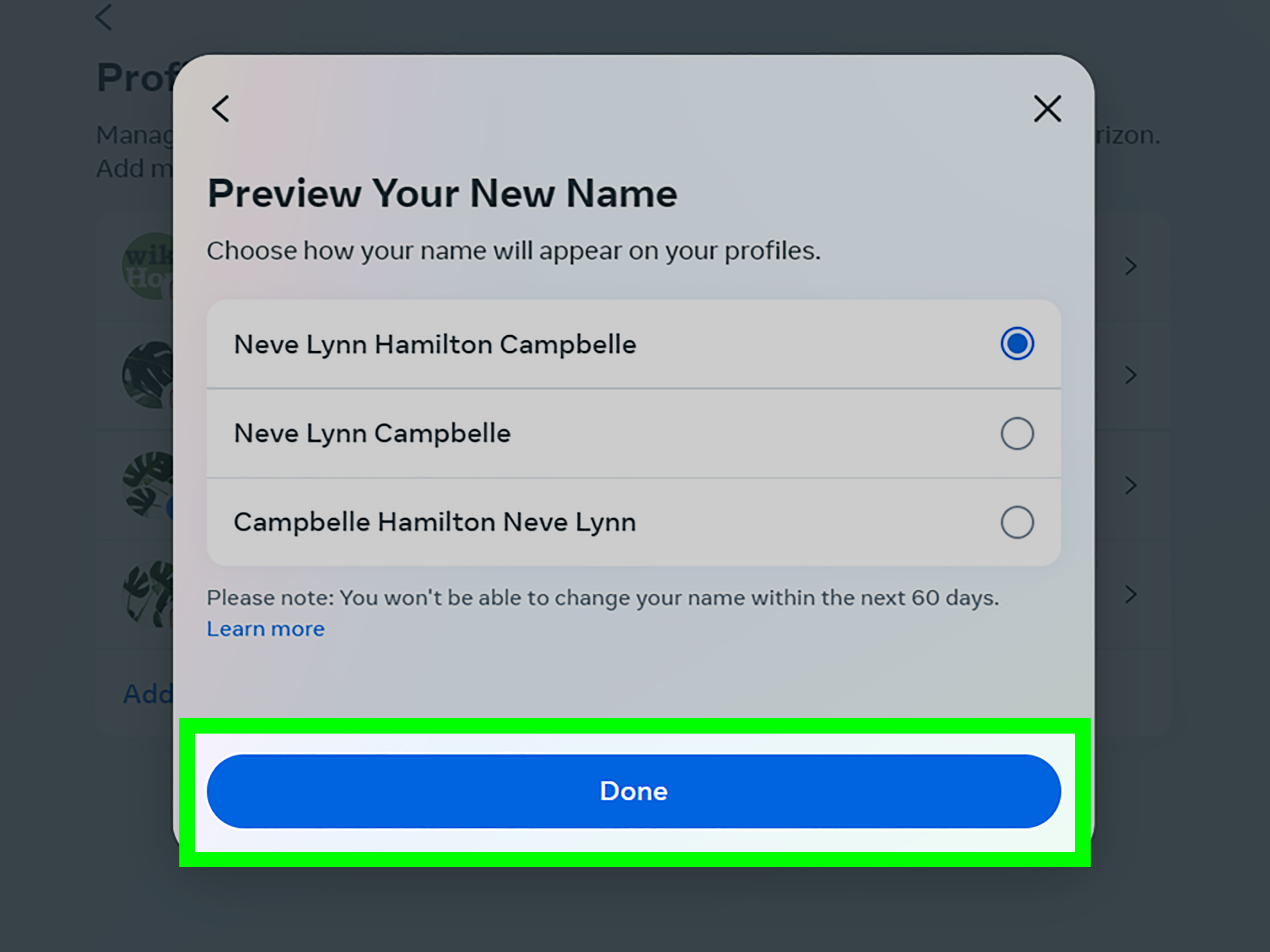
- Click Review change.
- Select the way you want your name displayed if Facebook presents multiple arrangements.
- Confirm the change and click Save changes.
After saving, visit your profile and verify that the new name appears correctly. Facebook may apply a straightforward change quickly, while some requests can remain under review.
How to Change Your Name on the Facebook Mobile App
The process is similar on Android and iPhone, although the Menu icon may appear in a different corner. Facebook enjoys rearranging its furniture occasionally, so look for your profile picture or the three-line Menu icon if your screen does not match these instructions perfectly.
- Open the Facebook app.
- Tap Menu or your profile picture.
- Scroll down and tap Settings & privacy.
- Select Settings.
- Tap Accounts Center or See more in Accounts Center.
- Choose Profiles.
- Select your Facebook profile.
- Tap Name.
- Enter the name you want to use.
- Tap Review change.
- Check the spelling and display order carefully.
- Tap Save changes.
If you manage connected Facebook and Instagram profiles, make sure you select the Facebook profile rather than editing the wrong account. Accounts Center places related profiles together, which is convenient until you accidentally give your Instagram account your formal middle name and three initials.
Facebook Name Standards You Need to Follow
Facebook does not accept every collection of characters that fits inside the name fields. Its standards are intended to help people understand who they are connecting with and to discourage impersonation, spam, and misleading accounts.
A Facebook profile name generally cannot contain:
- Numbers used as part of a name without a legitimate reason
- Symbols or excessive punctuation
- Unusual or inconsistent capitalization
- Repeated characters designed to decorate the name
- Characters improperly mixed from multiple writing systems
- Professional, military, royal, or religious titles
- Complete phrases or slogans instead of a personal name
- Offensive, sexually suggestive, or abusive wording
- A name that impersonates another person
For example, “Dr. Michael Carter” may be rejected because “Dr.” is a professional title. “M!ch@el C@rter” may fail because of symbols, while “BEST REALTOR IN TEXAS” belongs on a business Page or promotional post, not in a personal profile’s name fields.
How to Add a Nickname, Maiden Name, or Former Name
You do not always need to replace your primary Facebook name. Adding another name may be a better choice when friends know you by a nickname, maiden name, birth name, married name, professional name, or alternate spelling.
Depending on your version of Facebook, you can manage another name through Accounts Center or directly from your profile:
- Go to your Facebook profile.
- Open the About section.
- Select Details about you.
- Find Other names.
- Choose Add a nickname, birth name, or other name.
- Select the appropriate name type.
- Enter the additional name.
- Choose whether to display it near the top of your profile.
- Save the update.
This option is especially useful after marriage. For example, someone named Emma Rodriguez who recently became Emma Bennett could use “Emma Bennett” as the primary name and add “Emma Rodriguez” as a former or maiden name. Old classmates can still recognize the profile without turning the primary name into a punctuation obstacle course.
Facebook Profile Name vs. Username
Your Facebook profile name and username are related, but they are not the same thing.
Your profile name is the human-readable name shown on posts, comments, search results, Messenger conversations, and your profile.
Your username is the unique identifier associated with your Facebook profile address. It may appear in a URL such as facebook.com/jordan.smith.
Changing your profile name does not necessarily update your username. To edit the username, return to Accounts Center, select your Facebook profile, and look for Username. Enter an available option and save it. Facebook usernames usually support letters, numbers, and periods, and the username must not already belong to another account.
Think carefully before changing a username that appears on business cards, email signatures, websites, or other social profiles. An old link may stop directing visitors to the expected profile.
Why Facebook Will Not Let You Change Your Name
If the option is unavailable or Facebook rejects your request, the problem usually falls into one of several categories.
You changed it recently
The 60-day restriction is the most common explanation. Check when you last changed the profile name. Facebook generally does not provide a standard button for skipping the waiting period because you changed your mind five minutes later.
The proposed name violates Facebook’s standards
Remove symbols, titles, random capitalization, slogans, and decorative characters. Use the spelling and structure associated with your real identity or everyday name.
The name does not appear authentic
A major change can trigger additional review. Facebook may ask you to confirm that people genuinely know you by the requested name. Follow the on-screen instructions and provide accurate information.
Your identification was rejected
Retake the photo in bright, even lighting. Keep the entire document visible, avoid reflections, and make sure the requested details can be read. Do not digitally alter the document unless Facebook specifically provides a method for covering nonessential information.
You selected the wrong connected profile
Accounts Center may contain both Facebook and Instagram accounts. Return to Profiles and confirm that you are editing the intended Facebook profile.
The app is outdated or malfunctioning
Update the Facebook app, close and reopen it, clear the app cache on supported devices, or try the desktop website. A browser session can sometimes succeed when an outdated app keeps sending you through the same menu loop.
What Happens After You Change Your Facebook Name?
Your friends, posts, photos, groups, and messages normally remain attached to the same account. You are editing the profile’s displayed identity, not creating a replacement account.
Your new name may begin appearing in search results, notifications, tags, comments, and Messenger. Older content generally becomes associated with the updated profile name, although cached search results, external search engines, or connected services may take longer to refresh.
Friends may initially wonder who the unfamiliar name belongs to. Consider publishing a brief post such as, “Same person, updated name,” particularly after a marriage, divorce, professional rebrand, or major identity change. This can prevent concerned relatives from reporting your perfectly legitimate account as an impostor before breakfast.
Privacy and Security Steps to Take After a Name Change
A name change is a useful moment to review the rest of your profile. If you are changing your name for personal safety, separation, unwanted attention, or professional boundaries, the displayed name is only one part of the privacy equation.
- Review who can see your future and past posts.
- Limit who can view your friends list.
- Check whether people can find you using your phone number or email address.
- Review public profile details, including employment and location.
- Inspect tagged posts and enable tag review where appropriate.
- Check your profile from the public-view tool.
- Update your password if you suspect unauthorized access.
- Enable two-factor authentication.
- Review active sessions and remove unfamiliar devices.
Remember that your profile picture, cover image, mutual friends, public comments, and username may still make the account recognizable even after the displayed name changes. Privacy settings deserve the same attention as the name field.
Frequently Asked Questions
Can I change my Facebook name before 60 days?
Usually, no. Facebook generally restricts profile name changes to one every 60 days. An exceptional identity issue may present a separate review process, but users should not assume that a minor typo will qualify.
Will my friends receive a notification?
Facebook may surface the updated name through normal activity, search, recommendations, or profile visits. Even when no direct announcement reaches every friend, people can notice the change when you post or comment.
Can I use only one name?
Facebook provides support pathways for people whose authentic names contain a single name rather than separate first and last names. Follow the relevant name-help instructions if the standard form does not accept your naming structure.
Can I use a stage name or professional name?
A professional or stage name may work when it is genuinely the name you use in everyday life. You can also add it as an additional name. Facebook may request confirmation if the name is reported or appears inconsistent with the account.
Does changing my name change my Facebook URL?
Not automatically. The profile name and username are separate settings. Update the username independently when you also want to change the personalized profile address.
Can I change the name of a Facebook Page using these steps?
No. Personal profiles and Facebook Pages have different naming tools and policies. To rename a business, organization, creator, or community Page, switch into the Page and use its Page setup or Page information settings.
Practical Experiences and Lessons From Common Name Changes
The following composite scenarios reflect common experiences people encounter when updating a Facebook name. They are not descriptions of one specific user, but they illustrate the small decisions that often determine whether the process is painless or unnecessarily dramatic.
Experience 1: The rushed post-wedding update
Imagine that Lauren Miller gets married and immediately changes her Facebook profile to Lauren Thompson while leaving the wedding reception. Unfortunately, autocorrect turns Thompson into “Thompsom.” She notices the mistake the next morning, but the name-change limit prevents an immediate routine correction.
The lesson is simple: prepare the exact spelling before opening Accounts Center. Review the first, middle, and last name fields slowly. The celebration can survive another 30 seconds without a Facebook update, but the typo may remain considerably longer.
Experience 2: Replacing the primary name when an additional name was better
Marcus Lee has been called “MJ” since childhood. He changes his primary profile name to MJ Lee, then realizes that former coworkers and distant relatives have trouble finding him. A better approach would have been to keep Marcus Lee as the main name and add MJ as a nickname displayed at the top of the profile.
Additional names provide context without sacrificing recognition. They are especially useful for nicknames, alternate spellings, former surnames, and professional identities.
Experience 3: Confusing the name with the username
After changing her profile name from Rachel Green to Rachel Adams, Rachel expects her Facebook address to update automatically. It still contains her old username. She shares the old link on a new résumé, assumes everything is synchronized, and later discovers that profile names and usernames are controlled separately.
The practical lesson is to audit every public identifier after a major name change. Check the profile name, username, profile URL, Page roles, email signature, linked website, and connected social accounts. A complete identity update involves more than one text box.
Experience 4: Triggering rejection with decorative formatting
Daniel wants his profile to stand out, so he enters “DΛNIΞL ★ CARTER.” Humans may understand it, but Facebook’s systems see unusual characters, symbols, and capitalization. The request is rejected.
He succeeds after entering the ordinary spelling “Daniel Carter” and placing the decorative branding in his bio instead. This is generally the wiser strategy: use the name field for your name and the introduction, bio, or featured content for personality. Your profile can still sparkle without asking the identity system to interpret a constellation.
Experience 5: Changing a name for privacy without reviewing the profile
A user changes a surname to reduce unwanted attention but leaves a public username, workplace, hometown, friends list, profile photograph, and searchable phone number unchanged. The new display name provides very little protection because the rest of the profile still makes identification easy.
The broader lesson is that a name change is not a complete privacy shield. Anyone making the change for safety should review discoverability, contact information, tagging permissions, public posts, connected apps, active sessions, and blocked accounts. In sensitive situations, documenting harassment and seeking help from appropriate local resources may also be important.
Experience 6: Submitting an unreadable identity document
When Facebook asks Priya to confirm her name, she photographs her document at night under a bright ceiling light. Half the image is dark, and a large reflection covers the name. The submission fails, even though the document itself is valid.
She tries again using indirect daylight, places the document on a plain surface, keeps all edges inside the frame, and checks the image before submitting it. The clearer version is much easier to review.
The takeaway from these experiences is that most Facebook name changes succeed when users choose the correct type of update, follow ordinary name formatting, verify every character, and think beyond the main display name. A few minutes of preparation can prevent weeks of confusion.
Conclusion
To change your name on Facebook, open Settings, enter Meta’s Accounts Center, select your Facebook profile, choose Name, and review the proposed change before saving it. The basic process is easy, but Facebook’s 60-day limit makes accuracy essential.
Use a name that represents how people know you, avoid prohibited symbols and titles, and consider adding a nickname or former name instead of replacing the primary name. When a request is rejected, check the waiting period, formatting rules, connected profile selection, and any identity-confirmation instructions.
Finally, remember that a new display name does not automatically change your username, profile URL, public information, or privacy settings. Review those details afterward so your Facebook identity is consistent, recognizable, and appropriately protected.