
Snapchat Geofilters are one of those tiny app features that can make a regular photo feel like a postcard, a party invitation, a travel flex, and a “yes, I was actually there” receipt all at once. Whether you are at a concert, visiting a landmark, sitting in a coffee shop with suspiciously expensive oat milk, or celebrating a school event, Snapchat may show location-based filters that match where you are.
The catch? Geofilters depend on your location settings, your device permissions, your version of Snapchat, and whether Snapchat has a relevant filter available for that place. In other words, if your phone thinks you are in a parking lot behind a grocery store when you are actually at a beach resort, your Snap may not get the glamorous vacation overlay you were hoping for.
This guide explains how to use Geofilters in Snapchat on Android, iPhone, and iPad, how to turn on the right permissions, how to add filters to photos and videos, why some filters do not appear, and what changed with custom Snapchat Geofilters. We will keep it practical, friendly, and free of “tap here, then panic” energy.
What Are Snapchat Geofilters?
Snapchat Geofilters are location-based design overlays that can appear after you take a Snap. They are part of Snapchat’s broader filter system, which may include color effects, venue information, Bitmoji designs, time, weather, activity-based overlays, and other creative options.
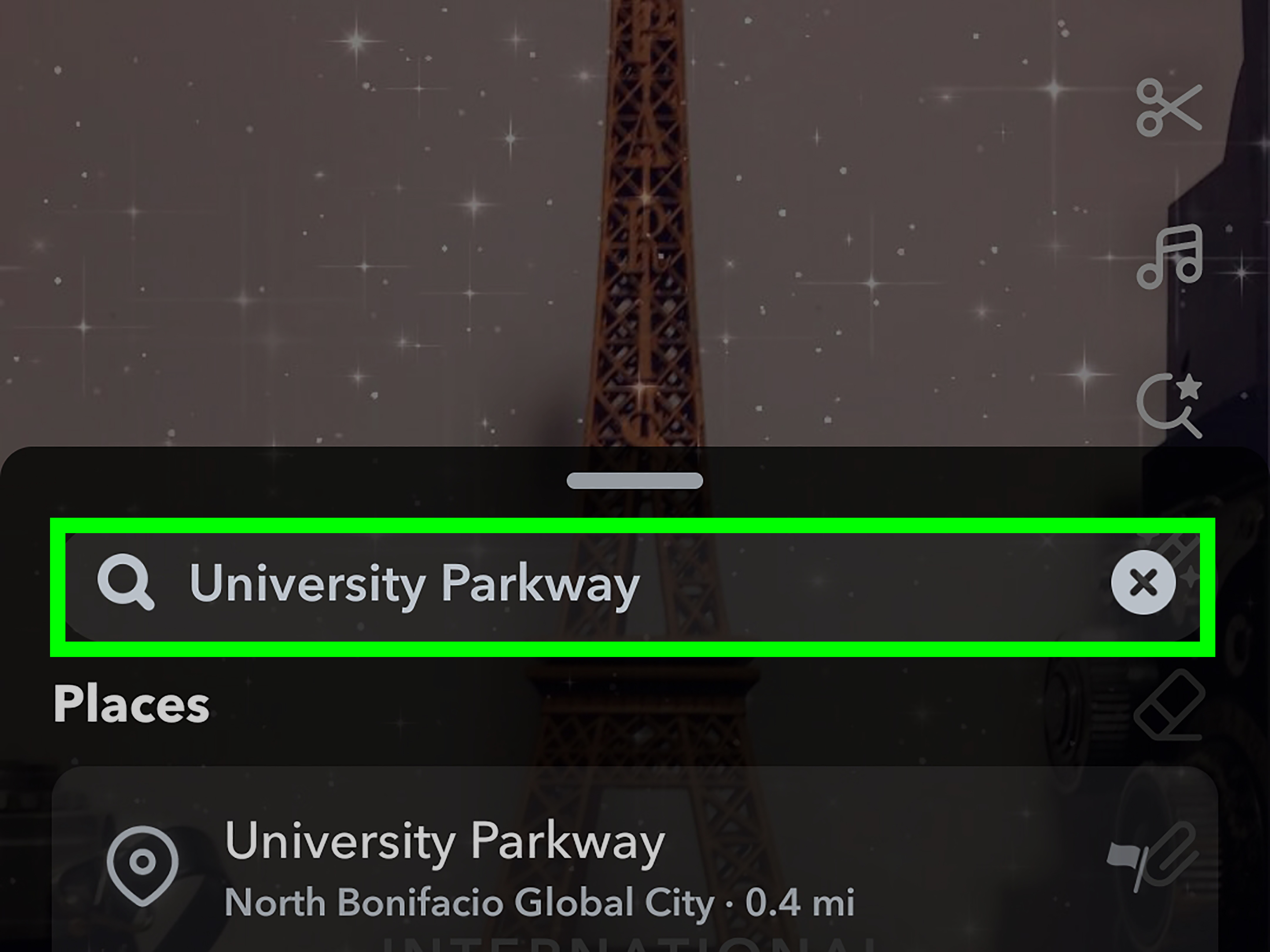
A Geofilter usually connects your Snap to a place. For example, you might see a city name, neighborhood graphic, event design, campus label, business venue tag, or landmark-themed overlay. The filter sits on top of your photo or video, giving it context without making you type “I am here” like a tourist holding a giant foam arrow.
Geofilters vs. Lenses: What Is the Difference?
Snapchat users often mix up Filters and Lenses, and honestly, the app does not exactly hand you a dictionary at the door. The simplest way to remember it is this:
- Lenses are effects you usually use before or while taking a Snap. They can change your face, add augmented reality objects, animate the background, or turn you into something that looks like it escaped from a cartoon laboratory.
- Filters are overlays you add after taking a Snap. Geofilters belong here because they are applied by swiping through available filter options after capturing your photo or video.
If you want dog ears, a dancing hot dog, or an AR rainbow cloud, look for Lenses. If you want a location tag, venue overlay, color style, or simple design layer after the photo is taken, you are in Filter territory.
How to Use Geofilters in Snapchat on iPhone
Using Geofilters on iPhone is usually straightforward once Snapchat has permission to access your location. The most common reason Geofilters do not appear is that location access is off, limited, or set too broadly for Snapchat to recognize the venue accurately.
Step 1: Turn On Location Services for Snapchat
Open your iPhone’s Settings app, then go to Privacy & Security, tap Location Services, and make sure Location Services are turned on. Scroll down to Snapchat and choose a permission such as While Using the App.
For the best chance of seeing venue filters and location-based overlays, keep Precise Location turned on. If Precise Location is off, Snapchat may still know your approximate area, but some venue-specific filters may not work properly. That is the difference between Snapchat knowing you are somewhere in Chicago and Snapchat knowing you are at the exact museum, stadium, campus, or café where a filter is available.
Step 2: Enable Filters Inside Snapchat
Open Snapchat and tap your Profile icon. Tap the gear icon to open Settings. Under Additional Services, tap Manage, then make sure Filters are turned on. If the setting is already enabled, turn it off and back on if filters are acting stubborn. Sometimes apps need the digital version of “have you tried turning it off and on again?”
Step 3: Take a Snap
Return to the Snapchat camera. Tap the shutter button to take a photo or press and hold it to record a video. Make sure you are physically near the place where you expect the Geofilter to appear. Location filters are not magic portals. They generally depend on where your device says you are.
Step 4: Swipe Through Filters
After taking your Snap, swipe left or right on the screen. Snapchat will cycle through available Filters. If a location-based filter is available, it should appear among the options. Tap or stop swiping when you find the one you like.
Step 5: Layer Filters If You Want More Style
Snapchat may let you add more than one filter by tapping the layer icon. This can be useful if you want a Geofilter plus a color effect or another overlay. Keep it readable, though. If your Snap looks like a nightclub flyer printed over a weather report, you may have gone too far.
How to Use Geofilters in Snapchat on iPad
Snapchat is available for iPad, but the experience may feel more like a stretched mobile app than a full tablet-first creative studio. Still, the basic process for using Snapchat Geofilters on iPad is similar to iPhone.
Enable Location Access on iPad
Open Settings on your iPad, go to Privacy & Security, then tap Location Services. Make sure Location Services are on, select Snapchat, and allow location access while using the app. If your iPad supports precise location and the option appears, turn it on for more accurate venue-based filters.
Check Snapchat Filter Settings
Open Snapchat, tap your Profile icon, go to Settings, find Additional Services, tap Manage, and make sure Filters are enabled. After that, take a Snap and swipe left or right to browse filters.
iPad Tip: Check Your Connection and Location Accuracy
Some iPads rely more heavily on Wi-Fi positioning if they do not have cellular GPS capabilities. That can affect whether Snapchat recognizes your exact location. If Geofilters are not showing, connect to a reliable Wi-Fi network, move closer to the actual venue, and restart the app. For best results, avoid trying to use a hyper-local Geofilter from the far corner of a building where your iPad is clinging to the internet like a squirrel on a power line.
How to Use Geofilters in Snapchat on Android
Android phones vary by brand, Android version, and manufacturer skin, but the general process is similar across devices. You need to allow Snapchat to use your location, turn on Filters inside Snapchat, take a Snap, and swipe through the available options.
Step 1: Enable Location on Android
Open your Android Settings app and go to Location. Make sure location is turned on. Then open Apps or App Management, choose Snapchat, tap Permissions, and allow location access. On many Android phones, you can choose Allow only while using the app, which is a practical privacy-friendly option.
If your Android phone has an Approximate versus Precise location setting, choose Precise if you want venue-specific filters to appear. Approximate location may be enough for city-level features but not always accurate enough for a specific restaurant, stadium, school, or event space.
Step 2: Turn On Filters in Snapchat
Open Snapchat, tap your Profile icon, tap the Settings gear, select Manage under Additional Services, and make sure Filters are switched on.
Step 3: Capture and Swipe
Take a photo or video Snap. Then swipe left or right to browse available filters. If a Geofilter exists for your location, it should appear in the filter carousel. Add text, stickers, music, captions, or drawings if you want, then send it to friends, post it to your Story, or save it to Memories.
Why Snapchat Geofilters Are Not Showing
If you are standing in a popular place and still cannot find a Geofilter, do not immediately blame your phone, your thumbs, or Mercury retrograde. Several practical issues can prevent filters from appearing.
1. Location Access Is Off
Snapchat needs location access for many location-based filters. If your device blocks Snapchat from using location, Geofilters will not work properly. Check both your phone’s system settings and Snapchat’s in-app filter settings.
2. Precise Location Is Disabled
On iPhone and some Android devices, approximate location may not be enough for venue filters. If you are trying to use a filter tied to a specific place, turn on Precise Location for Snapchat.
3. There Is No Geofilter for That Area
Not every location has a Geofilter. A major city, landmark, airport, school, sports arena, or event venue is more likely to have one than a random sidewalk, a quiet suburb, or your cousin’s garage where the Wi-Fi name is still “FBI Surveillance Van.”
4. Snapchat Needs an Update
Using an outdated app can cause missing features or glitches. Open the App Store or Google Play Store and update Snapchat. After updating, close and reopen the app before testing filters again.
5. Your Internet Connection Is Weak
Snapchat depends on a working connection to load filters and location features. If you are in a crowded venue, basement, elevator, stadium, or concert hall, your connection may be slow. Try moving to a better signal area or switching between Wi-Fi and mobile data.
6. The Filter May Be in Stickers Instead
Some information that users expect to find by swiping, such as time or temperature, may appear in Snapchat’s sticker drawer instead. If you do not see a certain overlay in the filter carousel, tap the sticker icon and check there.
Can You Still Create Custom Snapchat Geofilters?
This is where things have changed. Snapchat’s old On-Demand Geofilters, the paid custom filters people used for weddings, birthday parties, graduations, and events, are no longer supported. Snapchat has also noted that custom filters for special events are no longer available in the same way they once were.
That means if you are searching for “how to make a Snapchat Geofilter for my wedding,” many older tutorials may be outdated. In the past, you could design a filter, choose a geofence, pay for a time window, and let guests use it at your event. Today, Snapchat points creators and brands more toward Lenses, Lens Studio, and business advertising tools.
What Should You Use Instead?
If your goal is personal fun, use available Snapchat Filters, location stickers, captions, Bitmoji, music, and creative tools. If your goal is event branding or business promotion, explore Snapchat’s business tools, Sponsored Lenses, or other ad formats. Lenses can offer more interactive camera experiences than old static Geofilters, which is useful for brands that want people to play, pose, share, and remember the campaign.
Best Practices for Using Snapchat Geofilters
Use the Filter That Adds Context
A good Geofilter should make the Snap clearer or more fun. If you are at a baseball game, a stadium filter makes sense. If you are at a beach, a sunny location overlay adds charm. If you are in line at the DMV, a glamorous city filter may be the only thing holding your spirit together.
Do Not Cover the Subject
Filters are overlays, not blankets. If the filter hides faces, food, outfits, signs, or the main action, try another one. The best Snapchat Geofilters frame the moment without stealing the entire stage.
Combine Filters Carefully
Layering can be useful, but too many effects can make your Snap messy. A location filter plus a subtle color effect is usually enough. Add stickers and text only when they improve the story.
Think About Privacy
Geofilters can reveal where you are. That is part of the fun, but it also deserves common sense. Avoid posting your exact location publicly if you are alone, at home, at school, or somewhere private. For public Stories, consider posting after you leave the location rather than in real time.
How Businesses and Creators Can Think About Location-Based Snapchat Content
Even though old-style custom On-Demand Geofilters are gone, location-based Snapchat content still matters enough. Add stickers and text only when they improve the story.
Think. People use Snapchat to share what they are doing right now, and “right now” often includes “right here.” That makes location a powerful storytelling tool.
A coffee shop, college club, fitness studio, boutique, or festival organizer can still encourage people to share Snaps from a location. The key is to create moments worth snapping. A neon sign, branded wall, funny menu board, photo booth, event backdrop, limited-time product, or interactive Lens can do more than a plain logo ever could.
For creators, Geofilters can help build a sense of place. A travel creator can use city filters to organize a day of Snaps. A student can use campus filters during move-in week or graduation. A sports fan can use stadium filters to make a Story feel more alive. The filter is not the whole story; it is the little label that says, “This happened somewhere worth remembering.”
Real-World Experience: What It Is Actually Like to Use Snapchat Geofilters
Using Snapchat Geofilters sounds simple on paper: open camera, take Snap, swipe, post. In real life, it is slightly more chaotic, especially when you are trying to capture a moment before your friend eats the photogenic dessert or the concert lights change from “perfect” to “why is everyone purple?”
The best experience comes when you prepare before the moment happens. If you are going to an event, open Snapchat when you arrive and check whether filters load. Make sure your location permission is enabled and your connection is stable. This takes about a minute, but it saves you from trying to troubleshoot while everyone else is already posing.
On iPhone, Geofilters usually feel smooth when Precise Location is enabled. The app recognizes venues more reliably, especially in cities, shopping districts, tourist areas, campuses, and event spaces. If you only allow approximate location, you may still see general filters, but the more interesting venue-specific options may disappear. That can be frustrating when you know a location should have a filter, but Snapchat acts like you are floating somewhere in the general atmosphere.
On Android, the experience depends more on the device. Newer phones with strong GPS and updated software tend to work well. Older devices or phones with aggressive battery-saving settings may delay location updates. If filters are not appearing, turning location off and back on, reopening Snapchat, or stepping outside for a better GPS signal can help. It is not elegant, but neither is asking five friends, “Do you see the filter?” while they are all trying to take the same picture.
On iPad, Snapchat can be fun for editing and viewing, but it is not always the most natural device for quick location Snaps. Holding up a tablet at a restaurant or event may make you look like you are documenting a rare bird sighting. Still, if you use an iPad for content creation, the larger screen can help you check details, add text, and arrange stickers more carefully.
One useful habit is to take the Snap first, then decide whether the Geofilter actually improves it. Sometimes the best filter is no filter. A clean photo with good lighting beats a cluttered overlay every time. But when the right Geofilter appears, it adds instant context. A city name, venue graphic, or event tag can make a casual Snap feel complete.
Another practical lesson: do not rely on Geofilters for important information. If you need people to know where you are, add a caption too. Filters can vanish, change, or fail to load. A simple text label like “Downtown Austin” or “First night in Miami” keeps the story clear even if the location filter is missing.
Finally, remember that Snapchat is supposed to be fun. Geofilters are not a professional design exam. Use them when they make your Snap more entertaining, more specific, or more memorable. Skip them when they crowd the image. The best Snapchat Geofilter is the one that makes your friends instantly understand the moment without needing a three-paragraph explanation and a map.
Conclusion
Learning how to use Geofilters in Snapchat on Android, iPhone, and iPad mostly comes down to three things: enable Filters in Snapchat, allow location access on your device, and swipe through filters after taking a Snap. If a location-based filter is available where you are, Snapchat should show it alongside other filter options.
For the best results, keep your app updated, allow precise location when you want venue filters, check the sticker drawer for overlays like time or temperature, and remember that not every place has a Geofilter. Also, be aware that Snapchat’s old custom On-Demand Geofilters for special events are no longer supported, so older tutorials may not reflect today’s app.
Used well, Snapchat Geofilters add personality, place, and a little digital sparkle to your Snaps. They are quick, visual, and perfect for making everyday moments feel more shareable. Just do not let the filter do all the talking. The best Snap still starts with a good moment, a clear subject, and maybe one friend in the background making a face they will deny forever.