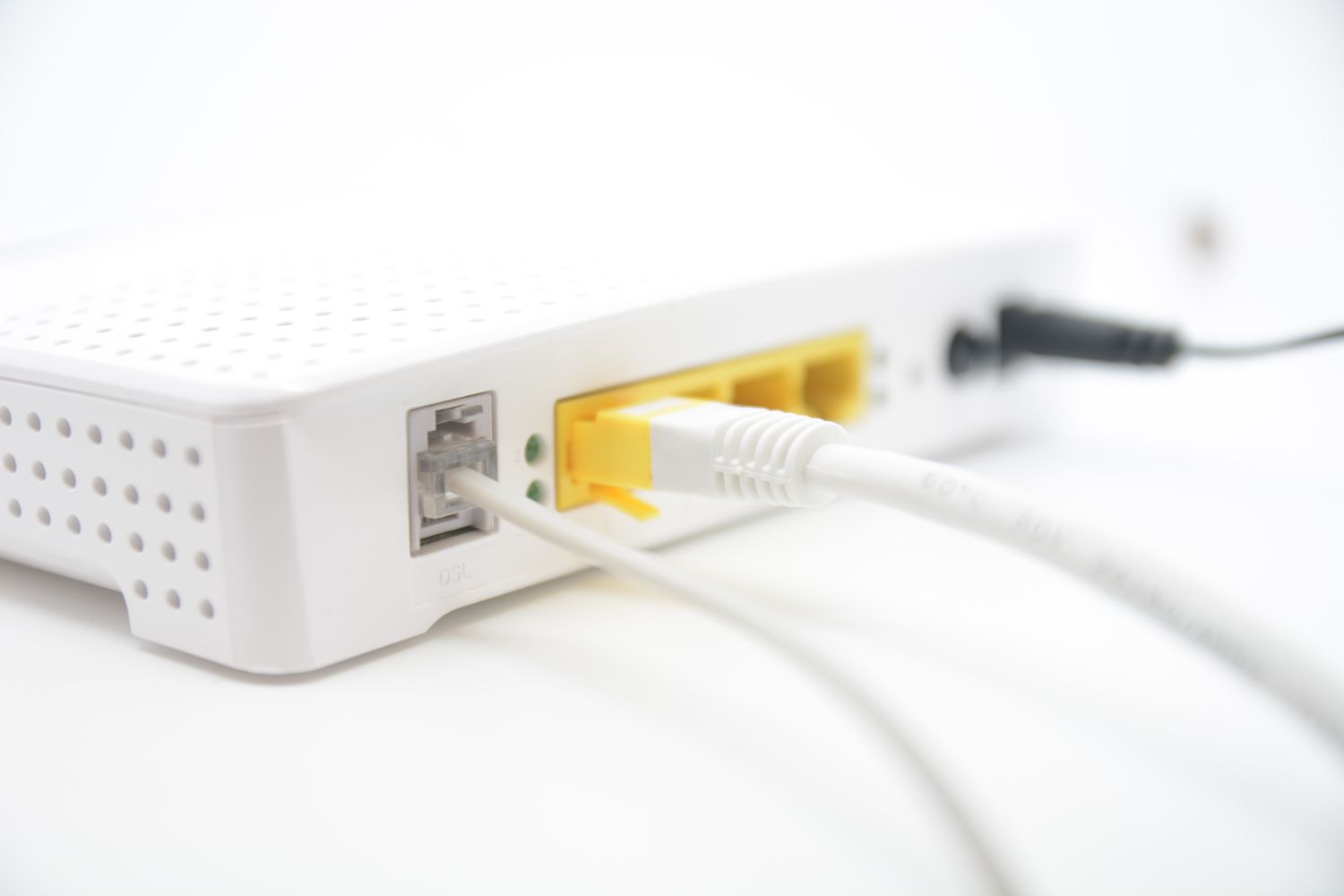

Your modem has one job: connect your home to the internet. So when it quits, it somehow manages to ruin work, streaming, gaming, homework, and your very fragile sense of patience all at once. One minute you are happily online; the next, you are staring at blinking lights like they are trying to send a secret message in Morse code.
If you have been asking, “Why is my modem not working?” the good news is that the problem is often fixable. Sometimes it is a simple power issue. Sometimes it is a loose coax cable. Sometimes your provider is having an outage and your modem is just the innocent bystander taking the blame. And sometimes, yes, the router is the real drama queen while the modem gets unfairly accused.
This guide breaks down the most common reasons a modem stops working, how to tell whether the modem or router is really the problem, and the smartest steps to take before you call your internet provider and prepare for a long conversation with hold music.
First, Make Sure It’s Really the Modem
Before you declare your modem officially deceased, it helps to know what device does what. A modem brings the internet signal into your home. A router spreads that connection to your devices through Wi-Fi or Ethernet. If you have a gateway, that is a combo unit that does both jobs in one box.
That distinction matters because many people say “my modem isn’t working” when the actual problem is one of these:
The router lost its Wi-Fi settings. One device cannot connect, but others can. An Ethernet cable is bad. The provider is having a service outage. Or the internet is working fine, but your Wi-Fi coverage is weak in one room that your router apparently considers emotionally distant.
A quick clue: if a device works when plugged in with Ethernet but not over Wi-Fi, your modem may be fine and your router is the one causing trouble.
The Most Common Reasons Your Modem Is Not Working
1. There’s a service outage in your area
This is one of the most common explanations, and also the most annoying because no amount of unplugging and replugging will fix a neighborhood outage. If your connection suddenly disappears on all devices, check your provider’s app, support portal, or service status page before tearing apart your home network like a detective in a crime show.
Bad weather, maintenance work, damaged lines, or broader network issues can all knock out service. In those cases, your modem may look confused because it is confused. It is trying to connect to a network that is currently taking a nap.
2. Your modem needs a proper restart
Yes, the classic “turn it off and on again” advice is basic. It is also surprisingly effective. Modems and gateways can get stuck during startup, lose their connection to the provider, or hang onto a bad session longer than they should.
If you have a separate modem and router, restart them in the proper order. Power off both devices. Turn the modem back on first and wait until its main connection lights stabilize. Then turn the router back on. Doing this out of order can leave your router searching for a connection that is not ready yet, which is basically the networking version of trying to board a plane before it has landed.
3. A loose or damaged cable is killing the signal
Your modem depends on clean physical connections. For cable internet, that usually means the coaxial cable must be secure and undamaged. For other setups, it may involve a DSL line, Ethernet handoff, or gateway connection from an ONT or wall jack.
Check the power cord, coax cable, Ethernet cable, wall connection, and any adapters. Make sure nothing is bent, frayed, half-plugged, or held together by hope. Even a slightly loose coax connection can cause intermittent drops, slow speeds, or a modem that never fully comes online.
4. The modem was never activated or properly provisioned
This one shows up often after you replace equipment, move service, or buy your own modem. A modem can be physically connected and still not work if your provider has not activated it on your account. In many cases, the provider needs the modem’s MAC address and must provision the device for your service tier.
So if your shiny new modem is sitting there with confidence but no internet, compatibility and activation are high on the suspect list.
5. Your modem is not compatible with your internet plan or provider
Not every modem works on every network. Providers maintain approved or authorized device lists, and speed tiers matter too. A modem that was great a few years ago may not fully support your current plan, especially if you upgraded to faster service.
This is especially common with older DOCSIS cable modems. If your modem is not approved, not supported, or just too old for the speed you are paying for, your service may fail during activation or perform badly even when technically connected.
6. The router is the real troublemaker
Sometimes the modem is doing its job, but the router is not distributing the connection properly. Maybe the router firmware is outdated, maybe the Wi-Fi settings got scrambled, or maybe it simply picked today to become difficult.
A fast test is to connect one computer directly to the modem with Ethernet, if your setup allows it. If that device gets online, the modem is probably fine and the router needs attention.
7. Wi-Fi is weak, but the internet itself is fine
There is an important difference between no internet and bad Wi-Fi. If your modem is online but devices far away keep disconnecting, the issue may be coverage, interference, congestion, or router placement. Thick walls, large furniture, microwave interference, neighboring networks, and distance can all make Wi-Fi feel flaky.
That is why a home can have “internet problems” even when the modem is technically working. In plain English: the signal made it into your house, but it is struggling to make it to your bedroom office, your basement TV, or that one weird corner where your laptop always chooses chaos.
8. The modem is overheating, aging, or glitching
Networking gear does not last forever. A modem that runs hot, randomly reboots, drops connection several times a day, or struggles after years of service may be nearing retirement. Dust buildup, poor ventilation, and old hardware can all contribute.
If your modem is hot to the touch, wedged in a cabinet, or old enough to remember your first streaming password, age could be the issue. No shame. Electronics get tired too.
9. Signal issues, splitters, and bad coax are dragging everything down
For cable internet users, splitters and line quality can make or break performance. Too many splitters, poor-quality coax, damaged connectors, moisture in a line, or weak signal levels can cause the modem to struggle with downstream and upstream lock. That often shows up as blinking online lights, frequent disconnects, or speeds that bounce around like they had too much coffee.
If you suspect a line issue, this is usually the point where the provider needs to test signal levels on their side.
10. The modem may have actually failed
It is not the most common answer, but it does happen. If the modem will not power on, the lights never stabilize, resets do not help, and the provider confirms there is no outage or account issue, the hardware itself may be done.
At that stage, replacement is usually the fastest path back to civilization.
How to Troubleshoot a Modem That Is Not Working
Step 1: Check whether the outage is bigger than your house
Use your provider’s app, website, or support line to see whether there is a service interruption. If there is, you can stop blaming your modem for a crime it did not commit.
Step 2: Look at the modem lights
Every modem model is different, but most have indicator lights for power, receive/downstream, send/upstream, and online/internet status. A completely dark modem usually points to power trouble. A blinking online light often means it is trying and failing to establish service. A solid online light usually means the modem is connected, even if Wi-Fi problems still exist elsewhere.
Step 3: Restart everything the right way
Unplug the modem. If you have a separate router, unplug that too. Wait about a minute. Plug the modem back in first and let it fully reconnect. Then power the router back on. Finally, restart the device you are using.
Step 4: Test one device with Ethernet
If wired internet works but Wi-Fi does not, the problem is probably not the modem. That narrows your troubleshooting dramatically and saves you from replacing the wrong box.
Step 5: Inspect every cable
Tighten the coax connection gently but securely. Swap out a questionable Ethernet cable. Make sure the power adapter is the correct one and fully seated. Look for damaged wires, bent pins, moisture exposure, or splitters that may be degrading the signal.
Step 6: Confirm activation and compatibility
If the modem is new, recently moved, or customer-owned, verify that your provider has activated it and that it is approved for your plan. A modem can be physically perfect and still remain gloriously offline if the account side is not set up properly.
Step 7: Check heat and placement
Make sure the modem has ventilation and is not trapped in a hot cabinet, behind a TV, or under a pile of papers that somehow became your unofficial technology blanket.
Step 8: Reset only if necessary
A factory reset can help in some cases, especially with gateways and modem-router combos, but it also wipes custom settings. Use it after simpler fixes fail, not as your opening move. Think of it as the networking equivalent of repainting a room: useful sometimes, but maybe not step one.
What the Modem Lights Are Usually Telling You
While exact labels differ by brand, these patterns are common:
No lights: likely no power, a bad outlet, failed power adapter, or dead hardware.
Power light on, online light blinking: the modem has power but is not establishing a full connection to the provider.
Downstream or upstream lights blinking: the modem is trying to lock onto the signal.
Online light solid, but Wi-Fi still broken: the modem may be fine; check the router or local device.
Frequent reboots or lights cycling: possible overheating, signal instability, power problems, or failing hardware.
If you are not sure what your specific light pattern means, look up the model manual from the manufacturer or your provider. The blinking lights are not random; they are tiny plastic cry-for-help indicators.
When to Call Your ISP
Call your provider when you have already restarted the modem, checked for outages, inspected cables, and confirmed the issue is affecting multiple devices. Also call if the modem is new and may need activation, if you suspect a signal problem, or if the connection keeps dropping even after basic fixes.
When you contact support, be ready with the modem model, the status lights you see, whether Ethernet works, and whether the issue affects all devices or just some. That small bit of prep can turn a long, painful call into a short, slightly less painful one.
How to Prevent Future Modem Problems
Keep the modem in a cool, open area. Avoid cheap or damaged cables. Replace aging hardware before it becomes a full-time nuisance. Use provider-approved equipment. Reboot occasionally if performance starts getting weird. And if your internet plan has outgrown your device, upgrade the modem before your next family movie night turns into a buffering documentary.
It is also smart to separate modem and Wi-Fi troubleshooting in your mind. The more clearly you identify whether the issue is the incoming internet signal, the modem, the router, or a single device, the faster you can fix it.
Experiences: Real-World Modem Misadventures That Sound Very Familiar
One of the most common modem stories starts with total panic and ends with a loose cable. Someone is on a work call, the connection drops, and suddenly the whole house becomes a troubleshooting command center. The modem is blamed, the router is blamed, the internet provider is blamed, and eventually someone notices that the coax cable behind the entertainment center is hanging on by a thread. One quick tighten later, the modem reconnects, and everyone acts like they personally engineered the comeback.
Another classic experience happens after buying a new modem. You bring home a nicer, faster model, connect everything perfectly, admire your cable management like it belongs in a tech commercial, and then discover there is still no internet. Why? Because the modem was never activated on the account. The hardware is fine. The cables are fine. Your confidence is not fine. A quick call or app activation fixes it, but not before you spend 45 minutes questioning your life choices.
Then there is the “it only dies at night” mystery. During the day, the internet works well enough. After dinner, though, streaming starts buffering, video calls get choppy, and online games turn into a slideshow. People often assume the modem is failing, but sometimes the real problem is peak-time network usage, Wi-Fi congestion, or an older router that simply cannot keep up with a home full of connected devices. The modem gets accused because it is the most visible box, but the actual culprit may be the rest of the network or the load on it.
Some experiences are even more deceptive. The modem lights look normal. The online indicator is solid. Yet nobody can get work done because the Wi-Fi in the back bedroom is awful. In that situation, the modem may be doing exactly what it should, while the router is poorly placed behind a TV stand, boxed in by walls and furniture, broadcasting your signal with all the strength of a tired whisper. Move the router, reduce interference, or switch to a better Wi-Fi setup, and suddenly the “broken modem” makes a miraculous recovery it did not actually need.
There are also those maddening intermittent issues. The internet comes back after a reboot, works for a few hours, then drops again. That pattern often points to overheating, unstable signal levels, aging hardware, or a line problem outside the house. These are the issues that make people restart their modem so many times they begin to feel like unpaid support staff. If this sounds familiar, it is usually a sign to stop guessing and start documenting when the drops happen, what the lights do, and whether wired devices fail too. That information helps your provider narrow things down faster.
And of course, no modem story collection would be complete without the power outage scenario. The electricity flickers, the modem reboots, and nothing comes back in the right order. The router starts before the modem is fully online, one device reconnects, three others refuse, and the house enters a brief technological dark age. In many cases, the fix is simply a clean restart in the proper sequence. It is not glamorous, but neither is eating cereal for dinner because the smart fridge app will not load.
The big lesson from all of these experiences is simple: a modem problem is not always a modem problem. The fastest fix usually comes from narrowing the issue down calmly instead of replacing random hardware and hoping for a miracle. Your modem may be guilty, but it deserves a fair trial first.
Conclusion
If you have been wondering why your modem is not working, the answer usually comes down to a handful of common issues: an outage, a bad restart sequence, loose cables, activation trouble, signal quality problems, weak Wi-Fi, outdated hardware, or a router that is causing all the noise while the modem quietly minds its business.
The best approach is simple: check for outages, read the status lights, restart the equipment correctly, test a wired connection, inspect cables, and confirm compatibility and activation. That process solves a surprising number of home internet problems without guesswork, panic, or dramatic speeches aimed at blinking electronics.
And if all else fails, call your provider with details instead of just saying, “The internet is weird.” It will save time, lower your blood pressure, and maybe help your modem clear its name.
SEO Tags