
Trying to set up an email app and getting asked for an incoming mail server can feel like being stopped at the airport by a very serious-looking robot. “State your protocol. Name your port. Explain yourself.” The good news is that this stuff is not magic. Once you know what an incoming mail server is, where to look for it, and whether you need IMAP or POP3, the whole process becomes a lot less dramatic and a lot more click-click-done.
This guide breaks it down in plain English. You will learn what an incoming mail server actually does, how to find your IMAP or POP3 settings, which common ports usually go with each protocol, and how to avoid the usual setup traps that make people question both technology and their life choices.
What Is an Incoming Mail Server?
An incoming mail server is the server your email app uses to receive messages. It is not the same as the outgoing server. Incoming handles the “bring me my email” part. Outgoing, usually SMTP, handles the “send this message into the world” part.
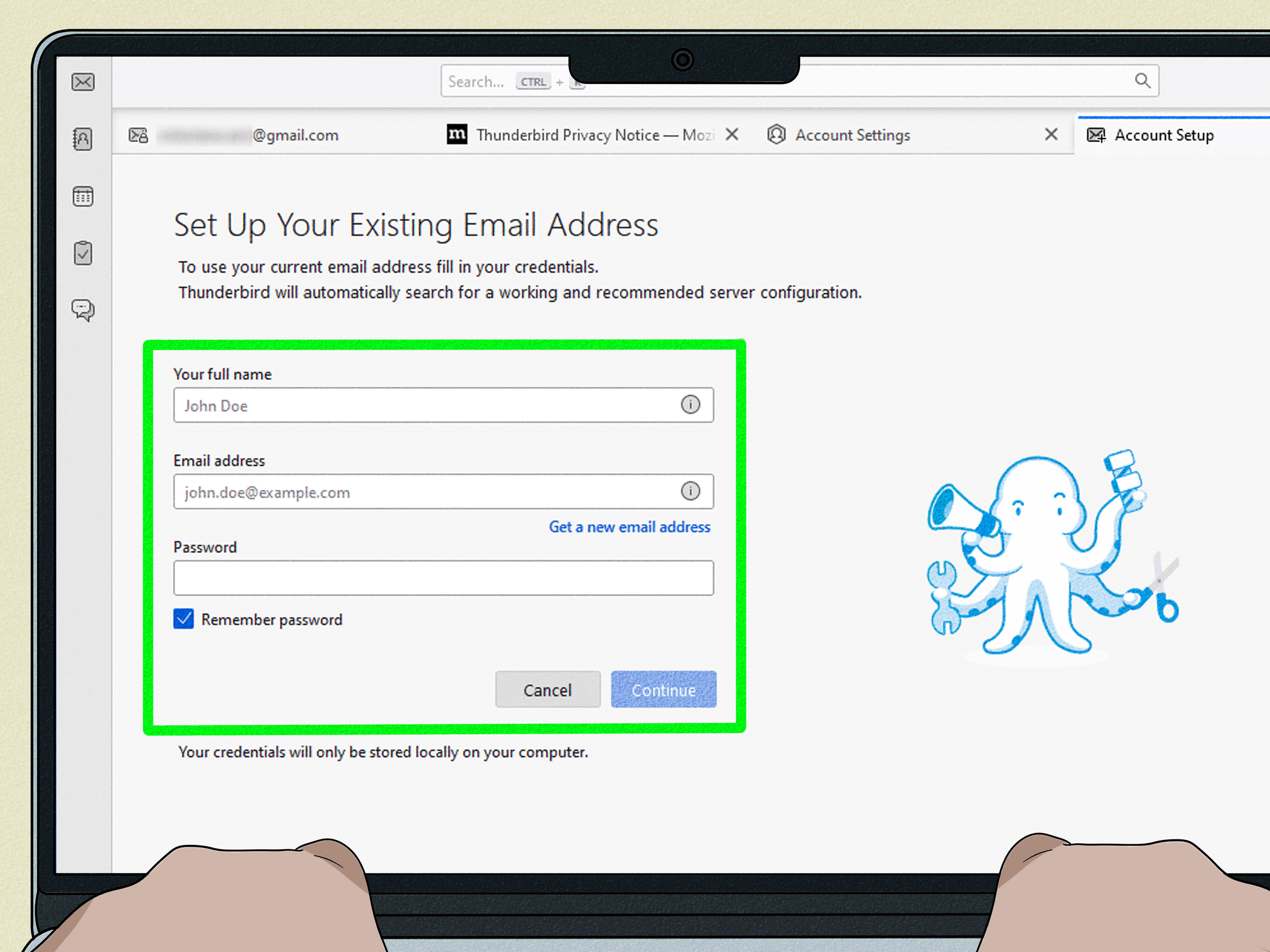
When you add an account to Outlook, Apple Mail, Thunderbird, your iPhone, or another mail client, the app usually asks for a few core details:
- Your full email address
- Your password or app password
- Your account type: IMAP or POP3
- Your incoming mail server name
- Your incoming port number
- Your encryption method, usually SSL/TLS
If autodetect works, wonderful. If it fails, you need the manual settings. That is where most people start searching things like “what is my incoming mail server?” while staring at a setup window that feels weirdly judgmental.
IMAP vs. POP3: Which One Should You Use?
Before you hunt down the server name, you need to know which protocol you want. This matters because the server address, behavior, and even the experience of using your inbox can change depending on whether you choose IMAP or POP3.
IMAP: Best for Most People
IMAP keeps your email on the server and syncs changes across devices. Read a message on your laptop, and it shows as read on your phone. Create a folder on your desktop, and it usually appears on your tablet too. This is why IMAP is the default recommendation for modern email use.
If you check email in more than one place, use webmail regularly, or want your mailbox to stay consistent everywhere, IMAP is the smarter choice.
POP3: Best for Simple or Local-Only Setups
POP3 downloads mail from the server to one device. Depending on how your account is configured, messages may stay on the server, or they may be removed after download. POP3 can still be useful if you want a single local archive, use an older mail program, or prefer keeping email stored mainly on one computer.
That said, POP3 is a little like using a flip phone in a smartwatch world. It still works in some cases, but it is usually not the first choice anymore.
How to Find Your Incoming Mail Server
1. Check Your Email Provider’s Help Center
The fastest and most reliable method is to look up the support documentation for your email provider. Most major providers publish their IMAP settings, POP3 settings, port numbers, and security requirements. Search your provider name plus one of these phrases:
- IMAP settings
- POP3 settings
- incoming mail server
- manual email setup
For example, Gmail, Outlook.com, Yahoo Mail, AOL Mail, iCloud Mail, and Microsoft 365 all provide official setup information. If you use a custom domain through a hosting company, your web host or email provider should publish this too.
2. Look Inside Your Existing Email App
If the account already works on one device, that device can spill the beans. Open the account settings and check the server information. On most apps, you can find it under something like:
- Accounts
- Server Settings
- Advanced Settings
- Mail Account
There you will usually see the incoming host name, port, security type, and authentication method. This is handy when you are moving an account to a new phone or computer and want the exact same settings.
3. Check Webmail or Admin Settings
Some providers show POP and IMAP details inside the account itself. Microsoft’s Outlook.com, for example, can show POP and IMAP settings through its settings panel. For some work or school accounts, administrators must enable IMAP or POP access before manual setup will work at all.
If you use a company, school, or organization email address, the mail system might also require OAuth2 or another modern sign-in method. In those environments, a basic username and password may not be enough.
4. Ask Your IT Team or Hosting Company
If your email address ends in your own domain, like [email protected], the incoming server might not be obvious. It could be something like mail.yourdomain.com, imap.yourdomain.com, or a provider-specific hostname. Your IT department, web host, or email administrator can confirm the right values in seconds. That beats guessing and then spending thirty minutes blaming your keyboard.
5. Let Autodiscover Try First, Then Enter the Details Manually
Many apps can automatically find the correct configuration if you enter just your email address and password. Give that a chance first. If setup fails, switch to manual configuration and enter the incoming server, port, encryption, and authentication information yourself.
Common Incoming Mail Server Settings for Popular Providers
The table below covers the most common manual setup values people search for. These examples are useful for reference, but always verify your provider’s latest documentation if your account belongs to a school, workplace, or hosted domain.
| Provider | IMAP Incoming Server | POP3 Incoming Server | Typical Notes |
|---|---|---|---|
| Gmail | imap.gmail.com Port 993 SSL/TLS |
pop.gmail.com Port 995 SSL/TLS |
POP must be enabled in Gmail settings first. Some apps may require Sign in with Google or an app password. |
| Outlook.com / Hotmail / Live | outlook.office365.com Port 993 SSL/TLS |
outlook.office365.com Port 995 SSL/TLS |
POP and IMAP access may need to be turned on in settings. Modern authentication is commonly required. |
| Yahoo Mail | imap.mail.yahoo.com Port 993 SSL/TLS |
pop.mail.yahoo.com Port 995 SSL/TLS |
Use your full email address. Many setups need a generated app password. |
| AOL Mail | imap.aol.com Port 993 SSL/TLS |
pop.aol.com Port 995 SSL/TLS |
Use your full email address. Older apps may need an app password or manual configuration. |
| iCloud Mail | imap.mail.me.com Port 993 SSL/TLS |
Not supported | iCloud Mail uses IMAP, not POP. Third-party apps may require an app-specific password. |
| Microsoft 365 Work or School | outlook.office365.com Port 993 SSL/TLS |
outlook.office365.com Port 995 SSL/TLS |
Many organizations require OAuth2 or modern auth. Some admins do not allow POP or IMAP at all. |
| Comcast / Xfinity | imap.comcast.net Port 993 SSL/TLS |
pop3.comcast.net Port 995 SSL/TLS |
SMTP is commonly smtp.comcast.net on port 587. Double-check current account requirements if setup fails. |
If your provider is not listed here, do not panic. Many providers follow the same pattern: IMAP usually uses port 993 with SSL/TLS, and POP3 usually uses port 995 with SSL/TLS. The server name often resembles imap.yourprovider.com or pop.yourprovider.com. Often, but not always. Email likes patterns right up until it decides not to.
What to Enter in Each Field During Manual Setup
When the email app asks for details, here is what each field usually means:
- Email address: Use the full address, like [email protected].
- Username: Usually your full email address. Some providers accept only the part before the at sign, but full address is more common today.
- Password: Your account password, unless the provider requires an app password.
- Incoming server: The IMAP or POP3 host name from your provider.
- Port: Usually 993 for IMAP or 995 for POP3 when SSL/TLS is enabled.
- Security: Usually SSL/TLS. Some apps label this as encryption or secure connection.
- Authentication: Often Password, Normal Password, OAuth2, or Modern Auth.
And yes, if you accidentally put the outgoing server in the incoming field, your setup will fail with the quiet confidence of software that knows exactly what you did wrong but refuses to explain it nicely.
Why Your Incoming Mail Server Settings Might Not Work
You Picked the Wrong Protocol
If your provider recommends IMAP and you try POP3 instead, the app may reject the connection or behave strangely. Choose the protocol that matches your provider’s instructions.
IMAP or POP Is Disabled
Some accounts need manual enablement before access works. Gmail requires you to turn on POP if you want to use POP. Outlook.com may require you to enable POP or IMAP access in settings. For work and school accounts, an administrator might control the whole thing behind the scenes.
Your App Needs an App Password
If you use two-factor authentication, your regular password may not work in older mail apps. In that case, you may need an app password generated by the provider. This is especially common with Yahoo, AOL, iCloud, and some Google or Microsoft account setups.
The Port or Encryption Is Wrong
Port mismatches are classic. IMAP with port 143 and no encryption may work for some providers, but modern setups more often use 993 with SSL/TLS. POP3 more often uses 995 with SSL/TLS. If your setup screen defaults to something else, change it manually.
Your Provider Requires OAuth2
Many Microsoft 365 environments and some Gmail-related setups now prefer or require modern authentication. If your app only supports plain passwords, it may connect like a stubborn mule: slowly, noisily, and not at all.
Your Account Triggered a Security Alert
Sometimes the server settings are correct, but the provider sees a new device and wants confirmation. If that happens, sign in through the provider’s website, review any recent activity alerts, and then try again.
Best Practices for Finding the Right IMAP and POP3 Settings
- Start with IMAP unless you have a specific reason to use POP3.
- Use your full email address as the username unless the provider says otherwise.
- Prefer SSL/TLS whenever the app gives you a choice.
- Do not guess server names for work or school accounts. Check with IT.
- Use an app password when the provider says it is required.
- Let autodiscover try first, then switch to manual setup if needed.
- Keep a note of the settings once the account works, because future you deserves a break.
Conclusion
Finding your incoming mail server is usually a simple matter of knowing where to look and choosing the right protocol. For most people, that means IMAP, not POP3, plus the correct server name, port, and encryption. If you use a major provider like Gmail, Outlook.com, Yahoo, AOL, iCloud, or Microsoft 365, the settings are widely documented. If you use a custom domain or workplace address, your administrator or hosting company is the best source of truth.
The main thing to remember is this: your mail client is not asking for secret hacker knowledge. It is asking for a mailing address, basically. Once you know the provider, protocol, and security requirements, the mystery disappears. The setup screen may still look intimidating, but under the hood it is just asking, “Where should I go to get your email?”
Practical Experience: What People Usually Discover When They Set This Up
Here is the part nobody tells you until you have spent an afternoon wrestling with a mail app: in real life, finding the incoming mail server is often the easy part. The part that causes trouble is everything wrapped around it. I have seen people enter the perfect IMAP server and still fail because the app was using the wrong port, because two-factor authentication was on, or because the provider wanted an app password instead of the regular login. In other words, the server name is the star of the show, but it rarely performs alone.
A very common example goes like this: someone buys a new laptop, opens Outlook or Thunderbird, types in their email address, and expects modern technology to act modern. Sometimes it does. Sometimes the setup wizard shrugs, says it “cannot connect,” and leaves the user staring into the middle distance. That is when manual settings save the day. Once the person enters the correct incoming host, selects IMAP, uses port 993, and turns on SSL/TLS, the account suddenly behaves like it was never a problem at all. Which is classic email: ten minutes of drama followed by complete innocence.
Another frequent experience involves older family members or small-business owners who have used POP3 for years on one computer. They get a phone or tablet, add the same account, and then wonder why email appears in one place but not the other. The answer is often that POP3 was fine for a one-device world, but the moment multiple devices enter the picture, IMAP becomes far more practical. Switching from POP3 to IMAP feels less like a technical upgrade and more like moving from sticky notes to a shared calendar. Same idea, much less chaos.
Work and school accounts create their own adventure. People often assume that every address ending in a custom domain uses some simple server like mail.company.com. Sometimes that is true. Sometimes the mailbox is actually hosted by Microsoft 365 or Google Workspace, and the real answer lives in an admin portal, a support doc, or the mind of one overworked IT person who has answered this question 500 times. In those cases, trying to guess the server name is usually a waste of energy. Asking the admin is faster and better for blood pressure.
There is also the issue of security getting smarter while mail apps get older. Plenty of people know their correct incoming mail server and still cannot sign in because the provider blocks plain password logins. That is why app passwords and OAuth2 matter so much now. The setup is no longer just “type password, press next.” Sometimes it is “type password, get denied, create special password, try again, feel victorious.” Not glamorous, but effective.
The biggest lesson from all of these experiences is simple: treat email setup like a checklist, not a guessing game. Confirm the provider, choose IMAP or POP3, use the right port, enable SSL/TLS, verify whether POP or IMAP must be turned on, and check whether an app password or modern authentication is required. When people do that, even stubborn accounts usually fall into line. When they freestyle it, they end up in a support forum at midnight typing “why is my incoming server not working” with the energy of someone negotiating with a haunted toaster.
So yes, email configuration can still be mildly annoying in 2026. But once you know how incoming mail servers, IMAP, and POP3 settings fit together, it stops being mysterious. It becomes a routine task, and that is the real win.