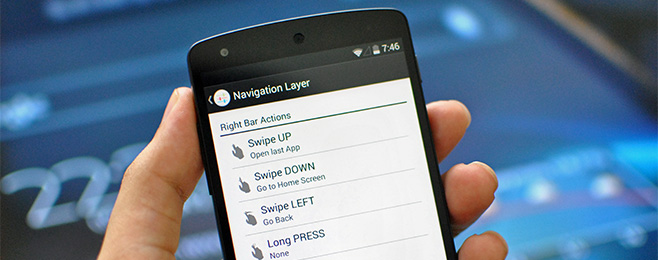

If you have ever looked at your Android phone and thought, “This screen is huge, yet somehow I am still doing finger gymnastics just to go back, open notifications, switch apps, and control music,” then welcome to the oddly satisfying world of edge gestures. And more specifically, welcome to Navigation Layer, an older but clever Android utility built around a simple idea: let the edges of your screen do more of the work.
Long before gesture navigation became standard on Android, apps like Navigation Layer were already experimenting with a more fluid way to move around your phone. Instead of relying only on navigation buttons, the app let you create invisible touch zones on the left edge, right edge, and bottom edge of the display. Swipe, hold, or double-tap those zones, and your phone could jump home, go back, switch to your last app, pull down notifications, control music, open shortcuts, or launch apps. In other words, your screen border stopped being dead space and started acting like a control panel.
That is why Navigation Layer still makes for such an interesting topic today. Even though modern Android now includes native gesture navigation, the app represents a turning point in how people started thinking about Android edge gestures, one-handed control, and full-screen navigation. It was not just about looking futuristic. It was about speed, ergonomics, and turning repetitive taps into fast, intentional swipes.
What Is Navigation Layer on Android?
At its core, Navigation Layer is a gesture-based Android app designed to let you perform actions from the edges of the screen while using any app. The concept is wonderfully practical. Rather than forcing you to reach for buttons at the bottom of the display or dig through menus, it gives you customizable trigger areas that stay available across your device.
The app’s most memorable trick is its use of three gesture bands: one on the left side, one on the right side, and one on the bottom. These edge regions can be enabled individually, resized, and tuned to fit how you actually hold your phone. That matters because not all thumbs are created equal, and not every phone is the size of a toaster.
Navigation Layer also leaned heavily into customization. Different gestures could be mapped to different commands, so one edge could become your “navigation” side while another could act like a shortcut launcher or music controller. For power users, that meant fewer taps, faster multitasking, and a more personalized Android experience.
How Navigation Layer Works
Three edges, lots of possibilities
The magic starts with the edge zones. You could activate the left edge, right edge, and bottom edge individually, then adjust their thickness and length. That flexibility is what makes the app practical instead of chaotic. A tiny trigger zone can feel precise. A wider one can feel forgiving. A glowing edge can help you remember where it lives. A hidden edge can keep your screen looking clean.
This design was especially appealing on devices with on-screen keys because it helped users think beyond the default navigation bar. If you wanted your phone to feel more immersive, more full-screen, or simply less cluttered, edge controls offered a convincing alternative.
Gesture types that feel natural
Navigation Layer was not limited to one boring swipe. It supported a mix of interactions such as swipe up, swipe down, swipe left, swipe right, double tap, and long press. Depending on the edge, the direction changed what made sense physically. A gesture from the right edge behaved differently from one pulled up from the bottom, which helped keep the controls intuitive instead of random.
That variety is why the app felt powerful. A quick upward flick could take you home. A hold might open the task switcher. A double tap could trigger your favorite app. Once you built a rhythm around it, using the phone started to feel less like pressing buttons and more like conducting a tiny orchestra with your thumb.
Actions you could map to gestures
This is where Navigation Layer earned its reputation. The app let users assign gestures to a surprisingly broad list of commands. Depending on setup and permissions, you could launch an app, open a shortcut, go to the Home screen, switch to the last app, open the task manager, pull down the notification shade, put the device to sleep, control music playback, or trigger connectivity-related actions like hotspot access. Some deeper actions historically required root, while others worked without it.
For many people, that meant the app was not just a navigation tool. It was a workflow tool. It turned edge gestures into tiny automations you could run from almost anywhere on the phone.
Why Navigation Layer Was Ahead of Its Time
Today, Android users are used to built-in gestures. Swiping from the left or right edge goes back. Swiping up goes home. Swiping up and holding opens recent apps. That now feels normal. But it was not always the default approach.
Navigation Layer mattered because it arrived during a period when Android was still heavily tied to visible navigation buttons and manufacturer-specific shortcuts. The app hinted at a future where the screen itself, especially the edges, could become the interface. That future eventually arrived. Android 10 introduced fully gesture-based navigation, and modern Android guidance now emphasizes edge-to-edge layouts and better handling of gesture conflicts.
In hindsight, Navigation Layer feels like one of those tools that spotted the trend before the platform fully caught up. It made a strong case for gesture-first control, especially on large phones where stretching a thumb from one corner to another can feel like a low-budget sport.
Navigation Layer vs. Native Android Gestures
So how does a tool like Navigation Layer compare with Android’s built-in system navigation?
Native Android gestures are cleaner and more deeply integrated. They are part of the operating system, so they generally feel smoother, more consistent, and less likely to break after major updates. Android also lets users adjust gesture sensitivity, which helps reduce accidental back swipes near the edges.
Navigation Layer, on the other hand, was about going beyond navigation. It was more customizable and more experimental. Instead of only handling Back, Home, and Recents, it let the screen edges launch apps, manage playback, open shortcuts, and perform utility actions. Native gestures are excellent at movement. Navigation Layer was trying to be movement plus shortcuts plus multitasking plus convenience all rolled together.
That difference is important. If all you want is standard Android navigation, the built-in tools are probably enough. But if you want a phone that reacts to your own custom gesture language, a tool like Navigation Layer is far more ambitious.
Best Ways to Use Edge Gestures Without Making Yourself Miserable
Let us be honest: a bad gesture setup can turn your phone into a jumpy little chaos machine. The trick is not to assign everything. The trick is to assign the right things.
1. Keep your most-used actions closest
Map the easiest gesture to the action you use most often. If you constantly switch between apps, make that a quick swipe. If you always need notifications, give that a simple hold or pull from the side you naturally reach.
2. Do not overload every edge
Just because the app gives you many options does not mean you need to use every single one. Too many gesture mappings can create hesitation, and hesitation defeats the whole point. The best setup is usually the one you remember without thinking.
3. Separate navigation from utilities
A smart layout is to dedicate one side to movement and the other to utility. For example, the left edge can handle Back and last app, while the right edge controls notifications, music, or app shortcuts. That division keeps your muscle memory tidy.
4. Tune edge size carefully
If your gesture area is too wide, you will trigger it by accident. If it is too narrow, you will miss it when you need it. The sweet spot depends on your phone size, case thickness, and how much you use side menus in apps.
5. Respect app conflicts
Android’s own design guidance makes it clear that edge gestures can conflict with app gestures, especially with side drawers and swipe-heavy interfaces. If an app constantly fights your setup, do not try to “win.” Adjust the trigger size, sensitivity, or the side you use. Your phone should feel faster, not pick arguments with you.
Practical Setup Ideas for Different Users
The one-handed commuter setup
If you use your phone on the move, set one easy gesture for Back, one for Home, and one for opening notifications. That covers the most frequent actions when you only have one free hand and approximately half your attention because you are also trying not to walk into a lamp post.
The multitasker setup
Map one gesture to open the last app and another to show recent apps. This is ideal for people who bounce between chat, browser, notes, and music all day. It makes Android feel snappier because switching context becomes almost effortless.
The media-control setup
Assign the bottom edge to play or pause, skip tracks, and maybe launch your preferred audio app. It is a small thing, but when your phone is in your hand or sitting on a desk, quick media gestures feel genuinely useful.
The minimalist setup
Use only two or three gesture mappings and leave the rest alone. This works especially well for people who want the benefits of edge navigation without turning every screen border into an invisible keyboard shortcut contest.
What Modern Android Teaches Us About Gesture Navigation
Even if you never install a third-party edge-gesture app, modern Android has adopted many of the ideas that made tools like Navigation Layer appealing. Gesture navigation is now standard on Android, and the platform has also expanded gesture-based convenience through features like adjustable back sensitivity, one-handed mode, and on some Pixel devices, Quick Tap for custom actions.
That tells us something important: gesture control is no longer a weird niche for enthusiasts. It is now a mainstream part of Android usability. The difference is that Android handles the basics natively, while old-school utilities like Navigation Layer pushed customization much further.
In a funny way, that makes Navigation Layer feel both old and modern at the same time. Old, because it belongs to an earlier era of Android tinkering. Modern, because the problem it tried to solve, faster control with less reach and less clutter, is still exactly the problem smartphone design is chasing.
Is Navigation Layer Still a Useful Idea?
Absolutely, though with a caveat. The idea is still useful, even if the original app belongs to an older period of Android history. The principle of turning screen edges into customizable controls remains smart because it addresses real habits: people switch apps constantly, people hate reaching to the top of large screens, and people value faster ways to get to routine actions.
For some users, built-in Android gestures will be all they need. For others, especially customization fans, the Navigation Layer concept still holds strong appeal. It is the difference between having a standard car and one where every button is placed exactly where your hand expects it to be.
And yes, that level of customization can be addictive. Once you get used to controlling your phone with edge gestures, regular taps can start to feel a little old-fashioned, like mailing a letter because you forgot texting exists.
Experiences With Navigation Layer and Edge Gestures on Android
Living with an edge-gesture setup changes your relationship with your phone in small but noticeable ways. At first, it feels slightly strange. Your brain knows where the normal controls are, so the first few days are full of tiny moments of doubt. You swipe, pause, and wonder whether the phone will obey or just stare back at you in digital silence. Then something interesting happens: your hands learn faster than your brain.
After a short adjustment period, edge gestures start to feel less like a trick and more like a habit. Reaching for the Home button becomes unnecessary because your thumb already knows the motion. Switching back to the previous app stops being a multi-step process and starts becoming a reflex. Pulling down notifications feels less like a reach and more like a flick. The phone begins to feel tailored, almost as if it was designed around how you hold it instead of how some generic user manual assumes everyone does.
The biggest difference often shows up during one-handed use. Large Android phones are great for video, reading, gaming, and pretending you totally needed a display the size of a small cutting board. But they are not always comfortable for quick navigation. Edge gestures help shrink the effort. Instead of stretching to the top of the screen or hunting for on-screen buttons, you work from the borders where your thumb already rests. It makes the device feel less bulky and more cooperative.
There is also a surprising sense of momentum that comes with a good setup. Taps are static. Swipes feel active. When your navigation system relies on quick motions, the entire interface can seem faster, even when the phone itself is doing the same work underneath. That is one reason gesture fans tend to stay gesture fans. Once the phone starts responding to smooth directional movement, going back to rigid buttons can feel like trading a shortcut for a hallway.
Of course, the experience is not perfect. Edge-based controls can clash with apps that also love the sides of the screen. A swipe meant to go back might tug open a menu. A trigger zone that feels perfect in one app might feel too eager in another. There is usually a short phase where you tweak bar size, sensitivity, and gesture assignments until things settle down. It is less “install and instantly achieve enlightenment” and more “install, experiment, mutter at your screen once or twice, then grin when it finally clicks.”
But when it does click, it is genuinely satisfying. Navigation Layer and similar edge-gesture tools make Android feel personal in a way many stock interfaces do not. They let you build a control scheme around your habits instead of forcing your habits to fit the device. That is why people who enjoy Android customization tend to love these tools so much. They are not only practical. They make the phone feel like yours.
And maybe that is the best way to think about the whole experience. Navigation Layer is not just about performing actions from the edge of the screen. It is about reducing friction. It is about shaving a little effort off the hundreds of tiny interactions that fill a normal day. Open this. Switch that. Go back. Pause music. Check notifications. Do it all again. When those actions become smoother, the phone gets out of your way a bit more. That might not sound dramatic, but in daily life, it is exactly the kind of improvement that sticks.
Final Thoughts
Navigation Layer is a great example of the creativity that has always made Android customization so appealing. It took the simple edges of a screen and turned them into shortcuts, controls, and workflow tools. More importantly, it anticipated where Android navigation was headed: fewer buttons, more fluid movement, and more emphasis on ergonomic control.
Even in the age of native gesture navigation, the app remains a fascinating case study in how smart interface ideas can appear before the operating system fully embraces them. If you care about Android edge gestures, gesture navigation, one-handed usability, or making your phone feel faster and more personalized, Navigation Layer is still worth understanding. It may be from an earlier era, but the idea behind it still feels remarkably current.