
Note: WeChat features and button names can vary slightly depending on your phone, app version, operating system, and region. This guide focuses on the standard WeChat mobile app experience for iPhone and Android users.
Introduction: WeChat Video Calls Without the Tiny Panic Spiral
WeChat is more than a chat app. For millions of people, it is the digital hallway where family updates, business messages, group plans, travel details, voice notes, stickers, and video calls all bump into each other politelymost of the time. If you are new to the app, learning how to make a video call on WeChat can feel a little confusing at first because WeChat packs a lot of features into one place. The good news is that starting a video call is actually simple once you know where to tap.
This guide walks you through how to make a video call on WeChat in 13 steps, from checking your internet connection to ending the call gracefully. We will also cover group video calls, camera and microphone permissions, call quality tips, privacy reminders, and practical troubleshooting. Think of it as your calm friend standing beside you saying, “Tap that button. No, not the sticker panda. The other button.”
Whether you want to call family overseas, talk with a client in China, join a group chat with classmates, or simply see your friend’s face instead of decoding twelve voice messages, WeChat video calling can be a fast and convenient option. Let’s get your call started.
Before You Start: What You Need for a WeChat Video Call
Before you make a WeChat video call, make sure you have the basics ready. You need an active WeChat account, a stable internet connection, and a contact who has accepted you as a friend on WeChat. You should also allow WeChat to access your camera and microphone. Without those permissions, your call may connect, but you may appear as a mysterious silent rectangle. Stylish? Maybe. Useful? Not really.
For the smoothest experience, update WeChat through the App Store or Google Play, connect to reliable Wi-Fi or strong mobile data, and close heavy background apps if your phone is struggling. Video calling uses more battery and data than text messaging, so if your battery is low, plug in your phone before the call. Nobody wants a dramatic goodbye caused by 2% battery life.
How to Make a Video Call on WeChat: 13 Steps
Step 1: Open the WeChat App
Unlock your phone and tap the green WeChat icon. Wait for the app to load fully. If you have not signed in yet, enter your login details and complete any verification steps. Once you are inside the app, you should land on the main chat screen, where recent conversations are listed.
Step 2: Go to the Chats Tab
At the bottom of the screen, tap Chats. This is where WeChat keeps your one-on-one conversations and group chats. If you recently messaged the person you want to call, their chat will likely appear near the top.
Step 3: Find the Person You Want to Call
Scroll through your chat list or use the search bar to find the contact. You can search by name, WeChat ID, or keywords from a previous conversation. If the person is not in your chat list, tap Contacts and look for them there. Remember, video calls generally work between WeChat friends, so both accounts should be connected.
Step 4: Open the Conversation
Tap the person’s name to open the chat window. You should now see your message history with that contact. This is also where you can send text, photos, stickers, voice messages, files, and location details.
Step 5: Tap the Plus Sign
Look near the bottom-right corner of the chat screen. Tap the plus sign (+). This opens a menu of extra actions. Depending on your version of WeChat, you may see options such as Album, Camera, Voice Input, Location, Red Packet, Transfer, and Call.
Step 6: Choose the Call Option
In the menu, tap Call or a similar option. Some versions of WeChat may show Voice Call and Video Call directly. If you see both choices, you are exactly where you need to be.
Step 7: Select Video Call
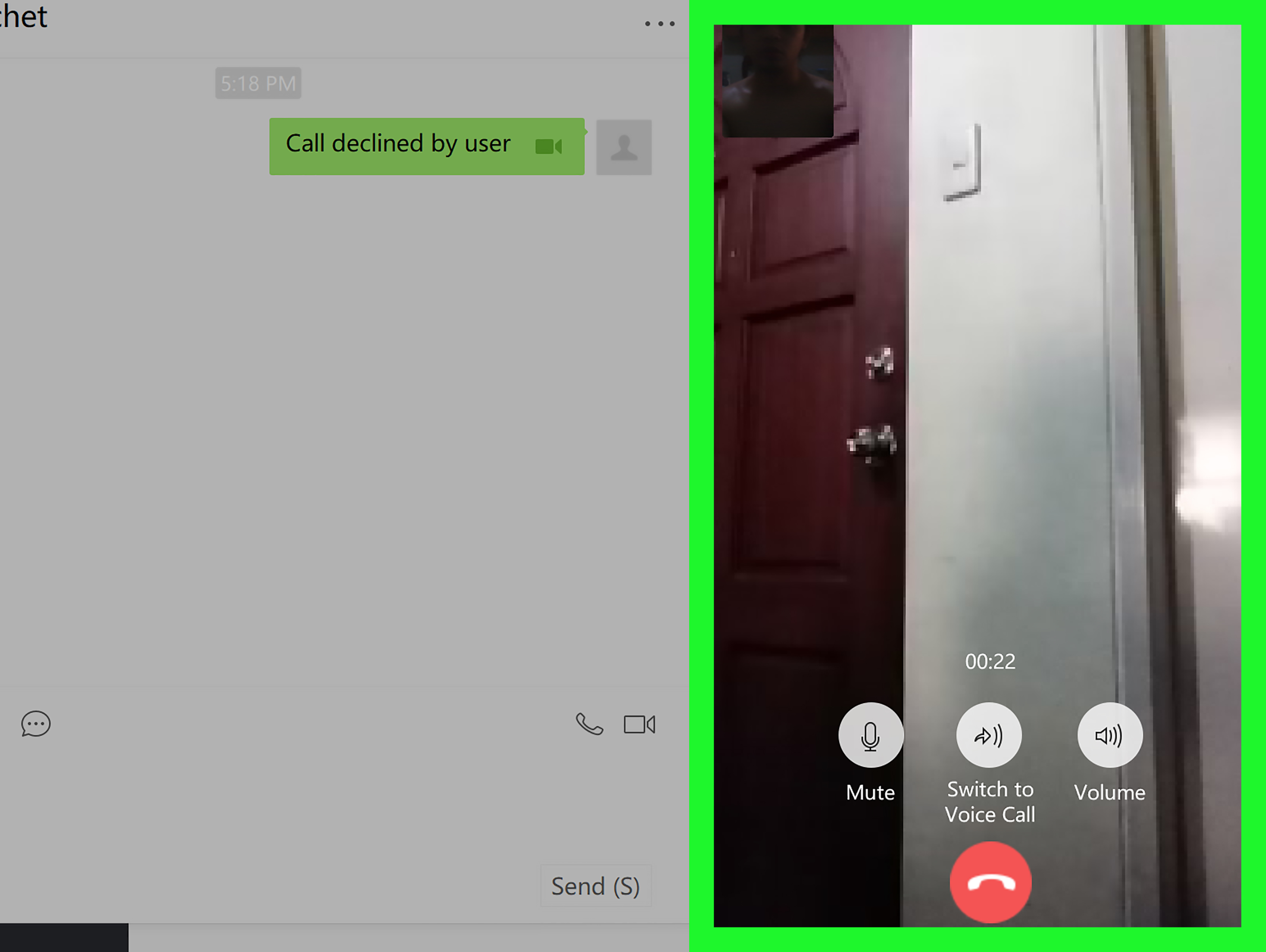
Tap Video Call. WeChat will start calling your contact. Your friend will receive an incoming call notification, and they can accept or decline it. If they do not answer, WeChat may show a missed call message in the chat.
Step 8: Allow Camera and Microphone Access
If this is your first WeChat video call, your phone may ask whether WeChat can access your camera and microphone. Tap Allow. If you accidentally choose “Don’t Allow,” the call may not work properly. On iPhone, you can fix this by going to Settings > Privacy & Security > Camera or Microphone, then enabling WeChat. On Android, go to Settings > Apps > WeChat > Permissions, then allow camera and microphone access.
Step 9: Wait for the Other Person to Answer
Once the call is ringing, wait for your contact to pick up. If they are offline, busy, or have notifications muted, they may not answer right away. You can send a quick message before calling, such as “Free for a quick video call?” This tiny courtesy can save you from calling someone while they are in a meeting, on a train, or halfway through a heroic bite of noodles.
Step 10: Use the Microphone Button
During the call, you can mute or unmute your microphone. Tap the microphone icon if you need to block background noise, sneeze, talk to someone nearby, or stop your dog from becoming the main speaker. Tap it again when you are ready to talk.
Step 11: Switch the Camera If Needed
Most WeChat video calls let you switch between the front and rear cameras. Use the camera-switch button when you want to show something around you, such as a product, document, room, street view, meal, or suspiciously proud houseplant. Switch back to the front camera when you want to return to face-to-face conversation.
Step 12: Adjust Your Connection and Lighting
If the video freezes, audio breaks up, or your face looks like it is being broadcast from a cave, make small adjustments. Move closer to your Wi-Fi router, turn on a lamp, reduce background apps, or switch from mobile data to Wi-Fi. Good lighting and a stable connection can make your WeChat video call feel much more professional.
Step 13: End the Call
When the conversation is finished, tap the red End Call button. If you are in a business or formal call, a quick closing line helps: “Thanks, I’ll message you the details after this.” For casual calls, “Talk soon!” works perfectly. For family calls, prepare for at least three false endings before the real goodbye. That is not a WeChat feature; that is just family.
How to Make a Group Video Call on WeChat
WeChat also supports group video calls, although the exact participant limit may vary by platform, app version, and region. To start one, open a group chat, tap the plus sign (+), choose Call, then select the group members you want to invite. After selecting participants, choose Video Call or start with a voice call and turn on video when appropriate.
Group video calls are useful for family gatherings, remote study sessions, team check-ins, apartment hunting, travel planning, and quick project discussions. To keep things organized, send a message before starting: “Group call in five minutes?” This gives people time to find headphones, move to a quieter room, or at least pretend they were not scrolling through snacks online.
How to Improve WeChat Video Call Quality
A good WeChat video call depends on three things: connection, device performance, and environment. If any one of them is weak, your call may become blurry, delayed, or choppy. Start by using a strong Wi-Fi network whenever possible. If you are on mobile data, move to a spot with better signal. Avoid calling from elevators, basements, crowded stadiums, or that mysterious corner of the house where the internet goes to retire.
Next, check your phone. Close apps that use a lot of processing power, such as games, video editors, or streaming apps. Keep your phone cool, because overheating can reduce performance. If the call is important, restart your phone before joining. It sounds basic, but restarting remains the duct tape of modern technology.
Finally, improve your environment. Face a window or soft light source instead of sitting with a bright window behind you. Use headphones to reduce echo. Place your phone on a stable surface instead of holding it at arm’s length for thirty minutes. Your shoulder will thank you.
Troubleshooting: Why Your WeChat Video Call Is Not Working
Problem 1: The Video Call Button Is Missing
If you do not see the video call option, update WeChat first. Then check whether you are in the correct chat. Some accounts, regions, or device versions may show slightly different menus. You can also try opening the contact profile and checking available contact options from there.
Problem 2: The Camera Shows a Black Screen
A black screen usually points to a camera permission issue, another app using the camera, or a temporary app glitch. Check camera permissions in your phone settings, close other apps that may be using the camera, and restart WeChat. If the problem continues, restart your phone.
Problem 3: The Other Person Cannot Hear You
Check whether your microphone is muted in the call. If not, review microphone permissions for WeChat. Also inspect your phone case, screen protector, or fingersyes, fingersfor anything blocking the microphone. If you use Bluetooth earbuds, disconnect and reconnect them.
Problem 4: The Call Keeps Dropping
Dropped calls are often caused by unstable internet. Switch networks, move closer to your router, or use mobile data if Wi-Fi is weak. If you are on a group call, ask participants to turn off video temporarily if the connection is struggling. Audio-only may not be glamorous, but it beats robotic freeze-face.
Problem 5: Notifications Are Not Coming Through
If you miss incoming WeChat calls, check your phone notification settings. Make sure WeChat notifications are enabled and that your phone is not in Do Not Disturb or Focus mode. Also open WeChat settings and confirm that call alerts are not muted.
Privacy and Etiquette Tips for WeChat Video Calls
Video calls feel casual, but they still deserve basic privacy and etiquette. Before calling someone, especially for work or across time zones, send a message first. Avoid recording calls unless everyone clearly agrees. Be aware of what appears behind you on camera, including documents, screens, family members, or the laundry chair that has become a permanent resident of your room.
For business calls, use your real name or recognizable profile photo so people know who is calling. Keep your phone steady, mute yourself when not speaking in a group call, and avoid talking over others. If your connection is bad, say so instead of pretending everything is fine while your video freezes in a dramatic mid-blink pose.
WeChat Video Calls on Desktop: What to Know
WeChat is commonly used on mobile, but desktop versions are also available for many users. However, some desktop features may depend on your device, login method, app version, and regional availability. In many cases, WeChat desktop works best as a companion to the mobile app. If you need reliable video calling, the mobile app is usually the simplest place to start.
If you use WeChat on a computer, check that your webcam and microphone are selected correctly. On Windows or Mac, open system settings to confirm camera and microphone permissions. If the desktop call fails, try switching to your phone. Sometimes the fastest fix is not noble; it is simply grabbing the device that works.
Best Uses for WeChat Video Calling
WeChat video calling is useful in many everyday situations. Families use it to stay close across countries. Students use it for group projects and language practice. Travelers use it to coordinate plans with hosts, guides, or friends. Small businesses may use it to discuss orders, inspect products, or explain details more clearly than text allows.
Video calls are especially helpful when tone matters. Text can be efficient, but it can also make a simple “okay” sound suspiciously like a courtroom verdict. A quick video call adds facial expressions, voice, and context. That can prevent misunderstandings and make conversations warmer.
Common Mistakes to Avoid
One common mistake is calling without checking the time zone. If your contact lives in another country, confirm the local time before calling. Another mistake is forgetting to test permissions before an important call. If your first camera test happens during a client meeting, your stress level may perform a small fireworks show.
Also avoid using weak public Wi-Fi for important calls. Public networks can be unstable and less private. If you must call from a public place, use headphones and avoid discussing sensitive information. Finally, keep WeChat updated. App updates often improve stability, security, and compatibility with newer phone systems.
Extra Experience: What It Is Really Like Using WeChat Video Calls
In real life, making a WeChat video call is usually less about technology and more about timing, preparation, and social rhythm. The button is easy; the human part is where things get interesting. One of the most useful habits is to send a short message before calling. A simple “Can I video call you now?” feels polite and practical. It gives the other person a chance to move somewhere quieter, fix their hair if they care, or say, “Give me two minutes,” which in real time may mean anywhere from two minutes to the next calendar season.
For family calls, WeChat video often feels warm and informal. People may walk around the house, show what they are cooking, introduce a pet, or pass the phone to another relative without warning. If you are calling relatives overseas, video makes the conversation feel more personal than text. You can show your room, your meal, your new haircut, or the plant you have heroically kept alive. The call may not be perfectly structured, but that is part of the charm.
For work, the experience is different. A WeChat video call can be quick and efficient, especially when discussing details that are hard to explain through text. For example, if you are reviewing a product sample, checking packaging, confirming a location, or explaining a design change, switching to video can save twenty confusing messages. The rear camera becomes especially useful here. Instead of typing “the label on the left side near the top edge,” you can simply show it. Humanity has survived many centuries, but we still point at things for a reason.
Group calls require a little more discipline. Without structure, everyone may talk at once, then everyone stops, then two people begin again at exactly the same time. To avoid this classic group-call ballet, decide who leads the call. Keep the agenda short. Ask people to mute themselves when they are not speaking. If the connection is weak, turn off video for some participants and continue with audio. It is better to have a clear conversation with fewer cameras than a chaotic video mosaic of frozen faces.
Another practical lesson is that lighting matters more than people think. You do not need a studio setup. Just avoid sitting with a bright window behind you. Face the light instead. Your video instantly improves, and you look less like an anonymous witness in a documentary. Sound matters too. Earbuds can make a huge difference, especially if you are in a public space or a room with echo.
Finally, remember that WeChat video calls work best when you treat them as a flexible tool, not a formal production. Sometimes video is perfect. Sometimes voice is enough. Sometimes a text message is kinder because the other person is busy. The real skill is knowing when to use each one. Once you learn the 13 steps and practice a few calls, WeChat video calling becomes second nature: open chat, tap plus, choose call, select video, and start talking. Easy, useful, and only mildly dangerous if your front camera opens before you are ready.
Conclusion
Learning how to make a video call on WeChat is simple once you know the path: open the chat, tap the plus sign, choose the call option, and select video call. The key is making sure your app is updated, your camera and microphone permissions are enabled, and your internet connection is stable. For better calls, use good lighting, headphones, and a quiet space. For group calls, message participants first and keep the conversation organized.
WeChat video calling is useful for family conversations, international friendships, business check-ins, study groups, travel planning, and everyday communication. With the steps in this guide, you can start a call confidently, fix common problems quickly, and avoid the tiny technical disasters that make video calls feel harder than they really are.