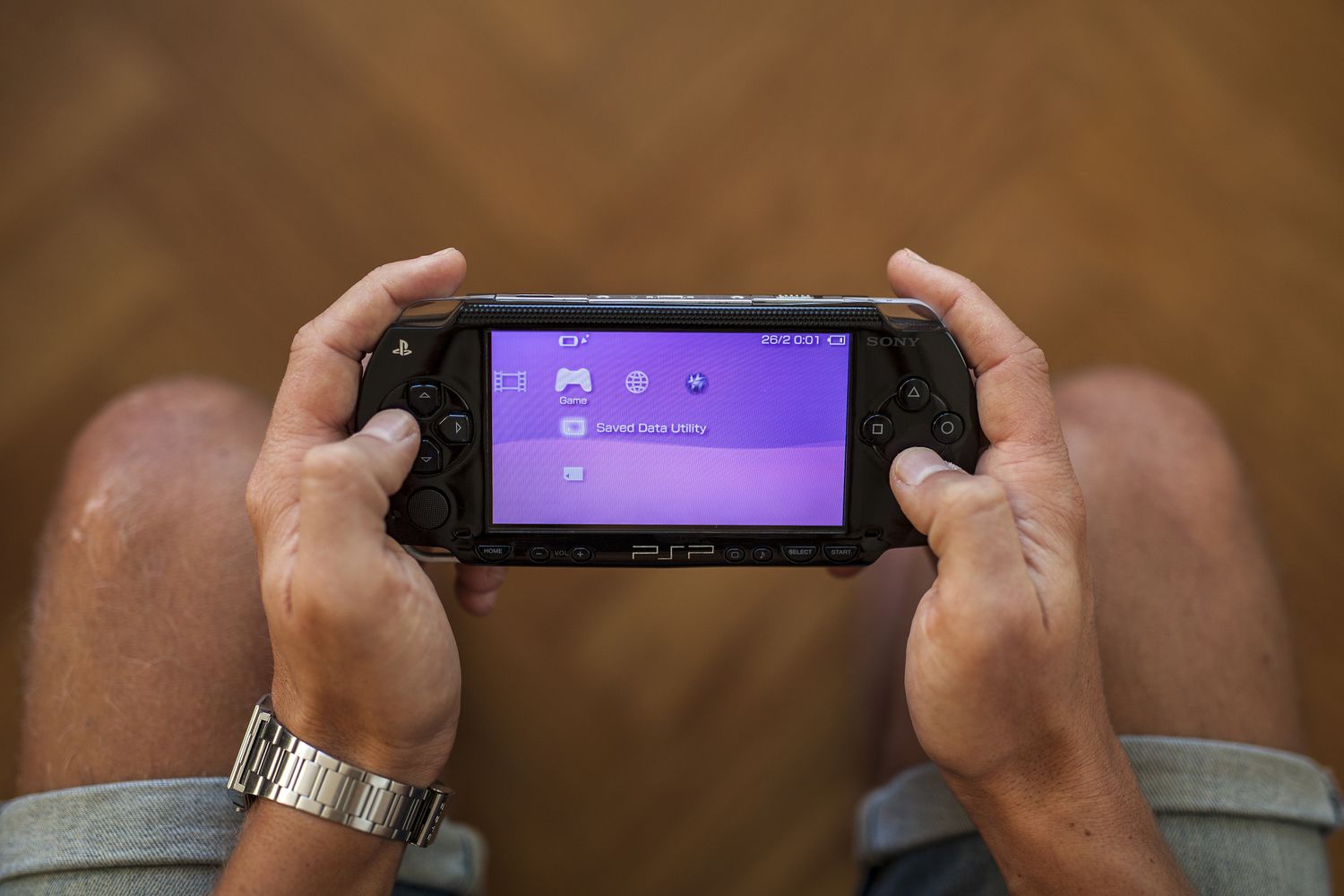

If your PlayStation Portable is still alive, still charging, and still making that cheerful little startup sound, first of all: respect. The PSP is one of those rare gadgets that can make you feel wildly nostalgic and slightly ancient at the same time. But if you have pulled one out of a drawer and discovered that a game will not run, an online feature refuses to cooperate, or the system just feels stuck in a previous geological era of software, you are probably asking the classic question: how do I update my PSP firmware?
The good news is that updating a PSP is usually simple. The slightly less exciting news is that the process depends on your model, your internet situation, and whether your handheld is living a normal official-software life or a more adventurous custom-firmware life. In other words, this is not hard, but it does reward a little patience and one fully charged battery. Your PSP is old enough to vote in some countries. Treat it gently.
What PSP Firmware Actually Is
PSP firmware, also called system software, is the operating system that runs the handheld. It controls the menus, media features, security, compatibility with games, and a surprising amount of behind-the-scenes behavior. Think of it as the stage manager of the whole show. If the stage manager is outdated, the actors may still show up, but somebody is definitely going to miss a cue.
Historically, PSP firmware updates were not just boring maintenance patches. Over the years, Sony used firmware releases to add major features, including PlayStation 3 connectivity, PlayStation Store access directly from the handheld, better downloadable-content discovery, memory-management tweaks, browser security improvements, and other usability upgrades. In short, firmware updates were a big part of how the PSP evolved from “nice handheld” into “tiny multimedia overachiever.”
The Fast Answer
If you only want the quick version, here it is: back up anything important, charge the battery, plug in the AC adapter, and use one of Sony’s official update methods. The easiest route for many people today is updating via storage media after moving the update file from a computer to the correct folder on the PSP. If your wireless setup still works with the handheld, you can also update directly from the system’s System Update menu. And if you are using a standard PSP model with a UMD drive, some game discs can install the minimum firmware needed to run that game.
That is the short version. The smarter version is below.
Before You Update: Do These Four Things First
1. Charge the battery and plug the system in
This is not optional in spirit, even when the PSP technically allows you to continue. Firmware installation is one of the few moments when your handheld really does not appreciate drama. A low battery can stop an update from starting, and interrupting an update is the fastest route to turning a perfectly good gaming machine into a very stylish paperweight.
2. Make sure you have free storage space
You do not need a giant amount of space, but you do need enough room for the updater file. If you are updating the usual way, give your Memory Stick or onboard storage a little breathing room before you begin. Delete an old trailer, an ancient MP3, or that wallpaper collection you swore you would organize in 2009.
3. Know your PSP model
This matters more than people expect. The PSP-1000, 2000, 3000, and E1000 models rely heavily on Memory Stick media for update storage, while the PSPgo uses onboard system storage and does not include a UMD drive. That last detail is important because the UMD update trick works on standard PSP models, but not on the PSPgo. The PSPgo is the minimalist cousin who shows up without a disc slot and expects you to adapt.
4. Decide whether you are staying official
If your PSP runs stock Sony software and you just want it to behave normally, an official firmware update makes sense. If you intentionally use homebrew or custom firmware, pause before updating. Official updates can affect unofficial setups, and not every owner wants that. If your goal is simply to play official games and use official features, however, updating is usually the right call.
The Three Official Ways to Update a PSP
Method 1: Update via Internet
This is the most straightforward method in theory. On the PSP, go to Settings > System Update, choose Update via Internet, select your saved network connection, and let the system search for the newest update data. If it finds an update, follow the prompts, confirm the installation, and let the system restart when it is done.
This is the clean, official, menu-driven experience Sony designed for everyday users. It feels elegant when it works. The catch is that it requires a compatible wireless setup and a network connection already configured on the handheld. That can be the stumbling block for modern users, because the PSP’s Wi-Fi habits belong to another era. So while this method is official and convenient, it is not always the most practical in the present day.
Still, if your PSP connects online without complaining, this is the easiest path. Download, confirm, wait, restart, done. No folder wrangling. No cable shuffling. No archaeological expedition through old accessories.
Method 2: Update via Storage Media
This is the method most people end up using, and for good reason. It is reliable, flexible, and much easier to control. Sony’s own manual explains that the PSP can install update data from storage media, and that update data can be prepared using a PC. In practical terms, that means you download the official update file on a computer, transfer it to the handheld’s storage in the right location, and then launch the update from the PSP itself.
For the classic PSP models, that location is the familiar folder structure PSP/GAME/UPDATE. If those folders do not already exist, create them. Then place the update file inside the UPDATE folder. After that, disconnect the PSP safely, go to Settings > System Update, choose Update via Storage Media, and follow the prompts.
If you prefer, you can often launch the updater from the Game menu as well, where the update icon appears like a small event with serious consequences. Press X, confirm, and let the process finish without touching anything that could interrupt it. This includes random button mashing, yanking cables, or deciding that now would be a great time to swap memory cards. It is not.
Method 3: Update via UMD Game Disc
Yes, this is real, and yes, it still feels charmingly old-school. Some PSP game discs include firmware update data. If the system software on your handheld is older than what the game requires, the PSP may prompt you to install the included update before launching the game.
This is useful, but it comes with an important limitation: a game disc only includes the firmware version needed for that title. It does not necessarily give you the latest official firmware. So this method is great if your immediate goal is “I just want this game to work,” but not ideal if your goal is “I want the newest official firmware available for stock PSP software.”
Also, the PSPgo cannot use this method because it has no UMD drive. The PSPgo is many things. A disc reader is not one of them.
Step-by-Step: The Best Practical Method for Most Users
For many modern PSP owners, the most dependable option is the computer-and-storage-media route. Here is the cleanest way to handle it:
Get the update file on a computer
Download the official PSP system update data using a computer. If you are working from a trusted official Sony or PlayStation support source, even better. Save the file somewhere easy to find.
Connect the PSP or Memory Stick to the computer
You can do this by plugging the PSP into the computer with a USB cable, using a Memory Stick reader, or inserting the card into a compatible slot on the computer. Sony’s manual supports all of these general transfer approaches.
Create the correct folder structure
On the storage device, make sure you have a top-level folder named PSP. Inside that folder, create GAME. Inside GAME, create UPDATE. Place the update file in that folder.
Safely disconnect everything
Unplug the device the right way, leave the PSP connected to its charger, and return to the handheld menu.
Run the update
Go to Settings > System Update > Update via Storage Media. The PSP should locate the file and begin the installation process after confirmation. When the update finishes, the system will restart.
Delete the update file if you want the space back
Once everything is complete and the system boots normally, you can remove the update file from storage if you need the extra space.
Common Problems and How to Avoid Them
The PSP does not see the update file
This is usually a folder issue. The update data has to be in the correct location. If the file is sitting in the wrong folder, the PSP will act like it has never heard of your careful efforts and continue on with its day. Recheck the folder names and structure.
The system will not start the update
Check the battery charge first. Sony notes that a low battery can block the update process. Also make sure the Memory Stick is inserted correctly on supported models and that the file transfer finished properly.
The update feels frozen
Do not panic immediately. Firmware installation can take a little time. Give it space to work. The one thing you do not want to do is interrupt the process because you got impatient and suddenly decided you were a systems engineer. Let the console finish and restart on its own.
You use custom firmware or homebrew
This is where caution matters. Official firmware updates can patch vulnerabilities and change behavior that unofficial software depends on. Historically, some Sony firmware updates were explicitly tied to security tightening. If you use custom firmware, research your exact setup before proceeding instead of updating on autopilot.
Should You Still Update a PSP Today?
In many cases, yes. If your PSP is running official software, updating can improve compatibility, stability, and access to the features that still remain available. It also helps with game compatibility, because some titles expect a minimum firmware version before they will launch.
That said, the PSP lives in a very different ecosystem now. The PlayStation Store for PSP closed years ago, and Sony later ended PSP search and in-game purchase functionality. The good part is that previously purchased PSP content can still be downloaded through the device’s Download List. So while the digital storefront is mostly a museum gift shop now, your old purchases are not automatically gone.
For a stock system, updating is still worthwhile if you want the best official experience your PSP can offer. Just do not expect it to magically restore the full digital universe of the late 2000s. Firmware can help a lot, but it cannot time travel.
Why PSP Firmware Updates Mattered More Than People Remember
One reason this topic still matters is that PSP firmware updates were never just boring backend chores. Sony used them to grow the handheld in meaningful ways. Earlier updates expanded media playback and web capabilities. Later versions introduced PlayStation Store access on the device, helped users discover downloadable content more easily, improved storage handling, renamed the update menu from Network Update to System Update, and in some cases focused on system stability or security patches.
That history matters because it explains why the update process is such a big part of PSP ownership. The handheld did not remain fixed after launch. It matured through software. In a weirdly modern way, the PSP was already training players to expect that their gaming hardware could improve over time with downloads and patches. These days that feels normal. Back then, it felt a little like wizardry.
Real-World Experiences PSP Owners Still Run Into
Here is the part no official manual really captures: updating a PSP in the present day is often less about clicking the correct menu and more about dealing with the weird little realities of aging hardware. The most common experience is not “the update was hard.” It is “the update was easy once I found the right cable, the right memory card, the right charger, and the right amount of patience.” That is a very different sentence.
A lot of owners first rediscover their PSP because of a specific goal. Maybe they want to replay an old favorite. Maybe they found a stack of UMDs in a closet and suddenly felt the call of mid-2000s loading screens. Maybe they bought a used PSP online and realized the system software is several versions behind. In those moments, firmware becomes less of a technical term and more of a gatekeeper. You are not updating for fun. You are updating because your handheld politely refuses to move forward without it.
Another common experience is realizing just how different the PSPgo is from the rest of the family. People who grew up with a PSP-1000 or 3000 often assume every model updates the same way, then run into the PSPgo’s lack of a UMD drive and its reliance on onboard storage. It is not impossible to work with, but it definitely changes the flow. The PSPgo often feels like the future imagined by 2009, which is charming until you are the one figuring out why your disc-based shortcut suddenly does not exist.
There is also the emotional side of the process. Updating a PSP can feel strangely ceremonial. You clean the screen. You untangle a charger that has apparently been knotting itself for a decade. You find a Memory Stick with mysterious old save files still on it. Then you power up the system and there is your old theme, your old username, maybe even an old save from a game you forgot you loved. Updating the firmware becomes part maintenance, part reunion.
For plenty of users, the actual update ends up being anticlimactic in the best possible way. The file transfers. The system reboots. Nothing explodes. No heroic music plays. Your PSP simply returns to life with one more layer of official polish, and suddenly games that complained before are willing to cooperate. That is a satisfying kind of boring. In tech, boring is often another word for “it worked exactly the way it should.”
And then there are the owners who update for preservation more than convenience. They know the PSP is a discontinued device. They know the storefront landscape has changed. They know support is not what it once was. But keeping the system on the best official firmware still feels worth doing, because it keeps the hardware usable, stable, and ready for another round of play. There is something deeply appealing about that. A firmware update on a PSP is not just maintenance. It is a small act of keeping a beloved device alive.
Conclusion
So, how do you update your PSP firmware? The answer is simpler than the nostalgia around it. If your wireless connection still works, use System Update on the device. If you want the most dependable method, use a computer and update via storage media. If you only need enough firmware to launch a specific disc-based game, a compatible UMD may do the job. Whatever method you choose, charge the battery, keep the charger plugged in, and never interrupt the installation halfway through.
The PSP may be a legacy handheld now, but it is not a useless one. With the right firmware and a little setup, it can still play games, run media, and remind you why Sony’s first portable felt so futuristic in the first place. Not bad for a machine old enough to make “Memory Stick Duo” sound like an archaeological term.