
Accessing your company email account at home sounds simple until your laptop asks for a password, your phone asks for a code, your browser asks if you are really you, and your dog asks why you are still working after dinner. Welcome to modern remote work: convenient, flexible, and slightly dramatic when technology decides to wear a cape.
The good news is that checking work email from home is usually straightforward when you know the correct method. Most companies use Microsoft 365, Outlook, Exchange, Google Workspace, Gmail for business, or a secure company portal. Some organizations also require a VPN, multi-factor authentication, mobile device management, or approval from the IT department before you can open your inbox outside the office.
This guide explains how to access your company email account at home safely, legally, and without turning your evening into a detective movie. Whether you use Outlook on the web, Gmail through Google Workspace, a mobile email app, or a remote desktop connection, the goal is the same: get your email, protect company data, and avoid becoming the person IT quietly sighs about on Monday morning.
Before You Start: Make Sure You Are Allowed to Access Work Email Remotely
Before typing your work email into every app you can find, pause for the most important step: confirm your company allows remote email access. Some organizations permit employees to check email from home on personal devices. Others only allow access from company-managed laptops or approved mobile phones. Industries such as healthcare, finance, education, legal services, and government contracting may have stricter rules because company email can contain confidential, regulated, or customer-sensitive information.
If your company has an employee handbook, remote work policy, bring-your-own-device policy, or cybersecurity guide, read the email access section first. If the policy uses the phrase “unauthorized access,” do not treat that as a fun challenge. Ask your manager or IT department for the approved method.
Common things your company may require
Your employer may ask you to use a specific web portal, install the official Outlook or Gmail app, connect through a VPN, set up multi-factor authentication, register your device, or avoid saving files locally. These rules are not there to make your life spicy. They help prevent phishing, account theft, data leaks, and accidental exposure of private business information.
Method 1: Use Outlook on the Web for Microsoft 365 or Exchange
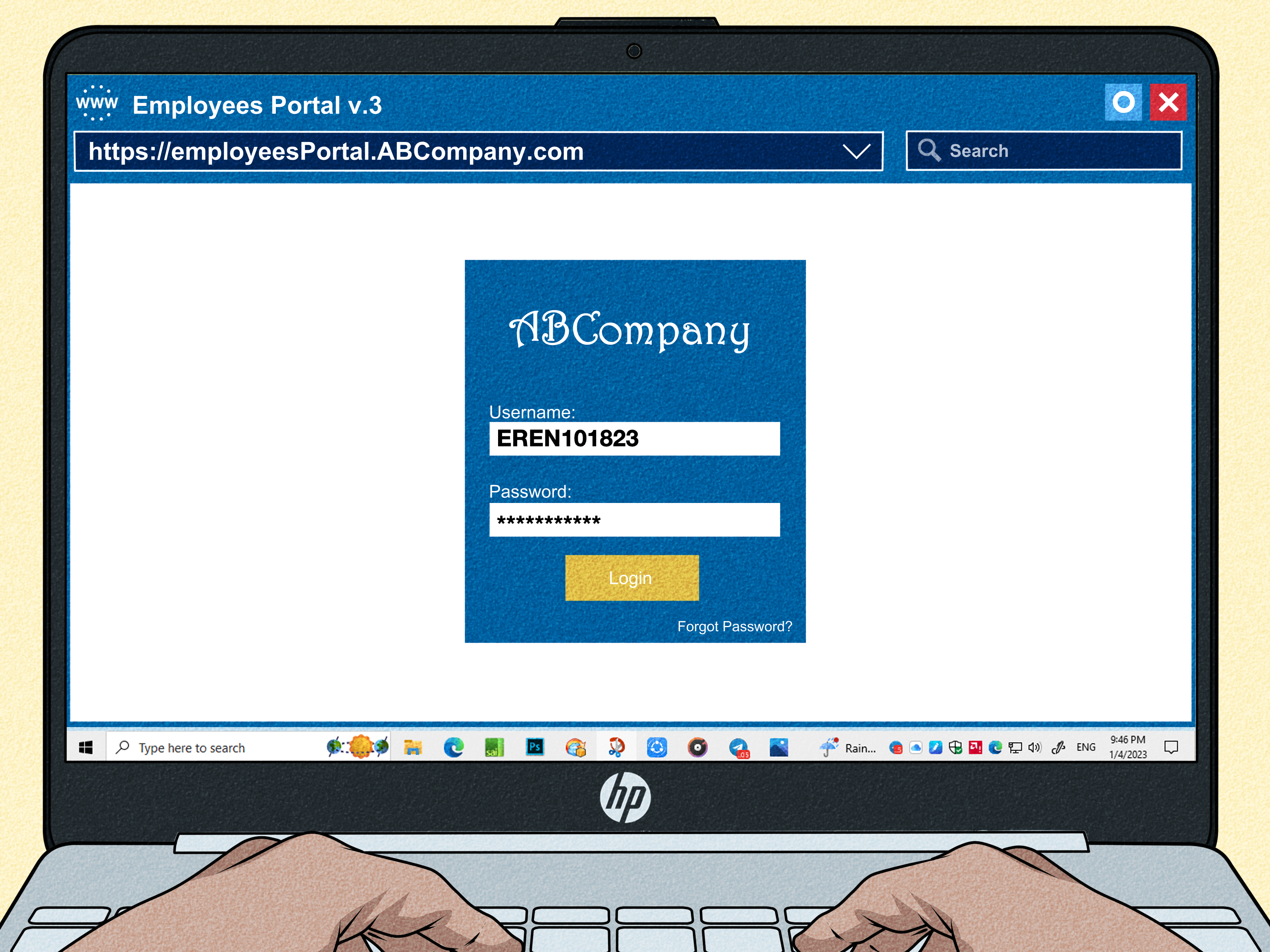
If your company uses Microsoft 365 or Exchange, the easiest way to access your company email account at home is often through Outlook on the web. Instead of installing software, you open a browser, go to your company’s Microsoft 365 sign-in page or Outlook web portal, and log in with your work or school account.
A typical process looks like this:
- Open a trusted browser such as Microsoft Edge, Chrome, Firefox, or Safari.
- Go to the Microsoft 365 or Outlook sign-in page your company provides.
- Enter your company email address.
- Enter your password.
- Complete multi-factor authentication if prompted.
- Select Outlook or Mail from the Microsoft 365 app menu.
For example, if your email address is [email protected], you usually sign in with that full address, not just your first name. Many login problems happen because users enter only their username or accidentally try to sign in with a personal Microsoft account instead of a work account.
Outlook on the web is useful because it works on many devices without requiring a full desktop installation. It is also easier for companies to manage securely. If your organization blocks email access from unknown devices, however, you may see a message saying your device must be approved or compliant. That is your cue to contact IT, not your cue to download three mysterious “email fixer” tools from the internet.
Method 2: Use Gmail for Google Workspace
If your company uses Google Workspace, your work email may look and feel like Gmail, but it is still a business account managed by your employer. You can usually access it by opening Gmail in a browser and signing in with your company email address.
The basic steps are simple:
- Open your browser and go to Gmail.
- Enter your work email address, such as [email protected].
- Enter your password.
- Complete 2-Step Verification if required.
- Use the account switcher if you are also signed in to a personal Gmail account.
One common issue is mixing up personal Gmail and company Gmail. If you are already logged in to your personal account, Gmail may open the wrong inbox. Use the profile icon in the top-right corner to switch accounts or open a separate browser profile for work. A separate browser profile is cleaner, reduces confusion, and helps keep personal bookmarks, passwords, and extensions away from work data.
Google Workspace administrators can control whether users may access mail through third-party apps, IMAP, POP, or older sign-in methods. In many modern environments, you must use secure sign-in methods such as OAuth rather than basic username-and-password login. In plain English: if an old mail app asks only for your password and refuses to authenticate properly, the app may be outdated or blocked by company policy.
Method 3: Set Up Company Email on Your Phone
Mobile access is popular because it lets you check work email from the couch, the kitchen, the airport, or that one corner of the house where the Wi-Fi behaves like a civilized citizen. The safest route is to use the app your company recommends.
Using Outlook mobile
If your company runs on Microsoft 365, the Outlook mobile app is often the preferred choice. Install the official app from your device’s app store, tap to add an account, enter your work email address, and follow the sign-in prompts. You may need to approve the login through Microsoft Authenticator, a text code, a phone call, a passkey, or another method chosen by your company.
Using the built-in Mail app on iPhone or iPad
Some companies allow employees to add Microsoft Exchange or Google accounts to the built-in iPhone or iPad Mail app. The general idea is to open Settings, go to Mail accounts, add an account, choose the correct provider, and sign in. If your employer manages devices, you may also need to install a management profile or company portal app.
Using Gmail mobile
For Google Workspace accounts, the Gmail app is usually the smoothest choice. Add your company account, complete 2-Step Verification, and make sure you are viewing the correct inbox. If you juggle personal and work accounts, give each account a clear profile photo or initials. Your future self will appreciate not sending the quarterly budget from the wrong inbox.
Method 4: Connect Through a Company VPN
A virtual private network, or VPN, creates a secure connection between your device and your company network. Not every company requires a VPN for email, especially if email is cloud-based through Microsoft 365 or Google Workspace. However, some organizations require VPN access for internal mail servers, intranet portals, shared drives, or legacy systems.
If your company requires a VPN, you will usually receive instructions from IT. Those instructions may include installing an approved VPN client, entering a server address, signing in with your work credentials, and completing MFA. Do not guess the VPN settings. Do not use a random consumer VPN and assume it is the same thing. A personal VPN may hide your internet traffic from your internet provider, but it does not magically connect you to your company’s private network.
When using a VPN at home, keep your device updated, avoid public Wi-Fi when possible, and disconnect when you are done if your company recommends it. VPNs are powerful tools, but they are also high-value targets. That is why companies often combine them with MFA, device checks, and strict access rules.
Security First: Protect Your Company Email Like It Contains the Office Coffee Budget
Your company email is more than a mailbox. It can be a doorway to calendars, files, customer conversations, invoices, passwords resets, internal announcements, and sensitive business decisions. If attackers get into your email, they may be able to impersonate you, steal data, trick coworkers, or launch phishing attacks from inside the organization.
Use multi-factor authentication
Multi-factor authentication, often called MFA or two-step verification, requires more than a password. You may need an authenticator app, push notification, security key, passkey, text code, or backup code. MFA can feel mildly annoying at 7:03 a.m., but it is one of the strongest defenses against stolen passwords.
Keep your device updated
Install operating system updates, browser updates, and email app updates. Updates often patch security weaknesses. Skipping them forever is like leaving your front door unlocked because the lock “worked fine last year.”
Avoid shared or public computers
Do not access company email from hotel lobby computers, library computers, school computers, or a friend’s device unless your company specifically permits it. You do not know what software is installed, whether the browser saves passwords, or whether someone enabled keylogging. If you must use a non-company device in an emergency, use a private browsing session, never save passwords, sign out fully, and notify IT if anything seems suspicious.
Watch for phishing
Phishing emails often pretend to be from IT, payroll, shipping companies, banks, executives, or popular software tools. Be careful with urgent messages that ask you to verify your password, approve a login you did not request, open an unexpected attachment, or buy gift cards. Real executives do many things; asking interns to buy gift cards at lightning speed is usually not one of them.
Troubleshooting: Why You Cannot Access Your Work Email at Home
If your company email refuses to open, do not panic. Most problems fall into a few familiar categories.
Your password is wrong or expired
Company passwords may expire, especially in older systems. Try signing in from the official company portal. If you recently changed your password, update it in your email app, VPN client, and saved browser passwords. Avoid repeated failed attempts because too many login attempts can lock your account.
MFA is not working
If you got a new phone, deleted your authenticator app, changed phone numbers, or lost access to your security key, you may need help from IT. Many companies allow backup sign-in methods, but they must be set up before you need them. Add more than one approved verification method when your company permits it.
Your device is not approved
Some organizations block personal devices or require device registration. You may need to install a company portal app, accept a security profile, enable screen lock, turn on encryption, or use a company-issued laptop. This is common in businesses that handle sensitive data.
Your browser is causing confusion
Saved cookies, old sessions, and multiple accounts can cause login loops. Try signing out of all accounts, clearing browser cookies for the email service, using a private window, or creating a separate browser profile for work. If that fixes the problem, your browser was not haunted; it was just confused.
Your company blocks remote access
Some companies simply do not allow home access to email. Others allow it only for specific roles, devices, countries, or network conditions. If access is blocked by policy, the solution is not a workaround. Contact your manager or IT department and ask for the approved process.
Best Practices for Checking Work Email From Home
Accessing work email from home is not just about logging in. It is about building habits that protect your time, your privacy, and your employer’s data.
Create a separate work browser profile
A dedicated browser profile keeps work bookmarks, passwords, extensions, and cookies separate from personal browsing. This is especially helpful if you use both personal Gmail and Google Workspace or both personal Outlook and Microsoft 365.
Use a strong home Wi-Fi password
Your home network should use a strong password and modern encryption such as WPA2 or WPA3. Change the default router password if it still looks like it was printed by a robot having a bad day. Also update your router firmware when updates are available.
Do not forward work email to personal email
Forwarding company email to a personal Gmail, Yahoo, or Outlook account may violate company policy and can expose sensitive data. If you need easier access, ask IT for an approved mobile or web option.
Use approved cloud storage only
Do not download attachments to personal folders or upload them to personal cloud drives unless your company allows it. Use approved tools such as company OneDrive, SharePoint, Google Drive, or another authorized document system.
Set boundaries
Remote email access can quietly turn into “always working” mode. Unless your role requires after-hours monitoring, set reasonable times to check messages. Productivity is great. Becoming emotionally bonded to your inbox is less great.
Real-World Examples of Home Email Access
Example 1: The Microsoft 365 employee
Maria works for a marketing agency that uses Microsoft 365. At home, she opens her browser, signs in with her work email, approves the login in Microsoft Authenticator, and opens Outlook. Her company does not require a VPN for email because Outlook is cloud-based, but it does require MFA and blocks downloads on unmanaged devices.
Example 2: The Google Workspace employee
Jordan works for a startup using Google Workspace. He opens Gmail, switches from his personal account to his company account, and completes 2-Step Verification. To avoid mixing accounts, he creates a separate Chrome profile named “Work.” Now his personal recipes and company product roadmap no longer share the same digital couch.
Example 3: The VPN-required employee
Priya works for a company with an internal mail server. She must connect to the company VPN before opening Outlook. Her IT team provides the VPN client, server address, and MFA instructions. Without the VPN, Outlook cannot reach the internal server. With the VPN, her laptop behaves as if it is securely connected to the office network.
Extra Experience Section: Lessons From Accessing Company Email at Home
One of the biggest lessons about accessing company email from home is that the setup is rarely difficult, but the small details matter. The people who have the smoothest experience usually do three things well: they use the official login path, they prepare their security methods early, and they keep work and personal accounts separate. That may sound boring, but boring is exactly what you want from email access. Exciting email access usually means locked accounts, missed meetings, and a heroic phone call to IT.
A common experience is the “wrong account” problem. Someone opens Gmail or Outlook at home and sees an inbox, but it is not the company inbox. It is a personal account, an old school account, or a browser session from six months ago. The fix is often simple: sign out, use the correct work email address, or create a separate browser profile. This one habit can save a lot of confusion, especially for people who work with multiple clients, departments, or freelance projects.
Another real-world lesson is that MFA should be treated like a house key, not an optional decoration. If your company lets you add multiple verification methods, do it before you travel, replace your phone, or lose access to your authenticator app. Add an authenticator app, a backup phone method, or a security key if your organization supports it. People usually discover the value of backup methods at the worst possible moment, such as five minutes before a deadline while their phone is updating with the confidence of a sleepy turtle.
Device choice also matters. A company laptop is usually easier because it may already have the right apps, certificates, VPN client, endpoint protection, and policies installed. A personal device can work in some companies, but it may require extra steps. You may need a screen lock, encryption, device registration, or an approved mobile app. This can feel intrusive, so it is smart to understand your company’s bring-your-own-device rules before connecting your personal phone or computer.
People also learn quickly that public Wi-Fi is not the best friend of company email. If you must work away from home, use trusted networks, follow your company’s VPN rules, and avoid opening sensitive attachments in crowded spaces. Privacy is not only technical. It is also practical. A confidential email displayed on a laptop screen in a coffee shop can be read by the person behind you, especially if they are pretending very badly to study the menu.
The final experience-based lesson is about boundaries. Accessing work email at home is convenient, but convenience can become a trap. It is easy to check “just one message” and suddenly spend an hour sorting threads that could have waited until morning. The best remote workers use access responsibly. They respond when needed, protect company data, and know when to close the laptop. Your inbox will still be there tomorrow, wearing the same tiny notification badge and acting like it invented urgency.
Conclusion
Learning how to access your company email account at home is mostly about choosing the approved method and following security rules. For many employees, the easiest route is Outlook on the web, Gmail for Google Workspace, or an official mobile app. For others, a VPN or managed company device may be required.
The most important rule is simple: do not improvise with company data. Use the official portal, protect your password, enable multi-factor authentication, keep devices updated, and ask IT when something does not look right. Remote email access should make work easier, not riskier. Done correctly, it gives you flexibility without turning your inbox into a security adventure.
SEO Tags