
Forgetting your Android pattern lock can turn a normal Tuesday into a tiny emotional documentary. One minute you are checking messages. The next minute you are staring at nine dots like they personally betrayed you. The good news is that Google can still help in many cases. The less-fun news is that the answer depends heavily on how old your Android phone is.
If you found an old article promising a magical Google sign-in screen that instantly rescues your pattern lock, do not feel bad. That method was real for older Android devices, but it is mostly a history lesson now. On modern Android phones, Google helps through account recovery, Find Hub, backup restore, and device protection tools rather than a direct “poof, your lock is gone” button.
This guide walks through what still works, what no longer works, and how to get back into your phone the official way without making a stressful situation even messier. It also covers the mistakes people make when panic takes the wheel and the practical steps that can save your photos, apps, and sanity.
The Honest Answer First: Can Google Still Unlock an Android Pattern Lock?
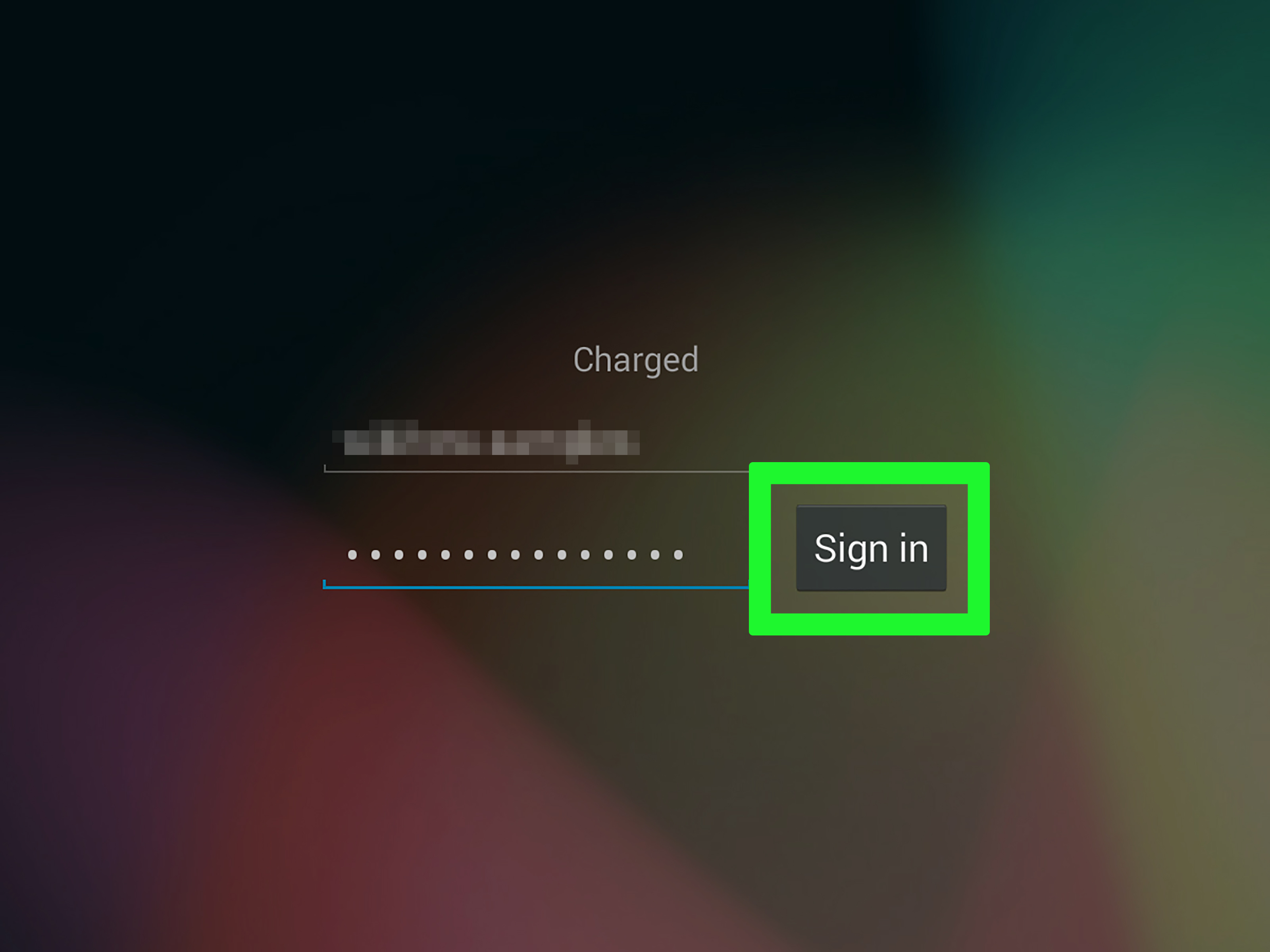
Yes, but only in a very specific sense. If your phone is running Android 4.4 or earlier, you may still see the old Forgot pattern option after multiple failed attempts. In that case, signing in with the Google Account already linked to the device can let you reset the pattern.
On most modern Android phones, that classic Google sign-in shortcut is gone. Google still helps, but usually in one of these ways:
- Helping you recover the Google Account tied to the phone
- Letting you find, secure, or erase the device with Google Find Hub
- Allowing you to restore backed-up data after a reset
- Protecting the device with Factory Reset Protection so strangers cannot casually take over your phone
That means the modern version of “unlock with Google” is really more like “recover access with your Google account and Google tools.” Slightly less dramatic than a secret unlock button, but a lot more realistic.
When the Classic Google Pattern Unlock Still Works
It Is Mostly an Older Android Story
If you are dealing with an older phone gathering dust in a drawer, you might actually get lucky. On Android 4.4 and below, the old recovery flow may appear after repeated failed pattern attempts. You tap Forgot pattern, sign in with the Google Account previously added to the phone, and then create a new unlock method.
This is the version of the story the internet never fully retired. Old tutorials kept circulating, newer users kept clicking them, and chaos quietly continued. So if your phone is old enough to remember when people still said “KitKat” and meant Android rather than candy-related confusion, this method might still be relevant.
What You Need for That Older Method
Even on those older phones, Google is not reading your mind. You still need:
- The correct Google Account already linked to the device
- The password for that Google Account
- An internet connection on the phone
If one of those pieces is missing, the old shortcut may not save the day. At that point, you move into modern recovery territory, which means account recovery and possibly resetting the phone.
How Google Helps on Modern Android Phones
1. Recover the Google Account Before You Touch Anything Else
If you forgot both the pattern and your Google password, stop right there. Do not rush into random resets while hoping your future self will suddenly remember everything. Recover your Google Account first on a trusted browser and a familiar device.
This matters because after a reset, many Android phones will ask for the same Google Account that was previously on the device. If you do not know that account or cannot sign in, you can end up locked out of a freshly reset phone. That is not progress. That is just a cleaner-looking problem.
A smart order of operations looks like this: verify the Google account, confirm the password works, then move on to device recovery.
2. Use Google Find Hub
Google’s Find Hub is one of the most practical tools for modern Android recovery. If your phone is associated with your Google account and shows up there, you may be able to locate it, secure it, or erase it remotely.
Here is the important part: for a forgotten pattern lock on a newer device, erase is often the real recovery path. That sounds dramatic, but it is the official route when you cannot authenticate locally and no legacy Google unlock screen exists.
If your data is backed up, this is far less terrifying than it sounds. Photos may already live in Google Photos. Contacts may already be synced. Apps, settings, call history, and some device data may be restorable during setup after the reset. In other words, an erase is not always the apocalypse. Sometimes it is just a slightly annoying plot twist.
3. Restore from Backup After the Reset
After the phone is erased and you sign back in with your Google account, Android can restore a surprising amount of your digital life. That includes many apps, settings, Wi-Fi details, and synced content, depending on what was backed up before the lockout happened.
This is why backup is the quiet hero of every “I forgot my pattern” story. Nobody throws a parade for backup settings on a normal day, but when the lock screen turns into a villain, backups suddenly become the most attractive feature on the planet.
A Practical Step-by-Step Recovery Roadmap
Step 1: Stop Guessing the Pattern Repeatedly
Too many failed attempts can create longer delays and more frustration. Put the phone down for a minute and switch from memory roulette to a real recovery plan.
Step 2: Figure Out Whether the Phone Is Old or Modern
If it is a very old Android device, you may still be eligible for the legacy Google sign-in recovery flow. If it is a newer phone, assume the old shortcut does not apply unless the screen clearly shows it.
Step 3: Confirm Your Google Account Access on Another Device
Make sure you know the email address and password for the Google Account associated with the phone. If you do not, recover that account first.
Step 4: Check Google Find Hub
Sign in to Find Hub from another device and see whether your phone appears. If it does, review the available options. If the phone is truly inaccessible because of a forgotten pattern, a remote erase may be the cleanest official solution.
Step 5: Reset Only After You Know You Can Sign Back In
This step is where many people trip over their own shoelaces. Resetting the phone before confirming your Google account access can leave you stuck behind Factory Reset Protection. Always verify the account first.
Step 6: Set Up the Phone Again and Restore Data
After the reset, sign in with the same Google account and follow the prompts to restore available backup data. Reinstall what you need, skip what you do not, and consider this your chance to finally delete that app you downloaded “just to try.”
Step 7: Create a New Lock You Will Actually Remember
Choose a new pattern, PIN, or password that is secure but realistic for your actual human brain. Security should be strong, but not so clever that you outsmart yourself before breakfast.
What Google Cannot Do
There are a few things Google will not do, and this is where many misleading blog posts go off the rails.
- Google does not provide a universal bypass for a modern Android pattern lock
- Google does not help you skip Factory Reset Protection on a phone you do not own
- Google cannot restore data that was never backed up or synced
- Google cannot make shady third-party “unlock” software trustworthy by existing nearby on the internet
If a tool promises a miraculous one-click bypass for any Android phone without proper account verification, that should set off alarm bells loud enough to wake your neighbors. Official recovery may feel slower, but it is safer, more reliable, and much less likely to leave your phone compromised.
Common Mistakes People Make During Pattern Lock Recovery
Resetting Before Recovering the Google Account
This is the classic facepalm moment. People erase the phone, then discover they do not remember the Google account credentials needed during setup. Always reverse that order.
Assuming Every Online Tutorial Is Current
Android changes, but old articles never seem to retire. A guide from years ago may describe tools or buttons that simply do not exist on your current phone.
Buying a Used Phone Without Proper Sign-Out
If the previous owner did not remove their Google account before selling the device, Factory Reset Protection can become a brick wall. That is why any used Android purchase should include a clean sign-out and reset process before money changes hands.
Trusting Random Unlock Software
Many “unlock” tools market panic relief. Some are overpriced. Some are sketchy. Some are both, which is an impressive and annoying combination. When your phone contains your messages, photos, banking apps, and two-factor codes, gambling on mystery software is a bad bargain.
How to Avoid This Problem Next Time
- Keep your Google account recovery options updated
- Turn on backup for your Android device
- Make sure your photos sync if they matter to you
- Use a secure lock you can remember under stress
- Enable biometrics if your device supports them
- Verify that your phone appears in Google Find Hub before you need it
It is not glamorous advice, but it works. Nobody wants to practice digital disaster prep until the disaster arrives wearing a pattern lock and a smug expression.
Final Thoughts
If you are trying to unlock an Android phone pattern lock with Google, the real answer is simple: Google can absolutely help, but the exact method depends on the age of the device. On very old Android phones, the classic Google sign-in recovery may still appear. On most newer devices, the official route is to recover your Google account, use Find Hub, reset if necessary, and then restore your backed-up data.
That may sound less exciting than “press this secret button and all your problems disappear,” but it is the honest and useful version. In the world of locked phones, honest and useful beats magical and wrong every single time.
Experiences People Often Have When They Get Locked Out
There is a very specific kind of panic that happens when your own phone suddenly starts acting like you are a suspicious stranger. It usually begins with confidence. You draw the pattern once. Wrong. You draw it again, a little slower. Wrong. On the third attempt, your brain starts reviewing every pattern you have ever used since the invention of touchscreens. None of them help.
One common experience is the “I changed it recently and immediately forgot it” situation. This happens more often than people admit. Someone decides their old pattern is too simple, creates a new one late at night, feels responsible for about eight minutes, and then wakes up the next morning unable to remember the exact shape. The pattern was secure, all right. Secure from everyone, including the owner.
Another classic experience involves family members, especially children. A kid borrows the phone to watch videos, starts tracing patterns like they are solving a maze game, and suddenly the device is counting failed attempts like a strict math teacher. The parent takes the phone back, tries their usual pattern, and realizes nobody is having fun anymore.
Then there is the old-phone-in-a-drawer experience. Someone finds an older Android device packed with old photos, messages, or maybe a playlist from an era when they had very different opinions about ringtone choices. They charge it up, stare at the lock screen, and discover two separate mysteries: they do not remember the pattern, and they are not totally sure which Google account was on the phone. This is where old tutorials create false hope because they make the process sound easy when it is actually half memory test, half digital archaeology.
The used-phone experience is another unforgettable one. A buyer gets a secondhand Android phone, resets it, and assumes the hard part is over. Then the setup screen asks for the Google account that was previously on the device. Suddenly the deal that looked amazing now feels like a pop quiz nobody studied for. This is why proper sign-out matters so much before a phone changes hands.
Not every lockout story ends badly, though. A surprisingly positive experience many people report is realizing that Google backup quietly saved them. They reset the device expecting total disaster, sign back in, and discover their contacts, apps, settings, and photos are largely still there. It is not identical to opening the phone exactly as it was five minutes earlier, but it is close enough to feel like a rescue mission that actually landed.
There is also a lesson people carry away from the experience: convenience and memory matter just as much as security. A pattern that looks clever in your head may be useless if stress makes it evaporate from memory. Many people switch to a stronger but more memorable PIN, update their recovery email, verify backup settings, and make sure Find Hub is enabled. In other words, getting locked out often becomes the reason they finally organize the boring security stuff they had ignored for years.
If there is a silver lining, it is this: one lockout can teach better phone security habits than ten generic tips ever could. Nobody forgets the day their own Android phone looked them in the eye and said, “Nice try.”