
Sometimes you want to use Discord without turning into the glowing green lighthouse of “Yes, I am available, please send me six memes and a voice call invite.” Maybe you are studying, gaming quietly, avoiding group-chat chaos, or simply enjoying a peaceful evening where your keyboard is not legally required to answer everyone. That is exactly where Discord’s Invisible status comes in.
Appearing offline on Discord lets you browse servers, read messages, send replies, join conversations, and use the app normally while your profile looks offline to other users. It is not the same as logging out, deleting the app, blocking people, or hiding under a digital blanket. It is simply a privacy-friendly status option built into Discord.
In this guide, you will learn how to appear offline on Discord on desktop and mobile, what Invisible mode does, what it does not hide, how it works with custom status and activity settings, and how to troubleshoot common problems when Discord still seems to show too much information. Think of it as your polite escape hatch from the social circus.
What Does “Appear Offline” Mean on Discord?
On Discord, appearing offline means setting your status to Invisible. When you do this, other people generally see you as offline, even though you can still use Discord like normal. You can read channels, send direct messages, check servers, react to posts, and manage your account without showing the usual online indicator next to your profile.
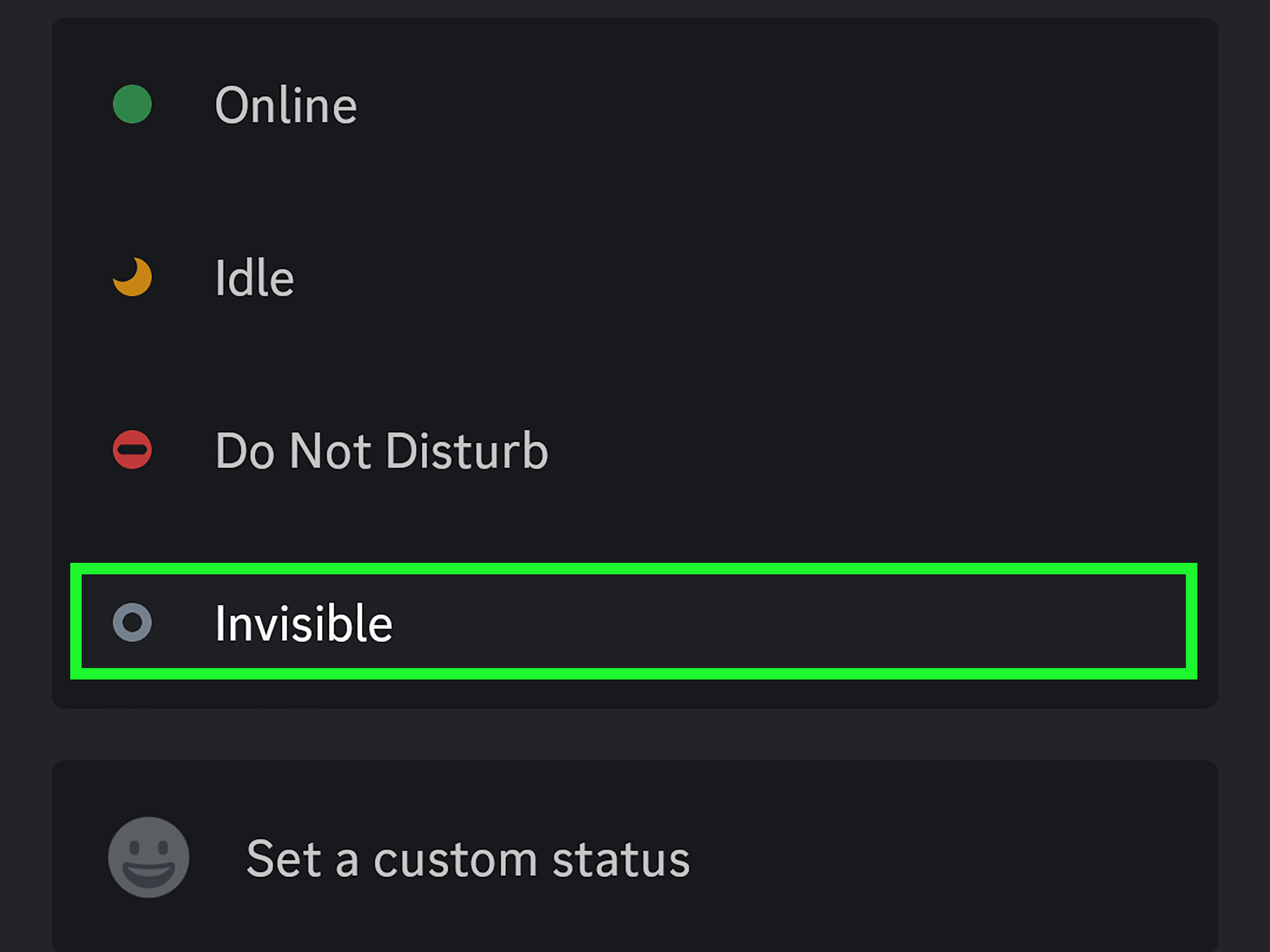
Discord has several basic status options. Online shows that you are active. Idle suggests you are away or inactive. Do Not Disturb shows that you do not want notifications. Invisible makes you appear offline while still letting you use the platform.
The important thing to understand is that Invisible mode is about your visible online presence. It is not a full privacy shield for every possible action. If you send a message, people will obviously see that message. If you join a voice channel, server members may notice your presence there. If you react to a post, your reaction still appears. Invisible does not make you a ghost; it makes your status indicator look like you are offline.
How to Appear Offline on Discord Desktop
The desktop version of Discord makes it very easy to switch to Invisible mode. Whether you use the Discord desktop app or Discord in a web browser, the process is almost the same.
Step 1: Open Discord on Your Computer
Launch the Discord desktop app on Windows or Mac, or open Discord in your browser. Make sure you are signed in to the account where you want to change your status.
Step 2: Click Your Profile Avatar
Look at the bottom-left corner of the Discord window. You should see your profile avatar, display name, microphone icon, headphone icon, and settings gear. Click your avatar or status area.
Step 3: Choose “Invisible”
A status menu will appear with options such as Online, Idle, Do Not Disturb, and Invisible. Select Invisible. Once selected, your status indicator should change to the offline-style gray appearance.
Step 4: Use Discord Normally
After switching to Invisible, you can continue using Discord. You can read messages, reply to friends, moderate a server, join text discussions, or quietly scroll through channels like a raccoon inspecting a snack drawer at midnight.
If you want to appear online again, click your avatar in the bottom-left corner and choose Online, Idle, or Do Not Disturb.
How to Appear Offline on Discord Mobile
You can also appear offline using the Discord mobile app on iPhone, iPad, or Android. The exact layout may vary slightly depending on your app version, but the basic steps are straightforward.
Step 1: Open the Discord App
Open Discord on your phone or tablet and make sure you are logged in. If the app opens inside a server, direct message, or channel, that is fine.
Step 2: Tap Your Profile Icon
On mobile, your profile icon is usually located near the bottom-right area of the screen. Tap it to open your user menu or profile settings area.
Step 3: Tap Your Current Status
Look for your current status, such as Online, Idle, Do Not Disturb, or Invisible. Tap the status option to open the status picker.
Step 4: Select “Invisible”
Choose Invisible. Your account should now appear offline to others while you continue using Discord on mobile.
This is especially useful if you want to check a message quickly without broadcasting “I am here, please start a 47-message conversation about pizza toppings.” It also helps hide Discord’s mobile presence indicator, which can otherwise show that you are active from a phone.
Desktop vs. Mobile: Is Invisible Mode the Same?
In general, Invisible mode works the same way on desktop and mobile: you appear offline while staying logged in. However, there are a few practical differences.
On desktop, changing your status is usually faster because the profile controls are always visible in the lower-left corner. On mobile, you may need to tap into your profile area first. Desktop also gives you easier access to deeper privacy settings, such as Activity Privacy, Registered Games, and server-specific privacy controls.
Mobile is convenient for quick privacy changes, but some advanced settings may be easier to manage from a computer. If you are serious about keeping your Discord activity quieter, it is worth reviewing your settings on desktop at least once.
Does Invisible Mode Hide Your Messages?
No. Invisible mode does not hide messages you send. If you send a direct message or post in a server channel, people can still see what you wrote. They may also notice the timestamp and realize you are actively using Discord.
This sounds obvious, but it is one of the biggest misunderstandings about appearing offline on Discord. Invisible mode hides your online indicator, not your actions. If you want to stay low-profile, avoid posting in busy channels while Invisible. Reading quietly is much harder to detect than sending “lol” into a server with 20 active people.
Does Invisible Mode Hide Voice Channel Activity?
Not completely. If you join a voice channel, people in that server may see that you are in the voice channel. Invisible status does not make you invisible inside every live interaction. Voice channels, streaming, screen sharing, and other active features may reveal that you are present.
For example, if you appear offline but join a gaming voice channel named “Ranked Chaos,” other members can likely see you sitting in that channel. Invisible mode is best for browsing, reading, and messaging with less visibility. It is not designed to make live participation undetectable.
How to Hide Game Activity on Discord
If your main goal is not just appearing offline but also hiding what game you are playing, you should review Discord’s Activity Privacy settings. Discord can display detected activities, such as games, depending on your settings.
How to Turn Off Activity Sharing on Desktop
- Open Discord on desktop.
- Click the gear icon near your username to open User Settings.
- Find the Activity Settings section.
- Open Activity Privacy.
- Turn off activity sharing options that display your current activity to others.
This is useful if you want to use Discord privately while playing a game, listening to something, or running an app that Discord detects. Invisible mode handles your status. Activity Privacy handles what Discord may show about what you are doing.
Server-Specific Activity Privacy
Discord also allows activity privacy controls for specific servers. This can be helpful if you are fine sharing game activity with close friends but not with a large community server, school group, work-related server, or that one server where everyone comments on everything like they are sports announcers.
To check this, open the server menu, look for privacy-related settings, and adjust whether your activity status is shared in that server. Keep in mind that Discord’s layout may change over time, so the wording can vary slightly.
Can You Appear Offline to One Person Only?
Discord does not currently offer a simple “appear offline to this one specific person” button for regular users. Invisible status applies broadly to your account presence. If you set yourself to Invisible, you appear offline generally, not only to one friend or one server.
If you need distance from a specific person, your options are different. You can mute notifications, close a direct message, change privacy settings, restrict who can message you, remove the person as a friend, or block them if necessary. Those actions are different from Invisible mode, but they may be more effective if the issue is one specific user rather than your overall online presence.
Can You Stay Invisible Permanently?
You can keep your status set to Invisible for as long as Discord allows that setting to remain active. Many users leave Invisible mode on for long periods because they prefer privacy or do not want friends to assume they are available every time they open the app.
However, if you use Discord across multiple devices, check your status occasionally. Opening Discord on another device, reinstalling the app, updating the app, or switching accounts can sometimes make your status feel inconsistent. If you suddenly look online again, simply return to the status menu and choose Invisible.
Why You Might Want to Appear Offline on Discord
There are plenty of normal, non-dramatic reasons to appear offline. You might be focusing on homework, editing a video, managing a server quietly, playing a solo game, or checking a message without starting a full conversation. Privacy does not always mean secrecy. Sometimes it just means “I need five minutes without becoming tech support for everyone I have ever met.”
Appearing offline can also help reduce social pressure. When people see the green online dot, they may expect quick replies. Invisible mode gives you more control over your attention. You can answer when you are ready instead of feeling like you must respond instantly because Discord exposed your presence like a tiny digital tattletale.
Common Problems When Appearing Offline on Discord
Problem 1: People Still Know I Am Online
If you are sending messages, joining voice channels, reacting to posts, or streaming, people may figure out that you are active. Invisible mode hides your status indicator, but it does not erase visible actions.
Problem 2: My Game Activity Still Shows
Check your Activity Privacy settings. If activity sharing is enabled, Discord may show detected activities depending on your settings and context. Turn off activity sharing if you do not want your current game or activity displayed.
Problem 3: Mobile Still Shows Something
Make sure your status is set to Invisible in the mobile app. Discord’s mobile presence indicator is designed to show when someone is active from mobile, but setting your online status to Invisible helps hide that mobile presence.
Problem 4: My Status Changed Back
If your status seems to switch unexpectedly, check all devices where you are logged in. Desktop, browser, and mobile sessions can sometimes make status management feel confusing. Choose Invisible again on the device you are actively using.
Best Privacy Tips for Using Discord While Invisible
Invisible mode is useful, but it works best when combined with smart privacy habits. First, turn off activity sharing if you do not want games or apps displayed. Second, be careful about joining voice channels while trying to stay unnoticed. Third, remember that messages, reactions, and live interactions are still visible.
You should also review who can send you friend requests and direct messages. In larger servers, limiting direct messages from server members can reduce unwanted conversations. Muting busy servers or channels can also help you enjoy Discord without being constantly pulled into discussions.
Finally, use Do Not Disturb when you do want people to know you are online but unavailable. Use Invisible when you prefer not to show as online at all. They are different tools for different moods. Do Not Disturb says, “I am here, but please do not poke me.” Invisible says, “You saw nothing.”
Invisible Mode vs. Do Not Disturb
Invisible and Do Not Disturb are often confused, but they are not the same. Do Not Disturb shows a red status indicator and tells others you are online but not looking for interruptions. It also helps silence notifications. Invisible shows you as offline while still letting you use Discord.
If you are working, studying, or gaming but still open to people knowing you exist, Do Not Disturb is a good choice. If you want privacy and do not want your status broadcasting your presence, Invisible is better.
Should You Use Invisible Mode All the Time?
That depends on how you use Discord. Some people love staying visible because Discord is their main social space. Others prefer to stay Invisible almost permanently because they do not want their online habits monitored. Neither approach is wrong.
If you run a community, staying Invisible can be helpful when you need to moderate quietly without turning every appearance into a public event. If you are a gamer, it can prevent friends from assuming you are available for a match just because you opened Discord. If you are a student or remote worker, it can help you check important messages without getting dragged into unrelated conversations.
The healthiest approach is to use status settings intentionally. Online when you are social. Do Not Disturb when you are busy. Invisible when you want privacy. Offline when you are actually gone. Congratulations, you now have a full emotional wardrobe for your Discord dot.
Extra Experiences: What It Feels Like to Use Discord While Appearing Offline
Using Discord while appearing offline feels a little like walking through a familiar room with soft socks on. You are there, but you are not making a dramatic entrance. For many users, that tiny change can make Discord feel much calmer. Instead of opening the app and immediately feeling available to everyone, you can check what matters first.
One common experience is the “quick check” moment. You open Discord only to see whether a friend replied, whether a server announcement dropped, or whether your gaming group finally picked a time that is not midnight on a Tuesday. If you are Online, someone may notice and start a conversation before you are ready. If you are Invisible, you can read first and decide whether to reply.
Another experience is avoiding accidental social pressure. Discord communities can be lively, which is great until you are mentally running on 3% battery. Appearing offline gives you a buffer. You can still enjoy the jokes, updates, and memes without feeling like your green dot has signed a contract promising full participation.
Invisible mode is also useful for server moderators and admins. Sometimes moderation work needs to happen quietly. You may need to review reports, check message history, adjust settings, or watch a conversation without making everyone suddenly behave like the teacher walked into the classroom. Appearing offline can make the work smoother, as long as you remember that visible actions still reveal activity.
For gamers, Invisible mode can be the difference between peaceful solo play and being invited to five voice channels before the game even loads. Maybe you want to play alone. Maybe you are testing settings. Maybe you are pretending you are good at a new game before your friends witness the disaster. Invisible mode gives you room to warm up without a live audience.
There is also a practical benefit for people who use Discord for both fun and responsibilities. Many users have a mix of friend servers, school servers, work communities, creator spaces, and hobby groups. Appearing online in all of them at once can feel like opening every door in your house. Invisible mode lets you choose where to spend attention instead of letting the status dot announce you everywhere.
Still, it is worth using Invisible mode honestly and thoughtfully. It should not become a tool for avoiding every conversation forever. Sometimes a simple “I am busy right now, I will reply later” is healthier than silently disappearing for weeks. Invisible mode is best used as a privacy and focus tool, not as a replacement for basic communication with people who matter to you.
In daily use, the best setup is often a combination: Invisible status when you want quiet browsing, Activity Privacy turned off when you do not want games displayed, muted notifications for noisy servers, and clear boundaries with friends. Once you set it up, Discord becomes less like a crowded cafeteria and more like a customizable control room. You decide when the lights are on.
Conclusion
Learning how to appear offline on Discord is simple, but using it well takes a little understanding. On desktop, click your profile avatar and choose Invisible. On mobile, open your profile area, tap your status, and select Invisible. Once enabled, you can use Discord normally while appearing offline to others.
Just remember the limits. Invisible mode hides your online indicator, not everything you do. Messages, reactions, voice channel activity, and some shared activities may still reveal that you are around. For stronger privacy, review Activity Privacy settings, hide game activity, manage server-specific settings, and control who can message you.
Discord is more enjoyable when you are in charge of your availability. Whether you are studying, gaming, moderating, resting, or simply not in the mood to be perceived by the internet, Invisible mode is your quiet little button for peace.
SEO Tags