
Your AirTag is supposed to find lost belongingsnot test how long you can stare at an old map pin before losing your patience. If Find My keeps showing “Last Seen” from hours ago, the location appears frozen, or Find Nearby refuses to connect, the problem may be easier to solve than it looks.
An AirTag is not a miniature GPS tracker. It broadcasts a secure Bluetooth signal that nearby Apple devices can detect and anonymously relay through the Find My network. Consequently, location updates depend on the AirTag’s battery, nearby devices, signal conditions, your iPhone settings, and internet access.
The following nine fixes cover the most common reasons an Apple AirTag location is not refreshing, starting with simple checks and ending with a complete reset.
Why Is Your AirTag Location Not Updating?
Unlike a cellular GPS tracker, an AirTag has no mobile data connection and does not continuously transmit its coordinates. Instead, it sends a Bluetooth signal. When a compatible device participating in Apple’s Find My network passes nearby, that device can securely report the AirTag’s approximate location.
This design provides excellent battery life and broad coverage in populated areas, but it also means there is no fixed AirTag refresh interval. A tag inside a busy airport may update frequently, while one sitting in an empty rural parking lot might show the same location for hours.
A stale location does not automatically mean the AirTag is broken. The most common causes include:
- No participating Apple device has recently passed near the AirTag.
- The AirTag is blocked by metal, thick walls, luggage, or other materials.
- Bluetooth, Location Services, or Precise Location is disabled.
- Your iPhone has a weak internet connection.
- The Find My app or an iOS background service has temporarily stalled.
- The AirTag’s CR2032 battery is low, incompatible, or incorrectly installed.
- The AirTag needs to be removed, reset, and paired again.
Before Troubleshooting: Check the “Last Seen” Time
Open Find My > Items and select your AirTag. Look beneath its name for the location timestamp. “With You” means your iPhone currently detects it nearby. A message such as “Last Seen 45 Minutes Ago” means Find My is displaying the most recent location reported by the network.
Also compare the map with what you know about the item. If a suitcase has been sitting in an aircraft cargo hold, for example, a lack of updates is normal. Aluminum aircraft structures, distance from passengers’ devices, and limited connectivity can all delay a new report.
1. Give the Find My Network a Chance to Detect the AirTag
If the AirTag is far away, you cannot force it to refresh from your iPhone. A nearby Find My network device must first detect its Bluetooth signal. That device also needs an internet connection to send the encrypted location report.
Wait several minutes and reopen the Items tab. If you know the general area, move closer or ask someone at the location to walk near the item with Bluetooth enabled. In a house, slowly walk between rooms. In a garage, check different floors and corners rather than standing beside the door and expecting the map pin to perform magic.
When waiting is the correct fix
Waiting is reasonable when an item is in a quiet neighborhood, warehouse, checked-luggage facility, rural area, or parked vehicle. These environments may not have a steady stream of compatible devices. If the AirTag later appears in a busy public location, updates will often resume without any changes to your settings.
2. Use Find Nearby or Play Sound
If the AirTag should be close, stop relying exclusively on the map. Open Find My > Items, choose the AirTag, and tap Find Nearby if the option is available. On supported iPhone and AirTag models, Precision Finding uses Ultra Wideband technology to display direction and distance as you move.
Walls, furniture, metal containers, and other obstacles can reduce performance. Follow the onscreen prompts, move slowly, and uncover the iPhone’s camera if the app requests more light. You may also tap Play Sound and listen for the AirTag’s chime.
If Find Nearby is unavailable, the AirTag may be out of range, your iPhone may not support the required Ultra Wideband features, or Location Services may be configured incorrectly. That brings us neatlyalmost suspiciously neatlyto the next fixes.
3. Refresh Bluetooth and Your Internet Connection
Your iPhone needs Bluetooth to communicate directly with a nearby AirTag and internet access to retrieve information from Find My. Check both connections before dismantling anything.
- Open Settings > Bluetooth and make sure Bluetooth is enabled.
- Turn Bluetooth off, wait approximately 10 seconds, and turn it on again.
- Confirm that Wi-Fi or cellular data is working by loading a new webpage.
- If the connection is unstable, switch from Wi-Fi to cellular data or vice versa.
- Optionally enable Airplane Mode for 10 seconds, then disable it to rebuild wireless connections.
Use the Bluetooth control in Settings when troubleshooting. Control Center may temporarily disconnect accessories without fully disabling the underlying Apple connectivity services, which can make testing unnecessarily confusing.
4. Enable Location Services and Precise Location
Incorrect location permissions can prevent Find My from producing accurate nearby results. Review the settings even if you do not remember changing them; software updates, privacy adjustments, and well-meaning button tapping can occasionally create surprises.
- Open Settings > Privacy & Security > Location Services.
- Turn on Location Services.
- Scroll down and select Find My.
- Choose the available option that permits location access while using the app.
- Turn on Precise Location.
Next, open Settings, tap your name, and select Find My. Confirm that Find My services are enabled and that you are signed in to the Apple Account associated with the AirTag.
If Settings displays an alert to update your Apple Account information or resume iCloud data syncing, complete that process. An unfinished account setup can interfere with adding or managing Find My accessories.
5. Close Find My and Restart Your iPhone
Sometimes the location is current on Apple’s network, but the app is displaying cached information. Force-close Find My, wait a few seconds, and open it again. Pull up the AirTag’s item card and check whether the timestamp changes.
If nothing happens, restart the iPhone. A reboot reloads Bluetooth processes, networking services, location permissions, and the background components used by Find My. It is the technology equivalent of taking a deep breath, except your phone cannot roll its eyes afterward.
After the restart, unlock the iPhone, verify that it has internet access, and bring the AirTag nearby. Open Find My again and wait up to a minute for the item card to reconnect.
6. Update iOS and Allow AirTag Firmware Updates
Install the latest stable iOS release available for your iPhone. Apple regularly delivers bug fixes, security improvements, and Find My compatibility changes through system updates.
- Go to Settings > General > Software Update.
- Download and install any available update.
- Keep the iPhone connected to power if required during installation.
Compatibility is especially important with newer hardware. Apple’s current documentation states that an AirTag (2nd generation) requires iOS or iPadOS 26.2.1 or later for setup. Earlier AirTag models have lower minimum requirements, but using the newest compatible system version is still recommended.
AirTag firmware installs automatically when the tracker is near its paired iPhone. There is no normal “Update Now” button. Keep Bluetooth and Wi-Fi enabled, place the AirTag near the iPhone, and allow time for an automatic update instead of repeatedly opening Find My like you are trying to summon it.
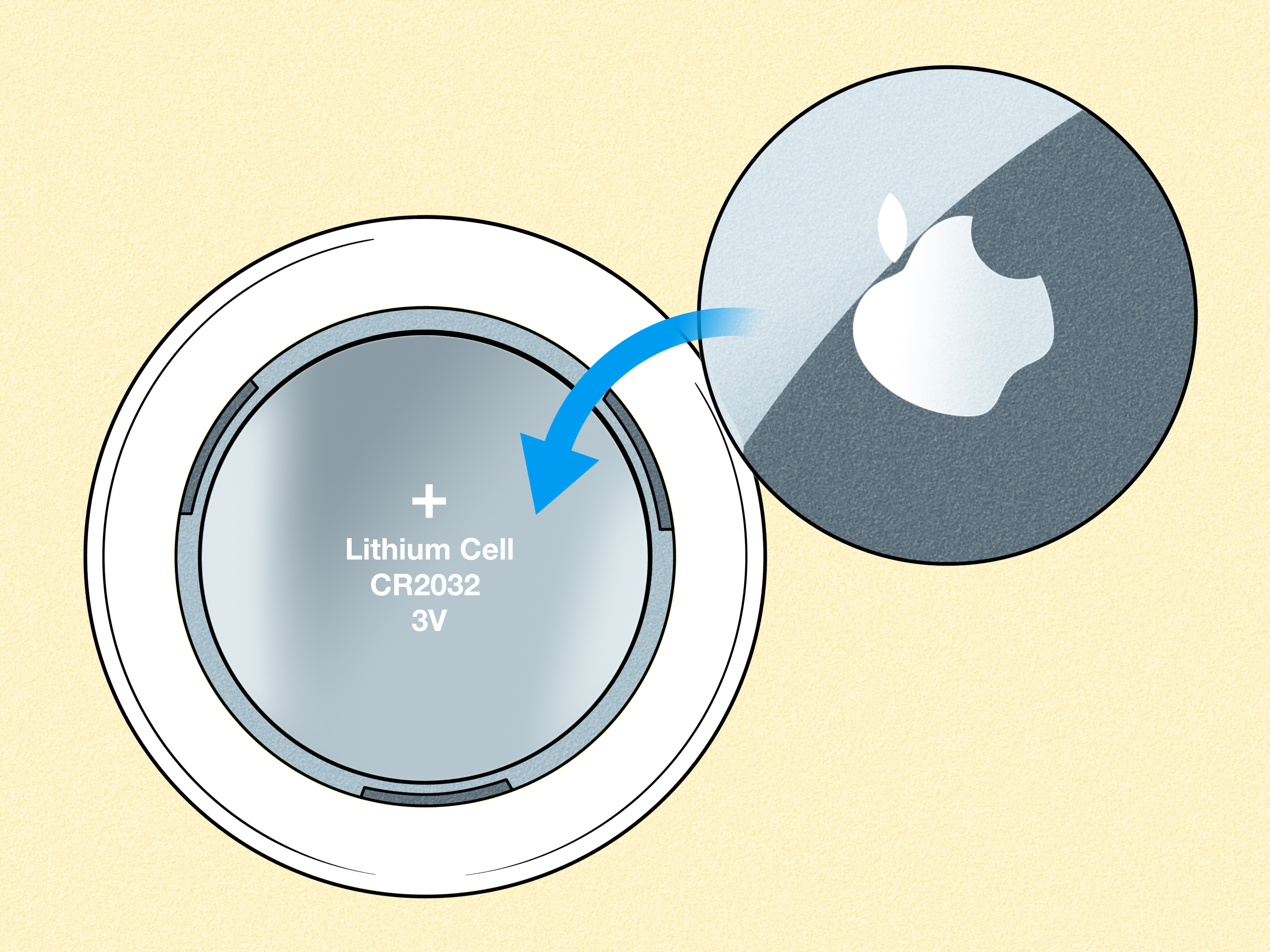
7. Replace the AirTag Battery
A weak or dead battery prevents the AirTag from broadcasting reliably. In Find My, select the AirTag and look for a Low Battery warning beneath its name. Because the app does not always display a detailed battery percentage, age and behavior matter too. If the battery has been installed for roughly a year or the AirTag has become unreliable, replacement is a sensible test.
How to replace an AirTag battery
- Press down on the stainless-steel cover.
- Rotate the cover counterclockwise and remove it.
- Remove the old battery.
- Insert a new CR2032 lithium 3-volt coin battery with the positive side facing up.
- Listen for a sound confirming electrical contact.
- Align the cover’s three tabs and rotate it clockwise until secure.
Some CR2032 batteries have a bitter coating intended to discourage children from swallowing them. Certain coated batteries may not make reliable contact with an AirTag, so choose packaging that specifically states compatibility with Apple AirTag.
Safety warning: Coin batteries can cause severe or fatal injuries if swallowed. Keep the AirTag, loose cover, and batteries away from children and dispose of used batteries according to local recycling rules.
8. Remove Signal-Blocking Materials
Bluetooth and Ultra Wideband signals do not always cooperate with metal. If the AirTag is buried inside a metal toolbox, surrounded by dense luggage contents, placed beneath a vehicle’s metal structure, or enclosed in a poorly designed accessory, its usable range may shrink significantly.
Take the AirTag out of its case and place it in an open area near the iPhone. If it immediately updates, the enclosure or installation position is the likely culprit. Reposition it closer to the exterior of a bag or choose a holder made from plastic, leather, fabric, or another radio-friendly material.
Water resistance also has limits. AirTag models are designed to withstand ordinary splashes and temporary water exposure under specified laboratory conditions, but water resistance can decline over time. If a tracker was submerged, physically damaged, or exposed to corrosion, a battery replacement may not be enough.
9. Remove, Reset, and Pair the AirTag Again
Use this final fix only when the AirTag is physically with you. Removing a distant or genuinely lost AirTag from your Apple Account eliminates your ability to locate it.
Remove the AirTag from Find My
- Open Find My > Items.
- Select the affected AirTag.
- Swipe up to display all options.
- Tap Remove Item and confirm.
Reset a first-generation AirTag
Remove the cover and battery, reinstall the battery, and press it down until you hear a sound. After the sound finishes, repeat the removal and installation process four more times. You should hear five sounds in total, with the fifth sound differing from the first four. That different chime indicates the AirTag is ready to pair.
Reset an AirTag (2nd generation)
The newer model uses a slightly different timing sequence. Reinstall the battery, press it for approximately two seconds until a sound begins, and continue pressing for two more seconds. When the sound ends, remove the battery and wait 12 seconds. Repeat the process four more times. The fifth sound should be different; in some cases, the battery may need to remain pressed longer to trigger it.
Replace the cover, hold the AirTag near your unlocked iPhone, and follow the setup animation. Make sure only one unpaired AirTag is nearby. After pairing, return to Find My and test Play Sound and Find Nearby.
What to Do If the AirTag Still Will Not Refresh
If the AirTag remains offline after a fresh battery, updated iOS, correct permissions, and a successful reset, test it beside your iPhone in an open indoor space. Failure to play a sound or appear during setup may indicate damaged battery contacts, internal corrosion, or another hardware fault.
Contact Apple Support or visit an authorized service location with the AirTag and proof of purchase if available. Before requesting service, note which steps you completed and whether the AirTag produced the expected reset sounds. These details can shorten the diagnostic process considerably.
Common Questions About AirTag Location Updates
How often does an AirTag update its location?
There is no guaranteed schedule. A remote AirTag updates when a nearby device in the Find My network detects it and successfully relays the location. Updates may be frequent in crowded areas and rare in isolated places.
Can I manually force an AirTag to update?
You can refresh Find My, improve your iPhone’s connections, or approach the AirTag directly, but you cannot remotely force an isolated AirTag to transmit a new location. It must be detected by a compatible nearby device.
Why does Find My show an old location?
The map is showing the last location successfully reported to the network. The AirTag may have moved since then, or it may still be there without a nearby device available to send another report.
Does an AirTag need Wi-Fi?
The AirTag itself does not join Wi-Fi. It broadcasts over Bluetooth. The nearby Apple device relaying the signal needs an internet connection to send the encrypted report to Find My.
Can an AirTag provide live vehicle tracking?
No. An AirTag can help locate personal property, including where a vehicle was last detected, but it does not offer dependable live GPS tracking. Use a dedicated cellular GPS device when continuous vehicle monitoring is required.
Real-World AirTag Troubleshooting Experiences and Lessons
AirTag problems become easier to understand when viewed through ordinary situations rather than a list of settings. The key lesson from common user experiences is that “not refreshing” can describe several very different conditions.
Experience 1: The suitcase that stopped at the departure gate
Imagine checking Find My after landing and seeing your suitcase still marked near the departure terminal. It is tempting to assume the airline left it behind. However, luggage may go for long stretches without passing close enough to a participating device with connectivity. Aircraft cargo areas and baggage equipment also contain plenty of metal that can weaken radio signals.
The practical response is to examine the timestamp, wait for the bag to reach a populated baggage-handling area, and activate Lost Mode if it is genuinely missing. A later location update at the arrival airport may reveal that the bag traveled normally; the Find My network simply had no opportunity to report its journey. The AirTag was not lyingit was giving an incomplete travel diary.
Experience 2: The keys that were “offline” ten feet away
In a home, an AirTag may appear offline even though the tagged keys are nearby. A crowded drawer, metal filing cabinet, concrete wall, or weak battery can shorten Bluetooth range. Walking slowly through the house with Find Nearby open is usually more useful than repeatedly refreshing the map.
Once the iPhone connects, Play Sound often finishes the job. If the connection appears only after removing the tag from a metal container, changing its storage position can prevent the same problem later. This scenario demonstrates why a stale map pin is not always an internet problem; sometimes a cookie tin has simply decided to become a tiny Faraday cage.
Experience 3: The parked car that seemed to teleport
A vehicle parked in a busy downtown garage may generate several AirTag updates, while the same vehicle on an isolated road may remain at its last reported location. When it later passes through a crowded intersection, the map can suddenly jump forward. That jump does not mean the AirTag began working again at that exact moment. It means the Find My network finally received another detection.
This behavior is normal for a crowdsourced Bluetooth tracker. Drivers who require route history, speed information, theft alerts, or continuous movement updates should use a purpose-built cellular GPS tracker rather than expecting an AirTag to perform a job it was not designed to do.
A practical routine that prevents most surprises
Before attaching an AirTag to luggage or another important item, open Find My, confirm that the tag says “With You,” play its sound, and check for a low-battery warning. Replace an aging battery before a major trip rather than waiting for it to retire somewhere over the Pacific.
After changing the battery, verify that the AirTag produces a connection sound and updates beside the iPhone. Keep iOS current, leave Bluetooth and Location Services enabled, and avoid hiding the tracker inside a completely metal enclosure. Most importantly, interpret every location with its timestamp. The pin represents the last successful reportnot necessarily the item’s position at this exact second.
These habits will not transform an AirTag into live GPS, but they make its actual capabilities far more dependable. When a location does freeze, you will know whether to wait for the network, adjust an iPhone setting, replace the battery, or begin a full reset.
Conclusion
When an Apple AirTag location is not refreshing, begin by deciding whether you are seeing a genuine malfunction or simply the last location available from the Find My network. Check the timestamp, approach the item when possible, and try Find Nearby or Play Sound. Then verify Bluetooth, internet access, Location Services, Precise Location, and Apple Account settings.
If the problem continues, restart the iPhone, install current software, replace the CR2032 battery, remove signal-blocking materials, and reset the AirTag only when it is physically in your possession. In many cases, the solution is surprisingly ordinary: a tired battery, a disabled setting, or an AirTag sitting somewhere with no Apple devices nearby to tell the tale.