
You open ChatGPT expecting to continue yesterday’s brilliant conversation, only to find an empty sidebar staring back at you like it has never met you before. Your research notes, coding session, meal plan, marketing strategy, and strangely detailed conversation about whether squirrels understand property law all appear to be gone.
Before declaring a digital emergency, take a breath. Missing ChatGPT history does not always mean your conversations have been permanently deleted. The cause may be a temporary service problem, an account mismatch, an archived conversation, a browser glitch, an extension conflict, or a network issue.
The safest approach is to troubleshoot from the least destructive solution to the most involved one. Do not begin by clearing every browser setting, uninstalling five apps, resetting your router, and interrogating your laptop under a bright lamp. Start simple.
This guide explains eight practical troubleshooting tips for recovering access to missing ChatGPT conversations or determining what happened to them.
Why Did My ChatGPT History Disappear?
ChatGPT conversation history can appear missing for several reasons. Some are temporary and easy to correct. Others involve how the conversation was created or managed.
Common causes include:
- Signing in with a different email address or authentication method
- Opening the wrong personal or organizational workspace
- A temporary OpenAI service incident
- A stale login session or failed sidebar refresh
- An accidentally archived conversation
- Using Temporary Chat instead of a standard conversation
- Corrupted browser cookies or cached site data
- A privacy extension, VPN, proxy, firewall, or secure DNS conflict
- Manually deleting the conversation
The important distinction is whether the conversation is merely hidden, temporarily unavailable, or actually deleted. Hidden and temporarily unavailable chats may reappear. A conversation that was permanently deleted generally cannot be restored through ordinary account troubleshooting.
ChatGPT History Gone? Try These 8 Fixes
1. Confirm That You Are Using the Correct Account and Workspace
The first check is also the easiest to overlook. Make sure you are signed into the account that originally contained the missing conversations.
A person might use “Continue with Google” one day, type an email address and password another day, and sign in through Apple on a phone. Those methods may lead to different accounts, even when the person assumes they are all connected. OpenAI does not automatically merge separate accounts simply because the owner recognizes all the email addresses involved.
Open your account menu and verify the displayed email address. Then consider how you originally registered:
- Email address and password
- Google authentication
- Apple authentication
- Microsoft authentication
- Single sign-on provided by an employer or school
If you belong to a Business, Enterprise, or educational workspace, check whether ChatGPT is displaying your personal workspace or the organization’s workspace. Conversations created in one workspace may not appear in another.
This explanation is especially likely when history is visible on one device but missing on another. Compare the email address, login method, subscription, and selected workspace on both devices before changing any technical settings.
2. Check the OpenAI Status Page
Sometimes the problem is not your browser, phone, Wi-Fi, or questionable collection of extensions. Sometimes the service itself is experiencing an incident.
OpenAI maintains a public status page that reports operational issues involving ChatGPT. Its incident archive has documented situations in which conversation history failed to load, sidebar conversations temporarily disappeared, or users were unable to open and continue existing chats.
If the status page reports problems with ChatGPT conversations, login services, or the web interface, avoid making major account changes. An outage-related history problem may resolve as the service recovers.
You can still perform harmless checks, such as refreshing the page or confirming the correct account. However, repeatedly clearing data, changing passwords, reinstalling browsers, and conducting a ceremonial reboot of everything with a power button will not repair a server-side incident.
After the incident is marked resolved, sign out, close the application or browser, reopen it, and sign back in. This refreshes the account session and may restore the conversation list.
3. Refresh the Session, Then Sign Out and Back In
A stale session can leave the main ChatGPT interface working while the conversation sidebar fails to load correctly. Begin with a standard refresh. If that does not help, perform a hard refresh, which reloads the page while ignoring some locally cached resources.
Common hard-refresh shortcuts include:
- Windows or Linux: Ctrl + Shift + R
- Mac: Command + Shift + R
Desktop-app users should fully quit the application rather than merely closing its window. Mobile users can close ChatGPT through the recent-apps screen and reopen it.
Next, sign out of ChatGPT and sign back in using the original login method. Logging in again obtains a fresh authentication session and can correct temporary synchronization problems.
Before signing out, make sure you know which email address and authentication method belong to the account. A troubleshooting attempt can become considerably less fun when it turns into “Now I cannot remember how I logged in at all.”
4. Search Your History and Inspect Archived Chats
A missing conversation may still exist even if it is not immediately visible in the sidebar. Use ChatGPT’s conversation search before assuming the chat has vanished.
On the web version, select the search icon in the sidebar. You may also be able to use Ctrl + K on Windows or Command + K on a Mac. Enter a distinctive phrase from the conversation rather than a broad word such as “help,” “email,” or “Tuesday.”
For example, search for a memorable project name, unusual sentence, product model, client name, or technical error message. Conversation search can examine titles and chat content, although specific wording usually produces better results.
You should also check the archived-chat area:
- Open your ChatGPT profile menu.
- Select Settings.
- Open Data Controls.
- Find the option for managing archived chats.
- Review the list and unarchive the conversation if necessary.
Archiving is not the same as deleting. An archived chat is removed from the regular sidebar but remains associated with the account. This makes archiving wonderfully tidy until you forget that you archived something and begin blaming the internet.
5. Check Whether You Used Temporary Chat
Temporary Chat is designed for conversations that should not appear in ordinary chat history. A Temporary Chat does not create a permanent sidebar entry and is handled differently from a standard saved conversation.
If one particular chat is missing while the rest of your history looks normal, ask whether Temporary Chat was enabled when the conversation began. The interface usually indicates that the session is temporary, but that detail is easy to miss when you are focused on the actual discussion.
Also review the distinction between chat storage and model-training preferences. Turning off the setting commonly labeled Improve the model for everyone does not normally remove standard conversations from your history. It controls whether eligible conversations may be used to improve models. Temporary Chat, by contrast, is intentionally excluded from normal history.
If a conversation was created while history-saving behavior was disabled under an older interface or while Temporary Chat was active, it may not be recoverable through the sidebar later.
For future high-value sessions, confirm that you are using a standard chat before beginning. Copy essential output into your own document, project system, notes app, or repository. ChatGPT is useful, but it should not be the only home for your tax calculations, thesis outline, or 47-step plan for becoming a neighborhood pickleball legend.
6. Test ChatGPT in a Private Window and Disable Extensions
Browser extensions can interfere with scripts, cookies, login flows, network requests, and page rendering. Privacy blockers, ad blockers, script managers, antivirus browser add-ons, password managers, translation tools, and theme extensions are common suspects.
Open ChatGPT in an Incognito, InPrivate, or Private Browsing window. Sign in and check whether the missing history appears.
If the history loads correctly in the private window, the account and service are probably functioning. The problem is more likely related to stored browser data, an extension, or the normal browser profile.
Return to the standard browser window and temporarily disable extensions. Start with tools that modify privacy, cookies, scripts, security headers, page appearance, or network traffic. Reload ChatGPT after disabling them.
If the history returns, reactivate the extensions one at a time until the problem reappears. This method is slower than switching everything off forever, but it identifies the actual culprit and prevents an innocent grammar extension from being sent to browser jail.
7. Clear ChatGPT Site Data and Update Your Browser or App
If a private window works but the regular window does not, corrupted cookies or cached site data may be responsible. Clear the stored data for ChatGPT rather than deleting your entire browsing history first.
Browser menus vary, but the general process is:
- Open the browser’s privacy or site-data settings.
- Search for data related to ChatGPT or OpenAI.
- Remove the affected cookies, cache, and site storage.
- Close and reopen the browser.
- Sign back into the correct account.
Clearing cookies will usually sign you out, so confirm your login credentials before doing it. Removing browser data does not delete conversations stored in your ChatGPT account. It removes local information used by the browser to maintain the session and load the website.
Next, install available updates for your browser, operating system, or ChatGPT app. An outdated browser may struggle with newer web features, while an outdated mobile app may contain synchronization or interface bugs that have already been corrected.
On a phone or tablet, restart the device after updating. If the official ChatGPT app still fails to show history, compare it with the web version in a browser. This helps determine whether the problem is limited to the app or affects the account more broadly.
8. Change Networks, Request an Export, and Contact Support
If the previous steps fail, test ChatGPT on another device, browser, and network. This final comparison can isolate the source of the problem.
Try the following combinations:
- The same account on a different browser
- The same account on another computer or phone
- Mobile data instead of home or office Wi-Fi
- A standard connection with the VPN or proxy disabled
- A different network without restrictive firewall rules
VPNs, secure DNS services, corporate filtering systems, and security software can interfere with ChatGPT’s network connections. Temporarily disabling them for a controlled test may reveal whether they are involved. Do not weaken organizational security settings without authorization from the relevant administrator.
You can also request a data export through Settings > Data Controls > Export Data. The resulting archive includes account data and available chat history. An export can help determine whether conversations remain stored even when they are not displaying correctly in the interface.
Data exports may take time to arrive, and the download link may expire, so watch the email account or phone number associated with your ChatGPT account.
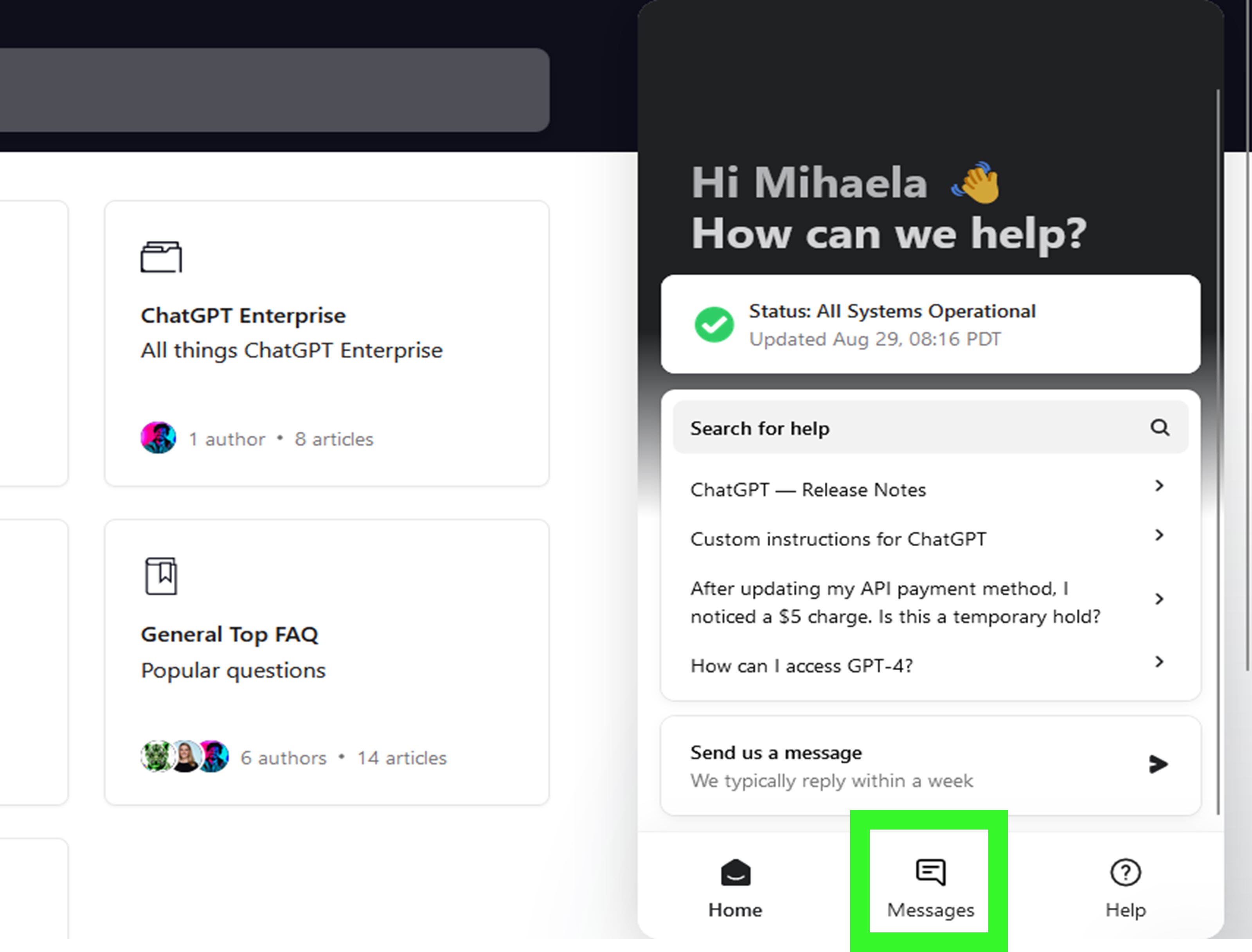
If history remains missing across multiple browsers, devices, and networks, contact OpenAI Support through the official Help Center. Include useful diagnostic information:
- The approximate date and time the problem began
- Your browser or app version
- Your operating system and device type
- Whether the problem occurs on other networks
- Whether private browsing changes the result
- Whether all chats or only specific conversations are missing
- Screenshots that do not reveal sensitive information
Support may request browser console details or a HAR file for difficult interface problems. Such files can contain sensitive session or network information, so provide them only through an official support channel and follow the support team’s instructions carefully.
What Not to Do When ChatGPT Conversations Disappear
Do Not Delete More Conversations While Investigating
Avoid mass-cleaning your sidebar until you understand the problem. Deleting other chats will not encourage the missing ones to return. Software does not respond to intimidation.
Do Not Create Multiple Replacement Accounts
Opening several new accounts can make the original account harder to identify. First document the email addresses and login methods you have already used.
Do Not Share Authentication Data
Never send passwords, one-time login codes, session cookies, complete authentication headers, or unredacted network logs to strangers offering recovery services. Use official support channels.
Do Not Assume a Data Export Restores the Sidebar
An export can provide a copy of available conversation data, but downloading it does not necessarily recreate each conversation in its original sidebar location. Treat an export as a backup and diagnostic resource rather than a guaranteed one-click restoration button.
How to Prevent Future ChatGPT History Problems
Chat history is convenient, but important work deserves an independent backup. A few simple habits can prevent a missing sidebar from becoming a genuine crisis.
- Copy final answers into a document or knowledge-management system.
- Save critical code in a version-controlled repository.
- Download generated files promptly because temporary file links may expire.
- Give important chats clear, searchable titles.
- Use distinctive project names that are easy to find later.
- Export account data periodically when appropriate.
- Confirm that Temporary Chat is off before beginning long-term work.
- Keep the account email address and authentication method documented securely.
For long projects, maintain a brief external summary containing key decisions, prompts, results, and next steps. This also makes it easier to begin a new conversation when an older thread becomes unwieldy.
Experiences From Common Missing-History Scenarios
The following scenarios are realistic composites based on common troubleshooting patterns. They are not claims about one specific user, but they illustrate why the order of the troubleshooting steps matters.
The “Everything Is Gone” Account Mix-Up
A freelancer opened ChatGPT on a new laptop and found an empty history. The immediate assumption was catastrophic deletion. Several nervous refreshes followed, accompanied by the kind of facial expression normally reserved for discovering that a client has replied, “Let’s completely change direction.”
The freelancer had originally created the account by choosing Continue with Google. On the new laptop, however, the person typed a different work email address into the standard login form. Both accounts displayed familiar names, so the difference was not obvious.
After checking the account email and returning to the original Google login, the entire conversation history appeared. Nothing had been recovered because nothing had actually been lost. The user had simply entered a different digital apartment and wondered where all the furniture went.
The lesson was straightforward: verify identity before modifying the browser. Account confusion is one of the few technology problems that cannot be fixed by clearing a cache, because the cache is not the person wearing the wrong hat.
The Sidebar That Returned After an Outage
In another common scenario, a user could start new conversations but could not see older ones. The mobile app and web browser behaved similarly, which made a local browser problem less likely.
The user checked the official status page and found an active conversation-related incident. Instead of reinstalling applications or resetting account settings, the user saved current work elsewhere and waited for the service recovery. After the incident was resolved, signing out and back in restored the sidebar.
This experience demonstrates the value of testing scope. When the same account fails on different devices and networks at the same time, the cause is less likely to be one browser extension. Troubleshooting becomes faster when each test answers a question rather than merely giving the user something energetic to click.
The Extension That Quietly Broke the Page
A third user saw the chat interface, but history loaded endlessly. New chats worked, yet the sidebar remained stubbornly blank. A private browsing window displayed the conversations immediately.
That result narrowed the issue to the regular browser profile. The user disabled several extensions and discovered that an aggressive privacy tool was blocking a request needed by the interface. Updating its filter list and adding a limited site exception corrected the problem.
The useful part of this experience was not merely finding the extension. It was following a controlled process: test privately, disable likely conflicts, reactivate them individually, and stop when the problem returns. Turning off every security tool permanently would have produced a working sidebar but a poor long-term solution.
The Conversation That Was Never Supposed to Be Saved
The most disappointing scenario involves a long discussion created in Temporary Chat. The user closed the session and later searched for it, assuming every conversation automatically became part of the account history.
Search, archived chats, browser changes, and account exports did not place the conversation in the normal sidebar because the chat had been created under a mode designed not to save it there.
The practical lesson was to check the conversation mode before beginning valuable work. Temporary Chat is useful for disposable discussions, but it is a poor place to draft a business plan, complete a research outline, or produce the only copy of an important letter.
Across all four experiences, the best troubleshooting habit was the same: determine whether the issue affects one chat, one account, one browser, one device, or the entire service. That single question turns random experimentation into diagnosis.
Frequently Asked Questions
Can Deleted ChatGPT Conversations Be Recovered?
Chats that were deliberately deleted should be treated as unrecoverable through the normal ChatGPT interface. Check search results and archived chats first to make sure the conversation was actually deleted rather than hidden.
Why Is ChatGPT History Missing on One Device Only?
The device may be signed into another account or workspace. A browser extension, stale session, corrupted cookie, outdated app, or network filter may also be preventing the history from loading.
Does Turning Off Model Training Delete Chat History?
Turning off the setting that allows conversations to improve the model does not ordinarily remove standard chats from account history. Temporary Chat and older history-disabled sessions behave differently and may not create saved history entries.
Will Clearing Browser Cookies Delete My ChatGPT Conversations?
Clearing local browser cookies normally signs you out, but it does not delete conversations stored in the ChatGPT account. Make sure you can sign back into the correct account before removing cookies.
Why Can I See My History in Incognito Mode?
This usually suggests a problem with the normal browser profile, such as corrupted site data or an interfering extension. Test extensions individually and clear only the relevant site data before resetting the entire browser.
Conclusion
When your ChatGPT history is gone, begin with the boring explanations before embracing the dramatic ones. Confirm the correct account and workspace, check the OpenAI status page, refresh the session, search archived chats, review Temporary Chat, test private browsing, clear relevant site data, and compare devices or networks.
If the conversations remain missing everywhere, request a data export and contact official support with clear diagnostic details. Most importantly, keep independent copies of work that would be painful to recreate. A chat sidebar is convenient. It is not a substitute for a backup strategy.
Note: ChatGPT menus and setting names may change as the product is updated. This guide is based on current published guidance from OpenAI and official documentation from major browser vendors. Always use official support channels when sharing account or diagnostic information.