
Trying to connect an Oculus Quest 2 to a Roku TV sounds like it should be a two-tap miracle: put on headset, press a button, boomyour living room becomes a VR theater. In real life, it is slightly more like convincing three smart devices to attend the same family dinner without arguing over Wi-Fi.
The good news: yes, you can show your Quest 2 gameplay on a Roku TV. The important catch: the Quest 2 does not usually cast directly to Roku the way it casts to Chromecast-enabled devices. Roku TVs rely mainly on AirPlay, screen mirroring, and the Roku mobile ecosystem, while the Quest 2’s official casting tools work best with the Meta Horizon mobile app, a browser, or Chromecast-compatible screens.
That means the easiest solution is to use your phone as the bridge. First, cast your Oculus Quest 2 to the Meta Horizon app on your iPhone or Android phone. Then mirror that phone screen to your Roku TV. It is not quite “one cable, one click,” but it is still simple once you know the order. Think of your phone as the translator at a meeting between VR and Roku.
This guide explains two easy ways to connect an Oculus Quest 2 to a Roku TV: using an iPhone with AirPlay and using an Android phone with Roku screen mirroring. You will also learn what to check before starting, how to reduce lag, what to do when audio disappears, and which “solutions” are not really solutions at all.
Can You Cast Oculus Quest 2 Directly to a Roku TV?
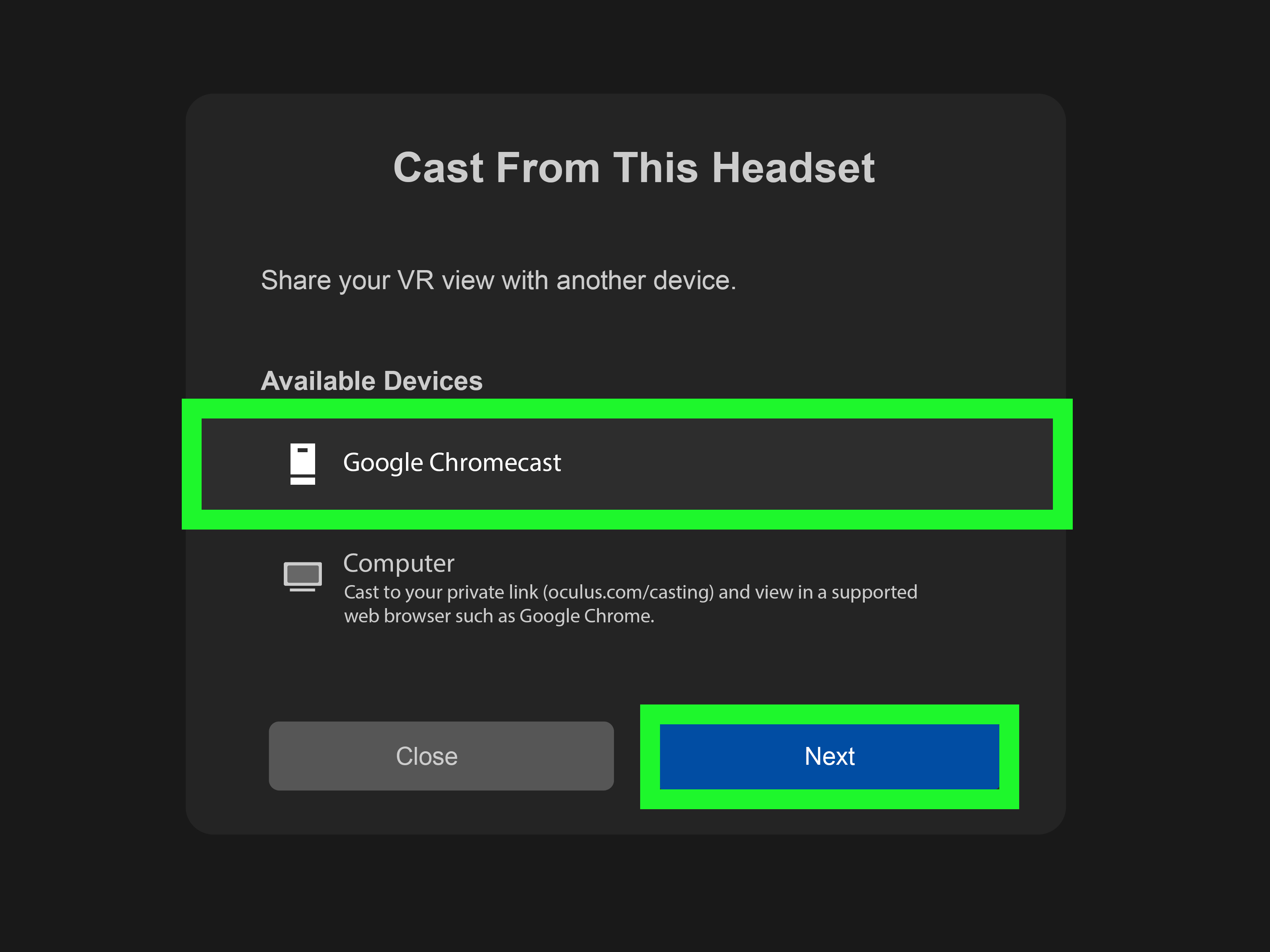
In most cases, no. The Oculus Quest 2, now officially known as Meta Quest 2, can cast to the Meta Horizon mobile app, a computer browser, and compatible casting devices. Roku TV is not generally listed as a direct Quest casting target. So if you open the Cast menu inside the headset and expect your Roku TV to appear automatically, you may be waiting long enough to question your router, your life choices, and possibly the laws of physics.
However, Roku TVs do support several forms of screen sharing. Many Roku devices support screen mirroring from Android and Windows devices. Many newer Roku TVs and Roku players also support Apple AirPlay, which lets iPhone, iPad, and Mac users mirror their screens. So the workaround is straightforward: cast Quest 2 to your phone, then mirror your phone to Roku.
Before You Start: What You Need
Before trying either method, prepare your devices. Most casting problems happen because one device is on a different Wi-Fi network, one device needs an update, or someone accidentally connected the headset to the guest network from 2018.
Basic Requirements
- An Oculus Quest 2 or Meta Quest 2 headset
- A Roku TV or Roku streaming device connected to a TV
- The Meta Horizon mobile app installed on your iPhone or Android phone
- A stable Wi-Fi network
- Your phone, Roku TV, and Quest 2 connected to the same Wi-Fi network
- AirPlay support on Roku if using iPhone
- Screen mirroring support on Roku and Android if using Android
For best results, use a 5 GHz Wi-Fi network instead of 2.4 GHz if your router supports it. VR casting sends live video from the headset, so a weak network can cause delay, blurry video, stuttering, or audio that behaves like it took a different bus home.
Method 1: Connect Oculus Quest 2 to Roku TV Using iPhone and AirPlay
This is the easiest method if you have an iPhone and a Roku TV that supports AirPlay. The idea is simple: your Quest 2 casts to your iPhone through the Meta Horizon app, and your iPhone mirrors its screen to the Roku TV using AirPlay.
Step 1: Check AirPlay on Your Roku TV
On your Roku TV remote, press the Home button. Go to Settings, then look for Apple AirPlay and HomeKit. Open it and make sure AirPlay is turned on.
If you do not see the AirPlay option, your Roku model may not support it, or it may need a software update. Go to Settings > System > Software update > Check now. After updating, restart the Roku TV and check again.
Step 2: Connect Everything to the Same Wi-Fi
Your iPhone, Quest 2, and Roku TV must be on the same Wi-Fi network. This is the part people skip, and it is also the part that causes 80% of the yelling. If your router has separate names for 2.4 GHz and 5 GHz bands, connect all devices to the same one.
Step 3: Cast Quest 2 to the Meta Horizon App
Open the Meta Horizon app on your iPhone. Put on your Quest 2 headset and press the Meta or Oculus button on the right controller to open the universal menu. Choose Camera or Sharing, then select Cast. Pick your mobile app or phone as the destination, then start casting.
Once casting begins, you should see the Quest 2 view on your iPhone screen. The phone is now receiving the VR feed.
Step 4: Mirror Your iPhone to Roku TV
Swipe down from the top-right corner of your iPhone to open Control Center. Tap Screen Mirroring, then choose your Roku TV from the list. If your TV shows an AirPlay passcode, enter it on your iPhone.
Now your iPhone screen should appear on your Roku TV. Since your iPhone is already showing the Quest 2 cast, the Roku TV will display the VR gameplay too.
Step 5: Rotate Your Phone and Adjust Volume
For a bigger picture, rotate your iPhone into landscape mode if the app view supports it. Turn up the phone volume and TV volume. If audio comes from the phone instead of the TV, stop AirPlay and reconnect. Sometimes AirPlay needs a polite reset, like a toaster with ambition.
Method 2: Connect Oculus Quest 2 to Roku TV Using Android Screen Mirroring
If you use an Android phone, you can connect your Quest 2 to a Roku TV by casting the headset to the Meta Horizon app and then mirroring your Android screen to Roku. The exact Android button name varies by brand. Samsung calls it Smart View. Other phones may call it Cast, Screen Cast, Wireless Display, or Screen Mirroring.
Step 1: Enable Screen Mirroring on Roku
On your Roku TV, press Home on the remote. Go to Settings > System > Screen mirroring. Set the screen mirroring mode to Prompt or Always allow.
Prompt is safer because Roku asks for approval each time a device tries to connect. Always allow is faster if you are setting this up in your own home and trust the devices on your network.
Step 2: Cast Quest 2 to Your Android Phone
Open the Meta Horizon app on your Android phone. Put on your Quest 2 headset, press the Meta or Oculus button, then go to Camera or Sharing and choose Cast. Select your phone as the casting destination and confirm.
When the Quest 2 feed appears on your Android phone, you are halfway there. The headset is talking to the phone. Now the phone needs to talk to Roku.
Step 3: Mirror Your Android Phone to Roku TV
Swipe down from the top of your Android phone to open Quick Settings. Look for Smart View, Cast, Screen Cast, or Wireless Display. Tap it, then select your Roku TV.
Your Roku TV may show a permission prompt. Accept it with the Roku remote. Once connected, your phone screen should appear on the TV, including the Quest 2 cast inside the Meta Horizon app.
Step 4: Improve the Viewing Experience
Turn on Do Not Disturb on your phone before mirroring. Otherwise, your heroic Beat Saber session may be interrupted by a grocery coupon, a group chat, or that one app that thinks “battery optimization tips” are breaking news.
Place the phone near the router or somewhere with strong Wi-Fi. Keep the Quest 2 in the same room if possible. Wireless casting works best when the signal path is clean and boring. Boring is beautiful when you want smooth VR video.
Which Method Is Better?
For most people, the iPhone and AirPlay method is easier if the Roku TV supports AirPlay. It usually has a cleaner connection process and fewer compatibility surprises. The Android method works well on many phones, especially Samsung Galaxy devices with Smart View, but not every Android phone supports the type of screen mirroring Roku expects.
Some Android phones, including certain Google Pixel models, may not mirror directly to Roku because Roku screen mirroring is based around Miracast-style wireless display behavior, while some Android brands prioritize Chromecast-style casting instead. If your Android phone cannot find your Roku TV, your phone may not support that kind of mirroring.
Troubleshooting: Why Your Quest 2 Is Not Showing on Roku
Problem: Roku TV Does Not Appear on iPhone
Check whether your Roku supports AirPlay. Then confirm AirPlay is enabled in Roku settings. Make sure your iPhone and Roku are on the same Wi-Fi network. Restart both devices if the Roku still does not appear.
Problem: Android Phone Cannot Find Roku TV
Go to Roku’s screen mirroring settings and set the mode to Prompt. Then open your Android phone’s Quick Settings and try Smart View or Cast again. If the Roku still does not appear, your Android model may not support Roku-compatible screen mirroring.
Problem: Quest 2 Will Not Cast to the Phone
Make sure the Meta Horizon app is logged into the same Meta account used on the headset. Confirm the phone and headset are on the same Wi-Fi network. Update the app, restart the headset, and try again.
Problem: The Video Is Laggy
Lag is normal when you are casting VR wirelessly, then mirroring that cast again to a TV. You are creating a two-hop video chain: headset to phone, phone to Roku. To reduce lag, use 5 GHz Wi-Fi, move closer to the router, close background apps on your phone, and avoid downloading large files while casting.
Problem: Audio Is Missing or Delayed
Start by raising the volume on the Quest 2, phone, and Roku TV. If audio still fails, stop casting and begin again in this order: first cast Quest 2 to the phone, then mirror the phone to Roku. If that does not work, restart all three devices. It is not elegant, but in the smart-device world, “turn it off and on again” remains the national anthem.
Can You Use a Cable to Connect Oculus Quest 2 to Roku TV?
Not in the simple HDMI-output way many people imagine. The Quest 2 has a USB-C port, but it is not designed to output live gameplay directly to a TV through a basic USB-C-to-HDMI adapter. A Roku TV also does not accept video through the Roku software interface from a Quest headset.
You can use a computer as a workaround: cast the Quest 2 to a browser on your laptop, then connect the laptop to the TV with HDMI. But that method uses the TV as a regular display, not really the Roku casting system. It can be useful for parties or family viewing, but it is not one of the two clean phone-to-Roku methods covered above.
Can a Chromecast Help?
Yes, but with a small clarification. If you plug a Chromecast or Google TV device into your Roku TV’s HDMI port, the Quest 2 may be able to cast to that Chromecast-compatible device. In that setup, you are using the Roku TV as a screen, not casting to Roku itself.
This can be a smoother option for some households, especially if you cast VR often. But if your goal is to connect Oculus Quest 2 to Roku TV without buying extra hardware, the iPhone AirPlay and Android screen mirroring methods are the best places to start.
Best Settings for Smooth Quest 2 Casting on Roku TV
To get the best experience, treat your Wi-Fi network like part of the gaming setup. A strong router matters more than people think. VR casting is live video, and live video does not appreciate weak signals, crowded networks, or being routed through three walls and a microwave.
- Use 5 GHz Wi-Fi when available.
- Keep the headset, phone, and Roku TV on the same network band.
- Place the router in an open area.
- Close unused apps on your phone.
- Turn on Do Not Disturb before mirroring.
- Update the Quest 2, Meta Horizon app, Roku software, and phone operating system.
- Restart devices if casting fails repeatedly.
Also remember that casting is mainly for spectators. The person wearing the headset should play based on what they see inside VR, not what appears on the TV. The TV image may have a slight delay, especially when using the phone as a middleman.
Real-World Experience: What It Feels Like to Connect Quest 2 to Roku TV
The first time you connect an Oculus Quest 2 to a Roku TV, the process may feel less like “future technology” and more like hosting a negotiation between a headset, a phone, a television, and a router with trust issues. But once it works, it is absolutely worth itespecially when friends and family can finally see why the person in the headset is ducking, swinging, shouting, or carefully painting in midair like a wizard with a wrist cramp.
In a typical home setup, the iPhone and AirPlay method feels the most polished. You start the Quest 2 cast inside the Meta Horizon app, open Control Center, tap Screen Mirroring, and select the Roku TV. When everything is updated and on the same network, the whole process can take less than a minute. The best part is that iPhone users usually understand AirPlay already, so there is less menu archaeology involved.
The Android method can be excellent too, especially with Samsung phones. Smart View is easy to find, and many Roku TVs accept the connection quickly after you approve the prompt. The small challenge is Android variety. One person’s Android phone may show “Smart View,” another may show “Cast,” another may hide wireless display under connection settings, and another may not support Roku-compatible mirroring at all. Android is powerful, but sometimes it behaves like a toolbox where every screwdriver has a different name.
Performance depends heavily on Wi-Fi. In real use, the Quest player usually feels fine because they are playing inside the headset, but spectators may notice a little delay on the TV. For slower VR experiences, fitness apps, drawing apps, puzzle games, social VR, or casual gameplay, the delay is not a big deal. For fast rhythm games or action-heavy titles, the TV feed can look slightly behind the player’s movements. That is normal. The TV is for watching, laughing, cheering, and occasionally saying, “There’s a monster behind you,” even when that is not helpful.
The biggest practical tip is to test the setup before guests arrive. Do not wait until everyone is standing around with snacks while you update Roku OS, sign back into Meta Horizon, and discover your phone is on the guest Wi-Fi. Run a quick test, check audio, rotate the phone if needed, and make sure notifications are silenced. Nobody needs your bank alert appearing on a 55-inch screen during a VR boxing match.
Another experience-based tip: keep expectations realistic. This setup is a clever workaround, not a professional broadcast system. You may see occasional compression, a small delay, or a brief connection hiccup. But for showing family what VR looks like, helping a beginner through a game, recording casual reactions, or turning a solo Quest 2 session into a shared living-room moment, it works surprisingly well.
In the end, connecting an Oculus Quest 2 to a Roku TV is less about a perfect direct connection and more about using the tools each device already supports. Quest 2 is great at casting to the Meta Horizon app. Roku is great at receiving AirPlay or screen mirroring from many phones. Put those two strengths together, and your phone becomes the bridge. It is not magicbut when someone sees VR on the big screen for the first time, it can feel pretty close.
Final Thoughts
The easiest way to connect an Oculus Quest 2 to a Roku TV is to use your phone as the middle step. If you have an iPhone, cast the Quest 2 to the Meta Horizon app, then mirror the iPhone to Roku with AirPlay. If you have a compatible Android phone, cast the Quest 2 to the Meta Horizon app, then mirror the Android screen to Roku using Smart View, Cast, or Wireless Display.
Direct Quest 2-to-Roku casting is usually not available, so do not panic if your Roku TV does not appear inside the headset’s Cast menu. That is expected. With the right workaround, a steady Wi-Fi connection, and a little patience, your Roku TV can become the big-screen window into your VR world.
And yes, it is much more fun when everyone can see why you are waving your arms at invisible blocks in the middle of the living room.