
There are few modern panic moments quite as dramatic as patting your pocket, checking your backpack, lifting one couch cushion, then realizing your AirPods have vanished like tiny white ninjas. The situation gets even more annoying when Find My says your AirPods are “Offline,” “No Location Found,” or sitting at a place you left three hours ago. Wonderful. Technology has become a treasure map, and your treasure may have a dead battery.
The good news: dead or offline AirPods are not always gone forever. The bad news: they cannot magically transmit a live location without battery, Bluetooth range, or Find My network support. So the trick is to use the data Apple already saved, search smarter, and prepare your AirPods so the next “where did I put them?” episode ends faster than a group chat argument.
This guide explains how to find dead AirPods, how to find offline AirPods, and what to do when your earbuds, case, or one lonely AirPod has disappeared. We will focus on three quick tricks: checking the last known location, using sound or Find Nearby when they reconnect, and retracing your steps with a practical search system.
First, What Does “Offline” Mean for AirPods?
When your AirPods show as offline in the Find My app, it usually means one of four things: they are out of Bluetooth range, their battery is dead, they are inside a case that is not currently communicating, or the Find My network cannot update their location. In plain English, your iPhone is saying, “I knew where they were earlier, but right now they are not talking to me.” Very rude, but technically accurate.
AirPods do not work like a phone with cellular service. They rely on Bluetooth, your Apple devices, and in supported models, the Find My network. If the earbuds or case have no power, they cannot beep, send fresh location data, or respond instantly. However, Find My may still show the last known location, which is often enough to solve the mystery.
Quick Trick #1: Check the Last Known Location in Find My
Your first move should be calm, boring, and extremely useful: open Find My. Panic-searching your room like a raccoon in a cereal box is understandable, but the Find My app gives you a starting point.
How to check the last location
On your iPhone or iPad, open the Find My app. Tap Devices, then choose your AirPods. If your AirPods are separated, you may need to select the left AirPod, right AirPod, or supported charging case separately. Look at the map. If the app shows a location, tap Directions to open Apple Maps and navigate there.
If you do not have your iPhone nearby, go to iCloud.com/find from a browser, sign in with your Apple Account, and select your AirPods from the device list. Some features may be limited on the web, but it can still help you confirm where your AirPods were last seen.
How to read the map without fooling yourself
The last known location is not always the exact spot where your AirPods are sitting right now. It is the last place Find My had useful information. For example, if your AirPods last connected at school, the gym, your friend’s house, or the coffee shop where you definitely only bought “one small drink,” the app may show that location even if someone later moved them.
Still, this clue is powerful. If Find My says your AirPods were last seen at home at 9:12 p.m., search your home before blaming the bus, the universe, or your sibling. If the location is a restaurant, library, classroom, office, rideshare, or airport gate, contact that place quickly. Lost-and-found bins are basically museums of tiny human mistakes.
What if Find My says “No Location Found”?
If you see “No Location Found,” Find My does not currently have a useful location to show. That can happen if Find My was not enabled before the AirPods were lost, if the model has limited Find My support, if the AirPods never connected properly to your Apple Account, or if there has not been a recent detectable connection.
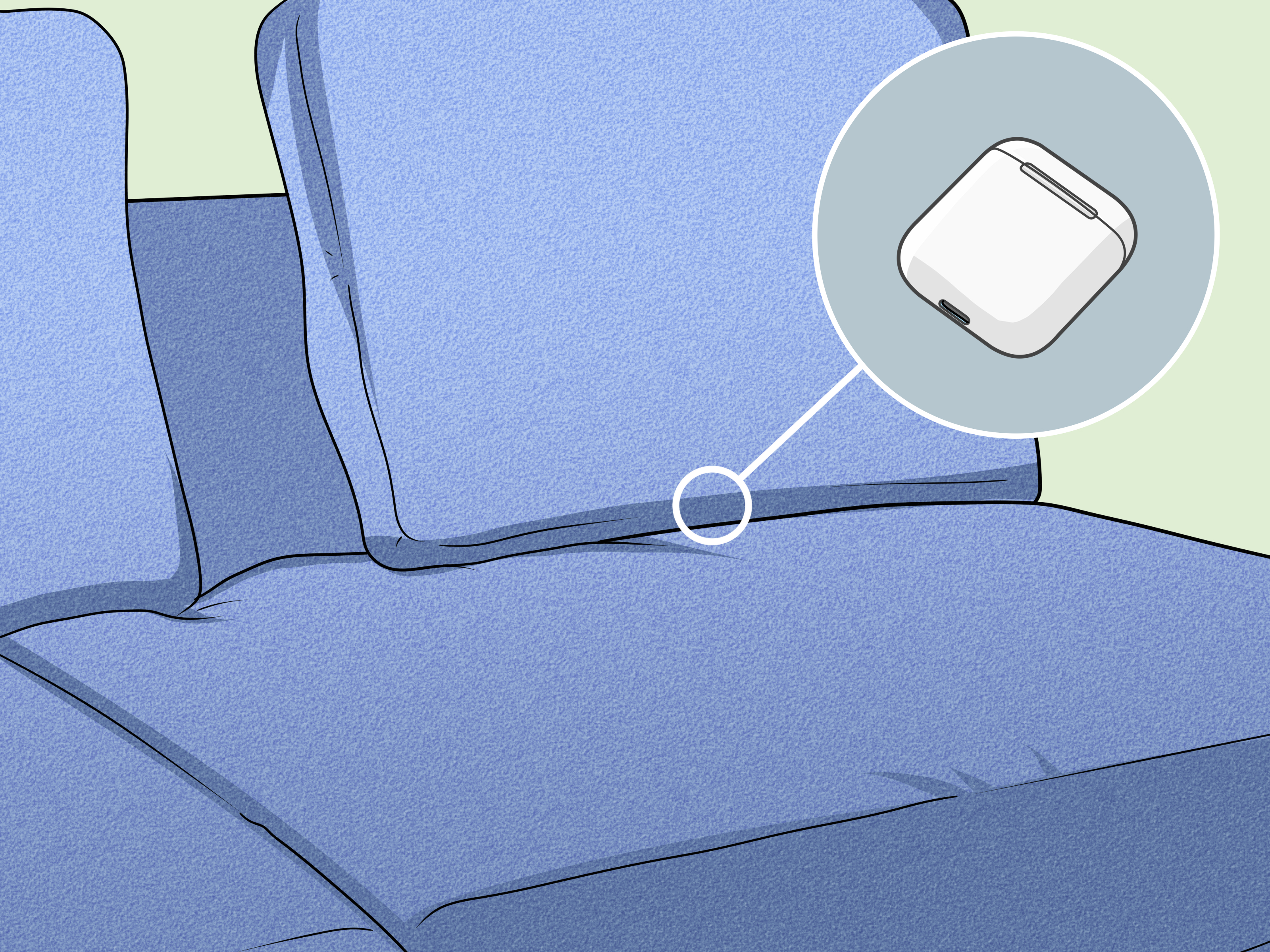
In that case, skip ahead to Trick #3 and start a physical search. Not glamorous, but effective. Your AirPods may still be in a hoodie pocket, gym bag, pencil case, laundry basket, or the mysterious couch crack where coins, crumbs, and one missing sock go to retire.
Quick Trick #2: Use Play Sound, Find Nearby, or Lost Mode When They Reconnect
If your AirPods are not completely dead and are close enough to connect, the Find My app can do more than show a map. It can play a sound, guide you nearby, or let you mark supported AirPods as lost. This is where the search becomes less “detective drama” and more “hot-and-cold game with expensive earbuds.”
Use Play Sound when your AirPods are nearby
In Find My, select your AirPods and tap Play Sound. The earbuds will play a beeping sound for a few minutes, or until you stop it. Start by making the room quiet. Turn off music, pause the TV, ask everyone to stop talking for ten seconds, and listen carefully.
Do not blast sound if an AirPod might be in someone’s ear. That is uncomfortable and unnecessary. If you suspect one earbud is in a bag, under a blanket, or between couch cushions, the sound may be muffled. Move slowly and listen from different angles.
Use Find Nearby on supported models
Some newer AirPods and iPhone combinations show a Find Nearby or Find option. This can guide you with on-screen prompts when the AirPods are close. AirPods Pro 2 and later models offer more advanced location features for the charging case, including Precision Finding with compatible iPhones. The case may also be able to play a sound on supported models.
This is especially helpful when your AirPods are “somewhere in the room,” which is both technically a location and emotionally useless. Walk slowly. Follow the arrow, distance estimate, vibration, or prompts. Check shelves, bedsheets, jacket pockets, backpacks, under the desk, behind the nightstand, and inside that one drawer where you put things “just for now” six months ago.
Turn on Lost Mode or show contact info
If Find My supports it for your AirPods, use Lost Mode or Show Contact Info. This can display your contact information if someone finds your AirPods and tries to connect or identify them. It is not a superhero force field, but it gives honest people a way to return them.
If you believe your AirPods were stolen, do not confront anyone based only on a map dot. Location data can be approximate, and safety matters more than earbuds. Save the information, contact the location, and involve local authorities or responsible adults if needed.
Quick Trick #3: Retrace Your Steps Like a Pro
When AirPods are dead or offline, your best tool may be your memory. Unfortunately, memory under stress is about as reliable as a phone at 1% battery. So do not simply “think harder.” Rebuild your timeline.
Start from the last time you remember using them
Ask yourself: When did I last hear audio through them? Were they in my ears, in the case, or loose? Did I switch bags? Did I take off a hoodie? Did I charge them? Did I put them on a desk during class, work, gaming, studying, or a call?
Write down the last three places you visited. Then list the moments when you handled your pockets, backpack, purse, gym bag, laptop sleeve, or jacket. AirPods usually disappear during transitions: getting out of a car, leaving a classroom, changing clothes, tossing laundry, packing a bag, or lying down “for five minutes” and waking up in another century.
Search the highest-probability zones first
Do not search randomly. Start with the places where AirPods naturally hide:
- Inside hoodie and jacket pockets
- Between couch cushions and under furniture
- Backpacks, tote bags, gym bags, and laptop sleeves
- Bed sheets, pillowcases, blankets, and nightstands
- Car seats, cup holders, floor mats, and seat gaps
- Laundry baskets, washer areas, and changing rooms
- Desks, shelves, drawers, lockers, and charging stations
Use a flashlight, even during the day. White AirPods can vanish against white sheets, paper, tile, or charging cables. A flashlight creates shadows and reflections that make the case or earbuds easier to spot.
Use the “one AirPod at a time” method
If Find My shows only one AirPod, find that one first. Put it back in the charging case, then refresh Find My to see if the other AirPod appears. For many models, Find My may show one separated AirPod at a time, so recovering one can help reveal the next clue.
If you lost only one AirPod, check the places where you removed it briefly: while talking to someone, ordering food, crossing a street, answering a call, entering a classroom, or taking off a mask, hat, scarf, or hoodie. Single AirPods love dramatic exits.
Can You Find AirPods If the Case Is Dead?
Sometimes. It depends on your AirPods model, whether Find My network was enabled before the loss, and whether the earbuds or case can still communicate. Older AirPods cases are harder to track by themselves. Newer models, such as AirPods 4 with Active Noise Cancellation and recent AirPods Pro models, have stronger Find My support for separate earbuds and the case.
If your case is dead and Find My shows only an old location, treat that location as your starting point. Search physically, contact lost and found, and keep checking Find My. If the case or AirPods come back online, your Apple device may notify you.
How to Prepare Before You Lose Them Again
Finding dead AirPods is partly luck, partly preparation. The best time to set up Find My is before the tiny earbuds run away to start a new life under your couch.
Turn on the Find My network
Connect your AirPods to your iPhone or iPad. Open Settings, tap your AirPods near the top, scroll down, and make sure Find My Network is turned on. You can also go through Bluetooth settings by tapping the information button next to your AirPods. Supported models can use the Find My network to help locate them even when they are not nearby.
Enable Notify When Left Behind
In Find My, choose your AirPods, then turn on Notify When Left Behind if your model supports it. This can alert you when you leave your AirPods at an unknown location. You can set trusted locations, like home, so you do not get nagged every time you walk from the bedroom to the kitchen.
Keep a simple AirPods habit
Create one home base for your AirPods: a tray, desk corner, backpack pocket, nightstand, or charging station. The rule is simple: if they are not in your ears, they are in the case; if they are in the case, they are in the home base. This sounds boring because it is. Boring systems save expensive gadgets.
Common Mistakes That Make Lost AirPods Harder to Find
Waiting too long
The longer you wait, the more your memory fades and the more likely someone moves the AirPods. Check Find My immediately. Call or message locations quickly. If you left them in a classroom, gym, library, restaurant, or rideshare, speed matters.
Assuming the map is perfect
Find My is helpful, not magical. A map dot can point to a building, parking lot, or general area. It may not identify the exact table, locker, room, or couch cushion. Use it as a clue, not a courtroom witness.
Forgetting the case
Many people search for the earbuds but forget where the case might be. Think about where you opened the case, where you charged it, and where you put it after removing the earbuds. The case often hides in bags, cars, bedside areas, and desk clutter.
Not checking laundry
AirPods and laundry have a tragic relationship. Check pockets before washing clothes. If your AirPods went through the washer, do not immediately panic-tap every button. Dry the outside, leave them out to air-dry, and avoid charging until you are confident everything is dry. Water damage is unpredictable, and charging wet electronics can make things worse.
Real-World Experiences: What Actually Works When AirPods Go Offline
Experience has a funny way of proving that lost AirPods are rarely “lost” in a dramatic movie sense. They are usually hiding in a painfully ordinary place. The most common pattern is this: someone uses AirPods while moving between activities, gets distracted, puts the case down for “one second,” and later discovers that “one second” has become a full archaeological expedition.
One practical experience is the last-room rule. If Find My says the AirPods were last seen at home, do not search the entire house equally. Go to the last room where you remember using them and search in circles. Start with your body area: pockets, waistband, hoodie pouch, sleeves, and bag. Then search the surfaces within arm’s reach: desk, bed, couch, counter, shelf, charger, and floor. Finally, search drop zones: under chairs, beside the bed, behind pillows, and under blankets. This method works because AirPods usually fall within a few feet of where you handled them.
Another experience-based trick is to recreate your movement. If you came home, dropped your backpack, grabbed food, sat down, changed clothes, and then noticed the AirPods were missing, physically walk that route again. Do not just imagine it. Open the same bag pocket. Sit in the same chair. Check the same counter. Look where your hands naturally go. Your body often remembers routines better than your stressed brain does.
For cars, the best experience is to search with the seat moved all the way back, then all the way forward. AirPods cases love the dark gap between the seat rail and center console. Use your phone flashlight from multiple angles. Check cup holders, door pockets, under floor mats, jacket piles, and the space between the seat and seatbelt buckle. If you were a passenger, search that side first. If you were driving and removed one AirPod to talk, check the driver-side door pocket and lap area.
For public places, the winning move is speed plus politeness. Call the location and give specific details: AirPods model, case color, approximate time, exact area, and whether the case has a name, sticker, engraving, or cover. “I lost white AirPods” is less helpful than “I may have left AirPods Pro in a navy silicone case at the back table around 4 p.m.” Staff members are more likely to help when the search is clear.
For students, commuters, and gym-goers, the best long-term experience is assigning one pocket as the AirPods pocket. Not “any pocket.” One pocket. Always. The moment you start rotating between hoodie, jeans, backpack, laptop sleeve, and gym bag, your AirPods enter the multiverse. A consistent storage habit beats even the best recovery trick.
Finally, keep expectations realistic. If the AirPods are dead, you may not get a fresh location until they reconnect or are detected by the Find My network on supported models. Keep checking Find My, but do not stare at it every ten seconds like it owes you money. Search the likely places, contact lost-and-found locations, turn on Lost Mode if available, and set up prevention features after you recover them.
Conclusion
Finding dead or offline AirPods is not about one magic button. It is about using the best clue first, then searching with a system. Start with Find My and check the last known location. If the AirPods reconnect, use Play Sound, Find Nearby, or Lost Mode. If they stay offline, retrace your steps like a detective who has had enough coffee to be useful.
The fastest solution is usually a combination of technology and common sense. Find My gives you the map. Your memory gives you the timeline. Your flashlight gives you the final victory under the couch. And your future self will thank you for turning on Find My Network and Notify When Left Behind before your AirPods decide to play hide-and-seek again.