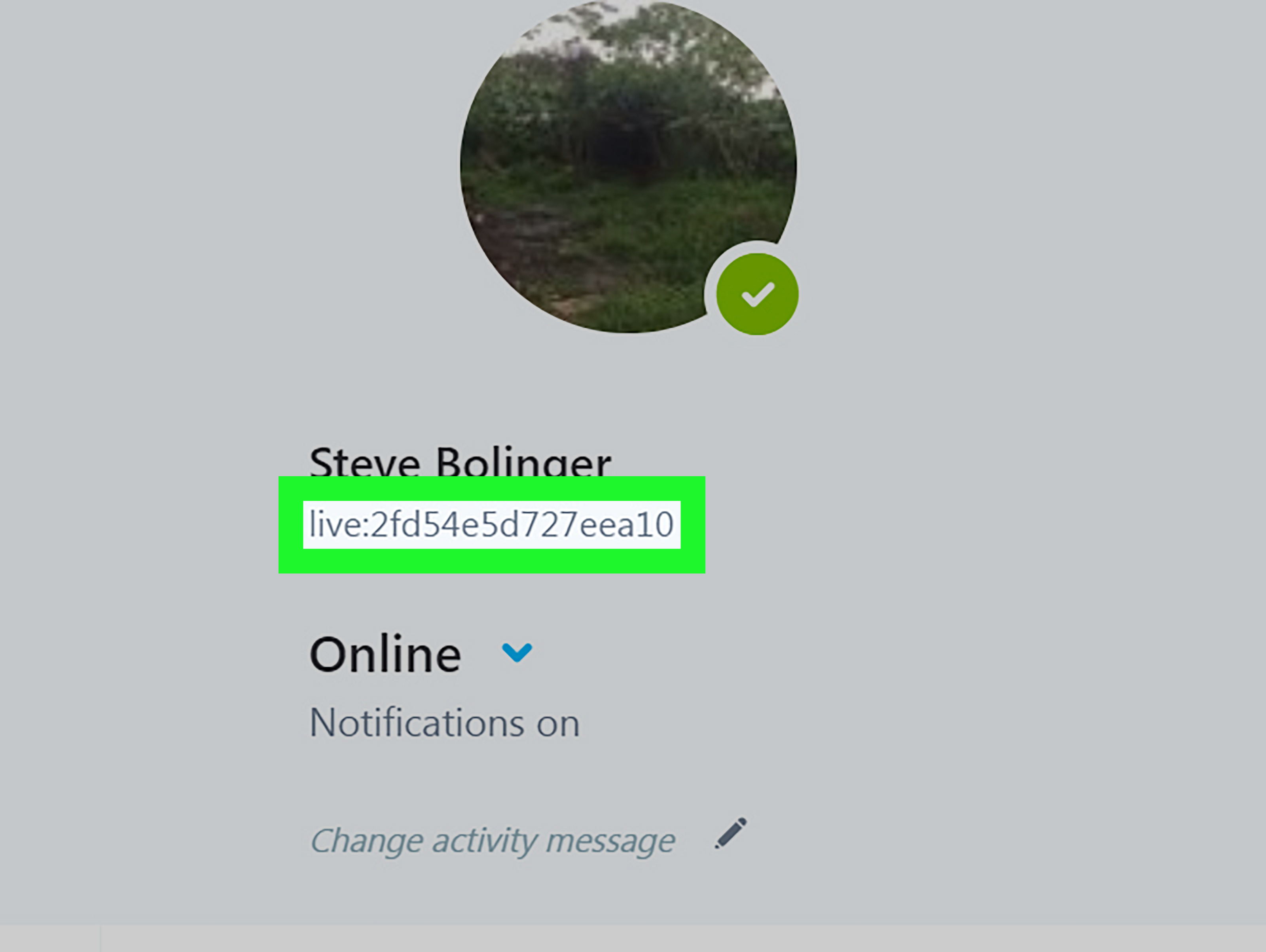

Trying to find your Skype ID can feel like searching for your car keys while already holding them. It is usually right there in your profile, quietly labeled as your Skype Name, while everyone around you calls it something different: Skype ID, Skype username, Skype live ID, Skype handle, or “that weird live:.cid thing.” Helpful? Not exactly. Fixable? Absolutely.
This complete guide explains how to find your Skype ID on a Windows PC or Mac, what the ID actually means, how it differs from your display name and Microsoft account email, and what to do now that consumer Skype has officially retired and Microsoft Teams Free has taken over many Skype features.
Before we begin, one important update: Skype as a consumer app was retired on May 5, 2025. However, many people still need their Skype ID for old contacts, account recovery, Teams migration, stored records, business profiles, tutoring platforms, client onboarding forms, or archived chat history. So yes, your Skype ID still matterseven if Skype itself has hung up its headset and wandered into the Microsoft retirement lounge.
What Is a Skype ID?
Your Skype ID is the unique account identifier connected to your Skype profile. In the Skype app, it was typically shown as your Skype Name. This is not always the same as your display name, your email address, or the name people see during calls.
For older accounts, a Skype ID might look like a simple username, such as:
john.smithtravelwriter87alexdesignstudio
For newer Microsoft-linked accounts, it often looks more technical, such as:
live:yournamelive:.cid.abc123examplelive:randomlettersandnumbers
That long live:.cid format may look like a Wi-Fi password that had too much coffee, but it is normal. It is generated by Microsoft and works as a unique identifier for your account.
Skype ID vs. Skype Display Name: Do Not Mix Them Up
The most common mistake is confusing your Skype ID with your display name. They are related, but they are not the same thing.
Skype ID or Skype Name
Your Skype ID is the unique identifier attached to your account. It may be used to search for you, verify an old account, or connect your Skype history with Microsoft Teams Free. You generally cannot freely edit this ID.
Display Name
Your display name is the friendly name people see when they chat or call you. For example, it might say “Emily Carter,” “Dad,” “Marketing Team,” or “Do Not Call Me Before Coffee.” This name can usually be changed more easily.
Microsoft Account Email
Your Microsoft account email is the email address you use to sign in. Depending on how your account was created, it may or may not be the best thing to share when someone asks for your Skype ID.
Here is the simple version: if a form asks for your Skype ID, look for the field called Skype Name. That is usually the answer.
How to Find Your Skype ID on a Windows PC
If you still have access to the Skype desktop app on your Windows computer, the process is straightforward.
Step 1: Open Skype
Open the Skype desktop app from your Start menu, taskbar, or desktop shortcut. If you are already signed in, you will land on your chat screen or home view.
Step 2: Click Your Profile Picture
In the upper-left corner, click your profile picture, initials, or avatar. If you never added a photo, it may simply appear as a circle with your initials.
Step 3: Select “Skype Profile”
From the menu, choose Skype profile. This opens your profile details.
Step 4: Look for “Skype Name”
Inside the profile window, find the field labeled Skype Name. The value shown there is your Skype ID.
It may look clean and simple, or it may look like live:.cid.xxxxxxxx. Either way, copy the full thing exactly as shown. If it starts with live:, include live:. Do not trim it, decorate it, or try to make it prettier. Skype IDs are not houseplants; they do not improve with pruning.
How to Find Your Skype ID on a Mac
The steps on macOS are very similar to Windows. The app layout may look slightly different depending on version, but the profile path is usually the same.
Step 1: Launch Skype on Your Mac
Open Skype from the Applications folder, Launchpad, Dock, or Spotlight Search.
Step 2: Click Your Profile Image
Click your profile image or initials in the top-left area of the Skype window.
Step 3: Open “Skype Profile”
Select Skype profile from the dropdown menu.
Step 4: Copy the Skype Name
Find Skype Name. This is your Skype ID. Copy it exactly, especially if it contains live:, dots, numbers, or a long string of letters.
On Mac, it is a good idea to paste the ID into a plain text note first, such as TextEdit in plain text mode, before sending it to someone. This helps avoid copying extra spaces or formatting.
Can You Find Your Skype ID in Microsoft Teams Free?
Since Skype has retired, many users now access their Skype-related chats and contacts through Microsoft Teams Free. If your Skype chats or contacts do not appear after signing in to Teams, one possible reason is that you signed in with the wrong Microsoft account.
Microsoft notes that users with older Skype accounts may need to sign in with an older Skype Name, especially if that Skype Name does not start with live:. Otherwise, users generally sign in with the email address or phone number associated with the Microsoft account connected to Skype.
If you are checking Teams Free because you need your old Skype identity, use your profile information and account sign-in details as clues. The right account should show the expected contacts, chats, or conversation history. If it looks empty, you may be standing in the wrong digital living room.
How to Find Your Skype ID If You Cannot Open Skype
If the Skype app is gone from your PC or Mac, do not panic. There are still several ways to track down your Skype ID or account.
Check Old Emails
Search your email inbox for terms like:
Skype NameSkype IDlive:Skype accountMicrosoft account
Old welcome emails, payment receipts, subscription notices, security alerts, or contact invitations may include hints about the Skype account you used.
Ask a Contact to Check Your Profile
If someone still has you in their old Skype contacts or migrated contact list, ask them to open your profile and check whether your Skype Name is visible. Make sure they copy the entire ID, not just your display name.
Use Microsoft Account Recovery
If you forgot the username connected to Skype, Microsoft’s account recovery process may help. You may be asked to enter a phone number or alternate email address connected to your Microsoft account. After verification, Microsoft may show associated accounts with part of the username hidden for security.
Check Password Managers
If you use a password manager, search for “Skype,” “Microsoft,” “Live,” or “Outlook.” Many people saved their Skype login years ago and forgot about it. Your password manager may still remember, because unlike humans, it does not get distracted by snacks.
Can You Change Your Skype ID?
In most cases, you cannot change your Skype ID or Skype Name the way you can change a display name. If your Skype ID is a generated live:.cid string, that identifier is tied to the account.
You can usually change your display name, profile picture, and other visible profile details, but the underlying Skype ID stays the same. If you need a completely different Skype ID, the traditional solution was to create a new account. However, because Skype has retired, creating a fresh Skype identity is no longer the same practical option it used to be.
For modern use, focus on your Microsoft account and Teams Free profile instead. If an organization still asks for a Skype ID, provide your existing Skype Name if you have one, and clarify that Skype has been retired if the form appears outdated.
Why Someone Might Ask for Your Skype ID
Even after Skype’s retirement, Skype IDs still appear in older workflows. You may need yours for:
- Online tutoring platforms that still have old profile fields
- Freelance client onboarding forms
- Archived business contact records
- Microsoft account recovery
- Teams Free migration troubleshooting
- Old chat or contact verification
- International calling or Skype-related billing history
If a company asks for your Skype ID today, it may be using an older template. You can provide the ID if needed, but it is also smart to ask whether they now accept Microsoft Teams, email, Zoom, Google Meet, or another current contact method.
How to Share Your Skype ID Correctly
When sharing your Skype ID, accuracy matters. A missing dot or colon can make the ID useless.
Good Example
live:.cid.a1b2c3d4example
Bad Example
a1b2c3d4example
The second version may look cleaner, but it is incomplete. If your Skype Name includes live:, send the entire string.
A professional way to share it would be:
My Skype ID is
live:.cid.a1b2c3d4example. Since Skype has retired, I am also available on Microsoft Teams using the same Microsoft account email.
This gives the other person useful context and prevents the awkward “I searched and could not find you” loop.
Troubleshooting: Why You Cannot Find Your Skype ID
You Are Signed Into the Wrong Account
This is the most common issue. Many people have more than one Microsoft account: a Gmail-based Microsoft login, an Outlook account, an old Hotmail address, a work account, and possibly one mysterious account created at 1:00 a.m. in 2014. Try checking other email addresses or phone numbers you may have used.
Your Display Name Is Not Your ID
If you only see a friendly name like “Michael” or “Sarah Lee,” that is probably not the Skype ID. Look specifically for Skype Name.
Your Account Was Created Through Microsoft
Newer Skype accounts were often tied to Microsoft accounts and assigned generated IDs. That is why your Skype Name may begin with live: or live:.cid.
The App Is No Longer Supported
Because Skype has retired, some app functions may no longer behave as they did in older tutorials. Use Microsoft Teams Free and Microsoft account recovery tools when the old app is unavailable.
You Are Looking at Skype for Business
Skype for Business was different from consumer Skype. If your account came from a school or employer, your username and display identity may have been managed by an IT administrator. In that case, your work email or organization login may be more relevant than a personal Skype ID.
Privacy Tips When Sharing a Skype ID
Your Skype ID is not usually as sensitive as a password, but you should still share it thoughtfully. Do not post it publicly on random forums, comment sections, or social media threads unless you are comfortable being contacted by strangers or spam accounts.
If you are using an old Skype ID for professional purposes, share it directly with trusted contacts. If you are moving conversations to Teams Free, provide your preferred Microsoft account email or Teams contact method instead.
Also, never send your Microsoft password, security code, or recovery code to someone just because they claim they need it to “find you on Skype.” They do not. That is not tech support; that is a red flag wearing a fake mustache.
Practical Example: Finding the Right Skype ID for a Work Form
Imagine a tutoring website asks you to enter your Skype ID. You open your old Skype desktop app on your Mac, click your profile photo, choose Skype profile, and see this:
Skype Name: live:.cid.9f8e7d6c5b4a
You should enter the full value:
live:.cid.9f8e7d6c5b4a
Do not enter your display name, such as “Anna Tutor.” Do not enter only the letters after cid. Do not enter your email unless the form specifically asks for your Microsoft account email. The Skype Name is the Skype ID.
My Experience: What People Usually Get Wrong About Skype IDs
After helping many users sort out old Skype details, the biggest pattern is simple: people are not confused because they are bad with technology. They are confused because Skype and Microsoft used several names for similar things over many years. Skype ID, Skype Name, Skype username, Microsoft account, display name, live IDat some point, even the labels needed a team meeting.
The first real-world issue is that people often send their display name instead of their Skype ID. For example, someone might say, “My Skype is Robert Miller.” That may be what appears during calls, but it is not always searchable or unique. There could be hundreds of Robert Millers. The actual Skype Name might be live:robertmiller_42 or live:.cid.73abexample. When a client, teacher, or friend cannot find the account, both people assume something is broken. Usually, nothing is broken. They are just using the wrong identifier.
The second issue is the strange live:.cid format. Many users see it and think, “That cannot possibly be my username.” It looks too technical, too random, and too unfriendly. But in many cases, that is exactly the Skype ID. Microsoft-linked accounts often generated these identifiers automatically. They were not designed to be memorable; they were designed to be unique. A display name can be pretty. An ID just has to do its job.
The third issue is account mix-up. A user may have signed into Skype years ago with an old Hotmail account, later used Gmail for Microsoft services, and now signs into Teams with a work address. When their Skype history does not appear, they assume Microsoft deleted everything. Sometimes that is not the case. They may simply be in the wrong account. Checking old emails, password managers, and recovery options often reveals the original login.
The fourth issue is outdated instructions. Many guides written before Skype’s retirement still tell users to download Skype, open the app, and update account settings as if nothing changed. That may work only if the app is already installed and accessible. Today, it is more realistic to explain both the old desktop method and the newer Teams Free context. A helpful guide should not pretend the calendar is stuck in 2018.
One practical habit I recommend is saving your Skype ID in a secure note along with the Microsoft account email connected to it. Label them clearly. For example: “Old Skype Name: live:.cid.xxxxx” and “Microsoft sign-in email: [email protected].” This tiny bit of organization can save a lot of future detective work, especially if you need old contacts, archived chats, billing records, or account recovery details.
Another useful habit is to provide a backup contact method whenever you share an old Skype ID. For instance, write: “My Skype ID is live:.cid.xxxxx, but since Skype has retired, please contact me on Teams or by email if that does not work.” This sounds professional and prevents confusion before it starts.
The lesson is simple: your Skype ID is not always pretty, but it is specific. When someone asks for it, look for Skype Name, copy the entire value, and include every prefix, dot, and letter. In the world of account IDs, punctuation is not decorationit is part of the address.
Conclusion
Finding your Skype ID on a PC or Mac is easy once you know where to look: open Skype, click your profile picture, choose Skype profile, and copy the value listed as Skype Name. That Skype Name is your Skype ID.
The tricky part is understanding what it is not. It is not necessarily your display name. It is not always your email address. It may include live: or live:.cid, and if it does, you should copy the full version exactly.
Because Skype retired in 2025, some users may need to use Microsoft Teams Free, Microsoft account recovery, old emails, password managers, or help from existing contacts to locate their account details. Whether you need your Skype ID for a form, an old client, a tutoring profile, or account recovery, the key is to search for the account’s unique Skype Name and avoid confusing it with friendlier profile labels.
Skype may no longer be the star of online calling, but your Skype ID can still be useful. Think of it as an old house key: maybe you do not use it every day, but when you need it, you really need the right one.