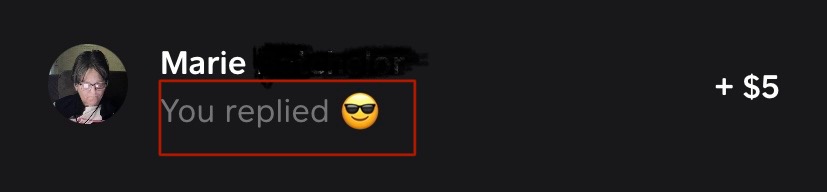

Someone sends you money for dinner, rent, tickets, or the mysterious “thing from last Tuesday,” and now you want to respond. In Cash App, replying usually means sending money back to the same person, returning a payment, or acknowledging it through options available on the transaction screen.
The safest method begins in Activity, where you can verify the payment and sender before moving money. Here are the six steps for iPhone and Android, plus practical fixes for pending, accidental, and suspicious payments.
Note: Cash App updates its interface regularly. Button names and icon positions may vary slightly by device, account type, and app version.
What Does “Reply to a Payment” Mean in Cash App?
Cash App is a payment service rather than a full messaging app. “Replying” generally means sending a return payment, issuing a refund, or using a reaction or personalized payment note when that feature is available.
Use Refund when you are reversing money you received. Send a new payment when you owe the sender a separate amount. That distinction keeps your transaction history understandable instead of turning it into financial spaghetti.
Before You Reply
First, open Cash App directly and confirm the transaction appears in Activity. Do not trust only an email, screenshot, text, or push notification. Next, check whether the payment is completed or pending. Finally, verify the sender’s name, profile photo, $Cashtag, and previous history with you. If the payment was unexpected, contact the person through a phone number or conversation you already trust.
How to Reply to a Payment in Cash App on Mobile: 6 Steps
Step 1: Open Cash App and Sign In
Launch the official Cash App on your iPhone or Android phone. Sign in using the verification method requested by the app, such as a one-time code, passkey, PIN, fingerprint, or Face ID.
Avoid entering your credentials through links in unexpected emails or text messages. Opening the installed app directly is safer and usually faster. It is also smart to install the latest app update so your menus and security features are current.
Step 2: Tap the Activity Tab
From the home screen, open Activity. It is commonly represented by a clock or transaction-history icon near the bottom-right area of the screen. The feed includes payments you sent or received, transfers, refunds, card activity, and other account events.
Find the incoming payment you want to answer. Starting from the original transaction is safer than typing a recipient from memory because it leads you back to the profile connected to that payment.
Step 3: Select the Payment and Review the Details
Tap the payment. Check the amount, sender, date, note, and status. Depending on the transaction, you may see options such as Refund, Accept, Report an Issue, a menu icon, or a link to the sender’s profile.
If you need to return the full original payment, choose Refund when available. If you need to send a different amountfor example, returning $12.47 left over from a grocery paymentcontinue to the next step.
Step 4: Tap Reply, Pay, or the Sender’s Profile
If your version displays Reply or Pay, tap it. Otherwise, tap the sender’s name or profile image and choose the option to pay that person.
You can also use the standard Payments tab: enter an amount, tap Pay, and select the verified sender from recent contacts. The exact label may change, but the goal is the samemove from the original transaction to the correct sender’s payment screen.
Step 5: Enter the Amount and Add a Clear Note
Type the amount you want to send and inspect the decimal point. $15.00 is a normal lunch repayment; $1,500.00 is a much more exciting afternoon. Add a short note such as “My half of dinner,” “Unused ticket money,” or “Returning overpayment.”
A useful note acts like a tiny receipt and makes the payment easier to recognize later. Cash App may also offer text, stamps, or backgrounds, but clarity is more valuable than decorating a utility payment like a birthday invitation.
Step 6: Review and Confirm the Payment
Before confirming, check the recipient’s name and $Cashtag, the amount, funding source, and note. Cash App may ask you to authorize the transfer with a PIN, fingerprint, Face ID, or another security method.
After sending, return to Activity and confirm that the new transaction appears with the expected status. Person-to-person payments often move quickly and may be difficult to cancel, so treat the final review screen as a safety check, not wallpaper.
Refund or New Payment: Which Should You Choose?
Use Refund for a duplicate payment, accidental transfer, overpayment, canceled sale, or any situation where you are directly reversing money received. Use a new payment when the amount represents a separate obligation.
For example, if your roommate sends $40 for utilities but you owe that roommate $18 for groceries, send a new $18 payment labeled “Groceries.” Do not blur two unrelated expenses unless you enjoy reconstructing household accounting from cryptic notes six months later.
Never rush to return an unexpected payment from a stranger as a separate transfer. Contact Cash App Support through the app first. The original funding source could be stolen or later disputed.
What If the Reply or Pay Option Is Missing?
Update Cash App through the official Apple App Store or Google Play Store, then close and reopen it. If no reply shortcut appears, use the Payments tab and select the verified sender from your recent contacts.
If the original payment is pending, open it and follow any displayed instructions, including Accept when appropriate. Never send money to “unlock,” “upgrade,” or “release” an incoming payment. Cash App does not require a clearance payment to receive legitimate funds.
For unresolved issues, tap your profile icon, select Support, and start an in-app chat. Do not share your login code, PIN, or full card details, and never install remote-access software at someone’s request.
Common Mistakes to Avoid
- Trusting a notification instead of Activity: Verify the payment inside the app.
- Choosing a look-alike $Cashtag: Open the original payment and use its sender profile.
- Confusing refunding with cashing out: Refund returns money to the payer; cashing out moves your balance to a bank or debit card.
- Paying a release fee: Legitimate payments do not require money upfront.
- Skipping the review screen: Completed payments may not be cancelable.
- Sharing security codes: One-time codes are for you alone.
Quick Questions About Replying to Cash App Payments
Can I Reply Without Sending Money?
Cash App is not a full chat service. Your version may support reactions or personalized payment elements. For a normal written response, use your messaging app and avoid sharing account credentials.
Can I Cancel a Reply Payment?
Open Activity, select the payment, and look for a cancellation option. Many completed payments are instant and cannot be canceled. If no option appears, request a refund from the recipient, but recovery is not guaranteed.
Does Replying Cost a Fee?
Standard person-to-person payments may be free, while certain funding methods, business transactions, transfers, borrowing features, or other services can involve fees. Review the confirmation screen before approving the payment.
Real-World Experiences: What Makes Replying to Cash App Payments Easier
The six steps sound almost comically simple until real life arrives carrying a group dinner receipt, three different payment notes, and one friend who changes a $Cashtag every six months. The most useful habit is to treat the original transaction as your starting point. Opening Activity and selecting the payment removes guesswork. You see the exact person, amount, date, and note before you respond.
Consider a typical restaurant example. Four friends share a $146 dinner, but one person pays the restaurant. Another friend sends $50 through Cash App because nobody wants to perform long division near a plate of melting dessert. After checking the receipt, the payer realizes that friend’s actual share was $42. The payer opens the $50 incoming payment, visits the sender’s profile, sends back $8, and writes “Dinner adjustment.” Both transactions now tell a coherent story.
Clear notes are surprisingly valuable. “Thanks” feels pleasant today but may mean nothing three months later when you review your activity. “June electric bill,” “Two concert tickets,” or “Refund for canceled pickup” gives the payment context. Good notes are tiny receipts, minus the faded thermal paper that becomes unreadable precisely when you need it.
Another practical lesson involves pending payments. Users sometimes see a notification and assume the money is fully available, then send a return payment immediately. A better approach is to open Cash App, confirm the payment appears in Activity, and inspect its status. If Cash App asks you to accept it, complete that process first. If the payment does not exist in the app, assume the notification may be fraudulent until proven otherwise.
Unexpected payments deserve even more caution. Suppose an unfamiliar person sends $200 and quickly messages, “Wrong personsend it back to this other $Cashtag.” The polite impulse is to fix the mistake instantly. The safer response is to avoid creating a new payment and contact in-app support. The sender’s funding source could later be disputed or identified as stolen. Returning money through a separate transfer does not necessarily reverse the original transaction; it creates another one.
Device security also improves the experience. Enabling Security Lock means Cash App can require a face scan, fingerprint, or PIN before money moves. That extra second is useful when a phone is lost, borrowed, or left unlocked near a toddler who considers every bright button a personal invitation. Transaction alerts provide another warning when activity does not match your actions.
Finally, experienced users slow down at the confirmation screen. They read the $Cashtag character by character, check the decimal point, and verify the funding source. Correcting a detail before sending takes seconds. Trying to recover money from the wrong account can take days and may not succeed.
The best routine is simple: open the real app, start from Activity, verify the transaction, choose Refund or a separate payment based on the situation, add a meaningful note, and authenticate only after reviewing every detail. It keeps the process fast without making “fast” a synonym for “reckless.”
Conclusion
To reply to a payment in Cash App on mobile, open Activity, select the incoming payment, verify the sender and status, choose the available reply or payment route, enter the correct amount and note, and confirm securely. Use Refund when reversing the original transaction and a new payment for a separate obligation.
A quick identity check, meaningful note, and careful final review can prevent wrong-recipient payments, duplicates, and scams. Let Cash App handle the speed while you handle the judgment.
SEO Metadata