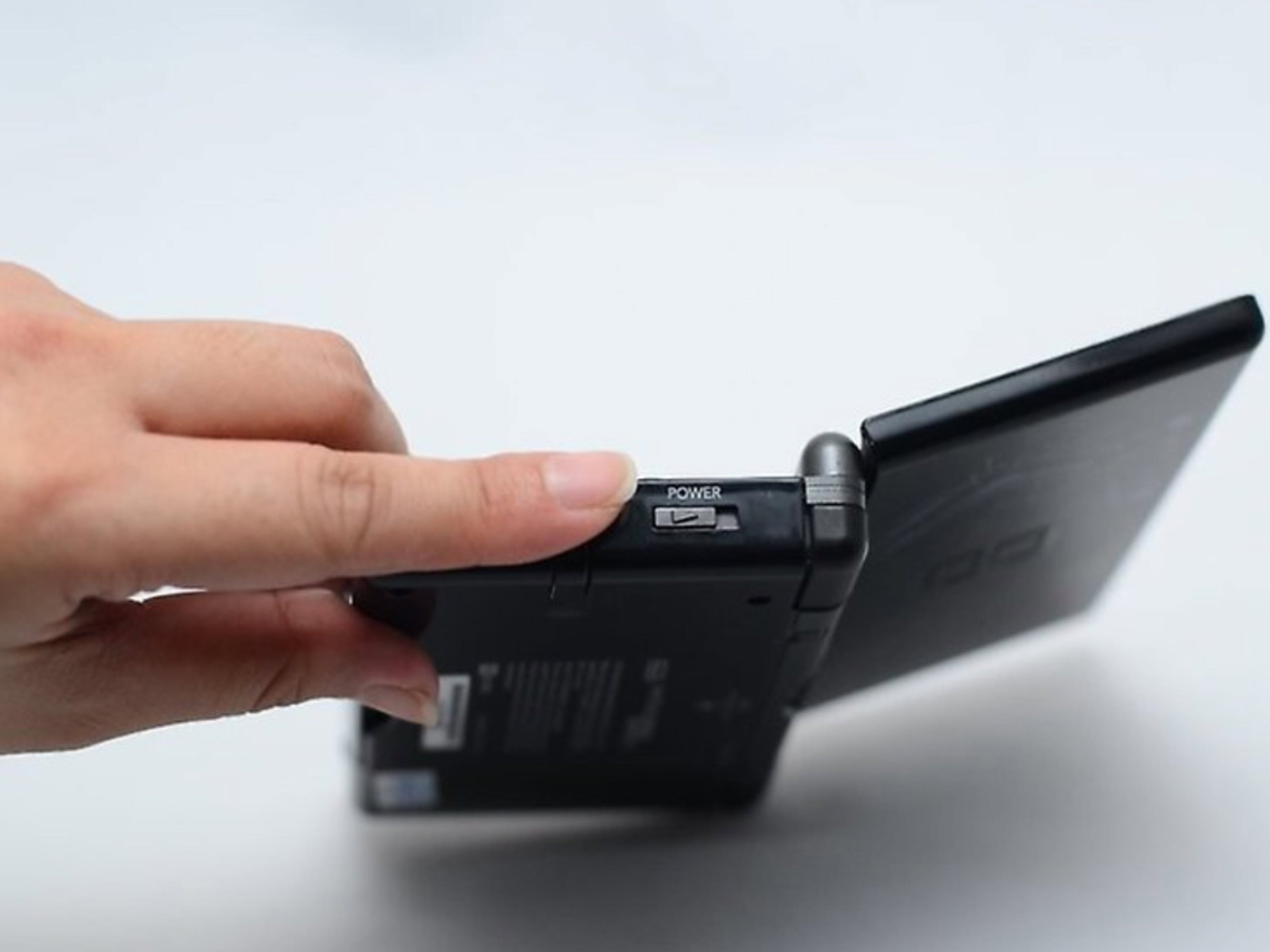

The Nintendo DS Lite is the little handheld that somehow survived backpacks, road trips, sibling arguments, and at least one mysterious sticky button incident. But when it starts acting weird, boots straight into a game you did not ask for, shows the wrong time, has a misaligned touch screen, or still carries the previous owner’s nickname, you may wonder: how do you reset a Nintendo DS Lite?
Here is the important truth before we start poking around with the stylus: the Nintendo DS Lite does not have a modern “factory reset” button like a smartphone, Nintendo Switch, or 3DS. It is a simpler device. There are no user accounts, cloud saves, eShop purchases, or operating-system updates to wipe. Resetting a DS Lite usually means restoring its system settings manually, recalibrating the touch screen, clearing personal details, changing startup behavior, and troubleshooting power issues.
This guide walks you through 11 practical steps to reset a Nintendo DS Lite safely. Whether you are preparing it for resale, fixing strange menu behavior, cleaning up a secondhand console, or simply trying to make the touch screen stop acting like it has its own opinions, these steps will help you bring the system back to a clean, usable state.
Before You Reset: Know What a Nintendo DS Lite Can and Cannot Reset
A Nintendo DS Lite reset is not the same as a full factory reset on newer gaming systems. The DS Lite stores only basic system preferences such as language, nickname, birthday, date, time, alarm, menu color, touch screen calibration, and startup mode. Most game progress is saved on individual Nintendo DS Game Cards, not inside the console itself. That means changing DS Lite system settings usually will not erase your game saves.
However, every game handles save data differently. If you are selling or gifting your DS Lite with games included, check each game’s own menu or instruction manual to delete saved progress. Some titles let you erase data from the title screen with a button combination; others require using an in-game options menu. In other words, the console and the game cartridges are separate little kingdoms, and each one has its own rules.
Tools You May Need
- A Nintendo DS Lite stylus or a clean plastic stylus
- A charged DS Lite battery or official-compatible charger
- A small Phillips screwdriver if you need to remove the battery cover
- A soft microfiber cloth for cleaning the screens
- Your DS Game Cards, if you plan to test startup behavior afterward
Avoid using pens, metal tools, knives, or anything sharp on the touch screen. The DS Lite is tough for its age, but the touch panel is not a cutting board.
How to Reset a Nintendo DS Lite: 11 Steps
Step 1: Turn Off the Nintendo DS Lite Completely
Start with the simplest reset: a full power cycle. Slide the power switch upward and let the console shut down. If a game is frozen, wait a few seconds after the screens go dark before turning it back on. This clears temporary glitches, exits stuck menus, and gives the system a fresh start.
A power cycle is useful when a game stops responding, the menu does not load correctly, or the console behaves oddly after being left in sleep mode. It will not erase settings, but it can solve small hiccups faster than a deep settings cleanup.
Step 2: Remove Any DS Game Card or GBA Game Pak
Before changing system settings, remove all inserted games. Open the DS Lite carefully, make sure the power is off, then eject the Nintendo DS Game Card from Slot 1. If there is a Game Boy Advance Game Pak in Slot 2, remove that as well.
This matters because the DS Lite may boot directly into a game depending on its startup mode. Removing games helps you reach the main system menu without the console sprinting into a cartridge like it is late for class.
Step 3: Turn the Console Back On and Open the Main Menu
Slide the power switch upward to turn on the Nintendo DS Lite. When the “Touch the Touch Screen to continue” prompt appears, tap the screen with the stylus. You should now see the main menu with the clock, calendar, PictoChat panel, DS Download Play panel, game slot indicators, and the small settings icon at the bottom.
If the console still boots directly into a game, turn it off, remove the game card, and try again. You need the main menu to reset most system preferences.
Step 4: Open the Settings Menu
On the main menu, tap the Settings Menu Panel at the bottom middle of the lower screen. This is where the DS Lite keeps most of its personal and system options. Think of it as the tiny control room inside your tiny spaceship.
From here, you can change the language, user nickname, birthday, date, time, alarm, startup mode, GBA display screen, touch screen calibration, and menu background color. These are the closest things the DS Lite has to resettable system data.
Step 5: Reset the System Language
If you bought a used DS Lite and the menus appear in a language you do not read, the language setting is one of the first things to fix. In the Settings Menu, choose the Options or wrench-related area, then select the language setting. Pick your preferred language and confirm the change.
After confirming, the system may ask you to exit and shut down so it can save the setting. Let it do so. When you restart the console, the menus should appear in the selected language.
Step 6: Change or Clear the Nickname
The DS Lite lets each system have a user nickname. If your secondhand console still says “Brandon,” “PrincessPeach99,” or something much more chaotic, you can change it from the User settings panel.
Open the Settings Menu, select the User icon, then choose the nickname option. Enter a new name using the on-screen keyboard. If you want the system to feel neutral for resale, use something simple like “Player,” “DS Lite,” or leave it as plain as the system allows.
Tap Confirm when finished. This does not erase game saves, but it does remove one of the most obvious personal touches from the console.
Step 7: Reset the Birthday and User Color
Still in the User settings area, check the birthday and user color options. The birthday setting can be adjusted with the up and down arrows for month and day. The user color changes the color associated with the profile and menu personality.
For a clean reset, set the birthday to a neutral date and choose a standard color. This is especially useful if you are preparing the DS Lite for a new owner. It is not a security risk in the way modern account data can be, but it is still personal information worth cleaning up.
Step 8: Reset the Date and Time
Go back to the main Settings Menu and select the Calendar/Time icon. To reset the date, choose the calendar icon and adjust the month, day, and year using the arrows. To reset the time, choose the clock icon and adjust the hour and minute.
Correct date and time settings matter more than you might expect. Some games use the DS Lite clock for daily events, time-based rewards, or in-game schedules. If the system thinks it is 2007 at 3:00 a.m., your game may behave accordingly. Nostalgia is fun; broken event timing is less fun.
After setting the date and time, tap Confirm, then exit properly. The DS Lite usually shuts down automatically after saving certain settings, which is normal.
Step 9: Change Startup Mode to Manual
Startup Mode controls what happens when the Nintendo DS Lite turns on. In Automatic Mode, the system can launch an inserted DS Game Card right away. In Manual Mode, the console opens the main menu first, letting you choose whether to start a game, use PictoChat, open DS Download Play, or change settings.
For a reset or resale setup, Manual Mode is usually the better choice because it gives the next user control from the main menu. To change it, open the Settings Menu, select the Options icon, choose Start-Up Mode, then select Manual Mode. Confirm the setting and allow the system to shut down if prompted.
Step 10: Recalibrate the Touch Screen
If taps do not land where they should, the touch screen may need recalibration. This is one of the most useful DS Lite reset steps because a misaligned touch panel can make the entire system feel broken, even when the hardware is still fine.
Open the Settings Menu and select the Touch Screen Calibration icon, usually shown as a crosshair. Use the stylus to tap the red square precisely each time it moves. Do not jab at it like you are trying to win a carnival game. Gentle, accurate taps work best.
When calibration finishes, the system may show test squares so you can check sensitivity. Tap Confirm when you are satisfied, then exit. If calibration keeps failing, inspect the edges of the touch screen for dust, crumbs, or debris lodged between the screen and the frame. Clean gently with a soft cloth. If the screen protector is old, thick, damaged, or poorly installed, it may interfere with accuracy.
Step 11: Perform a Battery Pull Only If Necessary
If the DS Lite is frozen, will not respond normally, or seems stuck even after a power cycle, you can perform a deeper hardware reset by removing the rechargeable battery briefly. This is not the first step, and it should not be treated like a casual menu option. Use it only when normal shutdown and settings changes are not enough.
Turn the system off and unplug the charger. Close the lid and place the DS Lite face down on a clean, soft surface. Use a small Phillips screwdriver to loosen the screw on the battery cover. The screw is designed to stay attached to the cover, so do not force it out. Lift the cover carefully with a fingernail or plastic tool, remove the battery, wait a short while, then reinstall it in the same orientation.
Replace the battery cover, tighten the screw gently, and turn the console back on. Do not overtighten the screw, bend the battery contacts, or use metal tools to pry aggressively. If the battery is swollen, leaking, corroded, or damaged, stop using it and replace it safely.
What Resetting a DS Lite Will Not Do
Resetting the Nintendo DS Lite system settings will not delete save files stored on DS Game Cards. It will not remove data from Game Boy Advance cartridges. It will not update the system software, because the DS Lite does not work like newer internet-connected consoles. It also will not fix every hardware issue.
If your DS Lite will not charge, the problem may involve the charger, charging port, battery, fuse, or internal board. If one screen flickers or stays blank, resetting settings probably will not repair a loose ribbon cable or damaged LCD. If buttons are sticky, cleaning may help more than resetting. A reset is powerful for settings and minor glitches, but it is not magic. Even the DS Lite has boundaries, despite looking like it was built by pocket-sized wizards.
How to Reset Game Save Data on a Nintendo DS Lite
Because game saves usually live on the cartridge, you must reset each game separately. Start the game and look for options such as “New Game,” “Erase Data,” “Delete Save,” or “Options.” Some games hide save deletion behind a button combination on the title screen. For example, many Nintendo handheld games use specific combinations involving the D-pad and face buttons, but the exact command varies by title.
Before deleting game data, be absolutely sure. Once erased, DS game progress is usually gone for good. There is no cloud backup safety net, no undo button, and no friendly pop-up saying, “Are you emotionally prepared for this?” If the cartridge contains rare Pokémon, completed puzzles, unlocked tracks, or a beloved childhood save, think twice before wiping it.
Troubleshooting After the Reset
The DS Lite Still Boots Straight Into a Game
Check Startup Mode again and make sure it is set to Manual. Also confirm that you saved the setting before exiting. If the console shuts down automatically after confirming, that usually means the setting was saved correctly.
The Touch Screen Still Feels Wrong
Recalibrate again using the stylus. Hold the console steady and tap the targets carefully. If the test repeatedly restarts, inspect the screen edges and remove dust or debris. Consider replacing a bad screen protector if it is interfering with touch sensitivity.
The Date and Time Keep Resetting
If the date and time will not stay saved after the system is powered off, the battery or internal power-related components may be failing. Try fully charging the console first. If the problem continues, the unit may need repair or a replacement battery.
The Console Will Not Turn On
Charge it with a known-working DS Lite charger. Check the charging light. If the light flashes briefly and turns off, the battery may be dead or the charging circuit may have a problem. Removing and reseating the battery can sometimes help, but damaged batteries should be replaced, not revived through risky experiments.
Best Practices Before Selling or Giving Away a DS Lite
- Set Startup Mode to Manual so the new owner sees the main menu first.
- Change the nickname to something neutral.
- Reset the birthday and user color.
- Set the correct date and time.
- Recalibrate the touch screen.
- Clean the screens, buttons, cartridge slot area, and outer shell gently.
- Check every included game for personal save data.
- Test charging before handing it over.
A clean DS Lite feels much better to receive. It tells the next owner, “This console has been loved,” not “This console was discovered under a couch cushion with a gummy bear attached.”
Common Mistakes to Avoid
The biggest mistake is assuming that changing DS Lite settings erases game saves. It does not. If privacy or resale preparation is your goal, you must check each cartridge. Another mistake is using sharp objects on the touch screen. A stylus is cheap; a scratched touch panel is annoying forever.
Do not remove the battery while the system is on. Do not pry the battery cover with excessive force. Do not clean the screens with harsh chemicals. Do not soak buttons or ports. And do not panic if the system shuts down after saving settings; that is normal behavior for many DS Lite setting changes.
Real-World Experience: What Resetting a DS Lite Is Actually Like
Resetting a Nintendo DS Lite feels less like wiping a computer and more like tidying a tiny digital bedroom. There is no dramatic “erase everything” button, no spinning progress bar, and no warning screen that makes you question every decision you have ever made. Instead, you move from one small setting to another: nickname, birthday, color, clock, startup mode, calibration. It is calm, slightly old-fashioned, and honestly kind of charming.
The first thing many people notice with a used DS Lite is the nickname. Secondhand consoles often arrive with names that are funny, sentimental, confusing, or clearly created by someone who had five seconds and unlimited confidence. Changing the nickname instantly makes the console feel more like yours. It is a small step, but it changes the mood of the whole system.
The next common surprise is the touch screen. A DS Lite can look perfectly fine but tap slightly off-center. You press one menu icon, and the console behaves as if you tapped its neighbor. That is usually when recalibration becomes the hero of the day. The process is simple, but precision matters. Using the original stylus or a similarly shaped plastic stylus makes a real difference. A finger can work for some menu taps, but calibration is where the stylus earns its tiny rent.
Startup Mode is another setting that solves a lot of confusion. If the DS Lite keeps launching a game automatically, it may seem like the main menu disappeared. It did not. The system is just set to Automatic Mode. Switching to Manual Mode brings back the classic DS menu experience, where you can choose the DS game, GBA game, PictoChat, Download Play, or settings. For collectors and families sharing one console, Manual Mode is usually easier.
Battery removal is the step people tend to overuse. In practice, it should be a last resort, not the first move. Most DS Lite issues can be handled through normal settings, charging, cleaning, or recalibration. Still, reseating the battery can help when a system is unresponsive or has been stored for years. The trick is patience: use the right screwdriver, keep the screw safe, lift the cover gently, and avoid treating the battery compartment like a treasure chest guarded by dragons.
The most important experience-based lesson is to separate console settings from game saves. Parents, sellers, and retro game buyers often reset the DS Lite menu and assume everything is clean. Then they open a game and find someone else’s completed adventure still living on the cartridge. That can be delightful if you are curious, but not ideal if you are trying to prepare a clean gift. Always check the games one by one.
Overall, resetting a Nintendo DS Lite is refreshingly straightforward once you understand what “reset” means for this older handheld. You are not wiping an account-based ecosystem. You are restoring a simple, durable console to a friendlier starting point. Take your time, use the stylus, save each setting properly, and your DS Lite should feel ready for another round of Mario Kart, Brain Age, Nintendogs, or whatever cartridge has been waiting patiently in a drawer since the flip-phone era.
Conclusion
Learning how to reset a Nintendo DS Lite is mostly about knowing where the system settings live and what each option controls. Start with a power cycle, remove game cards, open the Settings Menu, reset personal details, correct the date and time, switch Startup Mode to Manual, and recalibrate the touch screen. If the console is frozen or unresponsive, a careful battery reseat can help, but it should be handled gently and only when needed.
The DS Lite may be old-school, but that is part of its appeal. It does not bury you under account menus or complicated reset screens. With a few careful taps and a little common sense, you can clean up the system, make it easier to use, and prepare it for its next owner or next gaming marathon.