
Your Roomba is usually the quiet overachiever of the household: it patrols crumbs, dodges chair legs, and bravely investigates that mysterious fuzz under the sofa. But every so often, even a smart robot vacuum has a tiny digital tantrum. Maybe it will not connect to Wi-Fi. Maybe it freezes mid-clean like it has just remembered an embarrassing moment from 2019. Maybe the app says it is cleaning while the robot is sitting on the dock, doing absolutely nothing.
That is when you need to know how to reset or reboot your Roomba the right way. The important part is this: a reboot and a factory reset are not the same thing. A reboot is a quick restart that refreshes the robot without wiping your settings. A factory reset is the bigger move that can remove schedules, Wi-Fi information, maps, and app connections depending on your model and choices.
This guide explains how to reboot Roomba models across the j Series, i Series, s Series, e Series, 900 Series, 800 Series, 700 Series, 600 Series, 500 Series, Roomba Essential, and Roomba Combo models. We will also cover when to reset, when not to reset, what to do before wiping your robot, and how to avoid turning a two-minute fix into a Saturday afternoon support saga.
Reboot vs. Factory Reset: Know the Difference First
Before pressing every button like you are entering a secret video game code, pause for one small but crucial distinction.
What Is a Roomba Reboot?
A reboot restarts your Roomba’s software. It is similar to restarting your phone when an app freezes. Your schedules, saved maps, Wi-Fi connection, and account setup usually remain intact. Use a reboot when your Roomba is acting odd but you do not want to erase anything.
A reboot can help with problems such as:
- The CLEAN button is not responding.
- The app says the robot is offline.
- The robot is stuck on a white spinning light.
- Your Roomba will not start a cleaning job.
- The robot gives repeated error messages.
- Wi-Fi setup fails after a router change.
What Is a Roomba Factory Reset?
A factory reset restores the robot closer to its original setup state. It is more serious than a reboot. On Wi-Fi-connected models, it may remove the robot from the app, erase Wi-Fi details, delete schedules, and require you to set it up again. Some Smart Mapping robots may let you save customized maps before resetting, which is extremely helpful if you do not want your Roomba to rediscover your house like a confused tourist.
Use a factory reset when:
- You are selling, gifting, or returning the Roomba.
- You changed homes and want a clean setup.
- Wi-Fi and app problems continue after a reboot.
- Support recommends it for persistent software issues.
- You want to remove old account or ownership information.
Before You Reset Your Roomba: Do These Quick Checks
Many Roomba problems look like software issues but are actually caused by power, dirt, or Wi-Fi confusion. Before performing a factory reset, try these simple checks first.
1. Put the Roomba on the Dock
Make sure the charging dock is plugged in and the robot is seated correctly. Dirty charging contacts can prevent proper charging, so wipe the metal contacts on both the dock and robot with a clean, dry cloth.
2. Charge It for at Least 30 Minutes
If the battery is too low, the robot may not complete a reboot or respond normally. Give it some charging time before troubleshooting. Yes, robots also need a snack break.
3. Force Close the Roomba App
If the app is frozen, close it completely and reopen it. On many phones, simply swiping away the app and restarting it can refresh the connection.
4. Restart Your Router
For Wi-Fi problems, unplug the router for about 10 seconds, plug it back in, and wait a couple of minutes. If your Roomba is an older model, confirm that your phone is connected to a 2.4 GHz network during setup because many older Roombas do not support 5 GHz Wi-Fi.
5. Clean the Sensors and Brushes
A Roomba that spins, stops, backs up, or refuses to leave the dock may have debris around the wheels, cliff sensors, bumper, or brushes. Remove hair from the rollers and check the caster wheel. Sometimes the “software problem” is actually a hairball with ambition.
How to Reboot Roomba j Series Models
The Roomba j Series includes models such as the j5, j7, j8, j9, and Combo versions. These models often use a central CLEAN button and light ring indicators.
Steps to Reboot Roomba j Series
- Remove the robot from the dock.
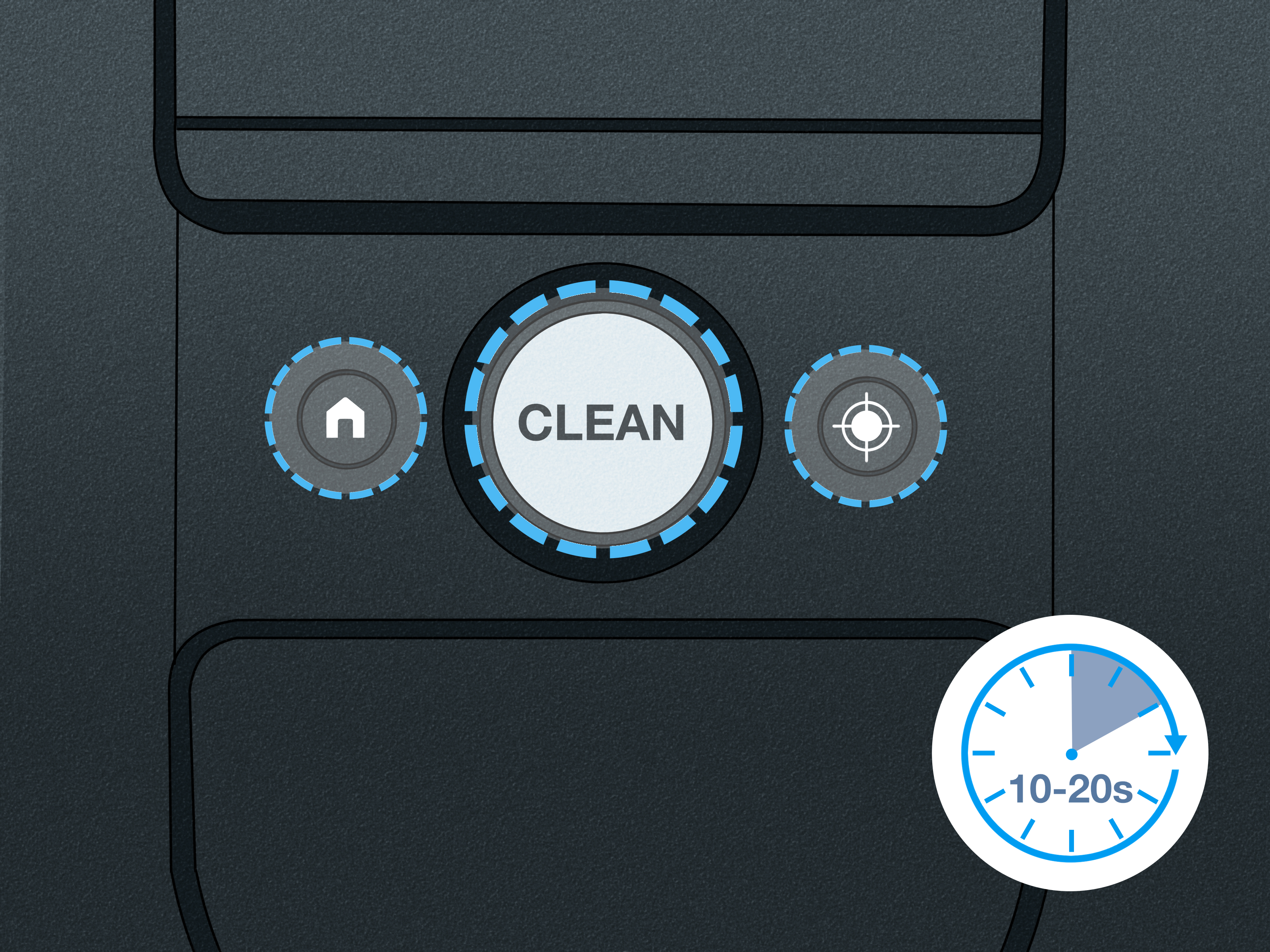
- Press and hold the CLEAN button for about 9 to 10 seconds, depending on the specific model.
- Release the button when the light ring begins to swirl or the robot begins rebooting.
- Wait up to 90 seconds for the reboot to finish.
- When the light ring turns off or the robot becomes responsive again, test it with a short cleaning job.
For j Series robots, do not panic if nothing dramatic happens instantly. Some models take a minute or more before the reboot sequence fully completes. The robot is not ignoring you; it is just thinking very slowly in robot language.
How to Reboot Roomba i Series Models
The i Series includes popular models such as the Roomba i1, i2, i3, i4, i5, i6, i7, and i8. These models are common in homes with app scheduling, mapping features, and Clean Base automatic dirt disposal on “plus” versions.
Steps to Reboot Roomba i Series
- Take the Roomba off the dock.
- Press and hold the CLEAN button for about 20 seconds.
- Release the button when the light ring starts swirling white.
- Wait up to 90 seconds for the reboot to complete.
- Open the Roomba app and confirm the robot reconnects.
If your i Series robot is not emptying into the Clean Base, reboot both the robot and check the base. Make sure the bag is not full, the debris path is not blocked, and the charging contacts are clean.
How to Reboot Roomba s Series Models
The Roomba s Series, especially the s9 and s9+, has a different body shape and a light ring around the lid area. These models are powerful, premium vacuums, but they can still benefit from a reboot when stuck, offline, or behaving strangely.
Steps to Reboot Roomba s Series
- Remove the robot from the dock.
- Press and hold the CLEAN button for about 20 seconds.
- Release the button.
- Watch for the white clockwise swirl on the light ring.
- Wait until the light ring turns off, which can take up to about 90 seconds.
After rebooting, run a small job in an open area. If the s9 still struggles, inspect the rollers, corner brush, bin, and charging contacts. A reboot helps software glitches; it does not magically untangle pet hair from the rollers, sadly.
How to Reboot Roomba 900, 800, and 700 Series Models
Many Roomba 700, 800, and 900 Series models use a CLEAN button reboot method. These robots may not all have the same smart mapping features as newer j and i Series units, but the reboot process is usually straightforward.
Steps to Reboot Roomba 900, 800, and 700 Series
- Make sure the robot is awake.
- Press and hold the CLEAN button for about 10 seconds.
- Release the button when the indicators shut off or the reboot tone sounds.
- Wait for the robot to restart.
- Press CLEAN once to wake it and again to test a cleaning cycle.
If you use schedules, open the app after the reboot and confirm that the schedule still looks correct. Reboots are usually safe, but checking takes only a moment and prevents the classic “Why did my Roomba start cleaning at midnight?” household mystery.
How to Reboot Roomba e Series Models
The Roomba e Series, including models like the e5 and e6, often uses the HOME and SPOT button combination.
Steps to Reboot Roomba e Series
- Remove the robot from the charging dock.
- Press and hold HOME and SPOT CLEAN together for about 10 seconds.
- Release both buttons when the robot plays the reboot tone.
- Wait for the robot to restart.
- Test it with a short cleaning cycle.
If the robot does not respond, charge it longer and clean the charging contacts. A completely drained battery may make the robot appear broken when it simply needs power.
How to Reboot Roomba 600 and 500 Series Models
The Roomba 600 Series is one of the most common families, including models such as the 614, 675, 690, 692, and 694. The exact reboot method depends on the model design and whether it has certain battery markings.
For Most Roomba 600 and 500 Series Models
- Remove the robot from the dock.
- Press and hold DOCK and SPOT together for about 10 seconds.
- Release the buttons when the indicators turn off or you hear a reboot tone.
- Wait for the robot to restart.
- Press CLEAN to test operation.
For 600 Series Models With a Green Dot Under the Bin
Some 600 Series robots require a battery removal reboot. Remove the bin and check for a green dot on the underside. If your model uses this method, remove the battery, leave it out for about 30 seconds, reinstall it, and place the robot back on the dock.
Be gentle when removing the battery. Use the correct screwdriver, keep screws in a safe place, and do not force the battery compartment. Nothing ruins a reset mission faster than losing one tiny screw to the carpet kingdom.
How to Reboot Roomba Essential Models
Roomba Essential models use a slightly different button timing from many older models.
Steps to Reboot Roomba Essential
- Take the robot off the dock.
- Press and hold HOME and SPOT for about 12 seconds.
- Release the buttons when the robot begins rebooting.
- Wait for the robot to restart fully.
- Reconnect or test through the Roomba app if needed.
If setup fails afterward, confirm that the dock is powered, your phone has Bluetooth enabled, and your Wi-Fi network is compatible with your model.
How to Reboot Roomba Combo Models
Roomba Combo models combine vacuuming and mopping. Because the Combo lineup includes several generations, the exact reboot method can vary. Newer Combo j and Combo i models often follow the j Series or i Series CLEAN button approach, while some Combo models include a recessed reset button.
General Roomba Combo Reboot Tips
- Remove the robot from the dock.
- For Combo j or Combo i models, try holding CLEAN for about 10 to 20 seconds based on the model family.
- For models with a recessed reset button, open the lid and press the reset button for about 10 seconds.
- Wait for the robot to restart.
- Check water tank placement, mop pad attachment, and app connection before starting a mop job.
Because Roomba Combo models vary more than older vacuum-only Roombas, check the owner guide for your exact model if the button layout does not match the steps above.
How to Factory Reset a Wi-Fi Connected Roomba From the App
For most Wi-Fi connected Roombas, the cleanest factory reset method is through the Roomba Home app.
Factory Reset Through the Roomba App
- Open the Roomba Home app.
- Select your robot.
- Go to Product Settings or Settings.
- Choose Factory Reset or Remove/Factory Reset.
- Select the robot name.
- Follow the prompts to confirm.
If your robot supports Smart Maps, look carefully for an option to save maps before resetting. Saving Smart Maps can help you restore room names, zones, and customized layouts after the reset. Without saved maps, your Roomba may need new mapping runs.
How to Factory Reset a Roomba Without the App
If your Roomba is offline, the app will not open, or you bought a used robot still tied to someone else’s setup, you may need a hardware factory reset. The exact button combination varies by model, so use the owner guide when possible.
In general, many newer Roombas can be reset by holding a combination of CLEAN, HOME, and SPOT CLEAN, or by using a recessed reset button on certain Combo models. Some older models may require battery removal. If your robot is still linked to another owner’s account, you may need the previous owner to remove it or complete the ownership transfer process.
Factory resetting without the app should be treated as a last resort. It can fix stubborn setup issues, but it can also erase the digital conveniences you spent time creating.
Roomba Reset Guide by Model Family
| Roomba Model Family | Recommended Reboot Method | Typical Use Case |
|---|---|---|
| j Series | Hold CLEAN for about 9–10 seconds | Offline app, frozen light ring, job errors |
| i Series | Hold CLEAN for about 20 seconds | Mapping, Wi-Fi, Clean Base, or app issues |
| s Series | Hold CLEAN for about 20 seconds | Unresponsive robot or navigation glitches |
| 900 Series | Hold CLEAN for about 10 seconds | Error messages and connection hiccups |
| 800/700 Series | Hold CLEAN or use model-specific button method | Startup issues and repeated errors |
| e Series | Hold HOME and SPOT for about 10 seconds | Frozen controls or failed cleaning start |
| 600/500 Series | Hold DOCK and SPOT for about 10 seconds | Basic reboot after error messages |
| 600 Series with green dot | Remove battery for about 30 seconds | Battery-removal reboot |
| Roomba Essential | Hold HOME and SPOT for about 12 seconds | Setup and responsiveness problems |
| Roomba Combo | Use CLEAN button or recessed reset button, depending on model | Vacuum/mop setup, dock, and app issues |
When a Reboot Fixes the Problem
A reboot is often enough when your Roomba has a temporary software hiccup. Try rebooting first if your robot was working normally yesterday but suddenly refuses to start today. This is especially true after app updates, router changes, internet outages, or interrupted cleaning jobs.
For example, suppose your Roomba i7 shows as “not connected” in the app, but the robot is charged and sitting on the dock. Reboot the robot, restart your router, reopen the app, and wait a few minutes. In many cases, the robot reappears without needing a factory reset.
When a Factory Reset Makes More Sense
A factory reset makes sense when the problem is deeper or when ownership is changing. If you are selling your Roomba, gifting it to a family member, or returning it, reset it through the app so your account, Wi-Fi settings, and home data are removed from the robot setup.
Factory reset can also help when repeated app setup attempts fail, especially after changing routers, moving homes, or buying a secondhand Roomba. Just remember that a reset is not a maintenance shortcut. If the robot is clogged with hair, has a worn battery, or cannot charge properly, wiping the software will not fix the hardware.
Troubleshooting After Resetting Your Roomba
Roomba Still Will Not Connect to Wi-Fi
Move the dock closer to the router during setup. Make sure Bluetooth is enabled on your phone. For older models, use a 2.4 GHz Wi-Fi network. Avoid special characters in the Wi-Fi name or password if setup keeps failing.
Roomba Reset but Still Will Not Charge
Clean the charging contacts. Check the outlet. Make sure the dock cable is firmly connected. If the battery is old, it may no longer hold a charge well.
Roomba Lost Its Map
If you did not save Smart Maps before a factory reset, you may need to run new mapping or clean-everywhere jobs. Keep doors open, pick up loose cords, and let the robot finish complete runs for the best map.
Roomba Keeps Giving the Same Error
Look up the specific error number in the app or owner guide. Rebooting can clear some errors, but wheel, cliff sensor, bumper, bin, and brush errors often require cleaning or part replacement.
Practical Experience: What Usually Works in Real Homes
In real-life Roomba troubleshooting, the fastest fix is rarely the most dramatic one. Many owners jump straight to factory reset because it sounds powerful, but a simple reboot often solves the problem without deleting schedules or maps. Think of it like this: if your laptop browser freezes, you do not reinstall the operating system first. You close the tab, restart the app, maybe mutter something unkind, and move on.
One common situation is the “offline but sitting right there” problem. The Roomba is on the dock, the app says it is disconnected, and everyone in the house starts blaming the vacuum like it personally betrayed the Wi-Fi network. In that case, the best sequence is usually: charge the robot, reboot the robot, restart the router, force close the app, and then check the connection again. This order matters because it works from least destructive to most destructive.
Another common experience involves older 600 Series models. These robots are wonderfully stubborn little machines, but they collect hair around the side wheels, caster wheel, and brushes. When they stop or throw errors, a reboot may help temporarily, but cleaning the wheels and brush area often makes the real difference. If the robot sounds strained, moves in circles, or stops after a few seconds, inspect the hardware before assuming the software has lost its tiny robotic mind.
For Smart Mapping models like the i7, j7, j9, and s9, users often reset because the map looks wrong. That can work, but it is not always the first move. Before deleting maps, try a few complete cleaning runs, edit room dividers carefully, and make sure the robot has good lighting and clear paths. If the map is truly terrible after several runs, then deleting the map or factory resetting with map backup options may be worth it. Just know that rebuilding a map takes patience. Your Roomba may need to wander around like a confused intern on the first day.
Clean Base problems are another classic. When a Roomba will not empty itself, people often reset the robot. Sometimes that helps, but the dock itself deserves attention. Check the bag, the evacuation port, the robot’s bin, and the debris path. A clog in the base can look like a software issue because the app may complain, but the fix may be as simple as clearing a dust bunny traffic jam.
The best habit is to keep a personal reset checklist. Write down your model number, the correct reboot button combination, your Wi-Fi band, and whether your robot has saved maps. This prevents guesswork later. Also, reboot after major changes, such as a new router, new phone, app reinstall, or moving the dock to another floor. A reboot is quick, safe, and often enough to refresh communication between the robot, dock, app, and network.
The biggest lesson from hands-on Roomba ownership is simple: reset with purpose, not panic. Reboot first. Clean the physical parts second. Check Wi-Fi third. Factory reset only when the lighter fixes fail or when you are transferring ownership. That approach saves time, protects your settings, and keeps your robot from having to relearn the entire house because of one bad afternoon.
Frequently Asked Questions
Does rebooting a Roomba delete maps?
No, a normal reboot usually does not delete maps, schedules, or Wi-Fi settings. It simply restarts the robot’s software.
Does factory resetting a Roomba delete everything?
A factory reset can remove app connections, Wi-Fi settings, schedules, and maps. Some Smart Mapping models may allow you to save maps before the reset.
How long does a Roomba reboot take?
Many Roomba reboots take about one to two minutes. Some models show a white swirling light while rebooting.
Should I reboot my Roomba on the dock?
For many models, iRobot recommends removing the robot from the dock before pressing the reboot button combination. After the reboot, return it to the dock if it needs charging.
Why will my Roomba not reset?
The battery may be too low, the buttons may not be held long enough, the model may use a different reset method, or the robot may have a hardware issue. Charge it first, then try the model-specific method again.
Conclusion
Learning how to reset or reboot your Roomba is one of the easiest ways to keep your robot vacuum running smoothly. The key is choosing the right level of fix. Start with a reboot because it refreshes the robot without wiping your setup. Use a factory reset only when you are selling the robot, changing ownership, moving to a new setup, or dealing with stubborn app and Wi-Fi problems that will not respond to simpler troubleshooting.
Every Roomba family has its own button timing, so do not assume the method for a Roomba 675 is the same as the method for a j7 or s9. Once you know your model, the process becomes simple: charge it, reboot it, clean it, reconnect it, and only then consider a full reset. Your Roomba may be smart, but occasionally it still needs the universal tech cure: turning it off and on again.
Note: Button timing can vary slightly by exact Roomba model and software version. Always use the model-specific owner guide when available, and try a reboot before performing a factory reset.