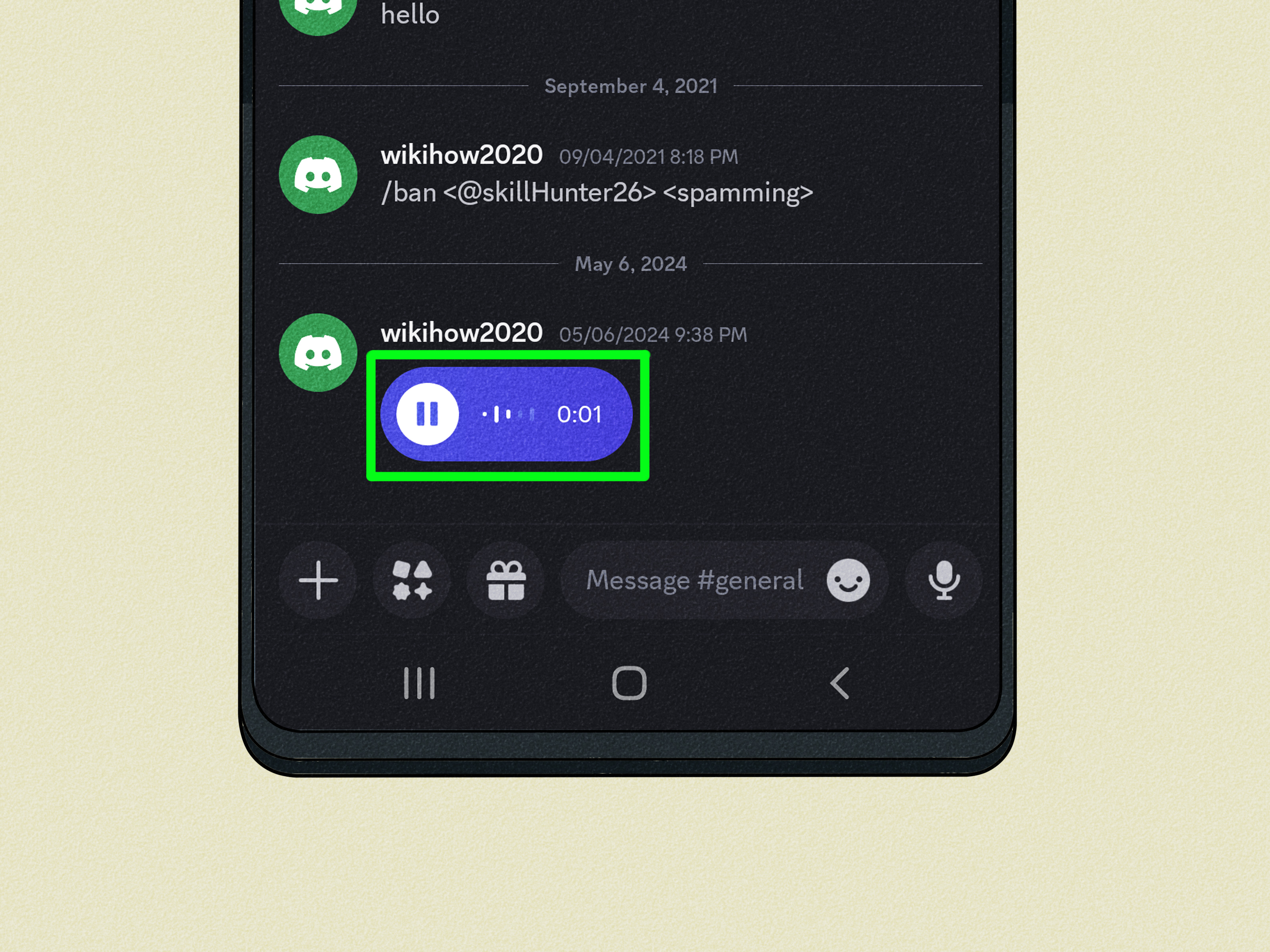

Discord is already famous for voice channels, video calls, memes moving at illegal speeds, and servers where one unread notification can multiply like rabbits. But sometimes you do not want to start a full voice call. You just want to say one quick thing: “I am five minutes late,” “That boss fight was personal,” or “Please listen to this idea before I forget it forever.”
That is where Discord voice messages come in. A voice message is a short audio recording you send inside a DM, group DM, or supported server channel. It feels more personal than text, less dramatic than calling, and much faster than typing a paragraph with your thumbs while walking through a grocery aisle.
This guide explains exactly how to send voice messages on Discord using mobile, what you can and cannot do on PC, how to listen to voice messages on desktop, and what to try when the microphone icon is missing. The important thing to know right away: native Discord voice messages can be sent from the mobile app, while PC, desktop, and web users can listen to them but cannot currently send native voice messages through Discord’s built-in feature.
What Are Discord Voice Messages?
Discord voice messages are audio recordings sent directly in chat. Unlike a live voice call, the other person does not need to answer immediately. They can listen whenever they have time, which makes voice messages perfect for quick updates, reactions, reminders, jokes, instructions, or “I cannot type right now, but I promise this is not an emergency” moments.
You can send voice messages in direct messages, group direct messages, and servers where voice messages are enabled. In servers, moderators and admins can control whether members or specific roles are allowed to send them. So if you do not see the option in a server, do not instantly blame your phone. It may be a channel or role permission issue.
Discord voice messages can be listened to on mobile, desktop, and web. That means your friend can send a voice message from an iPhone or Android device, and you can play it on your Windows PC, Mac, browser, or phone. Sending, however, is the part where mobile gets the crown and desktop has to sit politely in the waiting room.
Can You Send Voice Messages on Discord PC?
Here is the honest answer: you cannot send native Discord voice messages from the official Discord desktop app or Discord web app. If you are using a PC and searching for the microphone button beside the text box, you are not missing a secret setting. It is not hiding behind the emoji picker wearing sunglasses. Discord’s built-in voice message sending feature is mobile-only.
However, PC users still have several useful options. You can listen to voice messages on PC, upload an audio file as a regular attachment, start a voice call, join a voice channel, or use your phone to record and send the official voice message while continuing to manage the conversation on desktop.
Best PC Alternative: Upload an Audio File
If you need to send audio from a computer, record your message with a trusted recording app, save it as a common audio file such as MP3, and upload it to Discord as a file attachment. This will not appear as Discord’s native voice message player, and it will not behave exactly like a mobile voice message, but it is the safest official workaround.
To send an audio file on Discord PC:
- Open Discord on desktop or in your browser.
- Go to the DM, group DM, or server channel where you want to send the audio.
- Click the plus icon or file upload button near the message box.
- Select your audio file from your computer.
- Add a short note if needed, then send it.
Keep file size limits in mind. Non-Nitro users have smaller upload limits than Nitro users, so a long recording may need to be shortened or compressed. Also, be considerate: sending a 19-minute audio file when “yes” would do is how friendships develop loading screens.
How to Send Voice Messages on Discord Mobile
Sending a voice message on Discord mobile is simple once you know where the button is. The feature works on the Discord mobile app for iOS and Android.
Step 1: Open the Discord Mobile App
Launch Discord on your phone and sign in. Make sure your app is updated. If you are using an outdated version, the voice message option may not appear or may behave unpredictably.
Step 2: Choose a DM, Group DM, or Server Channel
Go to the conversation where you want to send the message. This can be a direct message, a group direct message, or a server channel where voice messages are enabled. If you are in a server and do not see the microphone icon, the server may have disabled voice messages for your role or that channel.
Step 3: Find the Microphone Icon
Look near the chat input box. You should see a microphone icon next to the message field. This is the voice message button. Do not confuse it with joining a voice channel. A voice message is recorded inside the text chat area; a voice channel is a live room.
Step 4: Press and Hold to Record
Press and hold the microphone icon, then speak clearly. When you release the button, Discord sends the voice message automatically. This is great for quick messages, but it also means you should be ready before you lift your finger. Discord is not waiting for your dramatic final edit.
Step 5: Slide to Cancel if Needed
If you mess up while recording, slide your finger toward the trash icon to cancel the recording. This is useful when your dog barks, your sibling enters the room like a surprise side quest, or you accidentally start the message with “wait, no, ignore that.”
Step 6: Lock Recording for Longer Messages
For longer messages, slide upward to the lock icon while recording. This lets you record hands-free instead of holding the microphone button the entire time. When you are done, tap send. Discord voice messages can be fairly long, but the best ones are usually focused. Think “mini voice note,” not “audio documentary with bonus commentary.”
How to Listen to Discord Voice Messages on PC and Mobile
Listening is easier than sending. On any supported Discord platform, simply click or tap the play button on the voice message. On desktop, the audio plays through your default Discord output device. On mobile, it plays through your phone speaker or a connected audio device such as earbuds.
If you cannot hear the message, check your volume, output device, Bluetooth connection, and Discord audio settings. On desktop, your headset might be selected in Windows or macOS, while Discord may be using another output. On mobile, Bluetooth earbuds sometimes connect for media but not behave as expected for app audio, so disconnecting and reconnecting can help.
Why the Voice Message Button Is Missing
If the microphone icon is missing, there are several likely reasons. First, you may be using Discord on PC or web, where native sending is not available. Second, the server may not allow voice messages in that channel. Third, your role may not have permission to send voice messages. Fourth, your app may need an update.
In a DM or group DM on mobile, the button should normally appear if the feature is available to your account and app version. In servers, permissions matter. A server owner or moderator can enable or disable the “Send Voice Messages” permission for roles. If you are not sure, ask a moderator politely. “Hey, are voice messages enabled here?” works better than “Discord is broken,” especially if you would like to remain invited to things.
How Server Admins Can Manage Voice Messages
Server admins and moderators can control voice message permissions. This is helpful because voice messages can be fun, but in large communities they can also become noisy, spammy, or hard to moderate. A server for close friends may allow them everywhere. A public community may restrict them to specific channels or trusted roles.
If you manage a Discord server, consider where voice messages actually make sense. A support channel may work better with text because text is searchable and easier to review. A casual lounge may be a perfect place for voice messages. A feedback channel might allow them only for certain roles. The best setup depends on the server’s size, moderation style, and how much chaos your community can produce before breakfast.
Voice Message Etiquette: How Not to Become “That Person”
Voice messages are convenient, but they should be used thoughtfully. Not everyone can listen immediately. Some people are at school, work, on public transportation, or sitting next to someone who does not need to hear your passionate review of a game update.
A good voice message is clear, brief, and useful. Start with the main point. Speak at a normal volume. Avoid recording in loud places if possible. If the message contains important details such as times, links, codes, or instructions, include a short text summary too. Text is easier to search later, and your future self will thank you.
For example, instead of sending a two-minute voice message that says, “So basically, we are meeting around seven, maybe seven-thirty, actually let me check,” send the voice message and add: “Summary: meeting at 7:30 PM, same channel.” This tiny habit makes you look organized, which is basically digital wizardry.
Common Problems and Fixes
The Mic Icon Does Not Appear on Mobile
Update the Discord app, restart it, and check whether you are in a supported conversation. If the issue happens only in one server, the server likely has voice messages disabled or restricted. If it happens everywhere, check app permissions and make sure Discord has microphone access in your phone settings.
Discord Says It Cannot Access the Microphone
On iPhone, open Settings, find Discord, and allow microphone access. On Android, open Settings, go to Apps, choose Discord, and check Permissions. Grant microphone permission, then reopen Discord. Without mic permission, Discord cannot record your voice message, no matter how nicely you ask it.
The Audio Sounds Bad
Move closer to your phone, reduce background noise, and avoid covering the microphone. If you are outside, turn away from wind. If you are in a noisy room, wait a moment or type instead. A voice message should sound like you, not like you are broadcasting from inside a washing machine.
The Message Sends Too Soon
If you release the mic button, Discord sends the message. For longer recordings, slide up to lock recording. That gives you more control and prevents accidental early sending.
You Want to Edit a Voice Message
Voice messages are not like text messages. You cannot neatly edit a word after recording. If you make a mistake, cancel before sending or delete the message afterward and record again. For information that must be exact, send a short text summary along with the audio.
Discord Voice Messages vs. Voice Calls
Voice messages and voice calls solve different problems. A voice call is best when you need real-time conversation, fast decisions, or group discussion. A voice message is better when you want to send something personal without demanding immediate attention.
Use a voice message when you want to explain tone, share quick context, or respond while busy. Use a voice call when back-and-forth discussion matters. Use text when the information needs to be searchable, quiet, or precise. The secret is not choosing one forever. The secret is using the right tool so your friends do not receive a voice message that should have been a calendar invite.
Privacy and Safety Tips for Discord Voice Messages
Before sending a voice message, remember that audio can include more than your voice. Background conversations, locations, names, music, or private details may be picked up by your microphone. Record in a place where you are comfortable being heard.
Be careful when opening messages from people you do not know. Discord has message request and spam systems to help filter unwanted DMs, but you should still use common sense. If a voice message seems suspicious, uncomfortable, or inappropriate, you can report it. On desktop, right-click the message and choose the report option. On mobile, press and hold the message to find reporting options.
Best Uses for Discord Voice Messages
Voice messages are excellent for quick gaming updates, emotional reactions, pronunciation help, short explanations, friendly check-ins, and moments where tone matters. They are also useful when typing is inconvenient, such as when you are cooking, walking, or holding something that absolutely refuses to be put down.
For gaming groups, a voice message can explain strategy without pulling everyone into a live call. For study groups, it can clarify a confusing point. For friend groups, it can make a joke land better than text. For communities, it can create warmth and personality, as long as moderation rules are clear.
Experience Section: What Sending Discord Voice Messages Feels Like in Real Use
In real everyday use, Discord voice messages feel most helpful when they remove friction. The best example is the classic “too much to type, not enough for a call” situation. Maybe you are explaining why you changed the raid schedule, giving a friend quick feedback on a project, or reacting to a clip someone posted. Text would work, but it might take five minutes and twelve edits. A voice message takes thirty seconds and carries your tone with it.
The biggest benefit is that voice messages reduce misunderstandings. Text can be weirdly flat. A simple “sure” can sound friendly, annoyed, passive-aggressive, or like you are secretly a robot wearing a hoodie. In a voice message, people hear your pacing, mood, and intent. That makes it useful for apologies, encouragement, jokes, and quick explanations where tone matters.
Another practical experience is using voice messages when multitasking. On mobile, it is much easier to press the mic, speak, and send than to type a careful response while walking, cooking, or moving between classes. It feels natural, especially for people who already use voice notes in other messaging apps. Discord’s version fits nicely into casual chat because the message stays in the conversation instead of forcing everyone into a live voice channel.
There are also moments when voice messages are not ideal. If you are sharing exact information, text is better. Nobody wants to replay a voice note three times to confirm whether you said “7:15” or “7:50.” A good habit is to pair voice with text when details matter. Send the friendly explanation by voice, then type the important part: “Code: 4821” or “Meeting: Friday at 8 PM.”
On PC, the experience is different because you can listen but not send native voice messages. This can feel odd if you use Discord mostly on desktop. The cleanest workflow is to keep your phone nearby for recording and your PC for reading, moderating, gaming, or typing. If you need to send audio from PC, uploading an audio file works, but it feels more formal and less instant than a native voice message.
For server owners, the experience depends heavily on community culture. In small friend servers, voice messages can make the place feel warmer and more alive. In large public servers, they can become difficult to moderate if everyone uses them at once. The best approach is to allow voice messages in casual spaces, restrict them in serious channels, and make expectations clear. That keeps the feature fun without turning every channel into an accidental podcast festival.
Overall, Discord voice messages are best when they are short, human, and helpful. They are not a replacement for text, calls, or voice channels. They are the middle option: quick like chat, personal like voice, and convenient enough that you may start using them more than expected. Just remember the golden rule: if your voice message needs chapters, subtitles, and a season finale, it probably should have been a call.
Conclusion
Learning how to send voice messages on Discord is easy once you know the platform difference. On mobile, open a DM, group DM, or enabled server channel, press and hold the microphone icon, record your message, and release to send. For longer messages, slide up to lock recording. To cancel, slide toward the trash icon before sending.
On PC, the answer is less magical but important: Discord’s official desktop and web apps can play voice messages, but they do not currently send native voice messages. If you need to send audio from a computer, upload an audio file or use your phone for the official voice message feature.
Used well, Discord voice messages make conversations warmer, faster, and more expressive. Used badly, they become tiny audio novels nobody asked for. Keep them clear, respectful, and focused, and your friends will appreciate hearing your voice without being dragged into a full call.
Note: This article reflects Discord’s current native behavior: mobile users can send voice messages, while PC, desktop, and web users can listen to them but cannot send native Discord voice messages through the official built-in feature.