
Some photos belong in the camera roll. Birthday cake? Sure. Your dog sleeping like a tiny exhausted accountant? Absolutely. But tax screenshots, private family documents, medical images, surprise gift ideas, personal videos, and “please do not let this pop up while I am showing vacation photos to Aunt Linda” moments deserve a little more privacy.
If you want to save iOS photos and videos in a pattern or password protected secret folder, the good news is that iPhone privacy tools have become much better. The slightly annoying news is that iOS does not offer a native Android-style pattern lock for the Photos app. Apple mainly uses Face ID, Touch ID, and your device passcode. However, you can still create a very private setup by combining the built-in Hidden album, locked Notes, iOS app locking, Google Photos Locked Folder, OneDrive Personal Vault, and carefully chosen third-party photo vault apps that support PINs, passwords, or pattern locks.
This guide explains the safest ways to hide private photos and videos on iPhone, how to choose the right secret folder method, what mistakes to avoid, and how to keep your memories private without accidentally locking yourself out of them forever. Privacy is wonderful. Losing your own vacation videos to a forgotten password? Less wonderful.
What Does a Secret Folder Mean on iPhone?
A secret folder on iOS usually means a storage area that keeps selected photos and videos away from the main camera roll and requires authentication before opening. Depending on the tool, that authentication may be Face ID, Touch ID, an iPhone passcode, a separate app password, a PIN, or a pattern lock.
There are three main types of secret folders for iPhone photos and videos. First, there are Apple’s built-in privacy options, such as the Hidden album in Photos and locked notes in the Notes app. Second, there are cloud-based protected spaces, such as Google Photos Locked Folder and OneDrive Personal Vault. Third, there are third-party photo vault apps that may offer extra features like pattern locks, decoy passwords, private cameras, album-level locks, and break-in alerts.
The best choice depends on your goal. If you only want to stop casual snooping, Apple’s Hidden album may be enough. If you want a separate vault with PIN or pattern protection, a dedicated photo vault app may fit better. If you want secure cloud access across devices, Google Photos Locked Folder or OneDrive Personal Vault may be more practical.
Method 1: Use the Built-In Hidden Album in iOS Photos
The simplest way to hide photos and videos on iPhone is to use the Hidden album inside the Photos app. On modern iOS versions, the Hidden album and Recently Deleted collection are locked by default and can require Face ID, Touch ID, or your device passcode to open.
How to Hide Photos and Videos on iPhone
Open the Photos app, select the photo or video you want to hide, tap the More button, then choose Hide. For multiple items, tap Select, choose the photos and videos, open the menu, and hide them together. Once hidden, the items leave your main library view and move to the Hidden album.
To view them later, open Photos, go to Albums or Utilities, find Hidden, and authenticate with Face ID, Touch ID, or passcode. Think of it as a small privacy curtain. It is not a steel bank vault, but it is much better than leaving sensitive images scattered through your main photo grid like confetti at a privacy disaster party.
How to Make the Hidden Album More Private
For extra privacy, go to Settings, open Apps, choose Photos, and confirm that authentication for Hidden and Recently Deleted is enabled. You can also turn off the option that shows the Hidden album if your iOS version provides that setting. This does not delete the items; it simply makes the album less visible.
The built-in Hidden album is best for quick privacy. It is free, simple, and already part of iOS. The downside is that it does not use a custom pattern lock or separate vault password. Anyone who knows your iPhone passcode may still be able to access it, so use a strong device passcode and avoid sharing it casually.
Method 2: Lock Photos and Videos Inside Apple Notes
Apple Notes is surprisingly useful for private media. You can create a note, add photos or videos to it, and lock the note with Face ID, Touch ID, your device passcode, or a separate Notes password. This method is great for storing a small set of important images, such as ID scans, receipts, private screenshots, or reference photos.
How to Create a Locked Photo Note
Open Notes, create a new note, add the photos or videos, tap the More button, and choose Lock. Apple may ask whether you want to use your iPhone passcode or create a custom Notes password. After the note is locked, return to Photos and delete the original copy if you do not want it visible in the camera roll. Then open Recently Deleted and remove it there as well if you want it gone immediately.
This last step matters. Many people hide or move a photo but forget the original is still sitting in Photos, Recently Deleted, Messages, Files, or a shared album. A private folder is only private if you clean up the leftovers. Digital breadcrumbs are still breadcrumbs, even when they are JPEG flavored.
Method 3: Lock or Hide Photo Vault Apps With iOS App Lock
On newer iOS versions, Apple lets users lock many apps with Face ID, Touch ID, or passcode. Some downloaded apps can also be hidden from the Home Screen and placed in a Hidden folder inside App Library. This is useful if you use a third-party photo vault app and do not want the app icon sitting on your Home Screen waving like a neon sign that says “private stuff lives here.”
How to Lock an App on iPhone
Touch and hold the app icon, choose Require Face ID, Touch ID, or Passcode, and confirm. After you close the app, it should require authentication before opening again. If the app supports hiding, you may see an option to hide it and require authentication. Hidden apps can usually be found in the App Library’s Hidden folder after authentication.
This works especially well with photo vault apps, private cloud storage apps, note apps, and file managers. However, not every built-in Apple app can be hidden, and hidden apps may still leave traces in areas like settings, battery usage, purchase history, or Screen Time. So, app hiding is a privacy layer, not invisibility magic.
Method 4: Use Google Photos Locked Folder
Google Photos offers a Locked Folder for sensitive photos and videos on iPhone and iPad. Items inside the Locked Folder are protected by your device screen lock, such as Face ID, Touch ID, or passcode. Google also allows users to control whether Locked Folder items are backed up, which is important if you want access across devices.
To set it up, open Google Photos, go to Collections, find Locked, and follow the setup instructions. After that, move selected photos and videos into Locked Folder. If backup is turned off, the items may remain only on that device. If backup is turned on, they can be available through your Google account, protected by the Locked Folder flow.
This method is helpful for people who already use Google Photos to organize their camera roll. The key decision is backup. Local-only storage may feel more private, but it can be risky if your phone is lost, broken, or reset. Cloud backup adds convenience and recovery options, but you must protect your Google account with a strong password and two-step verification.
Method 5: Use OneDrive Personal Vault
Microsoft OneDrive includes Personal Vault, a protected area for sensitive files. You can store photos, videos, scans, and documents there. On mobile, OneDrive can also capture photos or videos directly into Personal Vault, keeping them away from less protected areas like the camera roll.
This is a good option for people who already use Microsoft 365, Windows, or OneDrive for backups. Personal Vault is not just for photos; it works well for passports, insurance cards, tax files, private videos, and other important media. As with any cloud service, the safety of your files depends heavily on your account security. Use a unique password, enable multifactor authentication, and avoid staying signed in on shared devices.
Method 6: Use a Third-Party Photo Vault With PIN or Pattern Lock
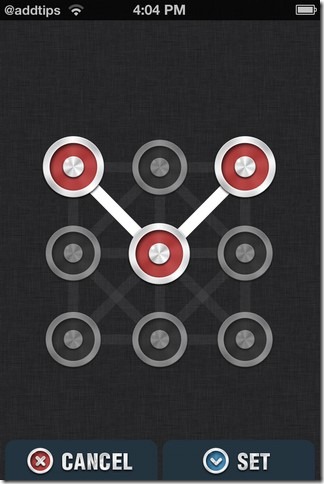
If you specifically want a pattern protected secret folder on iPhone, a third-party photo vault app is usually the most direct route. Some private photo vault apps advertise PIN locks, password locks, Face ID support, pattern locks, decoy passwords, private cameras, break-in alerts, and album organization.
These apps can be useful, especially when they store files locally or provide encrypted backup. But choose carefully. A photo vault app handles some of your most private content, so do not download the first app with a dramatic padlock icon and a name like “Ultra Mega Secret Invisible Folder 9000.” Check the App Store privacy label, recent reviews, update history, developer reputation, subscription terms, and whether the app explains how your files are stored and encrypted.
What to Look for in a Photo Vault App
A good photo vault app should offer clear lock options, easy import and export, reliable backup, transparent privacy practices, and simple recovery information. Bonus features may include a private camera that saves directly into the vault, album-level organization, fake PIN access, and alerts for failed login attempts.
Be careful with apps that ask for unnecessary permissions, collect too much data, show suspicious ads, or make it hard to export your own files. A vault that traps your photos is not a vault; it is a tiny emotional hostage situation with thumbnails.
Best Security Practices Before You Hide Anything
Before moving photos and videos into any secret folder, strengthen the basics. Use a strong iPhone passcode with six digits or, better yet, an alphanumeric password. Face ID is convenient, but your passcode is still the backup key. If your passcode is “123456,” your secret folder is basically wearing a fake mustache.
Next, review photo permissions. Go to Settings, open Privacy & Security, and check which apps can access your Photos. Many apps do not need full photo library access. When possible, choose limited access or selected photos only. This reduces the chance that a random editing, shopping, or social app can browse your entire camera roll.
Also review App Privacy Report if available. It can show how apps use permissions and network activity. If an app you barely use has broad photo access, location access, and constant background activity, reconsider whether it belongs on your phone.
Do Not Forget Recently Deleted
One of the biggest iPhone privacy mistakes is deleting a photo from the main library and assuming it is gone. Deleted photos and videos usually go to Recently Deleted for a period before permanent removal. On newer iOS versions, Recently Deleted is protected by authentication, but it still contains the items until they are permanently removed or automatically cleared.
If you move sensitive media into a secret folder, delete the original from Photos and then clean out Recently Deleted when appropriate. Also check Messages, shared albums, Files, email attachments, cloud backups, and other apps where copies may exist. Privacy is not just about hiding the main file; it is about managing duplicates.
Local Vault vs. Cloud Vault: Which Is Safer?
A local vault keeps photos and videos on your iPhone. This can reduce cloud exposure, but it increases the risk of losing files if the phone is damaged, stolen, or reset. A cloud vault stores or backs up files online, which improves recovery and multi-device access but requires excellent account security.
For most users, the best approach is selective. Keep highly sensitive items in a trusted locked folder or encrypted vault, back up only what you cannot afford to lose, and protect every related account with multifactor authentication. For ordinary private photos, Apple’s Hidden album may be enough. For important documents or once-in-a-lifetime videos, a secure backup strategy is smarter.
Common Mistakes When Creating a Secret Folder on iPhone
The first mistake is assuming “hidden” means “impossible to find.” Hidden albums, hidden apps, and vault apps protect against casual access, not every possible threat. The second mistake is forgetting originals and duplicates. If you import a video into a vault but leave the original in Photos, you have created a copy, not privacy.
The third mistake is using weak passwords. A private vault should not use your birthday, pet name, favorite sports team, or the same PIN you use everywhere else. The fourth mistake is ignoring recovery rules. Some encrypted vaults cannot restore your files if you forget the password. That is good security, but it is also unforgiving.
The fifth mistake is trusting every vault app. Always check privacy labels, permissions, and reviews. If a flashlight app asks for full photo access, that is not innovation. That is a red flag wearing sunglasses.
Recommended Setup for Most iPhone Users
For everyday privacy, start with Apple’s Hidden album and make sure it is locked. Use locked Notes for small collections of important images or document scans. Lock any third-party vault or cloud storage app with Face ID if your iOS version supports app locking. Review photo permissions monthly. Clean up Recently Deleted after moving sensitive media.
If you want pattern lock specifically, choose a reputable third-party photo vault that clearly supports pattern or PIN protection. After importing photos and videos, delete the originals from Photos and Recently Deleted. Test export and backup before trusting the app with irreplaceable files. A secret folder should make life calmer, not turn into a puzzle box designed by a mischievous raccoon.
Experience-Based Tips: What It Actually Feels Like to Use Secret Folders on iPhone
In real use, saving iOS photos and videos in a password protected secret folder is less about spy-movie drama and more about preventing everyday awkwardness. Most privacy problems happen in ordinary moments. You hand your iPhone to a friend to see one photo, and suddenly they start swiping. You open Photos during a meeting and a personal screenshot appears in Recents. You try to show your parents a dinner picture and your phone decides this is the perfect time to display a private document thumbnail. Technology has a sense of humor, and sometimes that humor is rude.
The easiest routine is to sort sensitive media immediately. After taking or receiving a private photo, move it to the Hidden album, Locked Folder, Personal Vault, or photo vault app right away. Waiting until “later” usually means the item stays in Recents, appears in Memories, syncs to another device, or gets backed up somewhere you forgot existed. A two-minute cleanup habit saves a lot of future panic tapping.
Another lesson is to separate “private” from “important.” Some private images are not important long term, such as temporary screenshots, surprise gift ideas, or one-time reference photos. Those can live in a locked space briefly and then be deleted. Other private files are important, such as legal documents, medical images, family videos, or identity scans. Those need both privacy and backup. Keeping the only copy of an important video inside a local-only vault is risky. Phones fall into pools, get stolen, and occasionally enter that mysterious sofa dimension where socks and charging cables go to retire.
It also helps to test your system before relying on it. Add a harmless photo to your chosen secret folder, lock the app, close it, reopen it, export the photo, and confirm you understand the backup settings. If you use a third-party vault, check what happens when you forget the PIN, change phones, disable iCloud, or reinstall the app. Boring tests now can prevent dramatic sadness later.
Finally, privacy works best when it is simple enough to maintain. If your system requires seven steps, three passwords, two clouds, and a ceremonial candle, you probably will not use it consistently. Pick one main method and stick with it. For most people, that means Apple Hidden album for quick hiding, locked Notes for document-style privacy, and one trusted vault or cloud service for more sensitive files. A good secret folder should feel like a seat belt: easy to use, quietly protective, and not something you have to think about every five minutes.
Conclusion
You can save iOS photos and videos in a pattern or password protected secret folder, but the best method depends on the kind of lock you want. Apple’s built-in tools rely on Face ID, Touch ID, and passcode protection. Google Photos Locked Folder and OneDrive Personal Vault add protected cloud-friendly options. Third-party photo vault apps can provide PINs, passwords, and pattern locks, but they require careful selection.
For the safest setup, use strong authentication, limit app photo permissions, delete originals after moving files, clean Recently Deleted, and keep secure backups for anything irreplaceable. Privacy is not one button. It is a small system of smart habits. Build that system once, and your private photos can stay privatewithout forcing you to live like a secret agent every time you open your camera roll.