
Your phone has a hardware identifier that works a little like a vehicle identification number. It is not your telephone number, and changing SIM cards normally does not change it. On most modern phones, this identifier is called the IMEI, or International Mobile Equipment Identity. Some older devices may also display a MEID, or Mobile Equipment Identifier.
You may need this number to activate a phone, check carrier compatibility, request an unlock, arrange a repair, file an insurance claim, or report a missing device. Fortunately, finding it is usually easier than locating the tiny SIM-eject tool that vanished five minutes after you opened the box.
Here are five dependable ways to find the IMEI or MEID on an iPhone, Samsung Galaxy, Google Pixel, Motorola phone, or another mobile deviceeven when the screen is damaged or the phone is missing.
What Are IMEI and MEID Numbers?
An IMEI is generally a 15-digit number assigned to cellular hardware. Wireless carriers use it to identify a device, confirm network compatibility, support activation, and recognize equipment reported as lost or stolen. It identifies the handset rather than the telephone number or customer account.
A MEID is a 14-character identifier found mainly on older devices associated with legacy CDMA networks. Modern 4G and 5G smartphones usually emphasize the IMEI, although carrier records and older phones may still mention a MEID. On certain older iPhones, the MEID is represented by the first 14 digits of the IMEI.
Do not confuse these other numbers
- ICCID: Identifies a physical SIM card.
- EID: Identifies the embedded SIM hardware used for eSIM service.
- Serial number: A manufacturer-specific product identifier.
- Phone number: Identifies the mobile line rather than the physical device.
A dual-SIM phone may display IMEI 1 and IMEI 2. When a carrier asks for an identifier, check whether it wants the primary IMEI, the second IMEI used for an eSIM, or the EID.
1. Dial *#06# on the Phone Keypad
The fastest way to find an IMEI on many mobile phones is to open the Phone or Dialer app and enter *#06#. In most cases, you do not need to press the call button. A device-information screen should appear automatically.
Steps
- Open the app used to make calls.
- Display the numeric keypad.
- Enter *#06#.
- Copy, write down, or take a screenshot of the displayed IMEI.
Dual-SIM phones may show IMEI 1, IMEI 2, an EID, and other information. Read the labels carefully instead of automatically copying the longest number. The longest one is often the EID, which will not work when a carrier form expects a 15-digit IMEI.
This shortcut works on many iPhones, Android phones, and basic phones. However, it may be disabled on certain tablets, carrier-customized dialers, or devices without active calling features. If nothing happens, use the Settings method.
2. Find the IMEI or MEID in Settings
The Settings app is usually the most reliable place to locate an IMEI while the phone is working. Exact menu names vary by manufacturer, software version, and carrier.
How to find the IMEI on an iPhone
- Open Settings.
- Tap General.
- Tap About.
- Scroll to IMEI, IMEI2, or IMEI/MEID.
- Touch and hold the number to copy it when that option is available.
If the iPhone has not been set up, turn it on and tap the information icon on the “Hello” screen. The device identifiers can be viewed before setup is completed.
How to find the IMEI on a Google Pixel
- Open Settings.
- Tap About phone.
- Scroll until you see IMEI.
- Check for IMEI 1 and IMEI 2 if the phone supports two SIM profiles.
How to find the IMEI on a Samsung Galaxy
- Open Settings.
- Scroll down and tap About phone.
- Review the displayed IMEI, model number, and serial number.
How to find the IMEI on a Motorola phone
- Open Settings.
- Tap About phone.
- Open Device details if necessary.
- Locate IMEI.
On other Android phones, the number may appear under About phone, Status, Device details, or Phone identity. Use the Settings search bar and enter “IMEI” when the usual menu path is missing. It is faster than touring every submenu like a traveler too proud to ask for directions.
3. Check the SIM Tray, Phone Body, or Battery Compartment
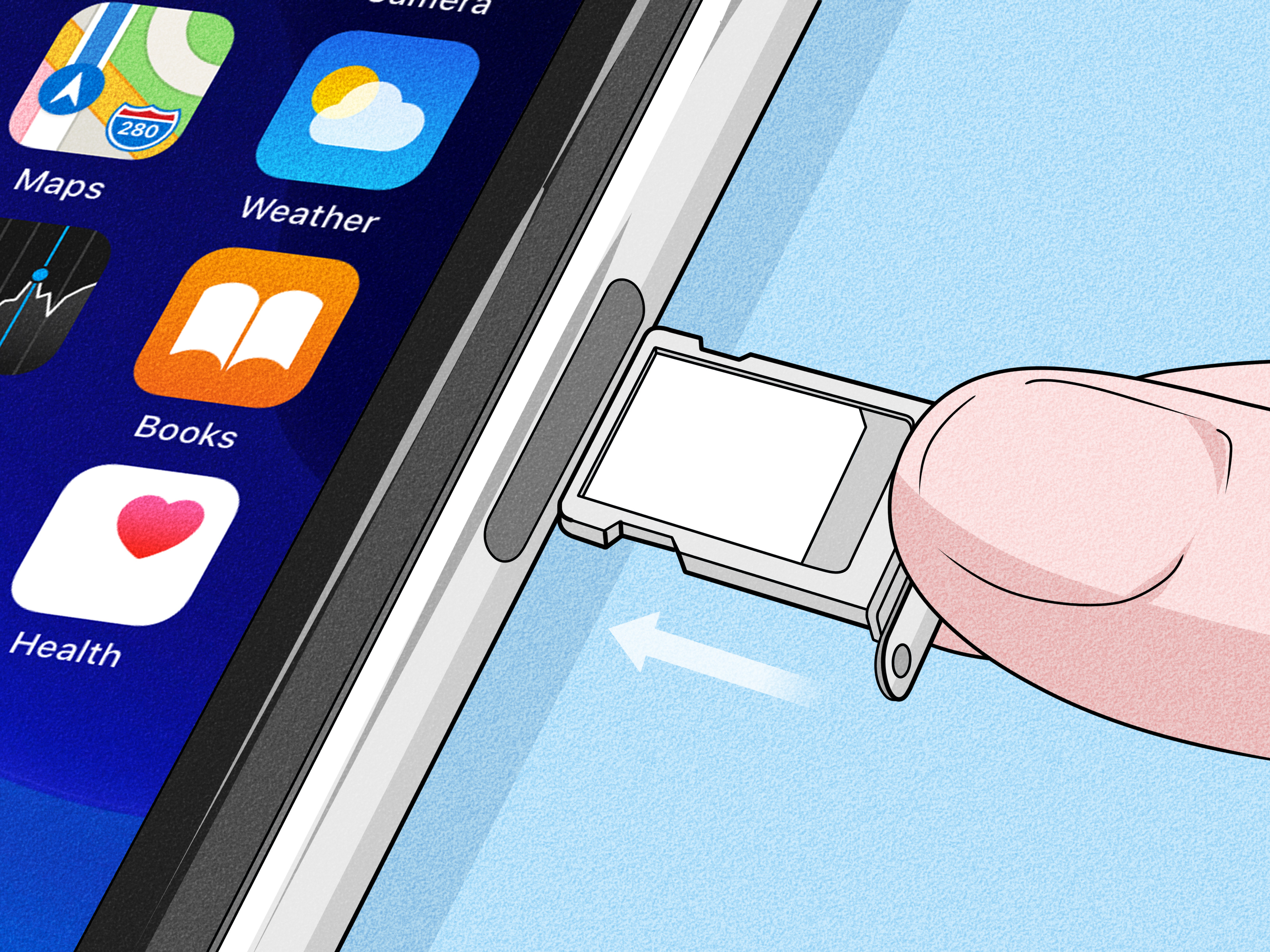
If the display is broken, the phone will not start, or you cannot unlock it, inspect the physical device. Depending on the model, the IMEI or MEID may be engraved on the SIM tray, printed on the rear housing, or displayed on a label beneath a removable battery.
Places to inspect
- SIM tray: Remove it carefully and inspect both sides under bright light.
- Back of the device: Some older phones have an IMEI printed near the bottom.
- Under the battery: Older phones with removable batteries often have an internal identification label.
- Behind a removable cover: Basic and rugged phones may place the label inside the rear housing.
Power off the device before removing its SIM tray or battery. Use the correct eject tool and never force a stuck tray. Creating a bent SIM tray is an unnecessary sequel to the original problem.
Physical markings depend on the model. Many older iPhones displayed an IMEI on the SIM tray or rear casing, while newer models may not include an external engraving. Use another phone’s camera and zoom function if the text is too small to read accurately.
4. Look on the Original Box, Receipt, or Purchase Records
The original packaging is one of the best places to find a phone IMEI when the handset is missing, completely dead, or too damaged to use. Look for a barcode label on the box. It may list the IMEI, IMEI2, EID, serial number, model, storage capacity, and color.
Other records to check
- The original sales receipt
- A carrier contract or financing agreement
- An online order confirmation
- A shipping email or invoice
- A warranty registration
- A repair, trade-in, or insurance document
Confirm that the number belongs to the correct phone. This matters in homes and offices containing several nearly identical devices or a stack of boxes that has slowly evolved into a small electronics museum.
When buying a phone, photograph the barcode label and save it in a secure, password-protected account. That record can be extremely useful if the device later disappears.
5. Use an Online Account, Computer, or Carrier Portal
You can often retrieve an IMEI without having the phone in your hand. This is particularly helpful when the device is lost, stolen, being repaired, or equipped with a display that no longer works.
Check your Apple Account
Sign in to the Apple Account associated with the iPhone, open the Devices section, and select the device. Its record may display the serial number, EID, and IMEI/MEID.
You can also use another Apple device signed in to the same account. Open Settings, tap your name, scroll through the device list, and select the relevant iPhone.
Use Finder, Apple Devices, or iTunes
Connect the iPhone to a trusted computer. On a current Mac, open Finder and select the phone. On Windows, use the Apple Devices app or iTunes where applicable. Clicking the phone number, model name, or serial-number field can reveal the IMEI and related identifiers.
Use Google Find Hub
For a supported Android phone connected to your Google Account, open Google’s official device-finding service, select the phone, and open the information panel. The IMEI may appear beneath the device name. Eligible Pixel devices may also appear in Google’s device records.
Check your wireless carrier account
Sign in to your carrier account and select the relevant mobile line. Device details may include the IMEI, MEID, serial number, SIM number, or a field labeled Device ID. Carrier support may also provide the identifier after verifying that you are authorized to access the account.
If the phone is missing, retrieving the IMEI is only one step. Use Apple’s or Google’s official finding service to locate, lock, or erase the phone when possible. Then contact the carrier to suspend service or report the device.
An IMEI identifies a handset, but it is not a public tracking password. Websites promising to reveal any phone’s live location from an IMEI alone deserve a raised eyebrow and a closed browser tab.
Which IMEI Should You Use on a Dual-SIM Phone?
A dual-SIM phone commonly displays two IMEIs. IMEI 1 is usually associated with the primary SIM position or cellular profile, while IMEI 2 may correspond to the second SIM position or eSIM. The precise assignment varies by model.
A compatibility checker may accept IMEI 1, while an eSIM activation process may specifically request IMEI 2 and the EID. Repair companies and insurers may want the IMEI already connected to the device record in their systems. Read the form carefully or ask the provider which number it requires.
Common IMEI and MEID Problems
The number is longer than 15 digits
You may have copied the EID or ICCID instead of the IMEI. Look at the label beside the number rather than relying only on its location.
The phone displays two IMEIs
This is normal on many dual-SIM devices. Record both numbers and keep the IMEI 1 and IMEI 2 labels attached to them.
The *#06# code does not work
Use the Settings app, inspect the box or SIM tray, or sign in to the associated manufacturer or carrier account.
The carrier says the IMEI is invalid
Enter the number without spaces or dashes, check every digit, and make sure you selected the correct IMEI. A valid number may still be rejected when a phone is incompatible, unsupported, carrier-locked, or flagged in a device database.
Practical Experiences: What Actually Works When Finding an IMEI or MEID
In everyday troubleshooting, the quickest method is not always the best one. Dialing *#06# is excellent while a phone is unlocked and working, but it becomes useless when the device is missing, water-damaged, or displaying an abstract-art interpretation of a shattered screen. The safest strategy is to know at least two methods before an emergency occurs.
A common problem appears during carrier switching. A user enters *#06# and sees IMEI, IMEI2, EID, and ICCID. The natural impulse is to copy the longest number because longer numbers look more official. Unfortunately, the longest one is often the EID rather than the IMEI requested by the compatibility checker. The practical lesson is simple: copy the number beside the exact label requested by the carrier.
Another familiar situation involves a damaged phone. Settings would usually be easiest, but the display is black even though the device still vibrates and receives notifications. In that case, the original box frequently saves the day. Its barcode label is readable, requires no passcode, and may list both IMEIs. When the box is gone, a manufacturer or carrier account becomes the next best option.
Apple users may find the identifier in their Apple Account device list, while supported Android owners may retrieve it through Google’s device information tools. Carrier portals can also display the Device ID associated with a mobile line. These account-based methods are worth learning because they continue to work when physically inspecting the phone is impossible.
Older phones create a different puzzle. A basic handset or early smartphone may show MEID, ESN, and IMEI together, or it may hide the label beneath a removable battery. People accustomed to sealed modern phones sometimes forget that removing the rear cover was once a normal activity rather than a repair procedure. Powering down the phone, lifting the battery, and reading the label can solve the problem in less than a minute.
When recording a MEID, copy every character exactly. MEIDs may contain both numbers and letters because they can be represented in hexadecimal form. Confusing a zero with the letter O or a one with the letter I can cause an activation or compatibility check to fail.
Dual-SIM activation is another situation where careful labeling pays off. Imagine transferring an existing number to a physical SIM while adding a second plan through eSIM. The carrier may request IMEI 1 for one line, then ask for IMEI 2 and the EID for the second profile. Saving a screenshot titled “Phone identifiers” prevents the numbers from being mixed together.
A screenshot is also easier to enlarge than tiny text engraved on a SIM tray, which sometimes appears to have been designed exclusively for people with microscope vision. Before saving it, make sure every number and label is visible.
Families and small businesses can benefit from maintaining a secure device inventory. Record each phone’s owner, model, telephone number, serial number, IMEI 1, IMEI 2, purchase date, and carrier. This information can simplify insurance claims, repairs, trade-ins, warranty requests, and lost-device reports.
Store the inventory in a protected password manager, encrypted document, or secure asset-management system. Do not place it in a public shared note or tape it to the office refrigerator. An IMEI is not the same as an account password, but device identifiers should still be treated as private records and disclosed only to legitimate carriers, manufacturers, insurers, repair providers, or law-enforcement authorities when appropriate.
There is also an important difference between identifying a phone and locating it. An IMEI helps carriers recognize a handset, but entering it into a random “instant tracker” website does not provide legitimate access to the device’s live location. For a missing phone, the practical sequence is to use the official Apple or Google finding service, lock the device, contact the carrier, and retain the IMEI for any report or insurance claim.
The best experience is the one prepared for in advance. Record the identifiers when the phone is new, confirm which IMEI belongs to each SIM profile, and keep the information somewhere secure. Future youpossibly standing at a carrier counter with a dead phone and very little patiencewill be extremely grateful.
Conclusion
There are five dependable ways to find an IMEI or MEID: dial *#06#, check the Settings app, inspect the phone or SIM tray, review the original packaging and purchase records, or use an online device or carrier account.
Settings usually provides the clearest result, while the dial code is the fastest shortcut. Packaging and online accounts are especially useful when the phone is damaged or missing. On a dual-SIM phone, record both IMEIs and confirm which one the carrier or service provider needs.
Note: Menu names, engraving locations, and online account options vary by manufacturer, carrier, software version, and model. Always follow the label displayed beside the identifier and consult the device-specific instructions when the general steps differ.