
Uber history is useful right up until it becomes awkward. Maybe you are cleaning up digital clutter. Maybe you are reviewing your privacy settings. Maybe you simply do not need a permanent museum exhibit dedicated to every airport ride, late-night taco run, and “why did I choose Uber Black for a five-minute trip?” moment. Whatever brought you here, the big question is simple: can you delete your Uber history on the app and website?
The honest answer is a little less simple. In the standard Uber rider app in the United States, your completed trips live in the Activity section, and Uber does not generally offer a simple “delete this one ride forever” button for normal trip history. However, you can remove certain saved places, reduce what Uber uses for ad personalization, download your Uber data, clear local app or browser traces, and delete your Uber account if you want the broadest data deletion option.
Think of this guide as a privacy tune-up, not a magic eraser with sparkles. We will walk through what can be deleted, what cannot usually be removed one trip at a time, how to delete your Uber account from the app and website, and what to do before you press the digital big red button.
Can You Delete Uber Trip History?
Let’s start with the part everyone wants to know. In the current Uber rider experience, your trip records are tied to your account. You can view them in the app under Activity, where completed rides show details such as pickup location, destination, route, fare breakdown, and receipt options. On the web, trip receipts may also be accessed through Uber’s rider trip pages after signing in.
But viewing a record is not the same as deleting it. Uber keeps trip history for practical reasons: receipts, customer support, payments, dispute handling, safety reviews, fraud prevention, and legal or regulatory obligations. That means a single old ride may not be removable from the standard U.S. rider app the same way you would delete a photo, text message, or embarrassing playlist from 2014.
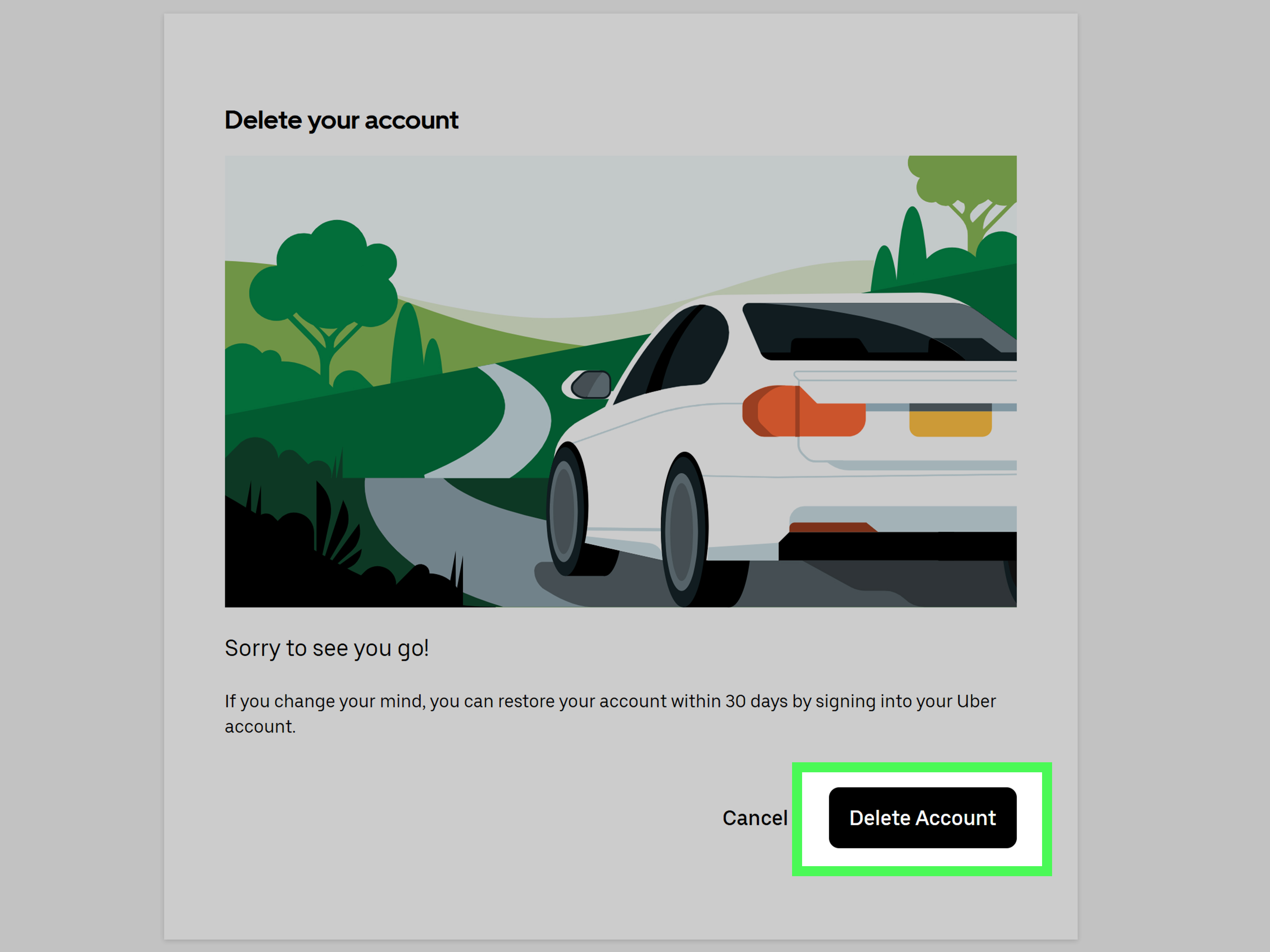
The strongest official deletion path is account deletion. When you delete your Uber account, Uber says the account is immediately deactivated and then permanently deleted after a 30-day period, although the company may retain certain information as required or permitted by law. Translation: deleting your account is the closest thing to deleting your Uber history, but it is not the same as manually selecting individual trips and tossing them into a digital shredder.
What Counts as “Uber History”?
Before deleting anything, it helps to define what you are actually trying to remove. “Uber history” can mean several different things, and each one has a different solution.
1. Trip History
This is the list of completed rides in the Uber app, usually found under Activity. It includes past trips, receipts, pickup and drop-off details, route information, and payment summaries. This is the history most users mean when they ask how to delete Uber ride history.
2. Receipts and Email Records
Uber receipts may also live in your email inbox. Even if you delete your Uber account, old receipt emails in Gmail, Outlook, Yahoo, or another mailbox may remain until you delete them yourself. Your inbox is basically the nosy roommate of your digital life.
3. Saved Places
Saved places include Home, Work, and custom favorite destinations. These can often be removed from the Uber app without deleting your account. If you mainly want to stop a location from appearing as a suggestion, saved places are a good place to start.
4. Search and Ad Personalization Signals
Uber may use trip, order, and search history to personalize ads or sponsored listings. You can adjust personalization settings through Uber’s Privacy Center, which is helpful if your goal is less “erase my entire account” and more “please stop using my ride patterns to guess what I want.”
5. Local App and Browser Data
Your phone and browser may store cached data, cookies, login sessions, and temporary files. Clearing these does not delete Uber’s server-side records, but it can remove local traces from your device. This is like cleaning the crumbs off your desk. The bakery still has the receipt, but at least your keyboard looks less tragic.
How to Delete Your Uber Account in the App
If you want the broadest deletion option available to riders, you can request account deletion directly from the Uber app. Before doing this, make sure you are ready to lose access to your account, credits, rewards, promotions, and related Uber profiles.
Steps to Delete Your Uber Account in the App
- Open the Uber app on your phone.
- Tap Account.
- Go to Settings.
- Select Privacy.
- Scroll down and tap Account Deletion.
- Follow the on-screen instructions to confirm your request.
After you complete the process, your account is deactivated first. Uber gives you a 30-day window before permanent deletion. If you sign back in during that period, the account may be restored. In other words, Uber gives you a cooling-off period, probably because people sometimes delete accounts with the emotional confidence of a movie character walking away from an explosion.
How to Delete Your Uber Account on the Website
You can also delete your Uber account through the web. This is useful if you do not have the app installed, your phone is unavailable, or you prefer doing serious digital housekeeping from a laptop while pretending your coffee is helping.
Steps to Delete Uber History Through Account Deletion on the Website
- Open your preferred browser on your phone, tablet, or computer.
- Go to Uber’s Privacy Center.
- Sign in with the phone number, email address, or login method connected to your Uber account.
- Choose the account deletion option.
- Review the warnings about credits, rewards, and linked profiles.
- Confirm your deletion request.
This process applies to your Uber account, not just the visible trip list. If your Uber rider profile is connected with Uber Eats or other Uber services, deleting the account may affect those profiles as well. Read every confirmation screen carefully. The screens may not be thrilling literature, but they are more important than the average shampoo bottle instructions.
What Happens After You Delete Your Uber Account?
Once the deletion request is submitted, the account is immediately deactivated. That means you should lose normal access to rides, order history, promotions, credits, and rewards associated with the account. After 30 days, Uber says the account is permanently deleted, unless certain information must be retained for legal, safety, security, tax, fraud prevention, dispute, or regulatory reasons.
This distinction matters. Account deletion is not always instant total data disappearance. Many digital platforms retain limited records when they have a lawful reason to do so. For example, a company may need to keep transaction records for accounting, safety investigations, chargeback disputes, or compliance requirements. So, if your goal is absolute invisibility from every database ever, that is not how modern platforms work. If your goal is to close your account and remove data Uber no longer needs to keep, account deletion is the official path.
Download Your Uber Data Before Deleting Anything
Before deleting your account, consider downloading a copy of your Uber data. This can be useful for expense reports, tax records, reimbursement requests, travel logs, or simply remembering whether that hotel ride in Chicago was in March or during your “I should buy a fedora” phase.
Why Download Your Data First?
Once your account is deleted, recovering old receipts or ride details may become difficult or impossible. If you use Uber for work, business travel, medical transportation records, family reimbursements, or budgeting, download what you need before starting the deletion process.
What Uber Data May Include
Your data download may include account information, trip details, order information, support interactions, and other records connected to your Uber account. The exact contents can vary, but the key idea is simple: save what you might need before you close the door.
How to Remove Saved Places in the Uber App
If your main concern is that Uber keeps suggesting old locations, you may not need to delete your whole account. You can remove saved places such as Home, Work, or custom locations from the app.
Delete Home or Work in Uber
- Open the Uber app.
- Tap Account.
- Select Settings.
- Find your saved Home or Work address.
- Tap Delete next to the address you want to remove.
Remove Other Saved Places
- Open the app and go to Account.
- Tap Settings.
- Choose More saved places.
- Tap the three dots next to the saved place.
- Select Remove.
This does not erase completed ride history, but it can stop old destinations from sitting in your saved list like tiny digital ghosts.
How to Reduce Uber Ad Personalization Based on Trip History
If your privacy concern is not the trip list itself but how Uber uses your activity for personalization, visit Uber’s Privacy Center and review your advertising settings. Uber allows users to opt out of certain ad personalization based on trip, order, search history, and related signals.
Opting out does not mean you will never see ads. It means the ads should be less personalized based on certain historical activity. You may still see ads based on broader information such as approximate location, time of day, or current trip context. It is the difference between “Here is an ad because you exist near a sandwich shop” and “Here is an ad because your last three Friday rides suggest you have a complicated relationship with nachos.”
How to Clear Uber Website History From Your Browser
If you used Uber on a browser, you may also want to clear local browser history, cookies, and cached files. This does not delete your Uber account or server-side trip records, but it can remove traces from the device you are using.
Clear Uber Browsing Data in Chrome
- Open Chrome.
- Click the three-dot menu.
- Go to Settings.
- Select Privacy and security.
- Choose Delete browsing data.
- Select cookies, cached images, and browsing history as needed.
- Confirm deletion.
Clear Uber Browsing Data in Safari, Edge, or Firefox
The wording varies by browser, but the process is similar: open browser settings, find privacy or history controls, delete browsing data, and choose the time range. If you only want to remove Uber-related traces, look for site-specific cookies or history entries connected to Uber domains.
Remember: clearing browser data may sign you out of websites and remove saved preferences. It is not dangerous, but it can be mildly annoying. The internet will survive. Your saved login sessions may not.
How to Clear Uber App Cache on Your Phone
Clearing the Uber app cache can remove temporary files from your device. It may also help if the app is glitchy, slow, or showing stale suggestions. However, cache clearing does not delete your Uber trip history from Uber’s servers.
On Android
- Open your phone’s Settings.
- Go to Apps.
- Select Uber.
- Tap Storage.
- Choose Clear cache.
On iPhone
iOS does not always provide a simple “clear cache” button for every app. You can offload or delete and reinstall the Uber app if you want to remove local app data from the device. Just remember: uninstalling the app does not delete your Uber account. It only removes the app from your phone. The account is still waiting in the cloud, probably wearing sunglasses.
Delete Uber Receipts From Your Email Inbox
If you want your personal inbox cleaned up too, search your email for Uber receipts. Try search terms like:
- Uber receipt
- Your Uber trip
- Thanks for riding
- Uber
Then delete the messages you no longer need. For a deeper cleanup, empty your trash folder afterward. If you use Uber for business expenses, download or archive needed receipts before deleting emails. Future you may need those receipts, and future you is already dealing with enough.
Common Mistakes When Trying to Delete Uber History
Mistake 1: Deleting the App and Assuming the Account Is Gone
Uninstalling Uber removes the app from your phone. It does not delete your account, trip history, receipts, payment profile, or server-side data. To delete the account, use the in-app privacy settings or Uber’s Privacy Center on the web.
Mistake 2: Expecting One-Ride Deletion
Many users look for a swipe-left option or trash icon next to a completed ride. In the standard U.S. rider app, that is usually not available for normal trip history. If you cannot find the button, you are probably not missing it; it likely is not there.
Mistake 3: Forgetting About Uber Eats
Uber accounts may be connected across rides, Uber Eats, and other Uber services. Deleting your Uber account can affect more than ride history. Review all connected services before confirming deletion.
Mistake 4: Losing Credits and Rewards
Deleting your account may remove unused credits, promotions, and rewards. Use what you need first, or accept that those perks are going to the same mysterious place as missing socks.
Privacy Checklist Before Deleting Your Uber Account
- Download your Uber data if you may need receipts or trip records later.
- Use remaining credits, promotions, or rewards.
- Remove saved places such as Home, Work, and custom destinations.
- Adjust ad personalization settings in Uber’s Privacy Center.
- Delete Uber receipt emails you no longer need.
- Clear browser cookies and cache if you used Uber on the web.
- Uninstall the app only after account deletion if you no longer plan to use Uber.
Should You Delete Uber History or Keep It?
Deleting your Uber account makes sense if you no longer use the service, want to reduce your digital footprint, or prefer to close accounts you do not need. It may also be the right move if you are switching to other transportation options and want fewer companies storing your personal information.
Keeping your account makes sense if you still use Uber occasionally, need access to receipts, rely on ride records for work expenses, or want the convenience of saved payment methods and trip support. Privacy is not always all-or-nothing. Sometimes the smarter move is adjusting settings, deleting saved places, clearing local data, and keeping the account active.
Real-Life Experiences: What It Feels Like to Delete Uber History
Deleting Uber history sounds like a five-minute chore until you actually start doing it. The first surprise for many users is realizing that the visible trip list is not like a text message thread. You cannot always tap one old ride, hit delete, and move on with your life while triumphant music plays in the background. Instead, you have to decide whether you want to tidy small pieces of your Uber footprint or delete the entire account.
One common experience is the “expense report panic.” A user decides to clean up their account, then suddenly remembers that last month’s airport ride was supposed to be reimbursed. This is why downloading your data first is so important. Ride receipts are boring until you need them. Then they become priceless little rectangles of financial justice.
Another common situation involves saved places. Many people do not actually want to erase every Uber record. They simply do not want an old apartment, former workplace, hotel, gym, or ex-roommate’s address appearing in suggestions. In that case, deleting saved places may solve the problem without the drama of full account deletion. It is like cleaning one drawer instead of setting the whole house on fire.
Some users also discover that their email inbox tells a second Uber story. Even after adjusting the app, years of receipts may still sit in email search results. Searching for “Uber receipt” can reveal a surprisingly detailed travel timeline. There is the ride to the airport, the ride from the airport, the ride when it rained, the ride when surge pricing made everyone quietly question capitalism. Cleaning email receipts can be just as important as changing settings in the app.
Then there is the privacy settings rabbit hole. Once you visit Uber’s Privacy Center, you may realize that privacy is not only about deleting old rides. It is also about how your trip, order, and search history may be used for personalization. Turning off some personalization settings can feel more practical than deleting the account, especially if you still use Uber. You keep the service, but reduce the amount of personal history used to tailor ads and suggestions.
The 30-day deactivation period is another detail users appreciate. It gives you time to change your mind. Maybe you deleted the account in a burst of digital minimalism, then remembered you need a ride at 5:30 a.m. next Tuesday. Signing back in during the reactivation window can restore the account. After that window, you may need to create a new one.
The biggest lesson from real user experience is this: deleting Uber history is less about one button and more about choosing the right level of cleanup. For light privacy housekeeping, remove saved places, clear browser data, delete receipt emails, and adjust ad settings. For a deeper reset, download your data and delete the account. For maximum calm, do both thoughtfully and avoid rage-clicking anything after midnight.
Conclusion
So, how do you delete your Uber history on the app and website? If you mean deleting individual completed rides from the standard U.S. Uber rider history, that option is not generally available. If you mean deleting your broader Uber account data, the official route is account deletion through the app or Uber’s Privacy Center on the web. You can also remove saved places, clear local browser or app data, delete receipt emails, and change privacy settings to limit personalization based on your activity.
The smartest approach is to start small, then go bigger only if needed. Remove saved destinations. Download your data. Save important receipts. Review privacy settings. Then, if you are truly done with Uber, delete the account and let the 30-day clock begin. Digital privacy does not have to be dramatic. Sometimes it just needs a checklist, a calm thumb, and the courage to delete five years of airport receipts.