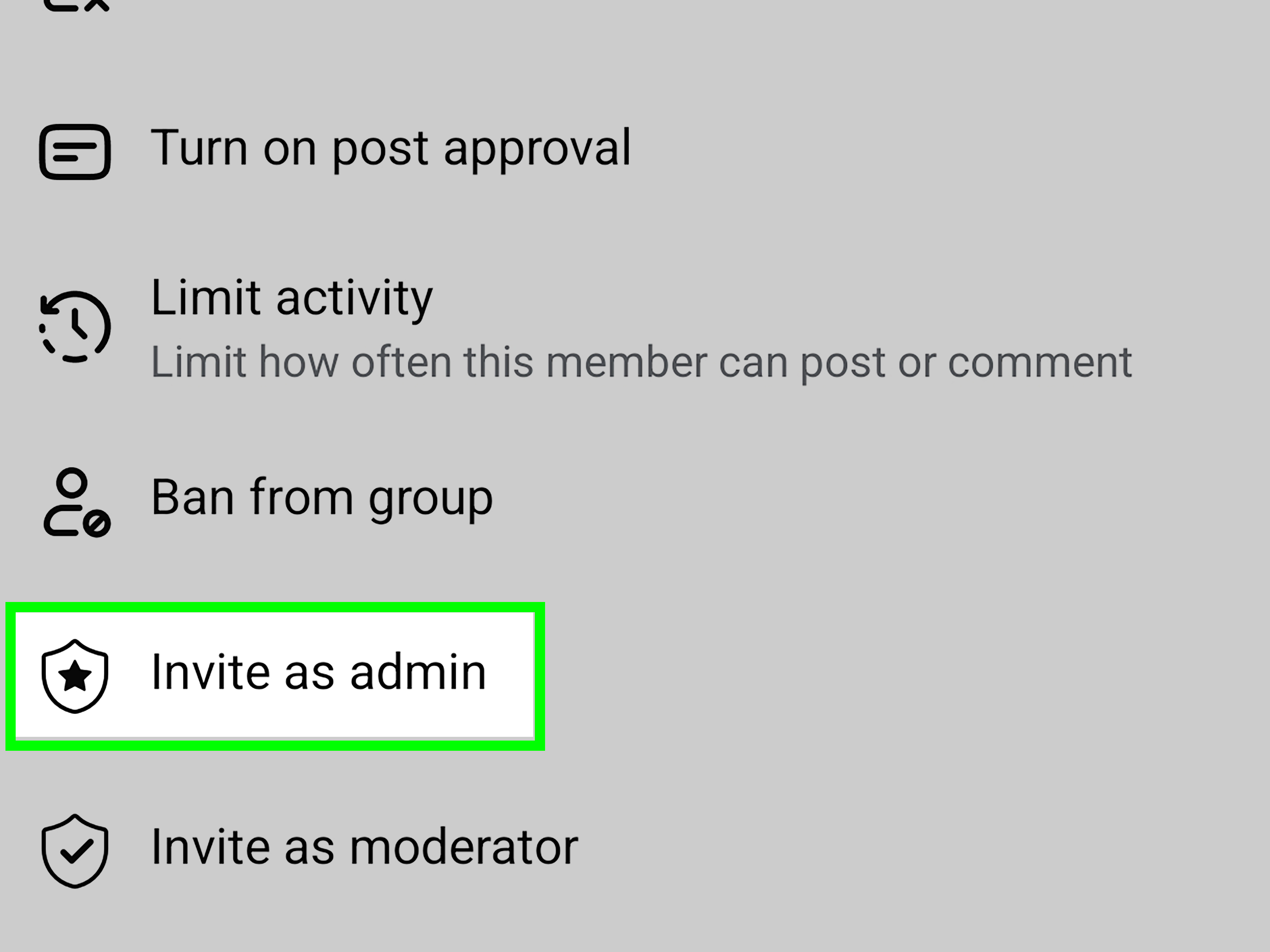

If you have ever joined a Facebook group and thought, “Who is running this circus?” you are not alone. Sometimes you need the admin because you want approval to join, need help with a post, want to report spam, or just need the human being behind the digital curtain. The good news is that finding the admin of a Facebook group is usually pretty simple. The not-so-fun news is that Facebook changes buttons the way some people change socks, so the exact wording may vary a little depending on whether you are on desktop or mobile.
This guide breaks it all down in plain English. You will learn how to find the admin of a Facebook group step by step, what to do if you cannot see the admin list, how private and hidden groups affect what you can view, and a few polite ways to contact the right person without looking like you escaped from the spam folder.
Why You Might Need to Find a Facebook Group Admin
Before we get into the clicks and taps, let’s talk about why this matters. A Facebook group admin is the person, or one of the people, who manages the group. Admins can approve or reject member requests, set rules, remove posts, assign moderators, and control important settings. In short, they are the folks with the keys to the clubhouse.
You may want to find the admin of a Facebook group if:
- You are waiting for approval to join a private group.
- Your post is pending and you want to understand why.
- You need to report spam, scams, or harassment inside the group.
- You want to ask about group rules, promotions, or membership requirements.
- You are trying to confirm whether a group is actively managed or basically running on vibes and old posts.
What Counts as a Facebook Group Admin?
On Facebook, a group can have one admin or several. It can also have moderators, who help manage content but do not always have the same level of control as admins. That is why you may see a section labeled Admins and Moderators instead of a single person wearing a crown and holding a clipboard.
If your goal is to contact the person in charge, do not stop at the first name you see. Many groups are managed by multiple admins, and some are more active than others. In a busy community, the fastest response may come from a moderator rather than the original creator.
How to Find the Admin of a Facebook Group on Desktop
Step 1: Open Facebook and Go to the Group
Log in to your Facebook account in a web browser and open the group you want to check. You can use search if needed, or find it through your Groups list.
Step 2: Look for the “Members,” “People,” or “About” Area
Once you are inside the group, look around the top navigation or the left sidebar. Depending on the layout Facebook is testing this week, you may see options like Members, People, About, or See all. Click the section that shows group members or group details.
Step 3: Find the “Admins and Moderators” Section
Inside the members list, Facebook usually separates people by role. If the group allows you to see them, you should spot a heading such as Admins and Moderators. The admins are commonly listed first, followed by moderators and then regular members.
Step 4: Click the Admin’s Profile
Once you identify the admin, click the profile to view more details. From there, you may be able to message them, follow them, or at least confirm that they are a real human and not a suspicious account named “Free Crypto Uncle 247.”
Step 5: Check the Group Description and Featured Posts
If the member list is not obvious, check the group description, pinned posts, featured content, and welcome posts. Some admins introduce themselves there, especially in groups that rely on structured rules or approval systems.
How to Find the Admin of a Facebook Group on Mobile
If you are using the Facebook app, the process is similar, but the labels may move around like they are trying to avoid eye contact.
Step 1: Open the Facebook App
Launch the app and go to the group you want to inspect.
Step 2: Tap the Group Name or Menu
At the top of the group page, tap the group name, menu icon, or a section like See more. This usually opens the group details page.
Step 3: Open the Member List
Look for Members, People, or See all members. Tap it.
Step 4: Identify Admins and Moderators
Facebook often groups role holders together. If the group settings allow it, you will see the admin names near the top of the list.
Step 5: Visit the Profile or Use Available Contact Options
Tap the admin’s name to open the profile. Depending on privacy settings, you may be able to send a message, follow them, or use another visible contact method.
Can Everyone See the Admin of a Facebook Group?
Not always. This is where group privacy matters.
In a public Facebook group, it is usually easier for anyone on Facebook to see who the admins and moderators are. In a private visible group, the group can be found in search, but some details are limited to members. In a private hidden group, visibility is much more restricted, and only members or invited people may be able to see key information.
That means if you are not a member, you may not be able to view the full member list or the admin section. In some cases, you may only see a join button, a short description, and very little else.
What to Do If You Cannot Find the Admin
If you cannot see the admin list, do not panic and do not start sending random friend requests to everyone named Jessica in the group. Try these smarter options instead.
1. Join the Group First
Many private groups reveal more information only after you are approved. Once you join, go back to the member list and check again.
2. Look at Featured Posts and Announcements
Admins often leave clues in pinned posts, rule announcements, welcome messages, and member guides. These are basically the group’s version of a front desk sign.
3. Check the Group Rules
Some groups include admin names or instructions for contacting moderators inside the rules section.
4. Search Within the Group
Use the search bar inside the group and try keywords like “admin,” “moderator,” “rules,” “welcome,” or “contact.” You may find a post introducing the management team.
5. Report to Admins Through Group Tools
Even if you cannot directly identify the admin, Facebook may still let you report a post or comment to the admins. That can be useful if your goal is moderation rather than conversation.
6. Report the Group to Facebook
If the issue is serious, such as fraud, impersonation, or harmful behavior, use Facebook’s reporting tools instead of trying to track down an admin manually.
How to Contact a Facebook Group Admin Politely
Once you find the admin of a Facebook group, resist the temptation to send a dramatic three-paragraph novel with six question marks. A short, polite message works better.
Here is a simple example:
Hi, I’m a member of your group and had a quick question about my pending post. I wanted to make sure it follows the group rules. Thanks for your time.
That message is calm, respectful, and much more likely to get a helpful response than, “WHY DID YOU DECLINE MY MASTERPIECE ABOUT DISCOUNT PROTEIN SHAKES???”
Signs a Group May Not Have an Active Admin
Sometimes the problem is not that you cannot find the admin. Sometimes the admin has vanished into the Facebook mist.
Here are a few clues:
- Spam posts stay up for days.
- Member requests never get approved.
- No one responds to reported content.
- Rules are outdated or missing.
- There are no recent announcements, welcome posts, or moderator activity.
Facebook also has processes for groups that end up without active admins or moderators. In certain situations, a moderator or even a member may be able to become an admin if the group truly has no one managing it. That is useful for rescue situations, but it does not mean every silent group is automatically abandoned.
Common Mistakes to Avoid
Confusing a Facebook Page with a Facebook Group
A page and a group are not the same thing. If you are trying to find the admin of a Facebook group, make sure you are actually inside a group. Pages have different roles and management tools.
Assuming the Creator Is the Only Admin
Many groups are run by teams. The original creator may still technically be in charge, but another admin may be the person who actually answers questions and keeps things running.
Using Third-Party Tools
Avoid sketchy websites or browser extensions that claim they can reveal hidden Facebook group admins. Best case, they waste your time. Worst case, they waste your account security too.
Messaging Random Members
Asking regular members to point you to an admin is sometimes fine, but messaging a bunch of strangers one by one is a fast way to look suspicious. Use the built-in group areas first.
Best Practices for Businesses, Creators, and Community Managers
If you use Facebook groups for business, networking, niche hobbies, or customer communities, knowing how to locate the admin matters for more than curiosity. It helps with partnership requests, content approvals, event coordination, and issue resolution.
For example, suppose you run a small home organization brand and want to collaborate with a decluttering group. Before pitching your idea, find the admin, read the rules, review recent announcements, and make sure you are contacting the right person. That small bit of homework can keep your message from landing like an uninvited sales speech at a family barbecue.
Quick Recap: Fastest Way to Find a Facebook Group Admin
- Open the Facebook group.
- Go to the Members, People, or About section.
- Look for Admins and Moderators.
- Check featured posts, rules, and descriptions if the member list is limited.
- Join the group if privacy settings block what you can see.
- Use Facebook’s reporting tools if your issue is serious or the admin cannot be reached.
Conclusion
Finding the admin of a Facebook group is usually straightforward once you know where Facebook hides the useful stuff. Start with the member list, look for the admins and moderators section, and check the rules and featured posts if the role list is not obvious. If the group is private or hidden, you may need to join before you can see who is in charge. And if the group seems unmanaged, Facebook’s reporting and moderation systems can still help.
The big takeaway is this: do not overcomplicate it. You do not need a secret hack, a detective board covered in red string, or a mysterious plugin from the internet. You just need the right section of the group, a little patience, and a polite message once you find the person running the show.
Extra Experience and Practical Lessons From Real-World Facebook Group Use
One of the biggest lessons people learn when trying to find the admin of a Facebook group is that the answer depends heavily on context. In a small local group, the admin is often easy to identify because they post welcome messages, answer questions, and keep the rules visible. In a giant group with tens of thousands of members, the admin may barely post at all, while moderators do most of the daily cleanup. That means the most useful contact is not always the person with the highest level of permission. Sometimes the moderator is the real MVP.
Another common experience is joining a private group and expecting instant clarity, only to find that the layout still feels confusing. That is normal. Facebook does not always label things in a consistent way across desktop, iPhone, Android, and browser versions. One user might see People, another might see Members, and someone else might have to tap the group name before anything useful appears. If that happens, the best move is to stop hunting for a perfect label and instead look for any path that shows member roles, group details, or announcements.
People also discover that admin visibility and admin responsiveness are two very different things. You might find the admin list in ten seconds and still never get a reply. That does not always mean the group is abandoned. Some admins only check messages occasionally, and others prefer that members communicate through comment moderation tools, pending post notices, or rule-based forms inside the group. Reading the rules first can save you time and prevent an awkward message that begins with a question already answered three times in bold text.
There is also a practical lesson for businesses and creators here. If you want to build relationships in Facebook communities, do not lead with a promotion. Spend a little time observing how the group works, identify the admin or moderator team, and make sure your message fits the tone of the group. People who respectfully follow the rules usually get farther than people who burst in like they are hosting a late-night infomercial.
Finally, many users learn the hard way that trying to force the process does not help. If a group is hidden, locked down, or intentionally private, there may be limits to what you can see. That is not a bug. That is the point. The smart approach is to work within Facebook’s built-in tools: request to join, read the group details carefully, use the member list when available, and contact admins politely when appropriate. In most cases, that is enough to find the right person without turning a simple question into a full-blown internet scavenger hunt.
SEO Tags