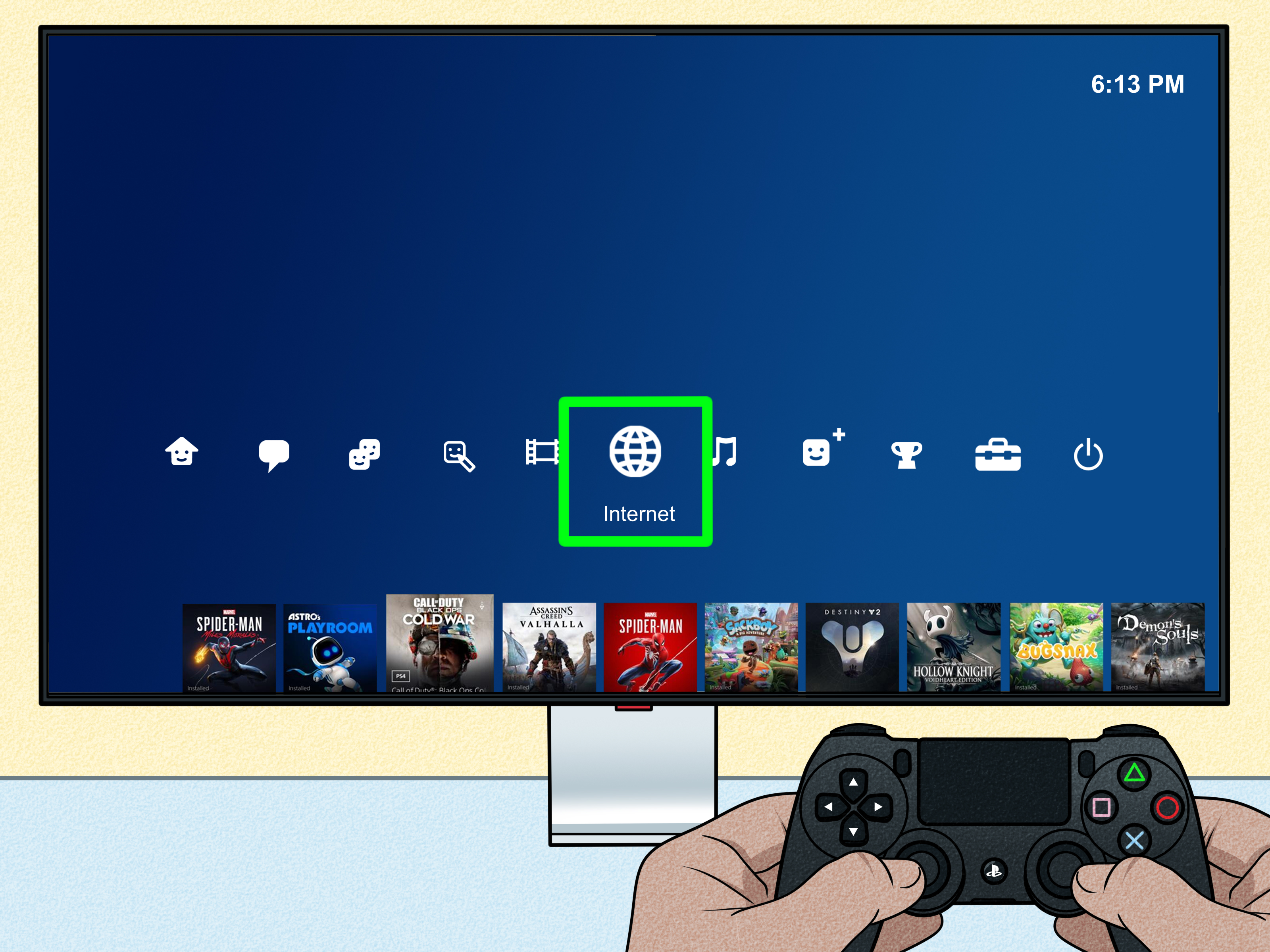

If your PlayStation 4 suddenly refuses to join parties, drops out of multiplayer matches, or behaves like it has developed a personal grudge against your router, there is a good chance your NAT Type is part of the problem. NAT, short for Network Address Translation, controls how easily your PS4 communicates with other consoles, game servers, and PlayStation Network services.
The good news? Fixing NAT Type on PS4 is usually less dramatic than it sounds. You do not need to become a network engineer, wear a headset in a server room, or whisper encouraging words to your modem. In most cases, you simply need to test your connection, clean up your router settings, enable the right features, and make sure your PS4 has a stable path to the internet.
This guide walks you through how to fix the NAT Type on a PlayStation 4 in 10 practical steps. Whether your PS4 shows NAT Type 3, NAT Type Failed, or online games keep complaining about strict network settings, the methods below can help you move toward a smoother, more reliable gaming connection.
What Is NAT Type on PS4?
On PlayStation 4, NAT Type is a network status indicator that shows how your console connects to the internet and how easily it can communicate with other players. You can check it by going to Settings > Network > Test Internet Connection. After the test finishes, your PS4 displays details such as IP address status, internet connection, PlayStation Network sign-in, download speed, upload speed, and NAT Type.
PS4 NAT Type 1
NAT Type 1 means the console is connected directly to the internet without a router acting as a middleman. It is very open, but it is not the setup most home users have. For most people, chasing NAT Type 1 is unnecessary and not worth weakening your home network setup.
PS4 NAT Type 2
NAT Type 2 is the sweet spot for most PS4 players. It means your console is connected through a router, but the connection is open enough for online gaming, voice chat, parties, Remote Play, and matchmaking to work properly. If your PS4 shows NAT Type 2 and your games run well, congratulations: your router is behaving like a responsible adult.
PS4 NAT Type 3
NAT Type 3 is the troublemaker. It usually means your PS4 is behind a strict router, firewall, double NAT setup, or blocked ports. With NAT Type 3, you may have trouble joining multiplayer lobbies, hearing friends in party chat, hosting sessions, or connecting to certain games.
Common Signs Your PS4 NAT Type Needs Fixing
A strict NAT Type can show up in several annoying ways. You might see “NAT Type Failed” during a connection test. You may be able to sign in to PlayStation Network but still fail to join parties. Some games may say your NAT is strict or moderate. Voice chat may cut out. Friends may be able to join other players but not you, which is rude of your network and frankly suspicious.
Before you blame the game, your headset, your internet provider, or the moon phase, run through the steps below. Most PS4 NAT problems come from router configuration, weak Wi-Fi, blocked ports, outdated firmware, or having two devices doing NAT at the same time.
How to Fix the NAT Type on a PlayStation 4: 10 Steps
1. Test Your PS4 Internet Connection First
Start with the simplest step: check what your PS4 is actually reporting. On your PS4 home screen, go to Settings > Network > Test Internet Connection. Wait for the test to finish and look for the NAT Type result.
If you see NAT Type 2, your PS4 network is probably fine from a console-level perspective. If a specific game still reports a strict NAT, the game may require additional ports or may be having server-side issues. If you see NAT Type 3 or NAT Type Failed, continue with the next steps.
Also pay attention to PSN Sign-In, download speed, and upload speed. NAT Type is important, but a weak or unstable connection can cause similar symptoms. If the PS4 cannot sign in to PlayStation Network at all, check whether PlayStation services or your internet provider are experiencing problems before changing router settings.
2. Restart Your PS4, Modem, and Router
Yes, “turn it off and on again” is the oldest tech advice on Earth, but it keeps surviving because it works embarrassingly often. Power off your PS4 completely. Then unplug your modem and router from power for about five minutes. Plug the modem back in first, wait until it fully reconnects, and then plug the router back in.
Once the network is online again, turn on your PS4 and run another connection test. Restarting clears temporary network glitches, refreshes IP assignments, and can resolve router hiccups that make NAT detection fail.
This step is especially useful if your NAT Type suddenly changed even though you did not touch any settings. Routers occasionally get confused. They are tiny computers with blinking lights, not magical internet fountains.
3. Use a Wired LAN Connection If Possible
If your PS4 is connected over Wi-Fi, try using an Ethernet cable instead. Go to Settings > Network > Set Up Internet Connection, choose Use a LAN Cable, and select the easy setup option.
A wired connection does not automatically change NAT Type, but it removes Wi-Fi instability from the troubleshooting process. Weak signal, interference, thick walls, crowded apartment networks, and distant routers can all make online gaming feel broken even when NAT settings are technically fine.
If you cannot use Ethernet permanently, test it temporarily. Move the PS4 near the router for a quick check. If NAT Type or online performance improves on a wired connection, your issue may be partly Wi-Fi related. In that case, consider moving the router, reducing obstacles, using a 5 GHz network if your setup supports it, or adding a better access point.
4. Give Your PS4 a Static IP Address
Port forwarding and DMZ settings work best when your PS4 always has the same local IP address. If the router gives your console a new IP later, your carefully created forwarding rules may point to the wrong device. That is like sending pizza to your old apartment and wondering why dinner never arrives.
You can handle this in two common ways. The cleaner method is to log in to your router and create a DHCP reservation for your PS4. This tells the router to always assign the same IP address to your console. Look for settings named Address Reservation, DHCP Reservation, Static Lease, or Reserved IP.
You can also set a manual IP on the PS4 by going to Settings > Network > Set Up Internet Connection > Custom. Use an IP address within your router’s network range, then enter the subnet mask, default gateway, and DNS settings. For most users, router-based DHCP reservation is easier and less likely to cause mistakes.
5. Enable UPnP on Your Router
UPnP, or Universal Plug and Play, allows devices like your PS4 to request the ports they need automatically. For many home networks, enabling UPnP is the easiest way to move from NAT Type 3 to NAT Type 2.
Log in to your router’s admin page. The address is often something like 192.168.0.1 or 192.168.1.1, but it depends on your router. Look for UPnP under advanced settings, NAT settings, WAN settings, or internet settings. Enable it, save changes, restart the router, and test your PS4 connection again.
UPnP is convenient, but it should be used on a secure home network. Keep your router firmware updated, use a strong Wi-Fi password, and avoid enabling UPnP on networks you do not control. If you prefer a more manual approach, use port forwarding instead.
6. Forward the Required PlayStation Network Ports
If UPnP does not solve the problem, port forwarding is the next major fix. Port forwarding tells your router to send specific PlayStation Network traffic directly to your PS4. This can improve NAT behavior, party chat, matchmaking, and connection reliability.
Common PlayStation Network ports include:
- TCP: 80, 443, 3478, 3479, 3480
- UDP: 3478, 3479
- Additional UDP range sometimes recommended for voice chat and connection issues: 49152-65535
To forward ports, log in to your router and look for Port Forwarding, Virtual Server, NAT Forwarding, or Applications & Gaming. Create rules for the ports above and point them to your PS4’s reserved IP address. Save the settings, restart the router, and run the PS4 internet connection test again.
Do not forward the same port to multiple devices at the same time. If you have more than one console in the house, UPnP may work better than manual forwarding, or you may need game-specific setup.
7. Check for Double NAT
Double NAT happens when two devices on your network are both acting as routers. A common example is an ISP modem-router combo connected to your own Wi-Fi router. Your PS4 then sits behind two layers of translation, which can make NAT stricter and online gaming less reliable.
Signs of double NAT include having two routers, using a mesh system behind an ISP gateway, or seeing private IP ranges on the WAN side of your router. Private IP ranges often start with 192.168.x.x, 10.x.x.x, or 172.16.x.x to 172.31.x.x.
To fix double NAT, place your ISP gateway into bridge mode so your main router handles routing by itself. Another option is to put your mesh or second router into access point mode. If you are not sure which device should be the main router, contact your ISP or router manufacturer. The goal is simple: one network, one router doing NAT, fewer headaches.
8. Avoid Using DMZ Unless You Understand the Trade-Off
Some guides recommend placing the PS4 in the router’s DMZ, which exposes the console more directly to incoming internet traffic. This can sometimes change NAT Type, but it should not be your first choice.
Try UPnP and port forwarding first. They are more targeted and usually safer. If you use DMZ, apply it only to the PS4’s reserved IP address, never to a computer, phone, or device containing personal files. After enabling DMZ, restart the router and test the PS4 connection.
DMZ can be useful as a temporary troubleshooting step. If DMZ fixes the NAT issue, that suggests your router was blocking traffic. You can then turn DMZ off and create proper port forwarding rules instead.
9. Update Router Firmware and Check Firewall Settings
Outdated router firmware can cause connection bugs, UPnP failures, security problems, and random behavior that makes troubleshooting feel like chasing a squirrel through a shopping mall. Log in to your router and check for a firmware update. Some routers update automatically, while others require you to download firmware from the manufacturer’s website.
Also review firewall settings. Look for options such as strict firewall mode, SIP ALG, advanced security filtering, parental controls, or blocked services. Do not disable your firewall entirely unless a support technician specifically recommends it for testing. Instead, look for settings that may block gaming traffic or peer-to-peer connections.
After making changes, restart the router and run another PS4 connection test. Router updates can reset or alter network settings, so confirm your reserved IP and port forwarding rules still exist after the update.
10. Contact Your ISP If NAT Type Still Fails
If you have tried restarting, wired connection, static IP, UPnP, port forwarding, firmware updates, and double NAT fixes but your PS4 still shows NAT Type 3 or NAT Type Failed, your internet provider may be the missing piece.
Some ISPs use carrier-grade NAT, also called CGNAT. This means multiple customers share a public IP address, which can prevent inbound connections from reaching your home router properly. Mobile hotspots, apartment internet, dorm networks, and some fiber or wireless providers may also restrict ports.
Call your ISP and explain that your PlayStation 4 is stuck on NAT Type 3 and you need help with port forwarding, bridge mode, or a public IP address. Ask whether your connection uses CGNAT. If it does, ask whether they offer a public IPv4 address, gaming-friendly configuration, or bridge mode for your modem-router.
Best PS4 NAT Type for Online Gaming
For most players, NAT Type 2 is the goal. It gives your PS4 enough access for multiplayer, voice chat, parties, and PlayStation Network features while still keeping your console behind a router. NAT Type 1 is not required for normal gaming and may not be practical for a home network. NAT Type 3 is the one you want to fix.
It is also important to understand that PS4 NAT Type and in-game NAT messages are not always identical. Your PS4 may show NAT Type 2 while a game such as Call of Duty, Destiny, or another online title still reports a stricter connection. In that case, check that game’s support page for game-specific ports or server status.
Extra Troubleshooting Tips for PS4 NAT Problems
Check PlayStation Network Status
Before changing router settings, make sure PlayStation Network is not down or undergoing maintenance. If PSN is having problems, your local NAT settings may not be the cause.
Do Not Stack Too Many Fixes at Once
Change one setting, restart, and test. If you enable UPnP, forward ports, activate DMZ, change DNS, and reboot three devices all at once, you will not know which setting helped or hurt. Networking rewards patience, which is deeply unfair but true.
Use Router Labels Carefully
Every router brand uses slightly different names. Port forwarding may be called virtual server. DHCP reservation may be called address binding. Bridge mode may be hidden under ISP settings. Read the labels slowly and avoid changing settings you do not understand.
Real-World Experience: What Usually Works Best
In real home setups, the most successful PS4 NAT Type fix is usually a combination of three boring but powerful things: a stable wired connection, a reserved IP address, and either UPnP or correct port forwarding. It is not glamorous. Nobody is making an action movie called “The DHCP Reservation.” But it works.
One common situation looks like this: the PS4 connects over Wi-Fi in a bedroom, far from the router. The internet technically works, but party chat fails and online games complain about strict NAT. The player immediately jumps into port forwarding, spends 45 minutes inside the router menu, and emerges emotionally older. Then they move the PS4 closer to the router or connect Ethernet, and half the problem disappears. Lesson learned: fix connection quality before assuming NAT is the only villain.
Another common experience involves double NAT. Someone has an ISP gateway in the living room and a shiny gaming router plugged into it. Both devices are routing. Both devices are handing out addresses. Both devices believe they are the boss. The PS4, trapped behind this tiny networking power struggle, shows NAT Type 3. Putting the ISP gateway into bridge mode or switching the second router to access point mode often clears things up quickly.
Port forwarding also works well, but only when the PS4’s IP address does not change. Many players forward the correct PlayStation ports once, celebrate briefly, and then discover the issue returns a week later. Why? The router assigned the PS4 a different local IP address. The port rules are still there, but they point to the wrong device. That is why a static DHCP reservation matters. It keeps the rules attached to the console instead of accidentally helping the family printer become weirdly prepared for multiplayer gaming.
UPnP is often the easiest fix for households with multiple consoles. If two PS4 systems, a PS5, or an Xbox share the same network, manual port forwarding can become messy because the same external port usually cannot be forwarded to multiple devices at once. UPnP lets devices request ports dynamically, which is convenient for gaming. However, it should be paired with basic router security: updated firmware, strong admin password, secure Wi-Fi encryption, and no mystery devices on the network.
DMZ is the setting people try when they are tired, desperate, and one failed party invite away from becoming a poet of rage. It can work, but it is better as a diagnostic tool than a permanent first choice. If DMZ fixes NAT Type immediately, you have confirmed the router was blocking traffic. After that, a cleaner solution is to turn DMZ off and use proper port forwarding or UPnP.
The biggest practical tip is to write down what you change. Keep a small note with your PS4 IP address, router login address, ports forwarded, and settings changed. If something breaks later, you can reverse it without guessing. Your future self will appreciate this. Your future self may even forgive you for naming the Wi-Fi network “Pretty Fly for a Wi-Fi.”
Finally, remember that NAT Type is only one part of online gaming performance. It helps with connectivity, matchmaking, and chat, but it does not magically fix slow internet, overloaded Wi-Fi, bad game servers, or high ping to distant regions. A PS4 with NAT Type 2 can still lag if the connection is unstable. The best setup is balanced: NAT Type 2, wired connection when possible, updated router, clean network layout, and enough bandwidth for everyone in the house to coexist peacefully.
Conclusion
Fixing the NAT Type on a PlayStation 4 is mostly about giving your console a clearer path through your home network. Start by testing your connection, restarting your devices, and switching to Ethernet if possible. Then reserve an IP address for your PS4, enable UPnP, or forward the PlayStation Network ports manually. If the problem continues, check for double NAT, update router firmware, and ask your ISP whether CGNAT or blocked ports are involved.
The target for most players is NAT Type 2. It is reliable, router-friendly, and usually perfect for multiplayer gaming, voice chat, and PlayStation Network features. You do not need to chase NAT Type 1 like it is a rare trophy. Fix NAT Type 3, stabilize your connection, and get back to what matters: winning matches, joining friends, and pretending your last defeat was definitely because of lag.