
Getting tagged on Instagram can be fununtil it is not. One minute you are enjoying your coffee, the next minute your cousin tags you in a blurry group photo where you look like you just fought a ceiling fan and lost. Or maybe a spam account tags you in a “Congratulations, you won a luxury giveaway!” post that looks less like a prize and more like a trap wearing sunglasses.
The good news: Instagram gives you several ways to control tagged posts, remove your name from photos or videos, hide tagged content from your profile, and prevent future tag chaos. Whether you want to untag yourself from one awkward post or clean up years of tagged photos, this guide explains exactly how to remove a tag on Instagram using five quick methods.
Below, you will learn the difference between removing a tag and hiding a tagged post, how to manage tags in bulk, what to do about spam tags, and how to stop unwanted tags before they appear on your profile. Let’s rescue your Instagram profile from digital embarrassment, one tag at a time.
What Happens When You Remove a Tag on Instagram?
When you remove a tag on Instagram, your username is disconnected from that post. In most cases, the post will no longer appear in your tagged posts section, and people will not be able to tap the image or video to jump to your profile through that tag.
However, removing your tag does not delete the original post. The photo, reel, carousel, or video still belongs to the person who posted it. If the content is public, people may still see it in feeds, search, Explore, or on the poster’s profile. Removing the tag simply removes your account’s connection to it.
Remove tag vs. hide from profile
These two options sound similar, but they are not the same:
- Remove tag: Takes your username off the post and disconnects your profile from it.
- Hide from profile: Keeps the tag on the post but removes the post from your tagged posts tab.
If you want a clean break, choose remove tag. If you are fine being tagged but do not want the post displayed on your profile, choose hide from profile. Think of it as the difference between leaving a party and simply hiding in the kitchen until the group photo is over.
Method 1: Remove a Tag Directly From the Instagram Post
This is the fastest method when you already know which post tagged you. It works well for a single unwanted tagged photo, reel, or video.
Steps to remove yourself from a tagged post
- Open the Instagram app on your phone.
- Go to the post where you were tagged.
- Tap the photo or video to reveal tags, if they are not already visible.
- Tap your username.
- Select Remove Me From Post or Remove Tag.
- Confirm your choice.
Once confirmed, your tag should disappear from the post. The exact wording may vary slightly depending on your device, app version, and whether the content is a photo, reel, or carousel. Instagram loves moving buttons around like it is redecorating a tiny digital apartment, so do not panic if your screen says “Tag Options” instead of “Remove Me From Post.” The goal is the same.
Best for
This method is best for one-off situations, such as a friend tagging you in a photo you do not like, a brand tagging you without permission, or an old post you no longer want connected to your profile.
Method 2: Remove Multiple Instagram Tags From Your Activity
If your tagged section looks like a museum of questionable choices, removing tags one by one can feel like cleaning a beach with tweezers. Instagram’s activity tools can help you review and remove tags in batches.
Steps to remove tags in bulk
- Open Instagram and tap your profile picture in the bottom-right corner.
- Tap the menu icon in the top-right corner.
- Select Your Activity.
- Tap Tags.
- Tap Select.
- Choose the posts you want to remove yourself from.
- Tap the option to remove yourself from the selected posts.
- Confirm the action.
This is useful when spam accounts tag you repeatedly or when you want to clean up your online image before applying for a job, launching a business, or pretending you have always been a minimalist.
Important tip
Review carefully before removing multiple tags. Once you remove yourself from a post, you may need the original poster to tag you again if you change your mind. For sentimental postsweddings, graduations, family trips, or that one concert where everyone looked sweaty but happyconsider hiding them instead of removing the tag entirely.
Method 3: Hide a Tagged Post From Your Instagram Profile
Sometimes the tag itself is not the problem. Maybe the post is fine, but it does not match your profile vibe. For example, your friend tags you in a chaotic karaoke video. You love your friend. You love the memory. You do not love having “Bohemian Rhapsody: The Screaming Remix” displayed next to your carefully curated travel photos.
In this case, hiding the post from your profile is the better move.
Steps to hide a tagged post
- Go to your Instagram profile.
- Tap the tagged posts icon.
- Open the post you want to hide.
- Tap your username or open tag options.
- Select Hide From My Profile.
The post will disappear from your tagged tab, but your tag may still remain on the original post. People who view the original post may still see your username if the tag remains active.
When hiding is better than removing
Choose hide instead of remove when you do not mind being tagged but want more control over your profile layout. This is especially useful for creators, freelancers, small businesses, influencers, and anyone using Instagram as a personal brand portfolio.
For example, a photographer may want only professional behind-the-scenes tags on their profile, not every casual dinner photo from friends. A fitness coach may prefer tagged client results over random party photos. A business owner may want tagged customer posts visible but hide irrelevant promotional tags.
Method 4: Turn On Manual Tag Approval
If you are tired of removing unwanted Instagram tags after the damage is done, turn on manual tag approval. This setting lets you review tagged posts before they appear on your profile. It is like installing a tiny velvet rope outside your tagged tab.
Steps to manually approve Instagram tags
- Open Instagram and go to your profile.
- Tap the menu icon in the top-right corner.
- Go to Settings and privacy.
- Find the section related to Tags and mentions or How others can interact with you.
- Tap Tags.
- Turn on Manually Approve Tags.
After this setting is enabled, tagged posts should not automatically appear on your profile. You can still be notified when someone tags you, but you decide whether that post gets a spot in your tagged section.
Why this method matters
Manual approval is one of the best Instagram privacy settings for people who receive frequent tags. It is helpful for public accounts, creators, students, professionals, business owners, and anyone who has ever thought, “Why am I tagged in a sneaker giveaway from an account with three followers and a suspicious logo?”
Manual approval does not stop everyone from tagging you, but it gives you control over what appears on your profile. Pair it with stricter tag permissions for even better protection.
Method 5: Control Who Can Tag or Mention You
Removing tags is useful. Preventing unwanted tags is better. Instagram lets you adjust who can tag or mention your account in posts, comments, captions, and stories.
Steps to change tag and mention settings
- Open Instagram and go to your profile.
- Tap the menu icon.
- Choose Settings and privacy.
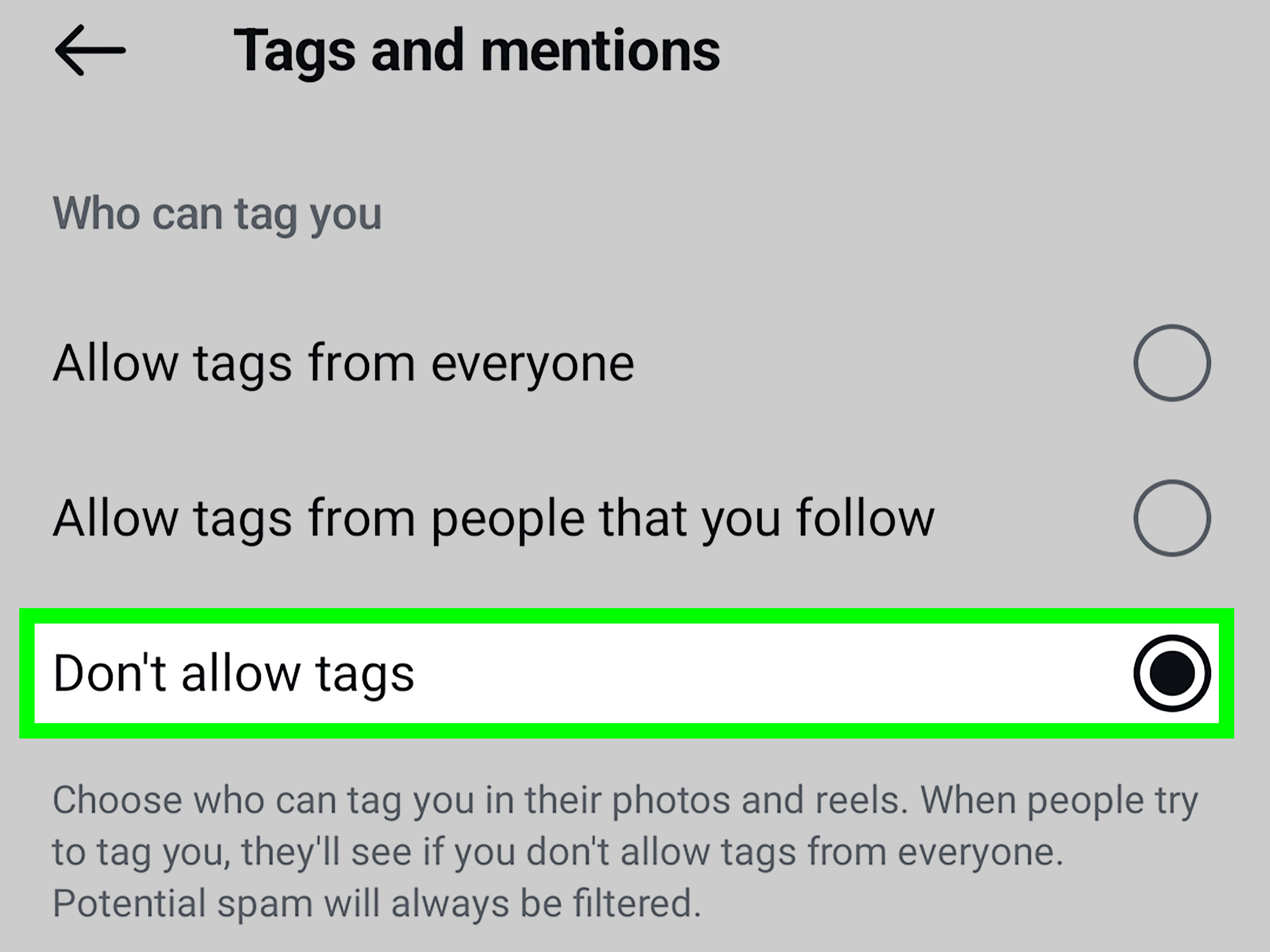
- Go to Tags and mentions.
- Choose who can tag you: everyone, people you follow, or no one.
- Choose who can mention you: everyone, people you follow, or no one.
For most users, “People you follow” is a practical middle ground. It allows friends, colleagues, and accounts you trust to tag you while reducing spam from random accounts. If tagging has become a serious privacy or harassment issue, choose “No one” for stronger control.
Tags vs. mentions
A tag usually connects your profile to a photo, video, reel, or carousel. A mention usually happens when someone types your username in a caption, comment, or story. Both can send people to your profile, but they appear in different places and may have different controls.
If someone keeps mentioning you in stories or comments, changing tag settings alone may not fix the issue. Update mention settings too. Instagram privacy is like locking a house: closing the front door is great, but maybe check the windows.
What to Do If You Are Tagged in Spam or Harassing Content
Spam tags are common on Instagram. They may promote fake giveaways, suspicious investment schemes, adult content, counterfeit products, or impersonation accounts. If a tag feels unsafe, do more than remove it.
Report the post or account
Open the post, tap the three-dot menu, choose Report, and follow the on-screen instructions. Reporting is appropriate when the content involves harassment, impersonation, scams, hate speech, nudity, threats, or other policy violations.
Block or restrict repeat offenders
If the same account keeps tagging you, visit the profile and use the options menu to block or restrict it. Blocking is stronger; restricting is quieter. For spam accounts, blocking is usually the cleaner choice. Nobody needs a fake crypto guru repeatedly tagging their brunch photos.
Delete or approve spam tag requests
Instagram may identify some tag requests as potential spam. Review these requests and delete anything suspicious. If you manage a public or creator account, make this part of your regular profile maintenance routine.
Can You Remove a Tag From Someone Else’s Instagram Story?
Story mentions are trickier than standard post tags. If someone mentions your username in a story, you may not always have the same simple “remove tag” option that exists for tagged posts. Your best options are to ask the person to delete or edit the story, report the story if it violates Instagram rules, block the account, or change who can mention you in the future.
Because stories disappear after 24 hours unless saved to highlights, time may solve some minor annoyances. But if the story is abusive, private, misleading, or harmful, do not wait. Report it and protect your account settings.
Why You May Not See the Remove Tag Option
If you cannot find the remove tag option, do not assume you are doomed to live forever inside that awkward photo. Several things may be happening:
- The Instagram app needs an update.
- You are viewing Instagram on desktop, where tag controls may be limited.
- The tag is actually a mention in a caption, comment, or story.
- The post was deleted or made private.
- You are not logged into the tagged account.
- Instagram has changed the menu wording in your app version.
Try updating the app, switching to the mobile app, opening the post from your tagged tab, or checking your activity settings. If the content is harmful and the remove option is not available, use the report feature.
Best Practices for Managing Instagram Tags
Review your tagged tab regularly
Check your tagged posts once or twice a month. This is especially important if your profile is public, you run a brand account, or you receive frequent tags from customers, friends, followers, or spam bots.
Use manual approval for a cleaner profile
Manual approval helps you keep your tagged section intentional. It is a small setting that can save a lot of future cleanup.
Do not overreact to every tag
Not every imperfect tag needs to be removed. Sometimes a less-than-perfect photo is part of a real memory. Use removal for privacy, safety, reputation, or relevancenot just because your left eyebrow looked surprised.
Communicate when needed
If a friend tags you in something uncomfortable, a polite message often works better than silent frustration. Try: “Hey, could you remove my tag from that post? I’m trying to keep my profile a little more private.” Simple, clear, and less dramatic than a group chat courtroom trial.
Common Mistakes to Avoid
Confusing hashtags with account tags
A hashtag, such as #travel or #food, is not the same as tagging your username. You cannot remove a hashtag from someone else’s caption unless they edit the post. You can remove only your account tag or manage mentions depending on the situation.
Thinking hiding removes the tag
Hiding a post from your profile does not always remove your tag from the original post. If you want your profile disconnected from the content, remove the tag.
Ignoring spam patterns
If you keep getting tagged by suspicious accounts, do not just remove each tag. Change your tag settings, report spam, and block repeat accounts.
Using desktop only
Some Instagram tag management options are easieror only availablein the mobile app. For best results, use the latest version of Instagram on iPhone or Android.
Experience-Based Tips: What Removing Instagram Tags Is Really Like
In real life, removing a tag on Instagram is usually simple, but deciding whether to remove it can be surprisingly emotional. A tag is not just a technical link; it can feel like a tiny public endorsement. When your name appears on a post, people may assume you approve of it, participated in it, or want it attached to your profile. That is why tag management matters, especially if you use Instagram for work, networking, content creation, or personal branding.
One common experience is the “friend photo dilemma.” A friend posts a group picture from a party, tags everyone, and you immediately notice that you are blinking, chewing, or standing at the exact wrong angle. Removing the tag may feel rude, but it is completely reasonable to control your own profile. A good approach is to hide it from your profile first if the photo is harmless. If the photo is embarrassing, misleading, or too personal, remove the tag and send a friendly message if needed. Most people understand.
Another common situation involves business or creator accounts. Brands often get tagged in unrelated posts by people hoping to attract attention. At first, this may seem harmless, but over time your tagged tab can become messy and off-brand. For businesses, removing irrelevant tags is not vanity; it is maintenance. A clean tagged section helps visitors quickly understand what your brand does, what customers say about you, and what content is genuinely connected to your work.
Spam tags are the most annoying experience. These often come from accounts promoting fake contests, suspicious investments, or random products. Removing the tag solves the immediate problem, but it does not stop the pattern. The better fix is to limit who can tag you, turn on manual approval, and report obvious spam. After doing this, many users notice a cleaner notification inbox and fewer unwanted profile associations.
There is also a privacy angle. You may not want your location, social circle, workplace, school, or routine revealed through tagged posts. For example, a friend may tag you at a restaurant while you are still there, or a coworker may tag you at an event you prefer to keep private. In these cases, removing the tag is not overthinkingit is basic digital boundary-setting.
The best habit is to treat Instagram tags like your closet. Keep what fits, hide what is sentimental but not profile-worthy, and remove what makes you wonder, “Why is this here?” Your Instagram profile does not need to be perfect, but it should feel like it belongs to you.
Conclusion
Learning how to remove a tag on Instagram gives you more control over your profile, privacy, and online reputation. The fastest option is to open the tagged post, tap your username, and remove yourself. For bigger cleanup jobs, use Your Activity to remove tags in bulk. If you do not want to fully untag yourself, hide the post from your profile instead.
For long-term control, turn on manual tag approval and adjust who can tag or mention you. If tags are spammy, abusive, or unsafe, report the content and block the account. Instagram tags can be useful, but they should never make your profile feel like a bulletin board anyone can decorate without permission.
With a few quick settings, you can keep the good memories, remove the awkward ones, and stop spam tags from treating your profile like free advertising space. Your tagged tab deserves peace. So do you.