
If you have ever stared at a giant Excel sheet and thought, “Somewhere in this digital haystack is the word I need,” welcome to the club. Microsoft Excel is brilliant at organizing data, but when your worksheet starts looking like a phone book crossed with a tax form, finding a specific word can feel like trying to locate one jellybean in a swimming pool.
The good news is that searching for words in Excel is actually easy once you know where the tools live and how to use them properly. Whether you are hunting for a customer name, an invoice number, a product code, or that one mysterious cell containing the word urgent, Excel gives you several simple ways to find what you need fast.
In this guide, you will learn the five simple steps to search for words in Microsoft Excel, plus a few extra tips that make you look like the office wizard who “just knows Excel.” We will also cover smart search options, common mistakes, and a few formula-based tricks for when the built-in Find tool is not quite enough.
Why Knowing How to Search in Excel Matters
Searching in Excel is not just about saving time, although it absolutely does that. It also helps reduce mistakes. When you manually scan rows and columns, your eyes can skip over matches, especially in large spreadsheets. That is how “West Region” becomes “Where on earth did the report go?”
Using Excel’s search tools helps you:
- Find words, phrases, and numbers quickly
- Search within one column, one sheet, or an entire workbook
- Locate exact matches or partial matches
- Replace repeated text safely
- Search inside formulas, values, notes, or comments
In other words, this is one of those small Excel skills that pays you back every single week.
The 5 Simple Steps to Search for Words in Microsoft Excel
Step 1: Decide Where You Want to Search
Before you open any search box, decide what area of the workbook you actually want Excel to check. This step is easy to ignore, but it matters more than people think.
If you click a single cell and search normally, Excel can search the current worksheet or even the entire workbook, depending on the option you choose later. But if you first select a specific range, such as column B or a product list in cells A2:A500, you can limit the search to that selection. That makes your results cleaner and faster.
For example, imagine you are working with a staff directory and only want to search the “Department” column for the word Marketing. Selecting that column first prevents Excel from also finding the word in email addresses, notes, or random titles elsewhere on the sheet.
Think of this step as telling Excel, “Search here, not everywhere like an overexcited puppy.”
Step 2: Open the Find Tool
Now open the search feature. The fastest method is the keyboard shortcut:
Press Ctrl + F
This opens Excel’s Find and Replace dialog box on the Find tab. You can also get there manually by going to:
Home > Find & Select > Find
Once the box appears, you are ready to search for a word, phrase, or number.
This tool works beautifully for everyday searches like:
- Finding the word refund in a sales log
- Locating a customer name such as Jackson
- Searching for a code like INV-2049
- Tracking terms such as completed, pending, or overdue
If you only remember one shortcut from this article, make it this one. Ctrl + F is the spreadsheet equivalent of turning on the lights.
Step 3: Type the Word You Want to Find
In the Find what box, type the word or phrase you want Excel to search for. This can be a full word, part of a word, a number, or even a special pattern if you use wildcards.
Here are a few examples:
- apple to find a product or brand name
- North to find cells containing North Region or North Warehouse
- 2026 to locate year values in text or numbers
- SKU- to find product IDs that begin with a prefix
After typing your term, click Find Next to jump to the first match, or choose Find All to display a list of every match Excel finds.
Find Next is great when you want to inspect results one at a time. Find All is better when you want the big picture. If your worksheet contains the word invoice 43 times, Find All saves you from clicking like a woodpecker on espresso.
Step 4: Use Search Options to Narrow the Results
This is where Excel goes from useful to seriously helpful.
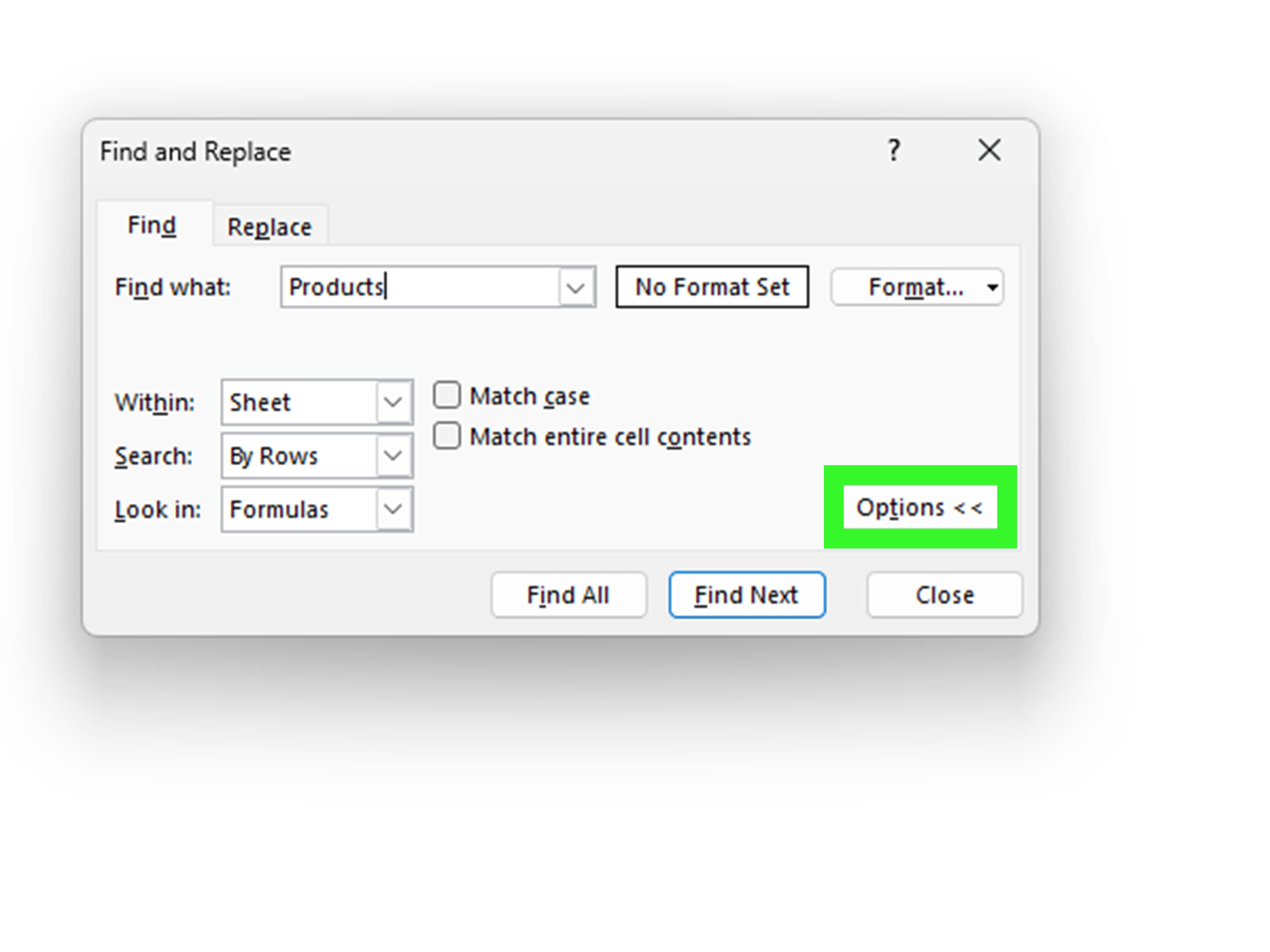
Click Options in the Find dialog box, and you will see several advanced search settings. These let you control exactly how Excel searches.
Within
Choose whether to search the current Sheet, the entire Workbook, or a Selection when that option is available. If your workbook has multiple tabs, this setting can save a huge amount of time.
Search
You can search By Rows or By Columns. In most cases, the default works fine, but if your data is arranged vertically in a very specific way, changing the direction can make navigation feel more logical.
Look in
This option is especially handy. You can tell Excel to search in:
- Formulas
- Values
- Notes
- Comments
That means if a word appears inside a formula result or tucked away inside a comment, Excel can still help you find it.
Match case
Check this box if capitalization matters. For example, searching for US with Match case turned on will treat it differently from us.
Match entire cell contents
Use this when you want only exact matches. If you search for Plan and this option is unchecked, Excel may also find Planning or Project Plan. If it is checked, Excel looks only for cells that contain exactly Plan.
This option is a lifesaver when your sheet has similar labels and you do not want false matches cluttering your results.
Step 5: Review Results or Replace the Word
Once Excel finds your word, you have two basic choices: review it or replace it.
If you are only searching, keep using Find Next to move through each result. If you chose Find All, Excel displays every match in a list. You can click any item in that list to jump straight to the matching cell. That is extremely useful in large worksheets because it turns your search results into a mini navigation panel.
If you want to change the word, open the Replace tab by pressing Ctrl + H. Then:
- Enter the old word in Find what
- Enter the new word in Replace with
- Choose Replace for one-by-one changes
- Choose Replace All for every match at once
Be careful with Replace All. It is fast, efficient, and slightly dramatic. If you replace Bio with Biology, Excel may also turn Biomedical into something weird if your settings are too broad. When precision matters, replace one result at a time.
Useful Search Tricks in Excel
Use Wildcards for Flexible Searches
Excel supports wildcard characters, which are handy when you only know part of a word or pattern:
- ? matches a single character
- * matches any number of characters
- ~ lets you search for a literal question mark, asterisk, or tilde
Examples:
- s?t can find sat or set
- inv* can find invoice, inventory, or INV-2049 if the text fits
- fy91~? can find the actual text fy91?
Wildcards are excellent when your data is messy, inconsistent, or clearly maintained by several humans and one raccoon.
Search with Formulas When You Need Ongoing Results
The Find dialog is great for one-time searches, but formulas are better when you want search results to remain visible in the worksheet.
Use SEARCH for case-insensitive matches
If cell A2 contains text and you want to check whether it includes the word refund, use:
=ISNUMBER(SEARCH("refund",A2))
This returns TRUE if the word appears anywhere in the text and FALSE if it does not. Because SEARCH is not case-sensitive, Refund, REFUND, and refund all count.
Use FIND for case-sensitive matches
If capitalization matters, use:
=FIND("SKU",A2)
This returns the starting position of SKU if it exists exactly in that case. If Excel cannot find it, the formula returns an error unless you wrap it in something like IFERROR.
Use SUBSTITUTE or REPLACE for formula-based edits
If you need to update text with formulas instead of overwriting original data, try:
=SUBSTITUTE(A2,"St.","Street")
That is useful when you want a cleaned-up version of the data in a new column instead of changing the original worksheet immediately.
Common Mistakes to Avoid
Searching the Wrong Scope
If Excel “cannot find” something you know exists, check whether you limited the search to a selection or left it on the current sheet instead of the whole workbook.
Ignoring Match Case
Sometimes the issue is not the word. It is the capitalization. If your data uses codes like HR and hr differently, the Match case setting matters.
Using Replace All Too Soon
Never launch Replace All like a superhero pressing a red button unless you are certain the results are safe. One overly broad replacement can turn a clean sheet into a very educational mistake.
Forgetting That Formulas and Values Are Different
A cell may display one thing but contain another. If your search result looks odd, check whether you searched in Values versus Formulas.
Real-World Examples
Let’s say you manage a monthly sales report with 15,000 rows. A manager asks you to find every record that includes the word returned. Instead of scanning forever, you select the relevant status column, press Ctrl + F, type returned, and click Find All. In seconds, you have every matching row.
Or maybe you maintain an employee spreadsheet and need to change Operations to Business Operations. Ctrl + H gets the job done. Use Replace one result at a time if you suspect related words like Operational might also appear.
If you are cleaning imported data, formulas can help even more. Suppose your sheet contains addresses with St. in some rows and Street in others. A SUBSTITUTE formula lets you standardize the text without risking the original data.
Experience-Based Insights: What It Feels Like to Use These Excel Search Steps in Real Life
Here is the truth nobody says out loud: learning how to search for words in Excel feels small until the exact moment it saves your afternoon.
A very common experience happens in busy workplaces where spreadsheets grow faster than anyone expected. A file starts out as a neat little tracker with twenty rows. Then it becomes a weekly report. Then a monthly archive. Then somehow it turns into a monster workbook with seven tabs, hidden columns, and formatting choices made during what was clearly a stressful Tuesday. That is when Excel search skills stop being “nice to know” and start being survival gear.
One of the most relatable moments comes when someone says, “Can you just find every row that mentions canceled orders?” If you do not know the Find tool, you start scrolling. Scrolling becomes squinting. Squinting becomes regret. But with the five-step method, the job suddenly feels controlled. You select the right range, search the word, pull up all matches, and move on with your dignity intact.
Another real-life experience is discovering how much cleaner your thinking becomes when you use exact search options. At first, many people search too broadly and get confused by dozens of irrelevant results. Then they learn to use Match entire cell contents or search within a selected column, and everything clicks. It feels less like wrestling with Excel and more like giving it clear instructions for once.
There is also a confidence boost that comes from learning formula-based search methods. The first time you use =ISNUMBER(SEARCH("urgent",A2)) and watch Excel instantly flag matching rows, it feels like you graduated from “I use spreadsheets” to “I command spreadsheets.” Dramatic? Yes. Fair? Also yes.
People also tend to remember the first time Replace All goes slightly off the rails. It is almost a rite of passage. You mean to replace one short label, and suddenly half the sheet has been “helpfully improved” into nonsense. Oddly enough, that experience is useful. It teaches caution, reinforces the habit of reviewing results, and makes the safer one-by-one Replace option look much more attractive.
In schools, offices, small businesses, and home budgets, the experience is usually the same: once you know how to search properly in Excel, the whole workbook feels less intimidating. Large data stops looking like a wall of random cells and starts feeling searchable, manageable, and much less likely to ruin your mood before lunch.
That is why this skill matters. It is not flashy. It will not make your spreadsheet play jazz. But it quietly removes friction from real work, and that is exactly the kind of Excel knowledge people end up using again and again.
Final Thoughts
If you want to search for words in Microsoft Excel quickly, the process is refreshingly simple: choose your range, open Find, type the word, refine the options, and review or replace the results. That is it. Five simple steps, zero spreadsheet sorcery required.
Once you are comfortable with the built-in Find and Replace tool, you can go even further with wildcards, exact-match options, and formulas like SEARCH, FIND, and SUBSTITUTE. Together, these features make Excel much easier to navigate, especially when your worksheets get large, messy, or mysteriously “shared with edits from everyone.”
Master this one skill, and future-you will spend less time hunting through cells and more time actually getting things done. Excel may still be Excel, but at least now it has fewer places to hide your words.
SEO Tags