
If you have ever seen a pop-up screaming that a DLL file is missing, congratulations: Windows has invited you to one of its least fun parties. The name sounds intimidating, a little robotic, and just mysterious enough to make people search for random downloads on sketchy corners of the internet. That is usually where things go from “annoying error” to “why is my antivirus sweating?”
So, what is a DLL file, really? In plain English, a DLL file is a shared library used by Windows programs. Instead of stuffing every app with its own copy of the same code, developers can store common functions in one reusable file and let multiple programs call on it when needed. It is efficient, modular, and very smart. It is also the reason one broken dependency can make an app act like it has forgotten how to put on its shoes.
This guide explains what a DLL file is, how Dynamic Link Library files work, why DLL errors happen, how to fix them safely, and why DLLs still matter to both everyday users and developers. No panic, no shady downloads, and no need to become a Windows archaeologist.
What Is a DLL File, Exactly?
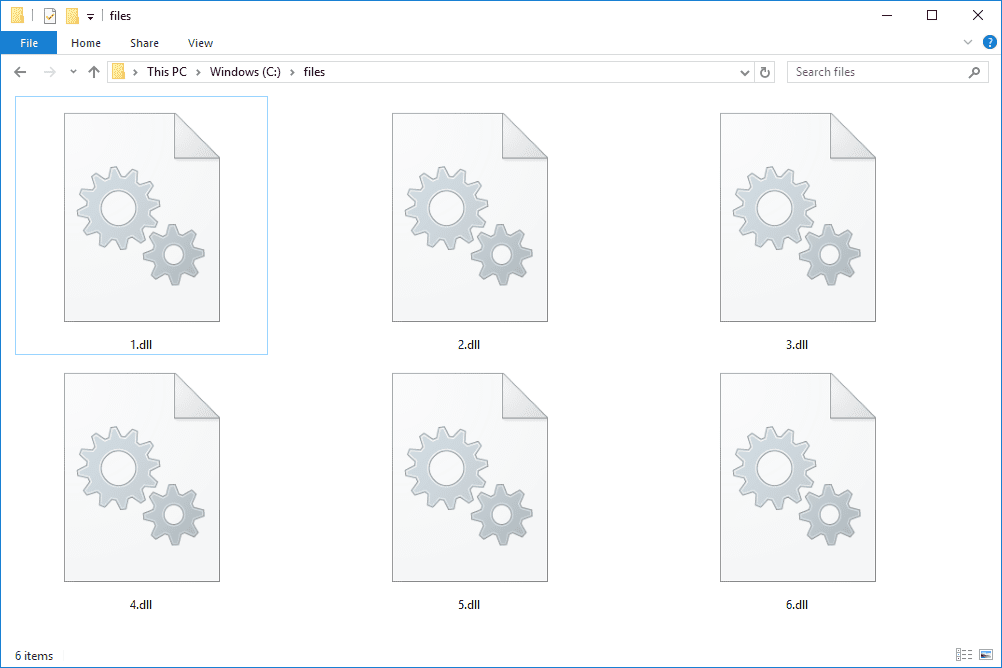
A DLL file, short for Dynamic Link Library, is a file that contains code, data, or resources that other programs can use. Think of it as a shared toolbox. Instead of every application building its own hammer, screwdriver, and wrench from scratch, several programs can use the same toolbox when they need a specific function.
In Windows, DLL files often provide common features such as dialog boxes, printing support, graphics routines, database access, device communication, and other background services. Some DLLs contain executable code. Others are resource-focused and store things like icons, menus, strings, or dialog templates. That means a DLL is not always just “program logic in a box.” Sometimes it is the backstage crew handling localization and interface assets while the main application takes the spotlight.
The key idea is that a DLL is usually not a standalone program like an EXE file. You do not typically double-click a DLL and watch it spring to life like a cheerful app. A DLL is meant to be loaded by another program, by Windows itself, or by a helper process designed to host shared components.
How DLL Files Work in Windows
Shared code saves space and memory
The biggest reason DLL files exist is efficiency. If five programs need the same function, Windows does not have to store five separate copies inside five separate EXE files. A single shared library can do the job. That reduces duplication, keeps applications smaller, and can improve memory usage when multiple programs rely on the same library.
Dynamic linking means “load it when needed”
The “dynamic” in Dynamic Link Library matters. Programs can connect to DLL functions either when the application starts or later while it is already running. That makes software more flexible. A feature can stay unloaded until you click a button, open a menu, or trigger a task. In other words, your app does not have to drag every possible function into memory before breakfast.
Exports and imports do the handshaking
Most DLL-based communication works through exported functions and imported references. The DLL exposes certain functions, variables, or resources, and the application calls them when needed. From the user side, all of this is invisible. From the software side, it is a carefully choreographed handshake that says, “You do the camera stuff, I’ll handle the rest.”
DLL vs. EXE vs. LIB: What Is the Difference?
Here is the quick version. An EXE is a program you can run directly. A DLL is a shared module that another program loads and uses. A LIB file is usually a static library or an import library used during building and linking software.
That difference matters because users often treat DLL files like mini-apps that can be swapped in and out without consequences. Sometimes that works. Often it does not. A DLL may depend on a specific version, architecture, runtime package, registry entry, or application folder structure. Replace it carelessly and your software may respond like you swapped a violin string with spaghetti.
Common Examples of DLL Use
DLL files appear all over Windows. System components rely on them. Desktop software relies on them. Creative tools, games, utilities, and enterprise apps rely on them too. Here are a few common scenarios:
Shared Windows features
Many standard Windows capabilities are exposed through DLLs. Common dialog boxes, printing routines, input handling, graphics support, and other familiar tasks are often delivered through shared libraries instead of being hard-coded into every program.
Visual C++ runtime dependencies
Some applications require Microsoft Visual C++ Redistributable packages because those packages provide runtime DLLs the app expects to find. When a message says something like MSVCP110.dll or MSVCR110.dll is missing, the real issue is often not “find this single file somewhere online.” It is “install the correct official runtime package that belongs with this app.”
Resource-only DLLs
Some DLLs carry only resources such as icons, strings, menus, and dialog boxes. These are useful for localization and interface sharing. A single program can support multiple languages or themes without rebuilding the core application every time.
COM and in-process components
Certain DLLs act as in-process servers for COM or OLE components. These are the DLLs people often mean when they talk about registration and regsvr32. But this is important: not every DLL needs to be registered. That command is for specific component types, not a universal magic spell.
Why Missing DLL Errors Happen
DLL errors are usually symptoms, not the root problem. The message may say a file is missing, but the real cause can vary quite a bit.
The application was installed incorrectly
If setup did not complete properly, the software may never have placed the right DLL where it belongs. Corrupted installers, interrupted installs, or half-finished updates can all cause this.
The wrong runtime package is missing
Many programs depend on Microsoft runtime libraries. If the correct Visual C++ Redistributable package is not installed, the app may complain about a missing DLL even though the deeper issue is a missing dependency set.
The DLL search path found the wrong file
Windows uses a search order when loading DLLs. If an application does not specify a full path and multiple versions exist in different places, it may load the wrong one. This can lead to version conflicts, launch failures, or the famous “entry point not found” style of error.
System files are corrupted
Some DLLs belong to Windows itself. If those files are damaged, deleted, or altered, the operating system or connected apps can break. In those cases, built-in repair tools are safer than downloading random replacements.
Malware or tampering is involved
Because DLLs can be loaded by trusted software, attackers sometimes abuse them. That is one reason unofficial DLL download sites are a terrible idea. A file that looks helpful can be outdated, incompatible, or malicious.
How to Fix DLL Errors Safely
If you are troubleshooting a DLL problem, resist the urge to download the exact file from the first site that promises salvation. That shortcut is famous for creating bigger headaches. Use this safer approach instead.
1. Reinstall the affected program
If the DLL belongs to a specific app, reinstalling that app is often the cleanest fix. It restores the right files, folder layout, and supporting components.
2. Install the official runtime package
If the error references common Microsoft runtime DLLs, install the correct Visual C++ Redistributable from Microsoft. This solves many “missing DLL” issues far more reliably than copying a single file into System32 and hoping for the best.
3. Run Windows repair tools for system DLLs
If the problem appears to involve Windows system files, use System File Checker and, if needed, DISM. These tools are designed to scan for corruption and restore missing or damaged system components.
4. Update Windows and drivers
Compatibility issues can cause DLL-related failures too. Installing current Windows updates and relevant device drivers may resolve conflicts that look like missing-library problems on the surface.
5. Scan for malware
If the error appears suddenly, especially after a suspicious download, browser extension, or cracked software install, run a reputable malware scan. Some DLL problems are less “oops” and more “your PC picked up a hitchhiker.”
6. Use regsvr32 only when it actually applies
For certain COM or OLE components, registration matters. But blindly registering every DLL in sight is not smart troubleshooting. Many DLLs are not meant to be registered at all. If vendor instructions specifically call for regsvr32, follow them. Otherwise, treat it as a specialized tool, not a universal cure.
7. Avoid DLL download sites
This deserves its own drumroll: do not download random DLL files from unofficial websites. You may get the wrong version, the wrong architecture, or something malicious wearing a fake mustache. Fix the source problem instead of patching over it with a mystery file.
Can You Open, Edit, or Delete a DLL File?
You can inspect some DLL files with developer tools, dependency viewers, PE analyzers, or resource editors. Developers may open DLLs to examine exports, resources, or version information. But for regular users, DLL files are not documents meant for casual editing.
Editing or deleting DLL files manually is risky. A library may be shared across multiple applications, so removing it can break more than the program you were trying to fix. This is especially dangerous inside Windows system directories, where one bold move can turn a tiny annoyance into a full-system drama.
Are DLL Files Dangerous?
DLL files themselves are not inherently dangerous. They are normal, essential parts of Windows software. The danger comes from where the file came from, what loads it, and whether it has been tampered with.
A legitimate DLL from Microsoft or a trusted software vendor is routine. A DLL downloaded from a random forum post named something like totally-safe-dll-fix-2026.zip is a different story. Attackers can disguise malicious code as a needed library or exploit unsafe loading behavior to sneak rogue DLLs into an application’s search path.
That is why safe DLL search mode, proper application packaging, side-by-side assemblies, and official installers matter so much. They help Windows and software vendors load the right file from the right place.
For Developers: Why DLLs Still Matter
DLLs remain important because they support modular design. Developers can separate core functions into reusable components, update features independently, reduce repeated code, and share resources across applications. Resource-only DLLs help with localization. Side-by-side technologies help reduce version conflicts. Import libraries and runtime binding give teams flexible ways to structure applications.
That said, DLLs also require discipline. Versioning, architecture mismatches, search order, dependency management, and backward compatibility all matter. Poor packaging can create the classic “DLL hell” scenario where installing one program quietly breaks another. Better deployment practices, manifests, and isolated assemblies have improved things a lot, but the old lesson still stands: shared code is wonderful until everyone starts sharing the wrong version.
Real-World Experiences With DLL Files
For many users, their first experience with a DLL file is not educational. It is emotional. Usually the emotion is confusion, followed by irritation, followed by a very specific kind of internet search typed with too much force: “what is msvcp110.dll and why is my game ruining my evening.” That pattern is incredibly common because DLL files stay invisible right up until something goes wrong.
One of the most common real-world experiences is installing a program that looks perfectly fine, only to have it fail on launch with a missing DLL error. The user assumes the installer is broken. Sometimes it is. But often the app depends on a runtime package that was never installed, was removed, or was damaged by another update. In that moment, the DLL file becomes the messenger getting blamed for a problem it did not create. Classic workplace behavior, honestly.
Another frequent experience happens in office or school environments. A shared app works on one computer but not another, even though the software version appears identical. The difference may come down to architecture, search path behavior, a missing redistributable, or an older copy of a library sitting in the wrong folder. These situations feel random to users, but to IT staff they are familiar detective stories. The clue is almost never the pop-up alone. The clue is in the environment around it.
Developers have their own DLL stories, and many of them involve one build working flawlessly on a development machine but failing everywhere else. Why? Because the developer’s computer already had the right dependencies installed, registered, cached, or lying around from other tools. The test machine does not. That is when a “works for me” moment crashes into reality and everyone suddenly becomes interested in packaging, manifests, and deployment checklists.
There is also the dreaded experience of trying to “fix” a DLL problem by copying files manually between folders. It feels efficient for about seven minutes. Then a different program breaks, or the same program throws a new error about an entry point not being found, or Windows starts acting suspiciously dramatic. People remember those moments because they learn an important lesson: DLL problems are rarely solved well by random file shuffling.
On the positive side, many users also discover that DLL issues are more manageable than they first appear. Reinstalling the app, installing the correct Visual C++ package, running SFC and DISM, or following vendor documentation often resolves the problem cleanly. The scary filename stops feeling like a black box and starts feeling like what it actually is: one component in a larger software system.
That shift in understanding matters. Once users realize a DLL file is a shared library rather than a mysterious virus-shaped object, troubleshooting becomes calmer and smarter. And calmer troubleshooting is good for everybody, especially the person who nearly downloaded “ultra-fast-fix-dll-pro.exe” from a website that looked like it was built during a power outage.
Final Thoughts
A DLL file is a reusable Windows library that lets programs share code, data, and resources instead of duplicating the same features over and over. That design makes software more modular, more efficient, and easier to maintain. It also means DLL problems can ripple outward when a dependency goes missing, the wrong version gets loaded, or system files become corrupted.
The smartest approach is simple: understand what the DLL is doing, fix the source of the problem, and avoid random downloads that promise a miracle. When handled properly, DLL files are not scary at all. They are just one of the quiet systems that help Windows software work behind the scenes, like stagehands in black shirts making sure the show starts on time.