
Installing Spotify on a Mac should not feel like preparing a rocket launch. You want music, podcasts, playlists, maybe a suspiciously accurate “sad indie road trip” mix, and you want it now. The good news: downloading and installing Spotify on macOS is simple when you use the official Spotify installer and know what to click.
This guide walks you through how to download Spotify on a Mac, install the desktop app, sign in, adjust your settings, fix common problems, and decide whether the Spotify desktop app is better than the web player. Whether you are setting up a brand-new MacBook Air, refreshing an older iMac, or reinstalling Spotify because the app has started acting like a moody jukebox, you will find everything you need here.
Before You Download Spotify on a Mac
Before clicking anything, confirm that your Mac can run the current Spotify desktop app. Spotify’s current Mac requirement is OS X 12.0 or above. In plain English, if your Mac is running macOS Monterey or newer, you should be in good shape. If your Mac is stuck on an older version, the installer may refuse to open, fail silently, or send you on an emotional side quest through outdated forum threads.
Check Your macOS Version
To check your version, click the Apple menu in the top-left corner of your screen, choose About This Mac, and look for the macOS name and version number. If your version is too old, go to System Settings and check General > Software Update. Updating macOS can improve app compatibility, security, and performance, so it is worth doing even if Spotify is not the only reason.
You should also make sure you have a stable internet connection, enough storage space, and permission to install apps on the Mac. If you are using a school or work computer, installation may be blocked by an administrator. In that case, do not fight the Mac like it owes you money; ask your IT department for help.
How to Download Spotify on a Mac
The safest way to download Spotify for Mac is through Spotify’s official download page. Avoid random “free Spotify installer” websites. They may look helpful, but downloading apps from unknown sources is how your Mac ends up with surprise software, fake cleaners, or browser extensions that behave like tiny digital raccoons.
Step 1: Go to the Official Spotify Download Page
Open Safari, Chrome, Firefox, or your preferred browser. Search for “Spotify download Mac” and choose the official Spotify result, or go directly to Spotify’s download section from the Spotify website. The page should automatically detect that you are using a Mac and offer the Mac installer.
Step 2: Click Download
Click the Download button. Your browser will download the Spotify installer file, usually to your Downloads folder. Depending on your browser settings, you may see the file at the bottom of the window, in the toolbar, or inside the Downloads list.
Step 3: Open the Downloaded File
Once the download finishes, open Finder and click Downloads. Look for the Spotify installer file. Double-click it. macOS may ask whether you are sure you want to open something downloaded from the internet. If the file came from Spotify’s official site, click Open.
How to Install Spotify on a Mac
After opening the installer, follow the on-screen instructions. The exact visual layout can change slightly over time, but the basic Mac installation process is usually familiar: open the installer, move the app into Applications, and launch it from there.
Step 1: Move Spotify to Applications
If the installer opens a window showing the Spotify app icon and the Applications folder, drag the Spotify icon into Applications. This copies the app to the correct location on your Mac. Installing it there keeps things tidy and makes Spotify easy to find from Finder, Launchpad, Spotlight, and the Dock.
Step 2: Open Spotify
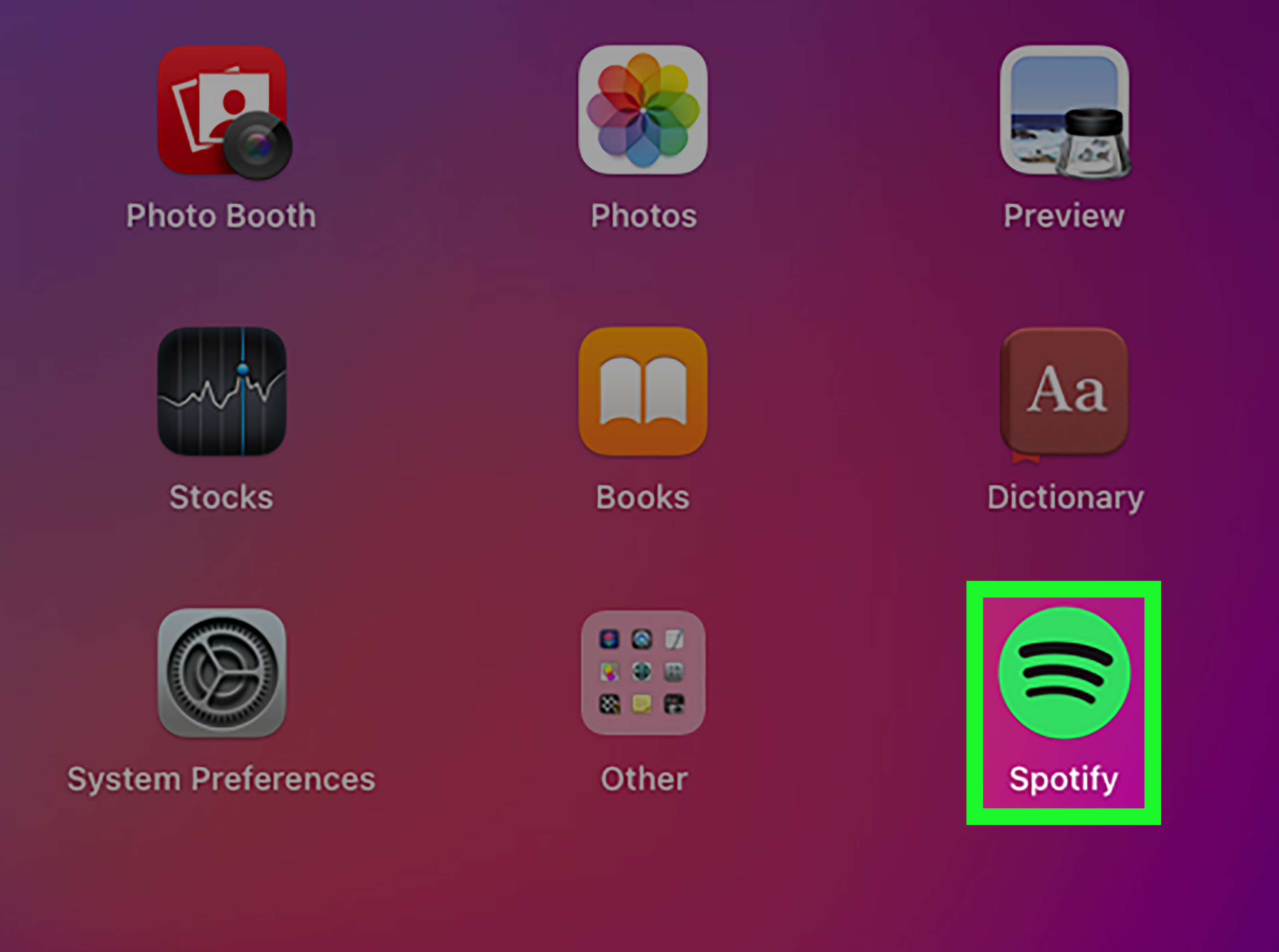
Open Finder, click Applications, and double-click Spotify. You can also press Command + Space, type “Spotify,” and press Return. Congratulations: your Mac is now one step closer to becoming a personalized concert hall, podcast booth, and background-noise machine.
Step 3: Sign In or Create an Account
When Spotify opens, sign in with your existing account. You may be able to continue with email, Google, Facebook, or Apple, depending on how your account was created. If you do not have an account yet, choose Sign up and follow the prompts. Spotify has a free version, but Premium unlocks additional features such as music downloads for offline listening.
Should You Use the Spotify Desktop App or the Web Player?
The Spotify web player is convenient because it works in a browser without installing anything. It is useful on shared computers, temporary devices, or locked-down machines where you cannot install apps. However, the Spotify desktop app is usually the better choice for regular Mac users.
The desktop app gives you a dedicated Spotify experience, easier keyboard control, better system integration, more settings, offline listening options for Premium users, and audio-quality controls. The web player is fine for casual listening, but the desktop app feels more like owning the remote instead of borrowing it from a cousin who keeps changing the song halfway through the chorus.
What to Do After Installing Spotify
Once Spotify is installed, take a few minutes to adjust the settings. These small changes can make the app faster, less annoying, and better suited to how you actually listen.
Adjust Audio Quality
Click your profile picture in Spotify and open Settings. Look for Audio Quality or Media Quality. From there, you can choose your preferred streaming quality. If your internet connection is strong, higher quality can sound better. If your Wi-Fi behaves like it is powered by a potato, automatic quality may prevent stuttering.
Stop Spotify from Opening Automatically
Some users like Spotify launching when the Mac starts. Others hear the startup chime and immediately think, “Please, not before coffee.” To change this, open Spotify settings and look for Startup and window behavior. Set Open Spotify automatically after you log into the computer to No if you prefer a quieter startup.
Download Music for Offline Listening
If you have Spotify Premium, you can download albums, playlists, and podcasts for offline listening. Open a playlist or album and click the download button. Free users can download podcasts, but offline music downloads require Premium. Spotify also requires users to go online periodically to keep downloads active, so do not disappear into the woods for three years and expect your library to behave normally.
Common Spotify Installation Problems on Mac
Most Spotify Mac installations go smoothly, but apps and computers occasionally choose drama. Here are the most common issues and how to fix them.
Problem: Spotify Will Not Download
If the installer will not download, try refreshing the page, switching browsers, or using a private browsing window. Also check your internet connection and make sure your browser is not blocking downloads. Security tools, ad blockers, or company restrictions may interfere with downloads from the web.
Problem: macOS Says the App Cannot Be Opened
macOS includes security protections that warn users before opening downloaded apps. If you downloaded Spotify from the official Spotify website, you can usually approve the app from System Settings > Privacy & Security. Be careful with this feature. You should never override macOS security warnings for apps from unknown or suspicious sources.
Problem: Spotify Opens but Does Not Work Correctly
If Spotify launches but freezes, skips, refuses to play, or behaves like it has joined a silent retreat, try restarting the app first. Then restart your Mac. If that does not help, check for app updates, sign out and back in, test another internet connection, or reinstall Spotify.
Problem: The Mac Is Too Old
If your Mac does not meet Spotify’s current system requirements, you may not be able to install the latest desktop app. In that case, use the Spotify web player if your browser supports it. You can also check whether your Mac supports a newer macOS version. If not, the web player may be the simplest workaround.
How to Reinstall Spotify on a Mac
Reinstalling Spotify can fix stubborn technical problems and make sure you are running a fresh version of the app. The basic process is simple: remove the old app, download Spotify again, and reinstall it.
Step 1: Quit Spotify
Before uninstalling, make sure Spotify is fully closed. Click Spotify > Quit Spotify from the menu bar, or press Command + Q while Spotify is active.
Step 2: Remove Spotify from Applications
Open Finder, click Applications, find Spotify, and move it to the Trash. Then empty the Trash if you want to permanently remove the app and free the space. Remember that reinstalling Spotify may remove downloaded offline music, so Premium users may need to download playlists again afterward.
Step 3: Download and Install Again
Return to Spotify’s official download page, download the latest Mac installer, and install it again. Open Spotify, sign in, and test playback. If the issue was caused by a damaged app file, the fresh installation should help.
How to Keep Spotify Updated on Mac
Spotify updates add improvements, bug fixes, and feature changes. In many cases, the desktop app updates itself automatically. If you suspect your app is outdated, open Spotify and look for update prompts. You can also reinstall the latest version from the official Spotify download page.
Keeping macOS updated also matters. An old operating system can cause compatibility issues not only with Spotify but also with browsers, security certificates, audio devices, and Bluetooth accessories. Think of software updates like changing the oil in your car: not glamorous, but much better than breaking down during your favorite chorus.
Tips for a Better Spotify Experience on Mac
Pin Spotify to the Dock
If you use Spotify daily, open the app, Control-click its Dock icon, choose Options, and select Keep in Dock. Now Spotify is always one click away. This is especially helpful if your Applications folder is a jungle of apps you downloaded once and forgot about.
Use Keyboard Shortcuts
Mac media keys often work with Spotify, letting you play, pause, skip, or adjust volume from the keyboard. You can also use Spotify Connect to control playback from your phone while the music plays through your Mac. This is perfect for those moments when you are across the room and refusing to stand up on principle.
Manage Storage
Offline downloads, caches, and old installer files can use storage over time. If your Mac is running low, check your Downloads folder and delete old Spotify installer files after installation. You can also remove offline downloads inside Spotify if you no longer need them.
Use Playlists Like a Pro
After installing Spotify, create playlists for specific moods or tasks: focus work, gym sessions, dinner, cleaning, studying, commuting, or pretending you are the main character in a movie. The desktop app is especially comfortable for playlist editing because dragging, dropping, searching, and organizing tracks is easier on a larger screen.
Is Spotify Safe to Install on a Mac?
Spotify is safe to install when you download it from Spotify’s official website. The risk comes from unofficial download pages, fake installers, and bundled software from third-party sites. Always use the official source, keep macOS updated, and pay attention to security warnings. A real music app should not ask you to install mystery browser extensions, system cleaners, or anything that sounds like it was named by a coupon robot.
Experience Notes: What Installing Spotify on a Mac Is Really Like
In real-world use, installing Spotify on a Mac is usually a five-minute job, but the experience can vary depending on the age of the Mac, the browser being used, and whether macOS security settings decide to make a dramatic entrance. On a newer MacBook running a current version of macOS, the process feels smooth: visit Spotify, download the installer, drag the app to Applications, open it, sign in, and start listening. It is the kind of setup that makes you wonder why all software cannot behave this politely.
The most common confusion happens when people expect Spotify to install from the Mac App Store. Spotify is available through Apple’s App Store for iPhone, iPad, Apple Watch, and Apple TV, but Mac users commonly install the desktop app from Spotify’s website. That difference matters. A user may search the App Store on a Mac, fail to find the expected desktop result, and assume Spotify is unavailable. It is not unavailable; it is just waiting on the web like a normal desktop download.
Another common moment of confusion is the downloaded installer file. New Mac users often double-click a file, see an app icon and an Applications folder, and wonder whether the app is already installed. The important step is dragging Spotify into Applications. Running apps directly from a downloaded disk image or temporary installer window can create messy behavior later. Moving the app properly keeps it where macOS expects it to live.
On older Macs, the experience can be less cheerful. If the operating system is below Spotify’s supported version, the installer may not work. This is frustrating, especially when the Mac itself still feels usable for browsing and email. In that case, the Spotify web player becomes a practical backup. It may not offer every desktop feature, but it can keep the music going without forcing a hardware upgrade immediately.
For everyday listening, the desktop app feels worth installing. It is easier to manage playlists, adjust quality settings, download content for offline use with Premium, and keep Spotify separate from browser tabs. That separation is underrated. When Spotify lives inside a browser, one accidental tab close can end the soundtrack to your workday. With the desktop app, the music keeps its own little apartment on your Mac.
The best installation habit is simple: use the official Spotify download page, keep macOS current, drag Spotify into Applications, and delete the leftover installer file afterward. That gives you a clean setup, fewer security worries, and more time for the important part: deciding whether your first song should be productive background music or something loud enough to make your inbox fear you.
Conclusion
Downloading and installing Spotify on a Mac is straightforward when you follow the right path. Check that your Mac meets the system requirements, download Spotify from the official website, install it into the Applications folder, and sign in. From there, adjust audio quality, startup behavior, offline downloads, and playlist settings to match how you listen.
The Spotify desktop app is a strong choice for Mac users who want a smoother, more flexible listening experience than the web player. It gives you better control, cleaner access, and a more app-like experience for music, podcasts, and audiobooks. In short: install it once, set it up properly, and let your Mac become the DJ it was clearly born to be.
Note: Always download Spotify from the official Spotify website or a trusted official app source. Avoid third-party installer sites, especially those that bundle extra software or promise “special” versions of Spotify.
SEO Tags