
Note: Facebook’s buttons and menu labels can vary slightly by app version, account type, and whether you are copying a profile, Page, group, post, Reel, or event URL.
Need to copy your Facebook profile link on an iPhone or iPad? You are not alone. This is one of those tasks that sounds like it should take three seconds, but somehow turns into a tiny digital scavenger hunt. One minute you are just trying to send your profile to a friend, a client, or your aunt who still types “Dear Facebook” into the search bar. The next minute you are tapping three dots, four dots, and possibly questioning your life choices.
The good news is that finding a Facebook URL on iPhone or iPad is actually pretty easy once you know where Facebook hides the option. In most cases, the link is available directly from the Facebook app. If it is not, there is a simple backup method: open Facebook in Safari or Chrome and copy the address from the browser bar. Done. No wizard hat required.
In this quick tutorial, you will learn how to find a Facebook URL for your profile, someone else’s profile, a Page, a post, a group, or a video on iPhone or iPad. You will also learn what a Facebook URL looks like, when to use the app versus the browser, what to do if the copy option is missing, and how to avoid sharing the wrong link. If you have ever stared at Facebook and thought, “Why is this harder than it should be?” welcome. You are among friends.
What Is a Facebook URL, Exactly?
A Facebook URL is simply the web address for a Facebook destination. That destination might be your personal profile, a business Page, a group, an event, a photo, a Reel, or a single post. It is the link you copy and paste into a text, email, note, bio, or message when you want someone else to land on that exact Facebook location.
Here are a few common examples:
- Your profile URL might look like
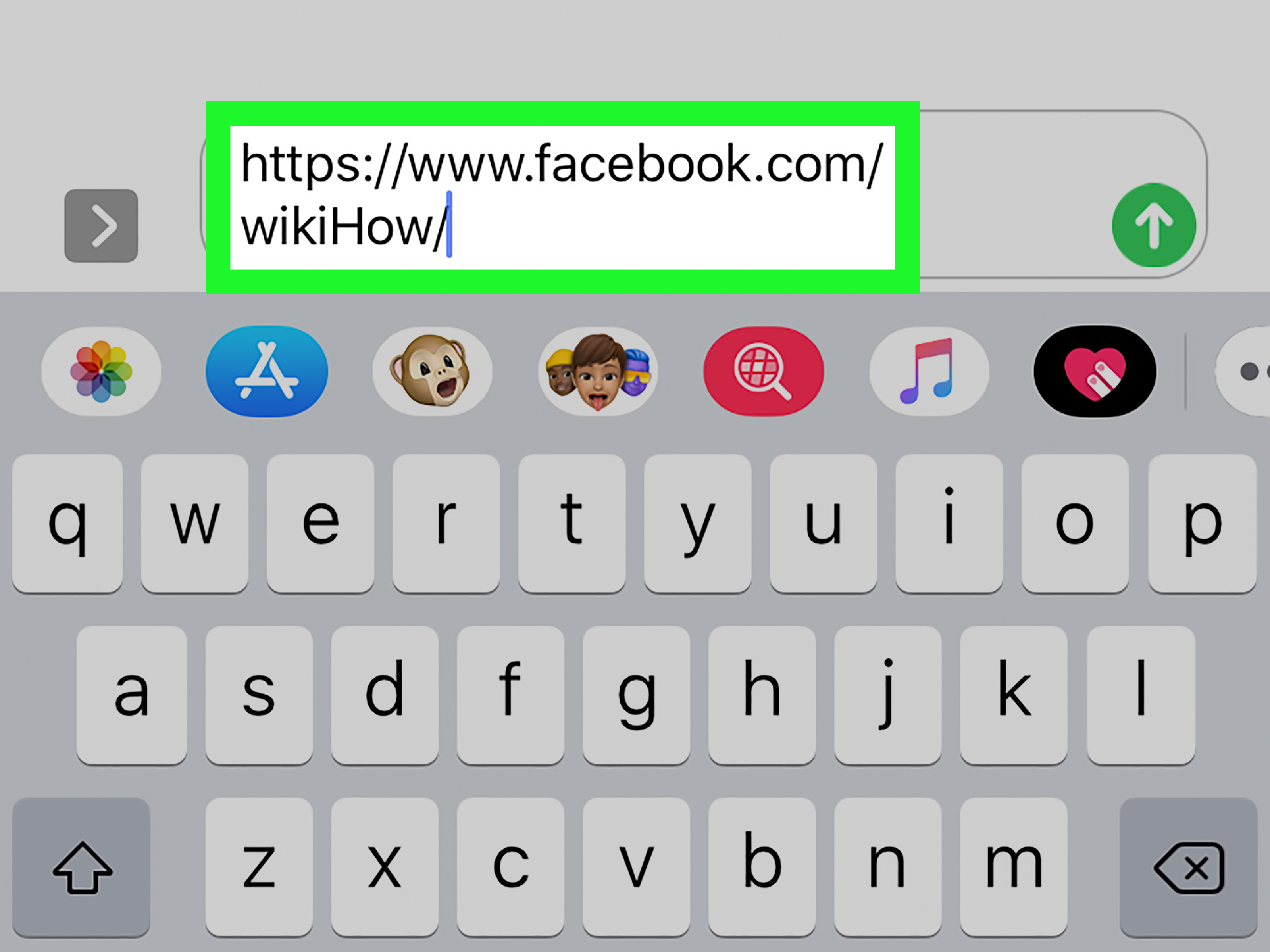
https://www.facebook.com/yourusername - Some profiles use an ID-based format, such as
https://www.facebook.com/profile.php?id=... - A Page URL may use the Page name or username
- A post or video URL is usually longer and includes extra path details
That is why it helps to know which Facebook URL you need before you start tapping around. Sending your profile link when someone asked for your Page link is the social-media version of handing over your house key when someone asked for your Wi-Fi password. Close, but not quite right.
Why You Might Need a Facebook Link on iPhone or iPad
Most people look for a Facebook URL on mobile because they want to share something quickly. Maybe you are adding your Facebook profile to a digital business card. Maybe you need your business Page link for Instagram, LinkedIn, or email marketing. Maybe you want to send a post to a group chat without forcing everyone to scroll through your entire timeline like amateur detectives.
Knowing how to copy a Facebook URL on iPhone or iPad is useful for:
- Sharing your profile with new contacts
- Sending your Facebook Page to customers
- Copying a post link into Messages, WhatsApp, or Mail
- Adding a Facebook link to your website or bio
- Saving a link in Notes for later
- Moving a Facebook link from iPhone to iPad with Apple’s copy-and-paste tools
In other words, this is one of those small tech skills that becomes weirdly useful once you learn it.
The 10-Step Tutorial: How to Find a Facebook URL on iPhone or iPad
Let’s get to the main event. These ten steps cover the fastest method in the Facebook app, plus the browser backup plan when Facebook decides to be mysterious.
-
Step 1: Open the Facebook app on your iPhone or iPad
Launch the Facebook app and sign in if needed. Make sure you are using the account that contains the profile, Page, or content you want to share.
-
Step 2: Decide what kind of Facebook URL you need
Are you looking for your personal profile link, a friend’s profile, a business Page, a group, a Reel, a video, or a single post? This matters because the copy-link option lives in slightly different places depending on the content type.
-
Step 3: Go to the profile, Page, or post you want to share
Navigate to the exact destination. If it is your own profile, tap your profile picture or your name. If it is someone else’s profile, search for them first. If it is a Page or a post, open that item directly before trying to copy the link.
-
Step 4: Look for the three-dot menu or the Share button
On many Facebook screens, the magic starts with the three-dot menu. On posts, videos, and Reels, it is often the Share button. On some Pages, Facebook may show a menu, an arrow, or a More-style option instead. This is normal. Facebook enjoys a little variety.
-
Step 5: Copy your profile URL from the profile menu
If you are on a personal profile, tap the three dots under or near the profile header. Look for a section labeled Profile Link, Copy Link, or similar. Tap it, and the Facebook URL is copied to your clipboard.
-
Step 6: Copy a Facebook Page URL from the Page options
If you are on a business Page, creator Page, or brand Page, look for the Page menu, share option, or an action like Copy Link or Copy Page Link. Depending on the Page layout, Facebook may tuck this into a share sheet or a top-right action menu.
-
Step 7: Copy a post, Reel, photo, or video URL with Share
Open the post, photo, Reel, or video. Tap Share, then look for Copy Link. This is usually the quickest way to grab a direct Facebook post URL on iPhone or iPad. It is also the best method when you want to share one specific piece of content instead of an entire profile.
-
Step 8: Use the browser method if the app does not show the link
Sometimes the Facebook app does not show the option you want, or it hides it in a way only a treasure map could explain. In that case, open Facebook in Safari or Chrome on your iPhone or iPad. Go to the profile, Page, or post. Then tap the address bar, select the full web address, and copy it.
-
Step 9: Paste the URL somewhere to confirm it worked
Open Notes, Messages, Mail, or any text field and paste the link. This gives you a quick way to verify that the copied Facebook URL points to the right place. It also helps you spot extra tracking characters or the wrong destination before you send it to someone important.
-
Step 10: Share, save, or clean up the link as needed
Once you have the Facebook URL, you can send it in a message, add it to your website, store it in Notes, or share it with teammates. If you are using it for professional purposes, test it one more time in Safari to make sure it opens the right Facebook page without confusion.
How to Find Your Own Facebook Profile URL
If your goal is to copy your own Facebook profile link on iPhone or iPad, this is the most common path:
- Open Facebook
- Tap your profile
- Tap the three dots near your profile details
- Find the profile link area
- Tap Copy Link
If the app does not show it, open your profile in Safari, then copy the address from the browser bar. In many cases, this browser method is the cleanest and easiest fallback. It is especially handy when you need to paste the Facebook URL into a form, bio, or spreadsheet.
How to Find Someone Else’s Facebook URL
Need to copy a friend’s, coworker’s, or public creator’s Facebook profile link? Search for the person in the Facebook app, open their profile, and tap the three-dot menu if available. If you see a profile link or copy link option, use it. If not, the browser method works beautifully: open their profile in Safari or Chrome and copy the full URL from the address bar.
One caution: some profiles, posts, and groups have privacy restrictions. If the person’s profile is private or you are not connected in a way that lets you view the content, copying the link may still work for you but not for the person who receives it.
How to Find a Facebook Page URL on iPhone or iPad
Pages are a little different from personal profiles because the layout may include business tools, audience tools, or creator options. Still, the logic is the same: open the Page and look for the Page share menu, the More button, or a Copy Page Link action.
This is especially important if you manage a business Page. Your Page URL is often used in:
- Email signatures
- Online directories
- Google Business Profile descriptions
- Marketing campaigns
- Link-in-bio tools
If Facebook gives you a choice between sharing the Page inside Facebook and copying the actual link, choose the option that explicitly copies the URL. That is the version you can paste anywhere.
How to Copy a Facebook Post Link on iPhone or iPad
This one is usually the easiest. Open the post, tap Share, then choose Copy Link. The same general flow often works for public videos, photos, and Reels.
A copied Facebook post URL is useful when:
- You want to send one post without sharing an entire profile
- You need to save a post for work or research
- You are citing a brand announcement or community update
- You want to send a funny post to a friend at 1:14 a.m. because that is clearly an emergency
What If You Cannot Find the Copy Link Option?
If Facebook refuses to cooperate, do not panic. This is usually a layout issue, not a you issue. Try these fixes:
- Update the Facebook app
- Switch from the app to Safari or Chrome
- Make sure you opened the exact profile or post, not a preview card
- Try the three-dot menu and the Share menu, since both may contain the link option
- Check whether the content is private, limited, or unavailable to share
Also remember that Facebook changes interface details often. The wording might say Copy Link, Profile Link, Share, Copy Page Link, or something similar. The basic task is the same even when the label changes its outfit.
Browser Backup: How to Copy the URL in Safari or Chrome
Here is the no-nonsense fallback plan when the app makes you want to throw your phone into a decorative pillow:
- Open Safari or Chrome on your iPhone or iPad
- Go to Facebook and log in
- Open the exact profile, Page, or post
- Tap the address bar
- Select and copy the full URL
- Paste it where you need it
This method is especially helpful for professionals, social media managers, and anyone who wants the cleanest possible Facebook URL. On mobile browsers, the address bar gives you a direct look at the link instead of asking you to trust whatever Facebook decides to call the button this week.
Smart Tips Before You Share a Facebook URL
- Test the link first. Paste it into Notes or open it in Safari to make sure it goes to the correct place.
- Watch for privacy limits. A link to a private post or private group may not work for everyone.
- Use the exact destination. Share a post URL if the post matters more than the profile.
- Be careful with suspicious links. If someone sends you a strange Facebook URL, inspect it before tapping. Use official apps, trusted browsers, and common sense.
- Keep your purpose in mind. For business use, a Page URL is usually better than a personal profile URL.
Common Mistakes People Make
The biggest mistake is copying the wrong Facebook link. People often mean to send a business Page and accidentally send a personal profile. Or they share a post link when they actually needed the main Page URL. Another common mistake is copying a link from a preview inside Facebook rather than opening the full item first.
There is also the classic mobile mistake: copying a link and forgetting to test it. Five seconds of checking can save you from sending the wrong thing to your boss, your client, or your family group chat, which somehow has stronger opinions than a board meeting.
Final Thoughts
Finding a Facebook URL on iPhone or iPad is simple once you know where the link lives. For profiles, start with the three-dot menu. For posts, videos, photos, and Reels, start with the Share button. For Pages, look for the Page menu or a copy-link option. And when the Facebook app gets too clever for its own good, switch to Safari or Chrome and copy the address from the browser bar.
That is really the whole trick. No secret handshake. No degree in app archaeology. Just the right menu, the right link, and a quick paste into wherever you need it next.
Extra Experience and Real-World Scenarios
In real life, people usually do not go hunting for a Facebook URL just for fun. There is almost always a practical reason behind it. A freelancer wants to send a portfolio Page to a client. A small business owner needs to paste a Facebook Page URL into a contact form. A family member wants to send Grandma the right profile after she accidentally followed three people with the same name and one suspiciously enthusiastic parrot account.
One common experience is trying to copy a Facebook profile link during a busy moment. You are standing in line, juggling coffee, answering messages, and someone asks, “Can you send me your Facebook?” That is when knowing the quick path matters. Open profile, tap the three dots, copy the link, paste it, done. It feels like a tiny victory, and on some days we take those.
Another frequent situation happens with creators and local businesses. They often use iPhones or iPads to manage their social accounts on the go. A hair stylist may need to send a Facebook Page link to a new customer. A bakery owner may need to copy a post URL for a holiday menu update. A community organizer may need a direct event or group link instead of a vague “just search us on Facebook” instruction that sends everyone into the digital wilderness.
There is also the browser rescue story, which deserves a medal. Many users spend too long searching the Facebook app for a link that is technically there, just hidden under a menu label that changed after an update. The browser method saves the day because it is familiar: open the page, tap the address bar, copy the URL. It is less fancy, but it is reliable, and reliability is beautiful.
Some people discover the value of copying a Facebook URL only after making avoidable mistakes. They share a screenshot of a profile instead of the actual link. They send a Page name with no direct URL and assume the other person will find it. They paste a general Facebook home link that leads nowhere useful. Once they learn how to copy the exact Facebook link on iPhone or iPad, their digital life gets a little tidier and a lot less annoying.
Professionals have an even stronger reason to get this right. If you are a consultant, agent, photographer, or shop owner, your Facebook URL is part of your online identity. You may place it in bios, newsletters, proposals, invoices, business cards, or review requests. In those situations, the wrong link does not just confuse people. It can cost you attention, clicks, and trust. That sounds dramatic, but online friction is real. People are busy. If your link does not work immediately, many of them will not try again.
Parents, teachers, volunteers, and club managers also run into this constantly. They need to share a group URL, an event URL, or a post about a schedule change. Sending the direct link is faster and clearer than telling everyone to “check Facebook.” It reduces missed updates, wrong turns, and the inevitable message from someone asking, “Which page was it again?”
And then there is the simplest experience of all: peace of mind. Once you know how to find a Facebook URL on iPhone or iPad, you stop guessing. You stop screenshotting random profile headers. You stop sending partial instructions. You know exactly where to tap, what to copy, and how to verify it. It is not flashy, but it is one of those small tech habits that makes mobile life smoother. And honestly, in the modern app jungle, smooth is a luxury.