
The Samsung Galaxy S2 may be a vintage Android legend now, but plenty of people still keep one in a drawer, use it as a backup phone, pass it to a family member, or revive it for old photos, messages, and apps. And when a Galaxy S2 starts freezing, lagging, refusing to open apps, or acting like it just discovered drama, a reset can often bring order back to the tiny rectangle.
This guide explains how to reset a Samsung Galaxy S2 in 8 clear steps. You will learn what a reset does, when to use a soft reset versus a factory reset, how to back up important data, how to reset the phone through Settings, and how to perform a hard reset using Recovery Mode if the screen or password is giving you trouble.
Before we begin, one important warning: a factory reset erases personal data stored on the phone. That may include downloaded apps, messages, saved settings, call logs, and files saved to internal storage. Think of it as sending the Galaxy S2 back to its “fresh out of the box” personality, minus the excitement of actually opening a new box.
What Does Resetting a Samsung Galaxy S2 Mean?
There are two common types of resets: a soft reset and a factory reset. A soft reset simply restarts the phone. It is useful when the device freezes, slows down, or stops responding. On the Galaxy S2, this may involve powering the phone off and on again, or removing and reinserting the battery if the phone is completely stuck.
A factory reset, also called a hard reset or master reset, is more serious. It erases personal information from the phone and restores the device to factory settings. This is the reset you use before selling the phone, giving it away, troubleshooting major software problems, or starting over when the device has become too cluttered to behave.
Before You Reset: Important Things to Know
Resetting a Samsung Galaxy S2 is not difficult, but preparation matters. The Galaxy S2 is an older Android phone, so its menus may look different from newer Samsung Galaxy models. Many Galaxy S2 versions use an older Settings path such as Settings > Privacy > Factory data reset, rather than the modern Samsung path of Settings > General management > Reset.
You should also remember that the Galaxy S2 was sold in several carrier and regional versions. Button combinations may vary slightly. The common international method uses Volume Up + Home + Power to enter Android Recovery Mode. Some carrier models may use a slightly different combination, such as holding both volume buttons and the Power key. If one combination does not work, do not panic. The phone is not judging you; it is just old-school.
How to Reset a Samsung Galaxy S2: 8 Steps
Step 1: Decide Whether You Need a Soft Reset or Factory Reset
If your Galaxy S2 is only frozen or sluggish, try a soft reset first. Hold the Power button and choose Power off if the screen responds. Wait a few seconds, then turn the phone back on. If the screen is frozen, remove the back cover, take out the battery, wait about 30 seconds, reinstall the battery, and power the phone on again.
A soft reset does not delete your data. It is the smartphone version of taking a deep breath. Use a factory reset only when you want to erase the phone, fix persistent software issues, remove personal information before selling it, or clear a lock or error that prevents normal use.
Step 2: Back Up Your Important Data
Before performing a factory reset, back up anything you want to keep. Check your contacts, photos, videos, documents, downloads, text messages, and app data. If contacts are synced with your Google account, they may return after you sign in again. Photos may be saved to a microSD card, computer, or cloud service depending on how you used the phone.
Because the Galaxy S2 is an older device, not every modern backup feature may be available. A practical approach is to connect the phone to a computer with a USB cable and copy photos, music, and documents manually. You can also export contacts to the SIM card, microSD card, or Google account if those options appear on your device.
Step 3: Charge the Phone and Remove Extra Items
Make sure the Galaxy S2 has enough battery before resetting. A factory reset should not be interrupted halfway through. Ideally, charge the phone to at least 50 percent or keep it connected to power during the process.
If you are resetting the phone because you plan to sell, recycle, or give it away, remove the SIM card and microSD card. The SIM card may contain carrier information and contacts. The microSD card may contain photos, videos, music, and other files. Removing both is a small step that can prevent a big privacy headache later.
Step 4: Open the Settings Menu
If your Galaxy S2 still works normally, the easiest reset method is through Settings. From the Home screen, open the app list and tap Settings. On many Galaxy S2 models, you will then tap Privacy. From there, choose Factory data reset.
On some software versions, the exact wording may differ slightly. Look for terms such as Backup and reset, Privacy, Reset, or Factory data reset. The goal is to find the option that erases the phone and restores factory default settings.
Step 5: Choose Factory Data Reset
After tapping Factory data reset, the phone will show information about what will be erased. Read the warning carefully. This screen is not just decorative; it is the phone’s final “Are you absolutely sure?” moment.
If your Galaxy S2 gives you an option to erase USB storage or internal storage, consider it carefully. If you want the cleanest reset possible before selling or giving away the device, erasing internal storage is usually the safer choice. If you are only troubleshooting and have already backed up files, it can still be appropriate. Just remember: erased data is not something you should expect to recover easily.
Step 6: Tap Reset Phone, Then Erase Everything
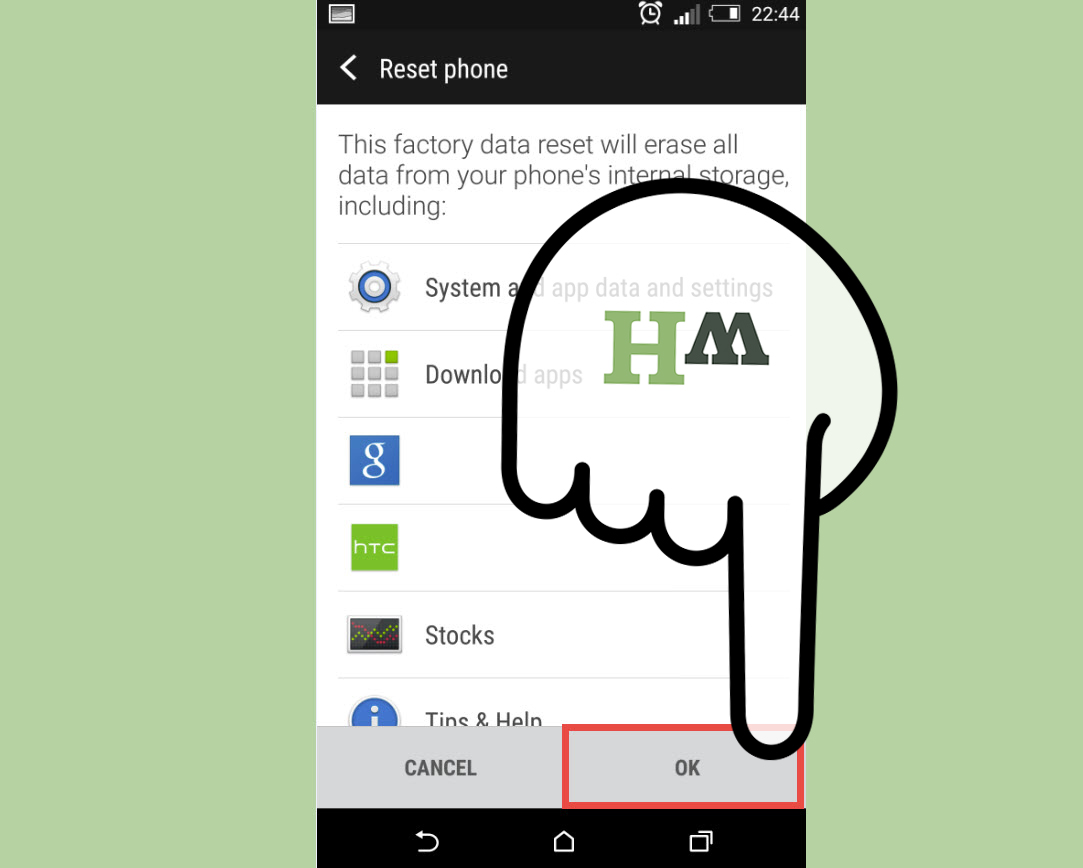
When you are ready, tap Reset phone. If the device asks for your PIN, password, or pattern, enter it. Then tap Erase everything to confirm. The Galaxy S2 will begin the reset process and may restart automatically.
Do not remove the battery or press random buttons while the reset is running. The process may take several minutes. Older phones are not famous for speed, so give the device time to finish. If it seems slow, imagine it cleaning out years of forgotten apps, mystery downloads, and digital dust bunnies.
Step 7: Use Recovery Mode If Settings Do Not Work
If the phone is locked, frozen, stuck in a boot loop, or unable to open Settings, use Recovery Mode. First, power off the Galaxy S2. If it will not turn off normally, remove the battery, wait a few seconds, then reinstall it without turning the phone on.
Press and hold Volume Up + Home + Power at the same time. When the Samsung logo appears, release the buttons. The phone should enter Android System Recovery. Use the Volume buttons to move through the menu and the Power button to select. Highlight wipe data/factory reset, press Power, choose Yes delete all user data, and confirm.
When the reset finishes, select reboot system now. The Galaxy S2 will restart and load the setup screen. If the first button combination does not work on your model, try the carrier-specific method listed in your user manual, such as holding both volume buttons with Power.
Step 8: Set Up the Phone Again
After the reset, the Galaxy S2 will behave like a newly initialized phone. You can choose a language, connect to Wi-Fi, sign in with a Google account, restore supported synced data, and reinstall apps from the Google Play Store if the device still supports the app versions you need.
If you are selling or donating the phone, stop at the welcome screen. Do not sign in again. Let the next owner complete setup with their own account. If you are keeping the device, sign in carefully and restore only the data you actually need. A reset is a great excuse not to reinstall every app you downloaded during the “I need seven flashlight apps” era.
When Should You Reset a Samsung Galaxy S2?
A factory reset can be useful in several situations. If the phone freezes constantly, apps crash repeatedly, or the device becomes painfully slow even after clearing storage, a reset can remove software clutter. It can also help if the phone has strange settings problems, network issues that do not respond to simpler fixes, or leftover data from a previous owner.
You should also reset the phone before selling, trading, recycling, or giving it away. Even an old phone can contain private information, including messages, contacts, photos, email accounts, browser history, and saved Wi-Fi networks. Wiping it properly is not paranoia; it is basic digital housekeeping.
What a Factory Reset Will and Will Not Do
A factory reset removes user-installed apps, personal settings, and locally stored data from the phone. It can make the device feel cleaner and more stable, especially if software clutter was causing problems. However, it does not magically repair broken hardware. If the Galaxy S2 has a failing battery, damaged charging port, cracked screen, or water damage, a reset will not turn it into a brand-new phone.
A reset also may not update the phone to a newer Android version. The Galaxy S2 is an older model, and official software support depends on the exact variant and carrier history. If an app no longer supports the Android version installed on the phone, resetting the device will not necessarily make that app compatible again.
Troubleshooting Common Reset Problems
The Phone Will Not Enter Recovery Mode
Make sure the phone is fully powered off before pressing the buttons. If necessary, remove and reinstall the battery. Press the buttons firmly and at the same time. If Volume Up + Home + Power does not work, check whether your carrier model uses a different combination.
The Phone Gets Stuck on the Samsung Logo
After a reset, the first boot can take longer than usual. Wait several minutes. If the phone remains stuck, power it off and repeat the Recovery Mode reset. If it still fails, the device may have firmware corruption or hardware problems that require advanced repair.
The Touchscreen Does Not Respond
If the touchscreen is unreliable, Recovery Mode is helpful because it uses physical buttons. Use Volume Up and Volume Down to move through options, then use Power to confirm. This makes it possible to reset the phone even when the screen display works but touch input does not.
Safety Tips Before Selling or Giving Away the Galaxy S2
If you are passing the phone to someone else, remove your SIM card and microSD card. Back up files first, then perform a factory reset. After the reset, allow the phone to boot to the welcome screen, but do not complete setup with your own account.
For extra privacy, review old cloud accounts separately. A factory reset removes data from the phone, but it does not delete your Google account, email account, or cloud backups from the internet. If photos, contacts, or documents were synced online, manage them from the account itself.
Personal Experience: What Resetting a Samsung Galaxy S2 Is Really Like
Resetting a Samsung Galaxy S2 feels a little different from resetting a modern smartphone. Newer phones guide you with polished menus, large warnings, cloud backup prompts, and security checks that practically hold your hand through the process. The Galaxy S2 is more direct. It gives you the essentials, asks for confirmation, and gets to work. There is something charming about that simplicity.
In real-world use, the most common reason to reset a Galaxy S2 is performance. Over time, older Android phones can collect app leftovers, cached files, outdated services, and settings that no longer play nicely together. The result is a phone that opens apps slowly, freezes during basic tasks, or restarts at the worst possible moment. A factory reset will not make the hardware younger, but it can remove software clutter and give the device a cleaner starting point.
One practical lesson is to back up photos before doing anything else. Many people underestimate how much personal history is stored on an old phone. A Galaxy S2 might contain birthday pictures, travel snapshots, screenshots, downloaded music, voice recordings, or messages that never made it to a newer device. Before resetting, connect the phone to a computer and browse the storage folders. Look especially for DCIM, Pictures, Downloads, Music, and Documents. It is much better to spend ten extra minutes checking than to remember one week later that your favorite old photo was still sitting on the phone.
Another experience-based tip: do not rush the button combination for Recovery Mode. People often press Power first, then scramble for the other buttons. On the Galaxy S2, timing matters. Place your fingers on Volume Up, Home, and Power before pressing. Hold them together until the Samsung logo appears, then release. If nothing happens, remove the battery, wait briefly, reinstall it, and try again. The phone is old enough to be stubborn, but not old enough to win.
It is also smart to check whether the phone has a microSD card installed. Many Galaxy S2 owners used microSD cards heavily because internal storage was limited by modern standards. A reset may not erase the removable card unless you specifically format it, so private photos and files could remain there. If the goal is troubleshooting, keeping the card is fine. If the goal is selling or donating, remove the card and keep it with you.
After the reset, the first startup may feel slow. That is normal. The phone is rebuilding its basic setup and preparing the system. Give it time before assuming something went wrong. Once the setup screen appears, you can either configure it again for personal use or leave it untouched for the next owner.
The biggest takeaway is this: resetting a Samsung Galaxy S2 is simple, but the preparation is what protects you. Back up your files, charge the battery, remove personal cards, choose the right reset method, and be patient during reboot. Do that, and the process is usually smooth enough to make you wonder why you waited so long.
Conclusion
Learning how to reset a Samsung Galaxy S2 is useful whether you are fixing an old phone, clearing personal data, preparing it for resale, or giving it one last chance at glory. Start with a soft reset if the problem is minor. If you need a full clean start, back up your data, charge the phone, remove your SIM and microSD card if needed, and use the Factory data reset option in Settings.
If the phone will not open normally, Recovery Mode gives you another reliable path. The key steps are simple: power off the device, press the correct button combination, choose wipe data/factory reset, confirm, and reboot. The Galaxy S2 may be from another smartphone era, but with the right steps, it can still be reset safely and confidently.