
Installing mods in Minecraft Java Edition 1.14 can feel like trying to teach a villager personal finance: possible, useful, and occasionally confusing. The good news is that the process becomes much easier once you understand three things: your Minecraft version, your mod loader, and where your files actually belong.
This guide focuses on Minecraft Java Edition 1.14, especially 1.14.4, because that final 1.14 release is usually the best target for modded play. Version 1.14, known as the Village & Pillage update, brought redesigned villages, new villager behavior, pillagers, raids, bamboo, campfires, foxes, pandas, barrels, bells, and plenty of reasons for your old mod list to have a dramatic meltdown. If you want to use mods and OptiFine in Minecraft 1.14, version matching is everything.
Think of modding like building a redstone machine. One misplaced block and suddenly your automatic wheat farm is launching chickens into orbit. This article explains how to install Forge or Fabric mods, how to use OptiFine, how to avoid compatibility problems, and how to troubleshoot without deleting your entire world in a panic.
What Are Minecraft Mods?
A Minecraft mod is a user-created modification that changes the game. Some mods add new mobs, tools, ores, dimensions, biomes, recipes, or structures. Others improve quality of life with minimaps, inventory sorting, recipe viewers, performance tweaks, or interface upgrades. Mods can be tiny helpers or massive game-changers that make Minecraft feel like an entirely different adventure.
In Minecraft Java Edition, mods are usually installed through a mod loader. A mod loader is the bridge between Minecraft and the mod files. For version 1.14, the two names you will see most often are Forge and Fabric. Forge has been a long-time favorite for large content mods, while Fabric became popular for lightweight, fast-updating mods and performance-focused tools.
The important rule is simple: a Forge mod needs Forge, and a Fabric mod needs Fabric. Dropping a Fabric mod into a Forge setup is like handing a map to a zombie. Technically, something is happening, but nobody is going anywhere useful.
What Is OptiFine?
OptiFine is a Minecraft optimization mod designed to improve performance, add detailed video settings, support HD resource packs, and enable shader-related features. Many players use OptiFine to raise FPS, reduce lag spikes, adjust animations, control fog, customize lighting, or make the game look prettier than a diamond mansion at sunset.
For Minecraft 1.14, OptiFine is especially useful because the Village & Pillage update was not exactly famous for being gentle on older computers. If your frame rate drops whenever villagers gather in one place to discuss their questionable trade prices, OptiFine may help.
However, OptiFine is not always compatible with every mod loader and every Minecraft version. For 1.14.4, the safest approach is to use a matching OptiFine 1.14.4 build and check whether your Forge version is supported. OptiFine’s own downloads list shows 1.14.4 builds with Forge compatibility notes, which matters because earlier 1.14-era combinations could be picky.
Before You Install Anything: Prepare Your Game
1. Use Minecraft Java Edition, Not Bedrock
This guide is for Minecraft Java Edition 1.14. Java Edition runs on Windows, macOS, and Linux. Bedrock Edition, often used on consoles, mobile devices, and the Windows store version, uses add-ons instead of traditional Java mods. Java mods will not work in Bedrock Edition.
2. Choose the Right Minecraft Version
Open the Minecraft Launcher, go to Installations, and create a new installation for 1.14.4 if possible. While “1.14” is the broad version family, 1.14.4 is generally preferred because it was the final maintenance release for that update cycle. Most 1.14 mod pages specify exactly which version they support, so read carefully.
3. Back Up Your Worlds
Before installing mods, back up your saves folder. This is not optional unless you enjoy emotional damage. Mods can change world generation, blocks, entities, inventories, and game rules. If a mod crashes, updates incorrectly, or disappears, your world may load with missing items or broken features.
On Windows, your saves are usually inside:
Copy the world folder and store it somewhere safe. A backup is the Minecraft equivalent of carrying a water bucket in the Nether: you cannot use it there, but the confidence is nice. Actually, for saves, it works.
How to Install Forge for Minecraft Java Edition 1.14
Forge is one of the most common ways to run Minecraft mods. Many classic mods use Forge, and installing it creates a separate profile in the Minecraft Launcher.
Step 1: Download the Correct Forge Installer
Visit the official Forge download page and select the Minecraft 1.14.4 version. Choose the installer for your operating system. If a mod recommends a specific Forge build, use that version rather than automatically grabbing the newest one.
Step 2: Run the Installer
Open the downloaded Forge installer and choose Install Client. Make sure the installation path points to your normal Minecraft folder. When the installer finishes, it should create a Forge profile in the Minecraft Launcher.
Step 3: Launch Forge Once
Open the Minecraft Launcher, choose the Forge profile, and click Play. Let the game open fully, then close it. This first launch creates the folders Forge needs, including the important mods folder.
Step 4: Add Mods
Download mods that clearly support Minecraft 1.14.4 and the same Forge version you installed. Place the mod files, usually ending in .jar, into the mods folder.
Common folder locations include:
Restart Minecraft using the Forge profile. If everything matches, your mods should load. If the game crashes, do not immediately blame Herobrine. Check the mod version, required dependencies, and whether another mod is conflicting.
How to Install Fabric Mods for Minecraft Java Edition 1.14
Fabric is another popular mod loader. It is often used for lightweight mods, utility mods, and performance improvements. Some mods are Fabric-only, so always check the mod’s loader requirement before downloading.
Step 1: Install Fabric Loader
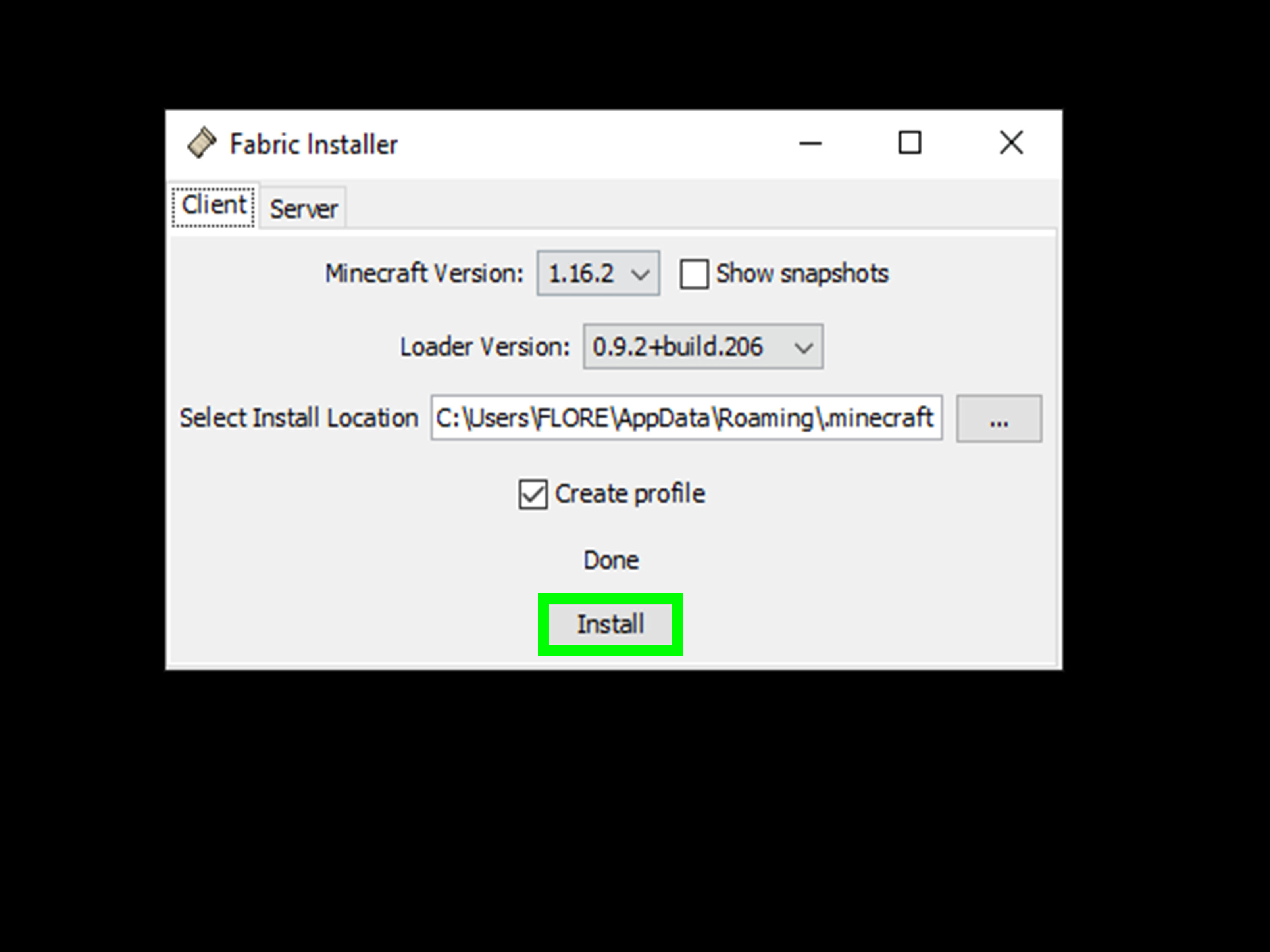
Download the Fabric installer, select Minecraft 1.14.4, and install the Fabric loader. Like Forge, this creates a separate launcher profile.
Step 2: Add Fabric API If Required
Many Fabric mods require Fabric API. Fabric API is installed like a normal mod: download the version that matches Minecraft 1.14.4 and place it in the mods folder.
Step 3: Add Fabric Mods
Download mods marked for Fabric and Minecraft 1.14.4. Place the .jar files into your mods folder, then launch the game using the Fabric profile.
Remember: Forge and Fabric mods are not automatically interchangeable. A mod page that says “Fabric” belongs in a Fabric setup. A mod page that says “Forge” belongs in a Forge setup. Your computer will not appreciate being asked to solve this socially.
How to Install OptiFine in Minecraft Java Edition 1.14
There are two common ways to use OptiFine: as a standalone profile or with a compatible Forge setup.
Option 1: Install OptiFine as a Standalone Profile
This is the easiest method if you mainly want better graphics settings, FPS improvements, HD resource pack support, or shaders.
- Download the OptiFine version made for Minecraft 1.14.4.
- Run the OptiFine installer.
- Select Install.
- Open the Minecraft Launcher.
- Choose the new OptiFine profile.
- Click Play.
Once inside the game, open Options > Video Settings. You should see extra settings that are not available in vanilla Minecraft. This confirms OptiFine is active.
Option 2: Use OptiFine with Forge
If you want OptiFine plus other Forge mods, you may be able to place the OptiFine .jar file into the Forge mods folder. This only works when the OptiFine build and Forge build are compatible. For Minecraft 1.14.4, check OptiFine’s Forge compatibility notes carefully.
If Minecraft crashes at launch after adding OptiFine to Forge, remove OptiFine from the mods folder and test Forge alone. Then confirm that you are using the correct OptiFine build for your Forge version. Compatibility is not a suggestion; it is the bouncer at the club.
Where to Download Minecraft 1.14 Mods Safely
Only download mods from trusted platforms or the creator’s official page. Good signs include clear version labels, changelogs, download counts, comments, issue trackers, and active maintenance. Be careful with random repost sites, suspicious “download now” buttons, and pages that ask you to install unrelated software.
When choosing a Minecraft 1.14 mod, check:
- Does it support Minecraft 1.14.4?
- Is it for Forge, Fabric, or another loader?
- Does it require a dependency mod?
- Does the author list known incompatibilities?
- Are users reporting recent crashes?
- Does the file extension look correct?
Most mods should be .jar files. Avoid strange installers unless they come from a well-known official source. If a site promises “free premium Minecraft mod hack ultra FPS no virus 2026,” close the tab and maybe cleanse your keyboard with holy lapis.
Best Types of Mods to Try in Minecraft 1.14
Performance Mods
Performance mods help Minecraft run better. OptiFine is the classic choice for many players because it adds detailed graphics controls and may improve FPS. Other mods may optimize lighting, chunk loading, entity rendering, or memory use, but compatibility depends on the loader and version.
Quality-of-Life Mods
Quality-of-life mods make everyday gameplay smoother. Examples include inventory sorting, recipe viewers, minimaps, tooltips, durability displays, and better controls. These mods are great for beginners because they improve the game without completely changing its identity.
Content Mods
Content mods add new items, blocks, mobs, structures, machines, magic systems, or dimensions. These can be amazing, but they are also more likely to require dependencies or conflict with other mods. Add them slowly and test often.
Visual Mods and Resource Packs
Resource packs change textures, sounds, and sometimes models. OptiFine can expand resource pack features, including connected textures and custom visual effects depending on the pack. If you want Minecraft 1.14 to look modern without replacing its blocky soul, visual upgrades are a great place to start.
How to Troubleshoot Minecraft 1.14 Mod Problems
Game Crashes on Launch
Remove recently added mods from the mods folder and launch again. If Minecraft opens, one of those mods is the problem. Add them back one at a time until the crash returns. Congratulations, detective. The suspect is holding a .jar file.
Wrong Minecraft Version
A mod built for 1.15, 1.16, or 1.12.2 usually will not work correctly in 1.14.4. Minecraft version numbers are not decoration. A 1.14.4 mod should say 1.14.4 clearly.
Wrong Mod Loader
If a mod is made for Fabric, it will not run on Forge unless the author provides a Forge version. The same is true in reverse. Loader mismatch is one of the most common beginner mistakes.
Missing Dependencies
Some mods require library mods. If the mod page says it needs Fabric API, Cloth Config, AutoRegLib, or another dependency, install the matching version. A missing dependency is like trying to craft a pickaxe with two sticks and a dream.
Too Many Mods at Once
Installing twenty mods at the same time may feel efficient, but it makes troubleshooting harder. Start with Forge or Fabric, then add OptiFine if needed, then add a few mods at a time. Test after each batch.
Tips for Better FPS with OptiFine in Minecraft 1.14
Once OptiFine is installed, open Video Settings and adjust performance-heavy options. Lowering render distance can make a big difference. Turning off fancy clouds, reducing particles, disabling smooth lighting, and adjusting animations may also help. If your computer is older, start conservative and increase settings gradually.
Shaders look beautiful, but they can crush FPS faster than an anvil landing on a chicken. If you want shaders, choose lightweight shader packs first. Test them in a new world before loading your favorite survival base with 73 villagers, 400 chests, and one suspiciously loud sheep farm.
Should You Use Forge, Fabric, or OptiFine?
Use Forge if your favorite Minecraft 1.14 mods require Forge or if you want larger gameplay-changing mods. Use Fabric if the mods you want are Fabric-only or if you prefer a lightweight modding setup. Use OptiFine if your main goal is better graphics control, smoother performance, HD resource pack support, or shaders.
You do not need all three. In fact, trying to force every tool into one setup can create compatibility headaches. Pick the path that matches your goal:
- Better FPS and graphics settings: OptiFine standalone.
- Classic modded gameplay: Forge with compatible mods.
- Lightweight utility mods: Fabric with Fabric API.
- OptiFine plus Forge mods: only if the builds are compatible.
Common Beginner Mistakes to Avoid
The first mistake is downloading the wrong version. A mod for 1.14.4 is not the same as a mod for 1.14.2. The second mistake is mixing Forge and Fabric mods in the same setup. The third mistake is forgetting dependencies. The fourth mistake is ignoring backups. The fifth mistake is clicking fake download buttons and accidentally adopting malware like it is a hostile pet.
A clean modding setup is boring in the best way. Create a dedicated installation, use a separate game directory if possible, install only compatible files, and keep a simple list of what you added. Future-you will be grateful. Future-you may even build you a statue, although it will probably be made of dirt because resources are tight.
Experience Notes: What Using Mods & OptiFine in Minecraft 1.14 Actually Feels Like
Using mods and OptiFine in Minecraft Java Edition 1.14 is a little like moving into a village after the Village & Pillage update: exciting, chaotic, and full of people making noises you do not fully understand. The first time you install everything correctly, the reward is immediate. The game loads, the Mods button appears, OptiFine’s video settings show up, and suddenly you feel like a blocky wizard with administrative privileges.
The biggest lesson from real modded play is to keep your setup small at first. A beginner might install Forge, then grab a minimap, a recipe viewer, an inventory helper, OptiFine, a texture pack, and five content mods in one heroic burst of enthusiasm. Then Minecraft crashes, and nobody knows which mod committed the crime. A better experience is to build slowly. Install Forge or Fabric first. Launch the game. Add OptiFine if your chosen setup supports it. Launch again. Add two or three mods. Launch again. It feels slower, but it saves time because you can immediately identify the troublemaker.
Another practical experience is that OptiFine settings are worth testing one by one. Players often install OptiFine expecting one magical button labeled “Make Everything Fast and Gorgeous.” Sadly, no such button exists, although the world deserves it. Instead, improvements come from small adjustments: lowering render distance, reducing particles, turning off fancy clouds, changing smooth lighting, and testing whether shaders are realistic for your hardware. A laptop with integrated graphics may run Minecraft 1.14 comfortably with OptiFine, but shaders can turn it into a slideshow narrated by a cooling fan.
Mod compatibility also teaches patience. Some 1.14 mods were quickly updated to 1.14.4, while others stayed behind on earlier builds. Because 1.14 was a major update with many internal changes, not every older mod moved smoothly. If a favorite mod does not support 1.14.4, resist the urge to jam it into the mods folder anyway. Minecraft will not admire your optimism. It will crash, freeze, or display an error message that looks like an ancient enchantment table wrote a legal document.
World safety is another hard-earned lesson. Always test new mod combinations in a temporary world before opening your main survival world. This is especially important for mods that add blocks, ores, dimensions, mobs, or structures. Removing those mods later can leave missing blocks or broken features. A test world lets you confirm that crafting works, mobs spawn correctly, performance is stable, and nothing strange happens when you enter a village.
Finally, the best modded Minecraft experience comes from having a clear goal. Do you want better FPS? Start with OptiFine. Do you want convenience? Add quality-of-life mods. Do you want a huge adventure? Build a Forge mod list carefully. Do you want a lighter setup? Try Fabric. Modding Minecraft 1.14 is not about installing the most files; it is about creating the version of Minecraft that makes you want to play for “just ten more minutes,” which everyone knows means three hours and a suspicious lack of sleep.
Conclusion
Learning how to use mods and OptiFine in Minecraft Java Edition 1.14 is mostly about version discipline. Use Java Edition, target 1.14.4 when possible, install the correct mod loader, download safe and compatible files, and back up your worlds before experimenting. Forge, Fabric, and OptiFine are powerful tools, but they work best when you treat compatibility like a crafting recipe: every ingredient matters.
If your goal is smoother performance and better graphics options, OptiFine is the simplest place to start. If you want bigger gameplay changes, Forge or Fabric can open the door to thousands of community creations. Take it slowly, test often, and your modded Minecraft 1.14 setup can become stable, fun, and far less terrifying than a pillager patrol outside your starter house.