
Posting pictures on Craigslist from an Android phone should not feel like assembling furniture with instructions written by a raccoon. Thankfully, the process is simple once you know where to tap, what permissions to allow, and how to make your photos look useful instead of mysterious. Whether you are selling a used couch, listing a bicycle, renting a room, or showing off a perfectly decent coffee table that has survived three apartments and one very suspicious cat, clear pictures can make your Craigslist post far more trustworthy.
Craigslist is still one of the most practical places to post local classifieds. Buyers want to see what they are getting before they message you, and photos answer the questions words cannot. A title can say “excellent condition,” but a bright, honest picture says, “Yes, this chair really does have four legs.” On Android, you can upload pictures through the official Craigslist app or through a mobile browser such as Chrome. The steps are similar: create a post, choose your category, add your description, tap the image upload option, select photos from your device, preview everything, and publish.
This guide walks you through 12 easy steps to post pictures on Craigslist on Android, plus practical tips for better photos, fewer upload problems, and safer selling. The goal is simple: help you create a listing that looks real, useful, and ready for buyers to click.
Why Pictures Matter on Craigslist
Craigslist listings with clear photos usually feel more credible than text-only posts. A buyer scrolling through dozens of listings is more likely to pause when they can instantly see the item, the condition, the color, the size, and any important details. Photos reduce back-and-forth messages, too. Instead of answering “Does it have scratches?” five times, you can show close-ups of the surface and let people decide.
Good pictures also help you avoid misunderstandings. If you are selling a phone with a small crack, a dresser with a nicked corner, or a car with a faded bumper, show it. Honest photos may not make your item look perfect, but they make you look trustworthy. That matters on a local marketplace where people are deciding whether to contact a stranger from the internet, which is basically modern civilization’s weirdest group project.
Simple Ways to Post Pictures on Craigslist on Android: 12 Steps
Step 1: Take or Choose the Right Photos First
Before opening Craigslist, prepare your photos. Use your Android camera to take pictures in good lighting, preferably near a window or outside in shade. Avoid dark rooms, harsh flash, messy backgrounds, and blurry shots. A clean photo helps the item stand out and makes the listing feel more professional.
For most items, take at least three types of photos: a full view, a close-up of important details, and a photo showing scale. For example, if you are selling a desk, photograph the whole desk, the drawer area, the desktop surface, and any scratches. If you are listing a bike, include the full bike, tires, gears, seat, frame, and any brand label. Buyers love details. Your camera roll may feel like a tiny product catalog, but that is exactly the point.
Step 2: Open Craigslist on Your Android Phone
You can post pictures using the official Craigslist app or the Craigslist website in your Android browser. The app may feel smoother for regular users, while the browser works well if you prefer not to install another app. Either way, make sure you are using the real Craigslist service and not a copycat page. A quick check of the app name, publisher, and website address can save you from headaches later.
If you use the app, open it from your Android home screen or app drawer. If you use a browser, go to Craigslist and choose your city or region. Craigslist is local by design, so posting in the correct area matters. A lawn mower in Phoenix is not very useful to someone browsing in Portland unless they also enjoy very long road trips.
Step 3: Sign In or Continue Without an Account
Craigslist may allow certain posts without an account, but signing in can make managing your listing easier. With an account, you can edit, renew, delete, and track your posts more conveniently. If you plan to sell often, signing in is worth it. If you are posting one item and moving on with your life, you may be able to continue through the posting flow without much setup.
Use an email address you check regularly, because Craigslist may send confirmation or management links. Also, avoid putting personal contact details directly inside your listing photos. Do not upload a picture that shows your home address, license plate, private documents, school ID, or anything else that should not be handed to the entire internet with a little bow on it.
Step 4: Tap “Create a Posting”
Look for the option to create a new post. On the Craigslist website, this is often labeled “create a posting.” In the app, the wording may vary slightly, but the idea is the same. You are starting a new classified ad.
Craigslist will guide you through a series of screens. The exact order can vary depending on your location and the category you choose, but you will usually select a posting type, category, location, title, price, description, and contact method before or around the time you add images. Move through each screen carefully. A rushed listing can lead to wrong categories, missing details, and buyers asking questions you could have answered in the first place.
Step 5: Choose the Correct Category
Select the category that best matches your post. If you are selling a sofa, choose a furniture-related category. If you are posting a job, service, vehicle, housing listing, or community notice, choose the matching section. This matters because Craigslist may remove or flag posts that are placed in the wrong category. It also matters because buyers search by category. A dining table listed under electronics is not clever. It is just lost.
Some posting types may not support images, while many common selling and housing categories do. If you do not see an image upload option later in the process, the category or posting type may not allow pictures, or you may need to complete another required step first, such as confirming a map location.
Step 6: Fill Out the Title, Price, Location, and Description
Write a title that is clear and specific. Instead of “Nice thing for sale,” try “Solid Wood Coffee Table With Storage Shelf” or “Samsung 55-Inch Smart TV, Works Great.” Use words people actually search for: brand, model, size, color, condition, and item type.
Your description should support your photos. Include measurements, condition, pickup area, what is included, and whether the price is firm or negotiable. Be honest about flaws. If a chair wobbles, say so. If a phone battery drains quickly, mention it. Buyers can handle imperfections. What they dislike is discovering them after arranging a meetup.
Step 7: Tap the “Add Images” or Photo Upload Button
After you fill out the required listing details, Craigslist should show an option to add images. On mobile, this may appear as “add images,” “choose files,” “upload photos,” or a similar button. Tap it to open the Android file picker, gallery, or photo selection screen.
On newer Android versions, your phone may ask whether Craigslist, Chrome, or your browser can access selected photos. This is normal. Android gives users more control over photo access, so you may choose only the pictures you want to upload instead of giving full access to your entire gallery. That is a good thing. Your phone does not need to offer Craigslist a guided tour of every screenshot you have ever taken.
Step 8: Allow Photo Permissions If Asked
If Android asks for permission, choose the option that allows access to the photos you want to upload. Depending on your device, you may see choices such as allowing selected photos, allowing all photos, or denying access. For privacy, selected photos are usually enough.
If you accidentally deny permission, the upload button may not work properly. To fix it, open Android Settings, go to Apps, choose Craigslist or your browser, tap Permissions, and allow photo or file access. Then return to Craigslist and try again. This simple permissions check solves many upload problems, especially after phone updates or app reinstallations.
Step 9: Select Photos From Your Gallery, Photos App, or File Manager
Once the picker opens, choose the photos you prepared. On many Android phones, you can select multiple images at once. On some devices or browsers, you may need to add them one at a time. If your photos are stored in Google Photos but not downloaded to the device, you may need to download them first so they appear in the file picker.
Choose your strongest image first if Craigslist uses the first photo as the main listing image. The first picture is your digital handshake. Make it bright, clear, and easy to understand. If you are selling a dresser, do not make the first image a close-up of one drawer handle. Start with the whole dresser, then add close-ups afterward.
Step 10: Wait for the Upload to Finish
After selecting your images, wait for them to upload. Craigslist may show thumbnails, a progress bar, or loading indicators. Do not close the app or switch away too quickly. Large images, weak Wi-Fi, or mobile data hiccups can slow the process.
If an image fails to upload, try a smaller file, switch from mobile data to Wi-Fi, or retake the photo at a slightly lower resolution. Modern Android cameras produce large image files, which look beautiful but can be chunky online. If your phone has an edit or resize option, cropping extra background can also help. You do not need a 20-megapixel masterpiece to sell a lamp. You need a clear picture of the lamp.
Step 11: Review, Reorder, or Remove Pictures
After the images appear, review them before publishing. Remove duplicates, blurry shots, accidental screenshots, or photos that reveal private information. Craigslist typically lets you remove an uploaded image by tapping an “X” or delete icon near the thumbnail.
Arrange your photos in a logical order if the interface allows it. Start with the best full-view image, then show angles, details, flaws, accessories, labels, and measurements. Think like a buyer. What would you want to see before contacting someone? If you are selling a used laptop, show the screen on, keyboard, ports, charger, lid condition, and any visible wear. If you are listing an apartment, show the main room, kitchen, bathroom, bedroom, storage, and outside entrance if appropriate.
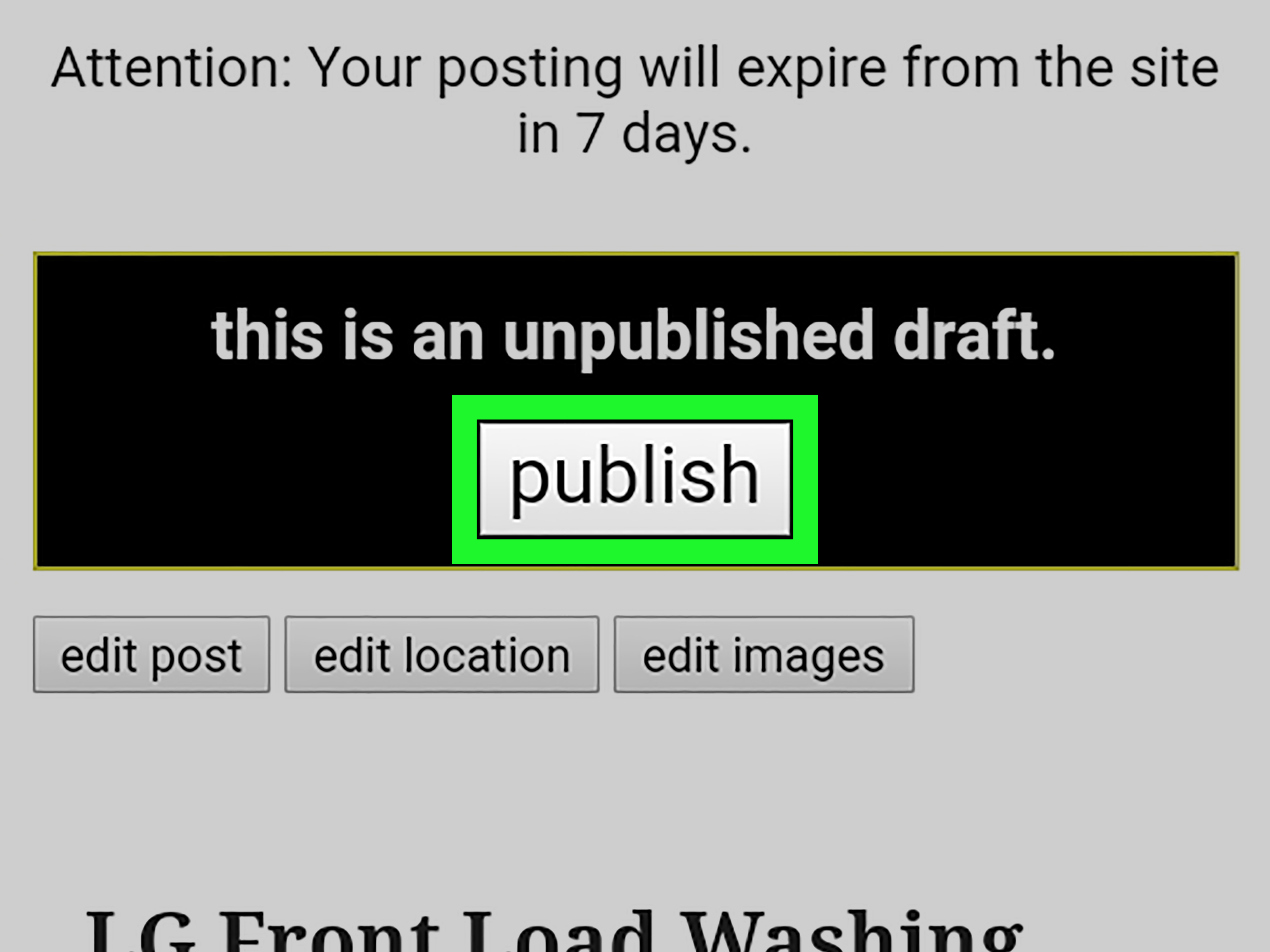
Step 12: Preview and Publish Your Craigslist Post
Before you publish, preview the entire post. Check the title, price, location, description, contact settings, and photos. Make sure the listing is in the right category and city. Look for typos that could confuse buyers. “Queen bed frame” and “queen bread frame” are very different listings, although the second one sounds delicious.
When everything looks right, submit or publish the post. Craigslist may ask you to confirm by email or complete another verification step. Follow the prompts. Once the listing is live, view it as a buyer would. If the photos look too dark, sideways, duplicated, or unhelpful, edit the post and improve them.
Best Photo Tips for Craigslist Listings on Android
Use Natural Light Whenever Possible
Natural light makes almost everything look better. Place the item near a window during the day or take it outside in open shade. Avoid direct sunlight that creates harsh shadows. If you must photograph indoors at night, turn on several lights and hold your phone steady.
Clean the Item Before Taking Pictures
A quick wipe can make a huge difference. Dusty shelves, fingerprint-covered screens, and cluttered backgrounds can make buyers wonder what else has been neglected. You do not need a professional studio. Just remove distractions and make the item easy to see.
Show the Real Condition
Do not hide damage. Photograph scratches, dents, stains, missing parts, or wear. Honest photos can actually help your listing because they reduce surprises. A buyer who already saw the scratch and still messages you is more likely to be serious.
Avoid Personal Information in Photos
Check the background before uploading. Remove mail, documents, family photos, school names, house numbers, license plates, and reflections that show private spaces. A shiny TV screen can accidentally reveal more than you planned. The internet has excellent eyesight when you least want it to.
Common Problems When Uploading Craigslist Photos on Android
The Upload Button Does Nothing
This is often a permissions issue. Go to Android Settings, open Apps, choose Craigslist or your browser, and check permissions for photos, videos, or files. Allow access, then try again. You can also close and reopen the app or browser.
Your Photos Do Not Appear in the Picker
If your photos are stored in the cloud, they may not be available as local files. Open Google Photos or your gallery app and download the images to your device. You can also move the pictures to a folder such as Downloads or Pictures so the Android file picker can find them more easily.
The Image Upload Is Too Slow
Use Wi-Fi when possible. Large image files can take longer on mobile data. Cropping unnecessary background, retaking the photo at a lower resolution, or using your phone’s built-in editing tools can make files easier to upload.
The Photos Look Rotated or Cropped Oddly
Open the image in your gallery app, rotate it correctly, save it, and upload again. For best results, take horizontal photos for wide items such as sofas, cars, desks, and rooms. Use vertical photos for tall items such as bookshelves, lamps, mirrors, and doors.
Safety Tips When Posting Pictures on Craigslist
Photos help sell your item, but they should not reveal too much. Avoid showing your exact address, personal documents, private messages, children, financial information, or valuable items unrelated to the listing. If you are selling a car, consider covering the license plate in the photo. If you are listing electronics, do not show serial numbers clearly unless there is a specific reason to do so.
When buyers contact you, keep communication focused on the item. Be cautious with anyone who wants verification codes, unusual payment arrangements, shipping complications, or overpayment by check. For local sales, many sellers prefer meeting in a public place during daylight. If the item is large and pickup at home is necessary, consider having another person present and moving the item near the entrance or garage so buyers do not need to walk through your private space.
Example: Posting a Used Android Phone With Pictures
Imagine you are selling a used Android phone. A strong Craigslist listing might include a front photo with the screen on, a back photo, side photos showing buttons and ports, a close-up of any scratches, a picture of the charger and box if included, and a screenshot of storage capacity with personal information removed. Your title could be “Google Pixel 7, 128GB, Unlocked, Good Condition.” Your description could mention battery performance, carrier compatibility, accessories, and pickup area.
This kind of listing works because it answers buyer questions before they ask. It shows the phone, proves it powers on, explains what is included, and sets expectations. Clear photos plus a clear description make you look organized, which is rare enough online to feel like a superpower.
Example: Posting Furniture With Pictures
For furniture, show the whole item first. Then include close-ups of fabric, wood grain, corners, legs, drawers, hinges, and any damage. Add measurements in the description, but you can also include a photo with a tape measure if size matters. Buyers shopping for furniture care about fit. A couch that is “normal size” means nothing when someone has a narrow stairwell and a roommate who refuses to help lift anything heavier than a burrito.
Use a clean background and remove clutter. If the item is heavy, mention whether the buyer must carry it, whether there is elevator access, and whether you can help load. Photos bring attention; details close the deal.
Experience Section: What Real Posting on Android Teaches You
After posting several Craigslist listings from an Android phone, one lesson becomes obvious: the photos do most of the talking. A short description with excellent pictures often performs better than a long description with dim, confusing images. Buyers usually want fast answers. What is it? What condition is it in? How big is it? Is the seller being honest? Good photos answer all four before the first message arrives.
One common experience is discovering that the first photo matters more than expected. When scrolling on a phone, buyers may only see a small thumbnail. If that thumbnail is dark, sideways, or too close, they skip it. A bright main photo can make even an ordinary item look worth considering. For example, a basic wooden bookshelf photographed against a clean wall will attract more attention than the same bookshelf photographed in a crowded corner with laundry making a surprise guest appearance.
Another practical lesson is to upload photos in the same order a buyer would inspect the item in person. Start wide, then move closer. If you are selling a bicycle, show the full bike first, then the tires, chain, brakes, seat, handlebars, and any flaws. If you are selling a dining set, show the full table and chairs, then the tabletop, legs, chair seats, and scratches. This creates a visual story and makes the listing easier to trust.
Android permissions can also surprise people. You tap “add images,” and suddenly the phone asks whether the app can access photos. Some users panic and think something is broken. Usually, nothing is wrong. Android is simply asking what level of access you want to allow. Choosing selected photos is often the best balance between privacy and convenience. If uploads fail later, checking app permissions should be one of the first troubleshooting steps.
Cloud storage is another tiny trap. Many Android users rely on Google Photos, but not every photo shown in the Photos app is stored locally on the device. When Craigslist opens the file picker, a cloud-only image may not appear where you expect. Downloading the image to the phone first can solve the problem. It is a small step, but it saves a lot of tapping, sighing, and questioning your life choices.
Good Craigslist photos also reduce low-quality messages. When a listing has only one blurry picture, buyers ask basic questions: “What color is it?” “Any damage?” “Can you send more pics?” “How big?” When the listing already includes clear photos, close-ups, and measurements, the messages tend to be more serious. You may still get the classic “Is this available?” message, because apparently that phrase is carved into the foundation of the internet, but you will spend less time explaining the obvious.
Finally, honest photos make meetups smoother. If a buyer has already seen the scratch, dent, missing knob, or worn corner, there is less awkward negotiation later. Transparency builds confidence. You may not get the highest possible price for every item, but you are more likely to get a fair sale without drama. On Craigslist, that is a win. A clear photo, a clean description, and a little common sense can turn an old item sitting in your room into cash, space, and the satisfying feeling of finally getting rid of something you have been “meaning to sell” since last summer.
Conclusion
Posting pictures on Craigslist from an Android phone is straightforward once you understand the flow: prepare good photos, create a post, choose the correct category, tap the image upload button, allow photo permissions, select your images, review the thumbnails, and publish. The best listings are not complicated. They are clear, honest, and visually helpful.
Use bright photos, show multiple angles, include flaws, protect your privacy, and make the first image count. Whether you are selling furniture, electronics, tools, clothing, vehicles, or household items, strong pictures can help your post stand out and attract more serious buyers. Craigslist may be old-school, but a good photo still works like magicminus the wand, plus slightly better lighting.